> ## Documentation Index
> Fetch the complete documentation index at: https://docs.runconverge.com/llms.txt
> Use this file to discover all available pages before exploring further.

# AppLovin

> An introduction to the AppLovin marketing source

export const OutboundLink = ({linkText, linkTarget}) => {
  return <a target="_blank" href={linkTarget}> {linkText} 
    <div className="inline h-3 w-3 fill-gray-500 dark:fill-gray-100 text-gray-500 dark:text-gray-300 ml-1 mr-1">
      <svg className="inline w-2.5 h-2.5 bg-gray-500 dark:bg-gray-300" style={{
    maskImage: `url('https://mintlify.b-cdn.net/v6.5.1/solid/up-right-from-square.svg')`,
    maskRepeat: "no-repeat",
    maskPosition: "center center"
  }}></svg> 
    </div>
    </a>;
};

export const IconText = ({name, text, iconSource = "mintlify", iconLocation = "before", iconType = "solid"}) => {
  const sourceUrl = iconSource === 'local' ? `url('/images/icons/${name}.svg')` : `url('https://mintlify.b-cdn.net/v6.5.1/${iconType}/${name}.svg')`;
  return <>
            <div className="inline-block pl-2">
                {iconLocation === 'before' && <div className="h-3.5 w-3.5 fill-gray-800 dark:fill-gray-100 text-gray-800 dark:text-gray-100 inline-block align-middle mr-2">
                        <svg className="w-4 h-4 bg-gray-800 dark:bg-gray-100 " style={{
    maskImage: sourceUrl,
    maskRepeat: "no-repeat",
    maskPosition: "center center"
  }} />
                    </div>}
                <span className="inline-block align-middle font-semibold fill-gray-800 dark:fill-gray-100 text-gray-800 dark:text-gray-100 pl-1 pr-2">{text}</span>
                {iconLocation === 'after' && <div className="h-3.5 w-3.5 fill-gray-800 dark:fill-gray-100 text-gray-800 dark:text-gray-100 inline-block align-middle mr-2">
                        <svg className="w-4 h-4 bg-gray-800 dark:bg-gray-100 pr-3" style={{
    maskImage: sourceUrl,
    maskRepeat: "no-repeat",
    maskPosition: "center center"
  }} />
                    </div>}
            </div>
        </>;
};

export const Icon = ({name}) => {
  return <div className="h-4 w-4 fill-gray-800 dark:fill-gray-100 text-gray-800 dark:text-gray-100 inline-block align-middle">
            <svg className="w-4 h-4 bg-gray-800 dark:bg-gray-100" style={{
    maskImage: `url('https://mintlify.b-cdn.net/v6.5.1/solid/${name}.svg')`,
    maskRepeat: "no-repeat",
    maskPosition: "center center"
  }} />
        </div>;
};

<Note> The AppLovin marketing source allows you to see platform-specific metrics (e.g. Ad Spend) in Converge.
To send data from Converge to AppLovin, check out the [AppLovin Destination](/destinations/integrations/applovin) instead.</Note>

## Set up the Marketing source

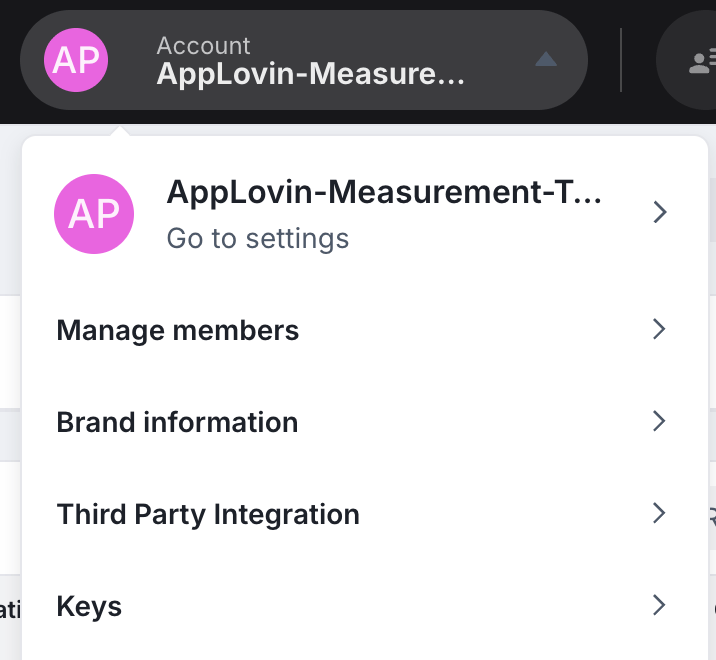
1. Navigate to your <OutboundLink linkText="AppLovin dashboard" linkTarget="https://ads.axon.ai/account/api-keys" /> and choose **Account > Keys**.

2. Copy your **Report Key**.

<Frame>
  <img src="https://mintcdn.com/converge/Frszj8PHc51VFn0O/images/ad-platforms/applovin/applovin_report_key.png?fit=max&auto=format&n=Frszj8PHc51VFn0O&q=85&s=21a08d48d5204df37256954607845dd5" alt="AppLovin Report Key" width="716" height="660" data-path="images/ad-platforms/applovin/applovin_report_key.png" />
</Frame>

3. In the Converge dashboard, navigate to the [Marketing Sources Tab](https://app.runconverge.com/-/ad-platforms).

4. Click on **Connect a new ad platform** and then choose **AppLovin**.

5. Name your ad platform sync: e.g. `AppLovin Ad Account`.

6. Fill in the **Report Key** you copied from **AppLovin** in *Step 2*.

7. After pressing **Create** your AppLovin metrics will stream into Converge.

***

## Converge functionality

This integration supports the following Converge marketing source functionality.

| Converge Feature                                                                                                                                                                                             | Supported             |
| ------------------------------------------------------------------------------------------------------------------------------------------------------------------------------------------------------------ | --------------------- |
| Sync Frequency                                                                                                                                                                                               | Every hour            |
| <Tooltip tip="Whether spend is available on a per-hour basis. When unsupported, Converge pulls in the daily spend and uniformly distributes it over the hours of the day.">Hourly Spend Breakdowns</Tooltip> | <Icon name="check" /> |
| Custom Conversions                                                                                                                                                                                           | <Icon name="xmark" /> |

***

## Set up your Converge Tracking Parameters

1. Navigate to the AppLovin Ad Manager.

2. Open your campaign and go to the Objective section.

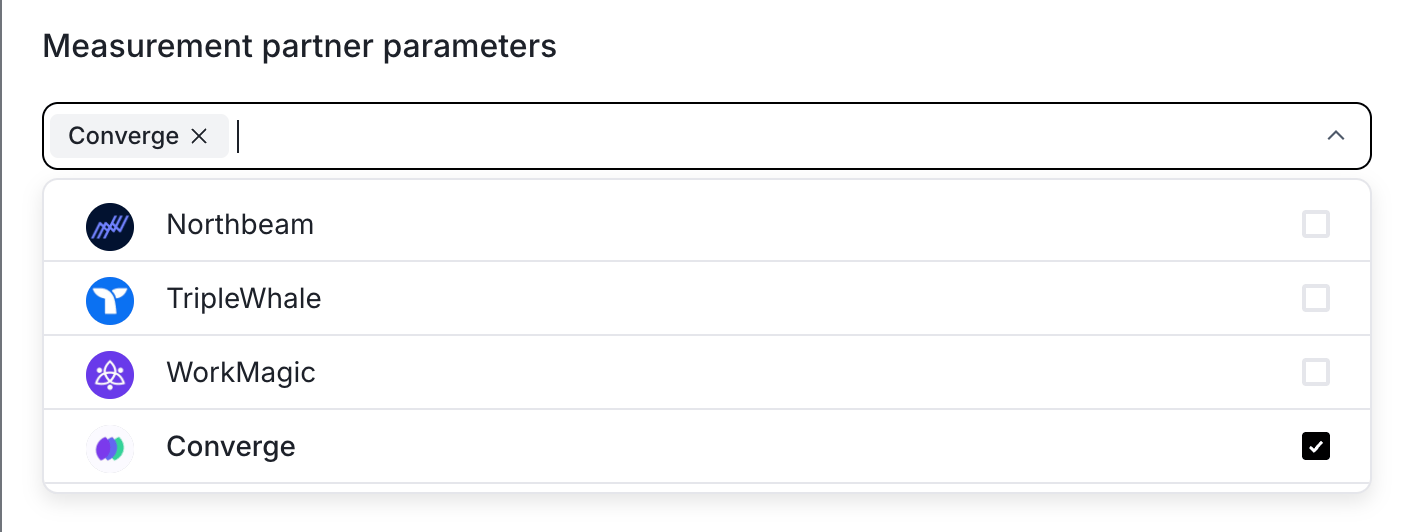
3. Edit the tracking template and select Converge under **Measurement partner parameters**.

<Frame>
  <img src="https://mintcdn.com/converge/Frszj8PHc51VFn0O/images/ad-platforms/applovin/applovin_tracking_parameters.png?fit=max&auto=format&n=Frszj8PHc51VFn0O&q=85&s=26c3a3e8929c30382720d74c36340a78" alt="AppLovin Tracking Parameters" width="1410" height="532" data-path="images/ad-platforms/applovin/applovin_tracking_parameters.png" />
</Frame>

***

## Supported metrics

We support a variety of metrics to help you analyze your ad performance on AppLovin. Click on each category to expand and see the specific metrics available.

<AccordionGroup>
  <Accordion icon="chart-column" title="Overview Report">
    The Attribution Overview Report provides a high-level snapshot of your ad performance, including efficiency and engagement metrics.

    | Metric          | Description                                                                    |
    | --------------- | ------------------------------------------------------------------------------ |
    | **Ad Spend**    | The total amount of money spent on your ads.                                   |
    | **ROAS**        | The attributed revenue generated for every unit of currency spent on ads.      |
    | **CTR**         | The average percentage of people who clicked on your ads after seeing them.    |
    | **CPA**         | The average cost associated with actions from your ads.                        |
    | **CPC**         | The average cost per click on your ads.                                        |
    | **CPM**         | The average cost per thousand impressions of your ads.                         |
    | **Conversions** | The number of AppLovin-attributed purchases that happened because of your ads. |
    | **Clicks**      | The total number of clicks on your ads.                                        |
    | **Impressions** | The number of times your ads were on-screen.                                   |
  </Accordion>

  <Accordion icon="network-wired" title="Channels Report">
    The Channels Report tab provides a detailed comparison of performance metrics across advertising channels, campaigns, ad sets, and ads, helping you understand the most effective elements.

    | Metric        | Description                                                              |
    | ------------- | ------------------------------------------------------------------------ |
    | **Purchases** | The total number of purchases as attributed by AppLovin to AppLovin ads. |
    | **Revenue**   | The total revenue generated as attributed by AppLovin to AppLovin ads.   |
    | **ROAS**      | The return on ad spend as attributed by AppLovin to AppLovin ads.        |
    | **CPA**       | The cost of acquiring a conversion as attributed by AppLovin.            |
    | **Ad Spend**  | The total expenditure on AppLovin Advertising.                           |
  </Accordion>
</AccordionGroup>
