> ## Documentation Index
> Fetch the complete documentation index at: https://docs.runconverge.com/llms.txt
> Use this file to discover all available pages before exploring further.

# Microsoft Ads (Bing Ads)

> An introduction to the Microsoft Ads marketing source

export const OutboundLink = ({linkText, linkTarget}) => {
  return <a target="_blank" href={linkTarget}> {linkText} 
    <div className="inline h-3 w-3 fill-gray-500 dark:fill-gray-100 text-gray-500 dark:text-gray-300 ml-1 mr-1">
      <svg className="inline w-2.5 h-2.5 bg-gray-500 dark:bg-gray-300" style={{
    maskImage: `url('https://mintlify.b-cdn.net/v6.5.1/solid/up-right-from-square.svg')`,
    maskRepeat: "no-repeat",
    maskPosition: "center center"
  }}></svg> 
    </div>
    </a>;
};

export const IconText = ({name, text, iconSource = "mintlify", iconLocation = "before", iconType = "solid"}) => {
  const sourceUrl = iconSource === 'local' ? `url('/images/icons/${name}.svg')` : `url('https://mintlify.b-cdn.net/v6.5.1/${iconType}/${name}.svg')`;
  return <>
            <div className="inline-block pl-2">
                {iconLocation === 'before' && <div className="h-3.5 w-3.5 fill-gray-800 dark:fill-gray-100 text-gray-800 dark:text-gray-100 inline-block align-middle mr-2">
                        <svg className="w-4 h-4 bg-gray-800 dark:bg-gray-100 " style={{
    maskImage: sourceUrl,
    maskRepeat: "no-repeat",
    maskPosition: "center center"
  }} />
                    </div>}
                <span className="inline-block align-middle font-semibold fill-gray-800 dark:fill-gray-100 text-gray-800 dark:text-gray-100 pl-1 pr-2">{text}</span>
                {iconLocation === 'after' && <div className="h-3.5 w-3.5 fill-gray-800 dark:fill-gray-100 text-gray-800 dark:text-gray-100 inline-block align-middle mr-2">
                        <svg className="w-4 h-4 bg-gray-800 dark:bg-gray-100 pr-3" style={{
    maskImage: sourceUrl,
    maskRepeat: "no-repeat",
    maskPosition: "center center"
  }} />
                    </div>}
            </div>
        </>;
};

export const Icon = ({name}) => {
  return <div className="h-4 w-4 fill-gray-800 dark:fill-gray-100 text-gray-800 dark:text-gray-100 inline-block align-middle">
            <svg className="w-4 h-4 bg-gray-800 dark:bg-gray-100" style={{
    maskImage: `url('https://mintlify.b-cdn.net/v6.5.1/solid/${name}.svg')`,
    maskRepeat: "no-repeat",
    maskPosition: "center center"
  }} />
        </div>;
};

<Note> The Microsoft Ads marketing source allows you to see platform-specific metrics (e.g. Ad Spend) in Converge.
To send data from Converge to Microsoft Ads, check out the [Microsoft Ads Destination](/destinations/integrations/bing) instead.</Note>

## Set up the Marketing source

1. Navigate to the [Marketing Sources Tab](https://app.runconverge.com/-/ad-platforms) in your Converge dashboard.

2. Click on **Connect a new ad platform** and then choose **Microsoft Ads (Bing Ads)**.

3. Name your ad platform sync: e.g. `Microsoft Ads | {Ad Account ID}` and then press **Sign in with Microsoft**. Go through the installation.

4. Once the Microsoft Ads account has been linked, you can **select your Microsoft Ads account**.

5. Once a Microsoft Ads account is selected, you can **select your conversion events**.

<Info>
  The selected conversion events will be used by Converge to sync the **Purchase**, **Revenue**, and related fields in the attribution dashboards.
  If *multiple events* are selected, the respective values will be summed up.
  If *no events* are selected, all conversion events will be used.
</Info>

<Info>
  The list of conversion events map to the **Conversion goals** defined in Microsoft Ads.
</Info>

<Info>
  Converge will also sync all individual conversion events into separate columns automatically.
</Info>

6. After pressing **Create** your Microsoft Ads metrics will stream into Converge.

<Info>
  If you encounter the `AADSTS650052` error, your Microsoft Ads account has insufficient permissions to provide access to Converge. You can find more information in Microsoft Ads' documentation [here](https://learn.microsoft.com/en-us/advertising/guides/handle-service-errors-exceptions?view=bingads-13#aadsts650052).

  There are two conditions for you to be able to authenticate:

  1. Your account requires **Allow user consent for apps** access (see "Configure User Consent Settings" [here](https://learn.microsoft.com/en-us/entra/identity/enterprise-apps/configure-user-consent?pivots=portal)).
  2. You need a **Business account**, not a personal one. Personal accounts let you access the Microsoft Ads portal yourself, but don't allow you to authenticate to a 3rd party like Converge. You can verify your account type under **Settings > My Settings > Signed In With** in the Microsoft Ads portal.
</Info>

***

## Converge functionality

This integration supports the following Converge marketing source functionality.

| Converge Feature                                                                                                                                                                                             | Supported             |
| ------------------------------------------------------------------------------------------------------------------------------------------------------------------------------------------------------------ | --------------------- |
| Sync Frequency                                                                                                                                                                                               | Every hour            |
| <Tooltip tip="Whether spend is available on a per-hour basis. When unsupported, Converge pulls in the daily spend and uniformly distributes it over the hours of the day.">Hourly Spend Breakdowns</Tooltip> | <Icon name="check" /> |
| Custom Conversions                                                                                                                                                                                           | <Icon name="check" /> |

***

## Set up your Converge Tracking Parameters

1. Navigate to your <OutboundLink linkText="Microsoft Ads Manager" linkTarget="https://ui.ads.microsoft.com/" />

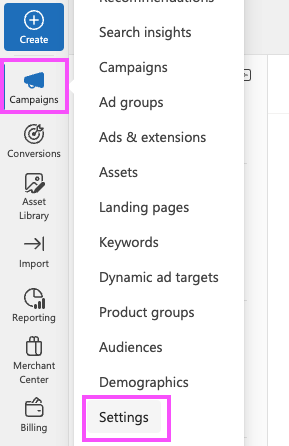
2. Navigate to <IconText name="bullhorn" text="Campaigns" /> > **Settings** in the side-bar.
   <Frame>
     <img src="https://mintcdn.com/converge/jqdxrbHdidXe9kgB/images/ad-platforms/bing/bing-0.png?fit=max&auto=format&n=jqdxrbHdidXe9kgB&q=85&s=f637d9357e9385d539b4f9c351eb1dcd" alt="Bing" width="289" height="446" data-path="images/ad-platforms/bing/bing-0.png" />
   </Frame>

3. Choose **Account level options** from the top bar.

4. Under **Tracking template**, copy and paste the following tracking template.
   ```
   {lpurl}?utm_source=bing&utm_medium=paid&utm_campaign={Campaign}&utm_content={AdId}&cvg_source=bing&cvg_adid={AdId}&cvg_cid={CampaignId}
   ```

   <Frame>
     <img src="https://mintcdn.com/converge/jqdxrbHdidXe9kgB/images/ad-platforms/bing/bing-1.png?fit=max&auto=format&n=jqdxrbHdidXe9kgB&q=85&s=8bf44a84dc89a3db7584e11a0b413ef1" alt="Bing URL Params" width="761" height="114" data-path="images/ad-platforms/bing/bing-1.png" />
   </Frame>

5. Scroll down and click on **Save**.

***

## Supported metrics

We support a variety of metrics to help you analyze your ad performance on Microsoft Ads. Click on each category to expand and see the specific metrics available.

<AccordionGroup>
  <Accordion icon="chart-column" title="Overview Report">
    The Attribution Overview Report provides a high-level snapshot of your ad performance, including efficiency and engagement metrics.

    | Metric          | Description                                                                               |
    | --------------- | ----------------------------------------------------------------------------------------- |
    | **Ad Spend**    | The total amount of money spent on your Microsoft Ads.                                    |
    | **ROAS**        | The attributed revenue generated for every unit of currency spent on Microsoft Ads.       |
    | **CTR**         | The average percentage of people who clicked on your Microsoft ad after seeing it.        |
    | **CPA**         | The average cost associated with actions from your Microsoft Ads.                         |
    | **CPC**         | The average cost per click on your Microsoft Ads.                                         |
    | **CPM**         | The average cost per thousand impressions of your Microsoft Ads.                          |
    | **Conversions** | The number of Microsoft-attributed purchases that happened because of your Microsoft Ads. |
    | **Clicks**      | The total number of clicks on your Microsoft Ads.                                         |
    | **Impressions** | The number of times your Microsoft Ads were on-screen.                                    |
  </Accordion>

  <Accordion icon="network-wired" title="Channels Report">
    The Channels Report tab provides a detailed comparison of performance metrics across advertising channels, campaigns, ad sets, and ads, helping you understand the most effective elements.

    | Metric        | Description                                                                |
    | ------------- | -------------------------------------------------------------------------- |
    | **Purchases** | The total number of purchases as attributed by Microsoft to Microsoft Ads. |
    | **Revenue**   | The total revenue generated as attributed by Microsoft to Microsoft Ads.   |
    | **ROAS**      | The return on ad spend as attributed by Microsoft to Microsoft Ads.        |
    | **CPA**       | The cost of acquiring a conversion as attributed by Microsoft.             |
    | **Ad Spend**  | The total expenditure on Microsoft Advertising.                            |
  </Accordion>
</AccordionGroup>
