> ## Documentation Index
> Fetch the complete documentation index at: https://docs.runconverge.com/llms.txt
> Use this file to discover all available pages before exploring further.
# TikTok Ads
> An introduction to the TikTok Ads marketing source
export const Icon = ({name}) => {
return
;
};
The TikTok marketing source allows you to see platform-specific metrics (e.g. Ad Spend) in Converge.
To send data from Converge to TikTok, check out the [TikTok Ads Destination](/destinations/integrations/tiktok) instead.
## Set up the Marketing source
1. Navigate to the [Marketing Sources Tab](https://app.runconverge.com/-/ad-platforms) in your Converge dashboard.
2. Click on **Connect a new ad platform** and name your ad platform sync: e.g `TikTok Ads | {TikTok Ads Account ID}`.
3. Select **TikTok** from the drop-down list and sign in with your TikTok Account.
4. Once the TikTok account has been linked, you can **select your TikTok Ads Account**.
5. After pressing **Create** your TikTok Ads metrics will stream into Converge.
***
## Converge functionality
This integration supports the following Converge marketing source functionality.
| Converge Feature | Supported |
| ------------------------------------------------------------------------------------------------------------------------------------------------------------------------------------------------------------ | --------------------- |
| Sync Frequency | Every hour |
| Hourly Spend Breakdowns | |
| Custom Conversions | |
***
## Set up your Converge tracking parameters
1. Navigate to your TikTok Ads Manager.
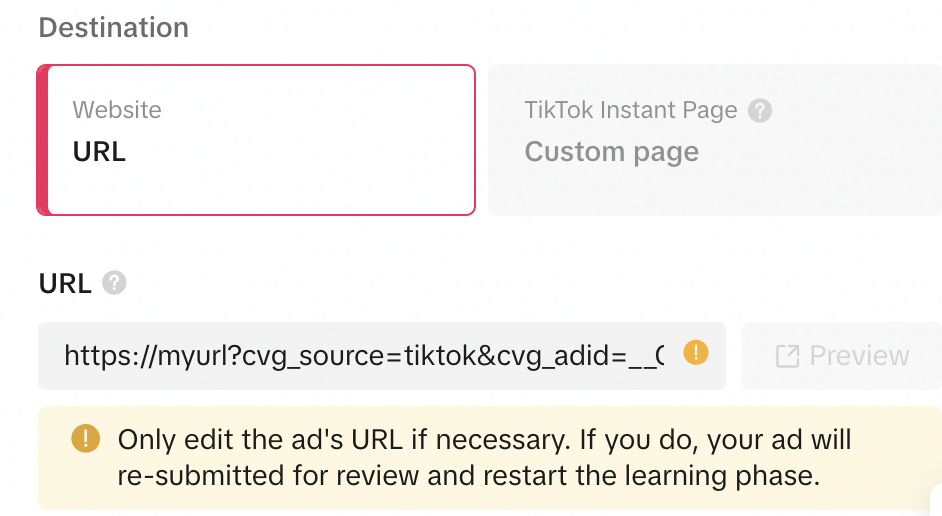
2. Navigate to the ad you'll set up tracking for: `Campaign` > `Ad` > `Select an Ad` > `Destination page` > `URL`.
3. The following snippet should be appended at the end of the URL of your ad:
```
?cvg_source=tiktok&cvg_adid=__CID__&cvg_cid=__CAMPAIGN_ID__
```
4. Repeat steps 1-3 for **every ad you run** (including new ads that you will run in the future).
***
## Supported metrics
We support a variety of metrics to help you analyze your ad performance on TikTok Ads. Click on each category to expand and see the specific metrics available.
The Attribution Overview Report provides a high-level snapshot of your ad performance, including efficiency and engagement metrics.
| Metric | Description |
| --------------- | ----------------------------------------------------------------------------------- |
| **Ad Spend** | The total amount of money spent on your TikTok ads. |
| **ROAS** | The attributed revenue generated for every unit of currency spent on TikTok ads. |
| **CTR** | The average percentage of people who clicked on your TikTok ad after seeing it. |
| **CPA** | The average cost associated with actions from your TikTok ads. |
| **CPC** | The average cost per click on your TikTok ads. |
| **CPM** | The average cost per thousand impressions of your TikTok ads. |
| **Conversions** | The number of TikTok-attributed purchases that happened because of your TikTok ads. |
| **Clicks** | The total number of clicks on your TikTok ads. |
| **Impressions** | The number of times your TikTok ads were on-screen. |
The Channels Report tab provides a detailed comparison of performance metrics across advertising channels, campaigns, ad sets, and ads, helping you understand the most effective elements.
| Metric | Description |
| ------------- | -------------------------------------------------------------------- |
| **Purchases** | The total number of purchases as attributed by TikTok to TikTok ads. |
| **Revenue** | The total revenue generated as attributed by TikTok to TikTok ads. |
| **ROAS** | The return on ad spend as attributed by TikTok to TikTok ads. |
| **CPA** | The cost of acquiring a conversion as attributed by TikTok. |
| **Ad Spend** | The total expenditure on TikTok Advertising. |
 4. Repeat steps 1-3 for **every ad you run** (including new ads that you will run in the future).
***
## Supported metrics
We support a variety of metrics to help you analyze your ad performance on TikTok Ads. Click on each category to expand and see the specific metrics available.
4. Repeat steps 1-3 for **every ad you run** (including new ads that you will run in the future).
***
## Supported metrics
We support a variety of metrics to help you analyze your ad performance on TikTok Ads. Click on each category to expand and see the specific metrics available.