> ## Documentation Index
> Fetch the complete documentation index at: https://docs.runconverge.com/llms.txt
> Use this file to discover all available pages before exploring further.

# Attribution report

> Analyze the sources of conversions on your website

export const LoomVideo = ({src}) => {
  const containerStyle = {
    position: 'relative',
    paddingBottom: '60.13363028953229%',
    height: 0
  };
  const iframeStyle = {
    position: 'absolute',
    top: 0,
    left: 0,
    width: '100%',
    height: '100%'
  };
  return <div style={containerStyle}>
      <iframe src={src} frameBorder="0" allow="fullscreen; webkitallowfullscreen; mozallowfullscreen" style={iframeStyle} title="Loom Embed"></iframe>
    </div>;
};

export const CloudinaryVideo = ({src, controls = true, autoplay = false, loop = false, muted = true, poster = null}) => {
  return <video controls={controls} autoPlay={autoplay} loop={loop} className="w-full shadow-lg" src={src} muted={muted} poster={poster} playsinline></video>;
};

export const OutboundLink = ({linkText, linkTarget}) => {
  return <a target="_blank" href={linkTarget}> {linkText} 
    <div className="inline h-3 w-3 fill-gray-500 dark:fill-gray-100 text-gray-500 dark:text-gray-300 ml-1 mr-1">
      <svg className="inline w-2.5 h-2.5 bg-gray-500 dark:bg-gray-300" style={{
    maskImage: `url('https://mintlify.b-cdn.net/v6.5.1/solid/up-right-from-square.svg')`,
    maskRepeat: "no-repeat",
    maskPosition: "center center"
  }}></svg> 
    </div>
    </a>;
};

export const InPlatformIcon = () => {
  return <div className={'w-4 inline-block'}>
        <svg fill="none" viewBox="0 0 500 500" xmlns="http://www.w3.org/2000/svg" data-state="delayed-open" aria-describedby="radix-:rr:">
            <g transform="translate(250,250)">
                <path d="M13.96960249352567,-221.59957148310687A25,25 0 0,1 43.29955832613963,-246.22174609234096A250,250 0 0,1 191.58450791705934,-160.60939052925337A25,25 0 0,1 184.9260571253534,-122.89781638171706L118.45852285269832,-84.52276757702899A25,25 0 0,1 88.29876904391527,-88.47783555969997A125,125 0 0,0 32.474668744604735,-120.7078948947756A25,25 0 0,1 13.969602493525677,-144.84947387373072Z" fill="rgb(59, 89, 152)"></path>
                <path d="M198.89565961887908,-98.70175510138972A25,25 0 0,1 234.884066243199,-85.6123555630875A250,250 0 0,1 234.8840662431989,85.61235556308762A25,25 0 0,1 198.895659618879,98.70175510138982L132.42812534622396,60.32670629670172A25,25 0 0,1 120.77343778851997,32.23005933507563A125,125 0 0,0 120.77343778852,-32.23005933507557A25,25 0 0,1 132.428125346224,-60.32670629670166Z" fill="rgb(242, 80, 34)"></path>
                <path d="M184.92605712535334,122.89781638171716A25,25 0 0,1 191.58450791705926,160.6093905292535A250,250 0 0,1 43.29955832613953,246.221746092341A25,25 0 0,1 13.969602493525578,221.5995714831069L13.969602493525613,144.84947387373074A25,25 0 0,1 32.47466874460468,120.70789489477562A125,125 0 0,0 88.29876904391523,88.47783555970001A25,25 0 0,1 118.45852285269828,84.52276757702904Z" fill="rgb(66, 133, 244)"></path>
                <path d="M-13.969602493525741,221.59957148310687A25,25 0 0,1 -43.29955832613972,246.22174609234096A250,250 0 0,1 -191.58450791705943,160.60939052925335A25,25 0 0,1 -184.92605712535345,122.89781638171704L-118.45852285269834,84.52276757702897A25,25 0 0,1 -88.2987690439153,88.47783555969995A125,125 0 0,0 -32.47466874460478,120.7078948947756A25,25 0 0,1 -13.969602493525727,144.84947387373072Z" fill="rgb(0, 0, 0)"></path>
                <path d="M-198.89565961887908,98.7017551013897A25,25 0 0,1 -234.884066243199,85.61235556308746A250,250 0 0,1 -234.88406624319884,-85.61235556308785A25,25 0 0,1 -198.89565961887894,-98.70175510139L-132.42812534622388,-60.326706296701836A25,25 0 0,1 -120.77343778851993,-32.230059335075744A125,125 0 0,0 -120.77343778852,32.230059335075545A25,25 0 0,1 -132.428125346224,60.32670629670163Z" fill="rgb(149, 191, 71)"></path>
                <path d="M-184.9260571253533,-122.89781638171729A25,25 0 0,1 -191.5845079170592,-160.6093905292536A250,250 0 0,1 -43.29955832613921,-246.2217460923411A25,25 0 0,1 -13.969602493525294,-221.59957148310696L-13.969602493525386,-144.84947387373077A25,25 0 0,1 -32.47466874460449,-120.70789489477568A125,125 0 0,0 -88.29876904391516,-88.47783555970005A25,25 0 0,1 -118.45852285269821,-84.52276757702913Z" fill="rgb(255, 69, 0)"></path>
            </g>
        </svg>
    </div>;
};

export const ConvergeIcon = () => {
  return <div className={'w-4 inline-block'}>
        <svg fill="none" viewBox="0 -18.5 237 237" xmlns="http://www.w3.org/2000/svg" data-state="closed">
            <path d="M158.026 199C85.1858 128.64 119.886 28.57 197.026 0L158.026 199Z" fill="#34D399"></path>
            <path d="M197.026 0C269.676 70.33 235.006 170.4 158.026 199L197.026 0Z" fill="#34D399"></path>
            <path d="M197.026 1L158.026 198" stroke="#34D399" stroke-width="2"></path>
            <path d="M211.085 16.362L178.726 9.89014L144.329 181.874L176.688 188.346L211.085 16.362Z" fill="#34D399"></path>
            <path d="M137.696 0.400136L98.8259 198.5C63.0259 163.44 53.3659 121.07 62.5259 83.8901C71.6859 46.7201 99.4159 14.7201 137.696 0.390137V0.400136Z" fill="#6366F1" stroke="#6366F1" stroke-width="0.5"></path>
            <path d="M138.026 0C210.678 70.33 176.006 170.4 99.0259 199L138.026 0Z" fill="#6366F1"></path>
            <path d="M138.026 1L99.0259 198" stroke="#6366F1" stroke-width="2"></path>
            <path d="M152.08 16.3625L119.721 9.89062L85.3229 181.879L117.682 188.35L152.08 16.3625Z" fill="#6366F1"></path>
            <path d="M40.0258 199C-32.8142 128.64 1.8858 28.57 79.0258 0L40.0258 199Z" fill="#7C3AED"></path>
            <path d="M79.0259 0C151.676 70.33 117.006 170.4 40.0259 199L79.0259 0Z" fill="#7C3AED"></path>
            <path d="M79.0258 1L40.0259 198" stroke="#7C3AED" stroke-width="2"></path>
            <path d="M92.0852 16.363L59.7261 9.89111L25.3291 181.875L57.6882 188.347L92.0852 16.363Z" fill="#7C3AED"></path>
            <path d="M92.0852 16.363L59.7261 9.89111L25.3291 181.875L57.6882 188.347L92.0852 16.363Z" fill="#7C3AED"></path>
            <path d="M92.0852 16.363L59.7261 9.89111L25.3291 181.875L57.6882 188.347L92.0852 16.363Z" fill="#7C3AED"></path>
        </svg>
    </div>;
};

export const Icon = ({name}) => {
  return <div className="h-4 w-4 fill-gray-800 dark:fill-gray-100 text-gray-800 dark:text-gray-100 inline-block align-middle">
            <svg className="w-4 h-4 bg-gray-800 dark:bg-gray-100" style={{
    maskImage: `url('https://mintlify.b-cdn.net/v6.5.1/solid/${name}.svg')`,
    maskRepeat: "no-repeat",
    maskPosition: "center center"
  }} />
        </div>;
};

export const IconText = ({name, text, iconSource = "mintlify", iconLocation = "before", iconType = "solid"}) => {
  const sourceUrl = iconSource === 'local' ? `url('/images/icons/${name}.svg')` : `url('https://mintlify.b-cdn.net/v6.5.1/${iconType}/${name}.svg')`;
  return <>
            <div className="inline-block pl-2">
                {iconLocation === 'before' && <div className="h-3.5 w-3.5 fill-gray-800 dark:fill-gray-100 text-gray-800 dark:text-gray-100 inline-block align-middle mr-2">
                        <svg className="w-4 h-4 bg-gray-800 dark:bg-gray-100 " style={{
    maskImage: sourceUrl,
    maskRepeat: "no-repeat",
    maskPosition: "center center"
  }} />
                    </div>}
                <span className="inline-block align-middle font-semibold fill-gray-800 dark:fill-gray-100 text-gray-800 dark:text-gray-100 pl-1 pr-2">{text}</span>
                {iconLocation === 'after' && <div className="h-3.5 w-3.5 fill-gray-800 dark:fill-gray-100 text-gray-800 dark:text-gray-100 inline-block align-middle mr-2">
                        <svg className="w-4 h-4 bg-gray-800 dark:bg-gray-100 pr-3" style={{
    maskImage: sourceUrl,
    maskRepeat: "no-repeat",
    maskPosition: "center center"
  }} />
                    </div>}
            </div>
        </>;
};

<CloudinaryVideo controls={false} autoplay={true} loop={true} src="https://res.cloudinary.com/drv76uky1/video/upload/v1730715665/ChannelsTabmp4_rqvh5a.mp4" />

<br />

## Where to find the Attribution Report

You can access the Attribution report by clicking on <IconText text="Attribution" name="attribution" iconSource="local" /> in the **Analytics** section of the main navigation. Or by navigating directly to the <OutboundLink linkText="Attribution" linkTarget="https://app.runconverge.com/-/attribution/channels" /> report.

#### Video Demo

<LoomVideo src="https://www.loom.com/embed/2268ea553aad4432a857f0fe54d27757?sid=0a08aade-6b52-4d51-b6c7-f325dad1d376" />

***

## Introduction to conversions and attribution

Converge allows you to see attributed conversions based on:

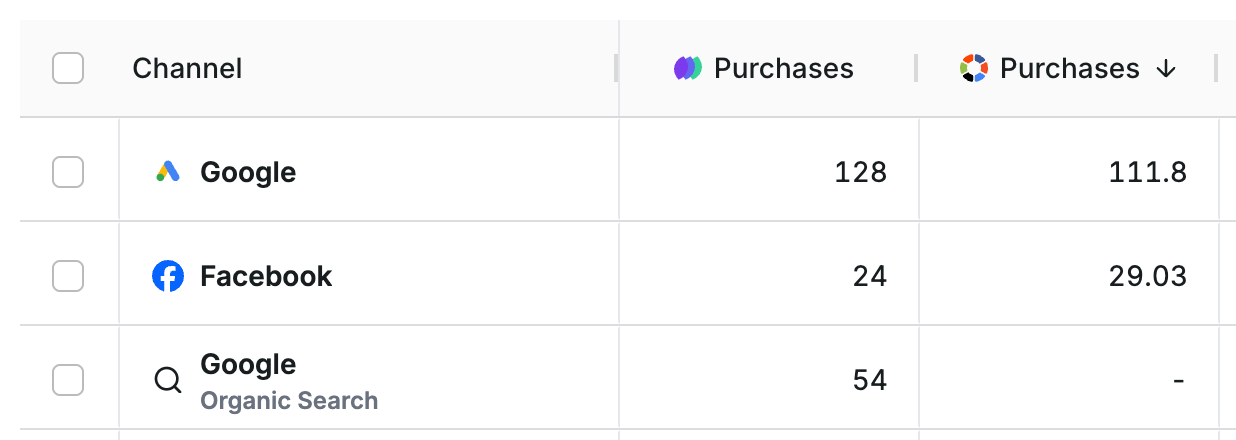
1. **First-party Attribution**: these are conversions **attributed by Converge** based on the [attribution model](#changing-the-attribution-model-of-your-first-party-conversions) you pick in Converge and your Converge tracking parameters. You can recognize them by this icon: <ConvergeIcon />.
2. **In-Platform Attribution**: these are conversions **attributed by the ad platforms themselves**. You can recognize all in-platform data by this icon: <InPlatformIcon />

<Frame>
  <img src="https://mintcdn.com/converge/jqdxrbHdidXe9kgB/images/attribution/channels-2.png?fit=max&auto=format&n=jqdxrbHdidXe9kgB&q=85&s=c46d09104dc27c18e91efdf02e278f42" alt="attribution-0" width="1236" height="440" data-path="images/attribution/channels-2.png" />
</Frame>

<br />

The screenshot above shows the purchase conversions based on **First-party Attribution** (*<ConvergeIcon /> Purchases*) and the **In-Platform Attribution** (*<InPlatformIcon /> Purchases*).

There is no notion of in-platform attribution for channel sources that are not ad platforms. An Organic channel has no built-in attribution, but the Facebook Ads Manager does.

***

## Why are my First-Party conversions and my In-Platform conversions different?

If you are using the Converge Destination product, then **the same data is powering your first-party attribution and your in-platform attribution**.
However, the attributed conversions based on first-party attribution and in-platform attribution **will likely not match** as they're based on different attribution models.

If you want to learn how to interpret these numbers and why they are different, then you should read our <OutboundLink linkText="guide on understanding attribution" linkTarget="/guides/understanding-attribution" />.

***

## Changing the attribution model of your first-party conversions

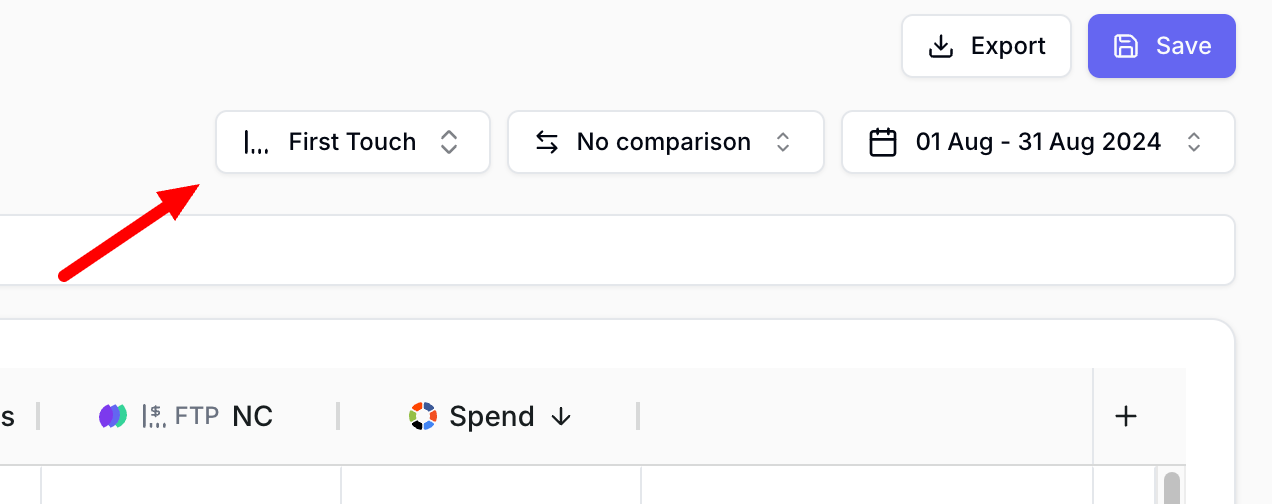
<Note>Changing the attribution model will only change the attribution model of **first-party metrics**. The In-Platform conversions and metrics are determined by the attribution model of the ad platform itself.</Note>

We allow you to change the attribution model that Converge should use to attribute its **first-party metrics** (e.g., **Purchases**).

<Frame>
  <img src="https://mintcdn.com/converge/jqdxrbHdidXe9kgB/images/attribution/channels-3.png?fit=max&auto=format&n=jqdxrbHdidXe9kgB&q=85&s=e642f30365356ace1df7133743f546ce" alt="change-attribution-model" width="1272" height="504" data-path="images/attribution/channels-3.png" />
</Frame>

<br />

<Info>See <OutboundLink linkText="Attribution Models" linkTarget="/attribution/models" /> for a detailed description of all our attribution models.</Info>

***

## Attribution Chart

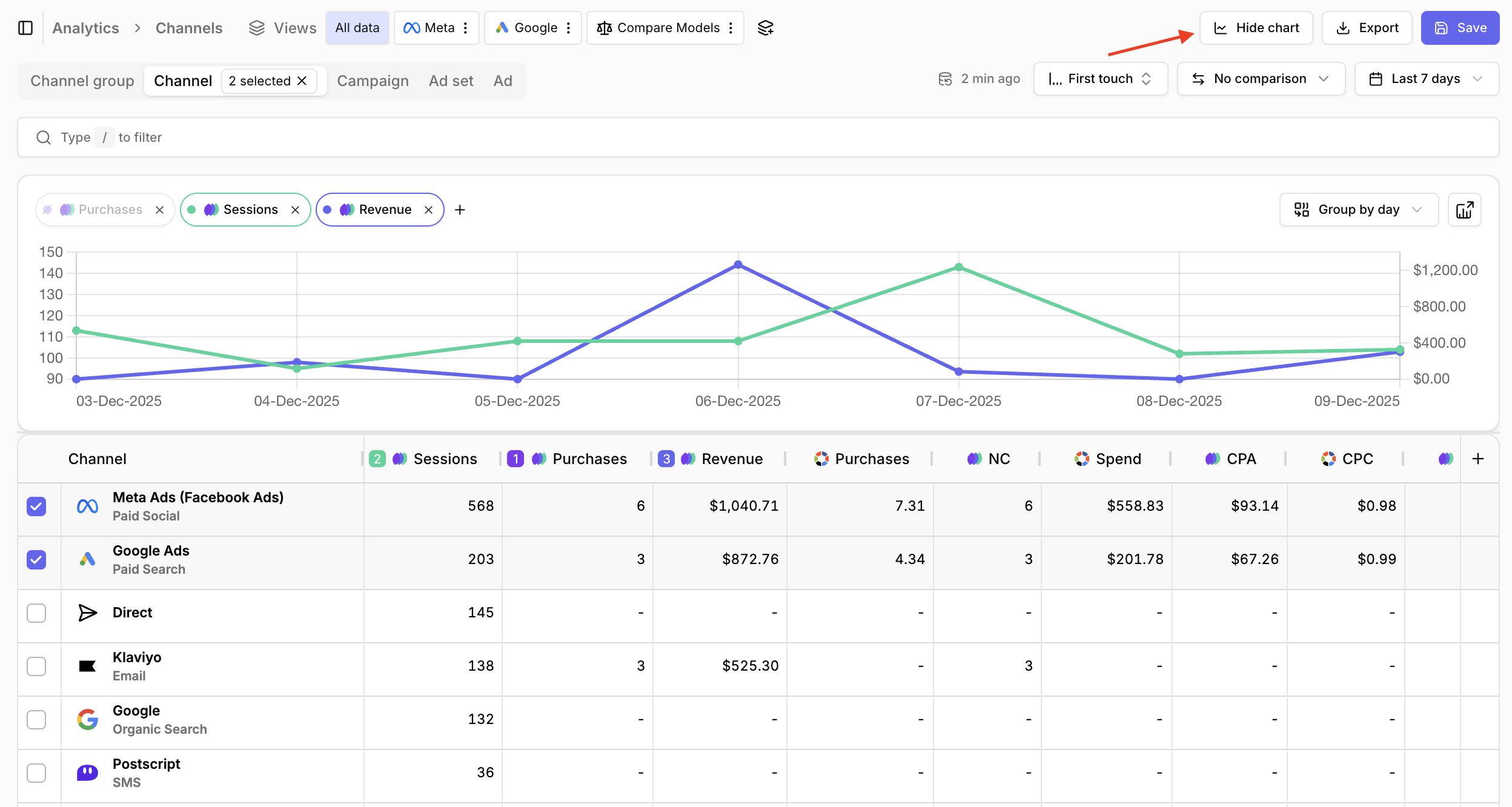
The Attribution Chart provides a visual time-series view of your attribution data, helping you understand how conversions and other metrics evolve over time.

To include time context in your attribution analysis, you can enable the **Show chart** toggle in the top right corner of the module.

<Frame>
  <img src="https://mintcdn.com/converge/QnU_PPhEjI15iyP1/images/attribution/channels-4.png?fit=max&auto=format&n=QnU_PPhEjI15iyP1&q=85&s=a498ee98ecc26aabbfec303d955b10b5" alt="attribution-chart" width="2496" height="1332" data-path="images/attribution/channels-4.png" />
</Frame>

#### Managing Chart Metrics

You can add or remove metrics from the chart in two ways:

1. **In the chart itself**: Click the <Icon name="plus" /> button in the chart header to add metrics from the available list. To remove a metric, click the <Icon name="x" /> icon on the metric toggle button. You can also toggle metric visibility on/off by clicking the metric toggle buttons directly.

2. **Through the table headers**: Each metric column header includes a checkbox that allows you to add or remove that metric from the chart. Checkboxes are only visible when the chart is enabled. For metrics not yet in the chart, the checkbox appears when you hover over the column header.

<Info>The chart will only display metrics that are present in your table.
If you want to visualize a metric in the chart, make sure it's added as a column in the table first.</Info>

Attribution chart metrics can be saved on a per-view basis.

#### Chart Data Selection

By default, when no rows are selected in the table, the chart displays all data that contributes to your current table view.
Once you start selecting specific rows using the checkboxes in the table, the chart automatically updates to show only the data for your selected items.

#### Advanced Customization

If you need more advanced chart customization options, such as different visualization types, additional filters, or the ability to save custom chart configurations, you can click the **Open in Insights** button in the top right corner of the chart header.

This link will open the chart with its current settings in the Insights module. From there, you can further customize and save your chart separately.

***

## Customizing the table columns

You can customize the table by adding, moving, or removing columns.

<Accordion title="Add custom columns" icon="circle-plus">
  1. Click on <Icon name="plus" iconType="solid" /> in the top right corner of the table.
  2. Search or select the metric you want to add.
  3. Select how you want to aggregate the metric. (optional)
  4. Click **Save**.

  <Info> Check <OutboundLink linkText="Metrics" linkTarget="/insights-dashboards/metrics" /> to see which metrics you can add.</Info>
</Accordion>

<Accordion title="Change the order of the columns" icon="sort">
  1. Drag and re-order the columns by grabbing onto the name of the column and moving it above or below other columns.
  2. Click **Save**.
</Accordion>

<Accordion title="Remove a column" icon="eye">
  1. Hover over the column name and click the <Icon name="ellipsis-vertical" />-icon next to the name.
  2. Click <IconText text="Remove" name="trash" iconSource="local" />.
  3. Click **Save**.
</Accordion>