> ## Documentation Index
> Fetch the complete documentation index at: https://docs.runconverge.com/llms.txt
> Use this file to discover all available pages before exploring further.
# Pacing Sheet
> Track your core metrics over time in a real-time table
export const OutboundLink = ({linkText, linkTarget}) => {
return {linkText}
;
};
## Where to find the Pacing Sheet
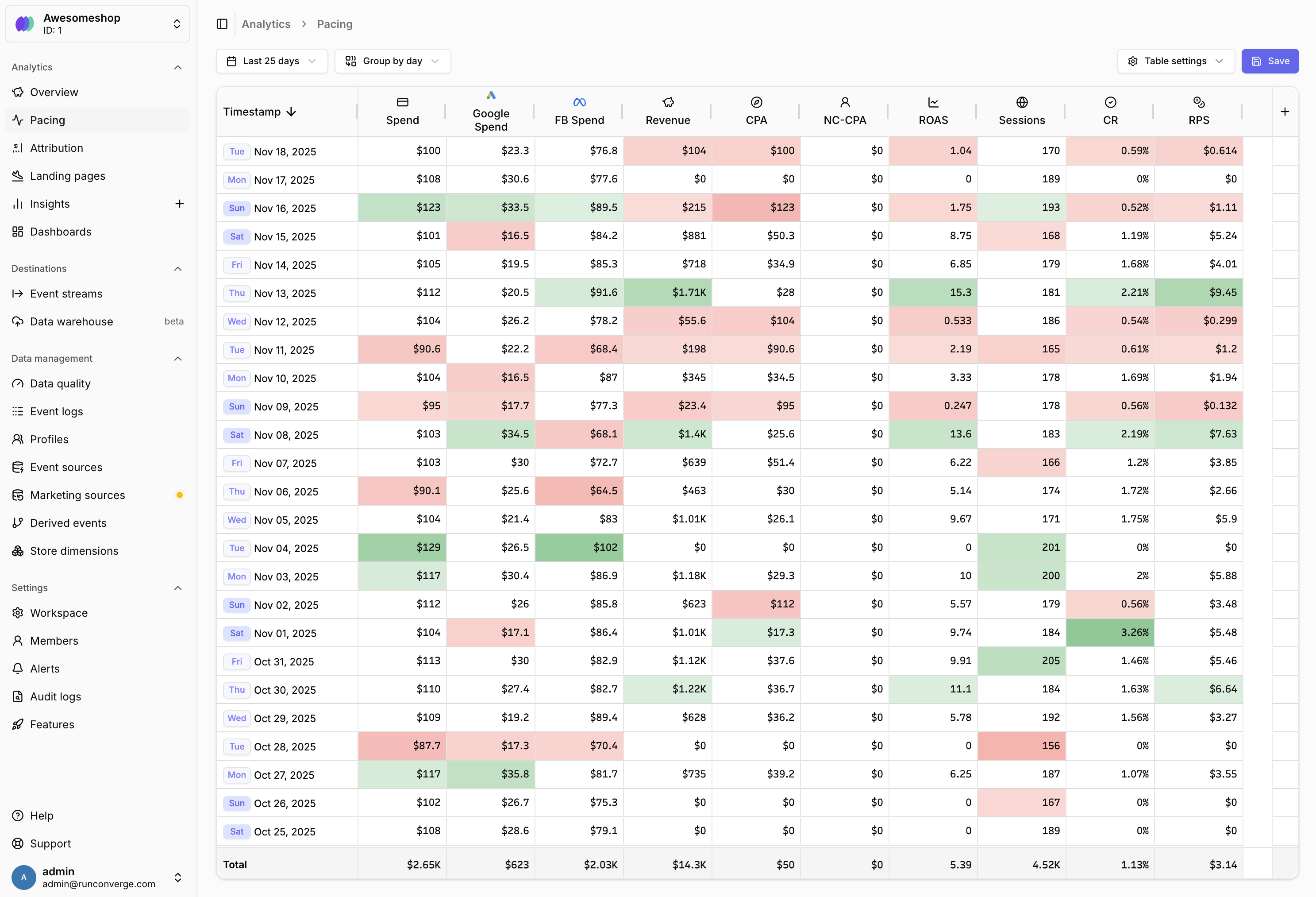
You can access the Pacing Sheet by clicking on in the **Analytics** section. Or by navigating directly to the sheet.
Check the to understand the precise definition of all of these metrics.
## Understanding the Pacing Sheet
The Pacing Sheet replaces your daily spreadsheet with up-to-date, accurate data directly from Converge. Track your marketing performance over time to spot trends and anomalies in real-time.
Your marketing data is displayed in a table format where:
* **Rows** represent time periods (day, week, month, or hour)
* **Columns** represent metrics (e.g., Ad spend, Revenue, ROAS)
* **Cells** are color-coded to highlight performance relative to the selected date range's average
* **Totals row** at the bottom shows totals or averages for each metric
Color coding helps you quickly identify:
* **Green cells**: Performance above the average
* **Red cells**: Performance below the average
* **Intensity**: Darker colors indicate larger deviations from the average
## Customizing the Pacing Sheet
You can customize the Pacing Sheet by adding metrics, adjusting the date range, changing time granularity, and configuring display options.
If you navigate away without saving, you will lose all unsaved changes to your Pacing Sheet configuration. Make sure to click the button in the top right before leaving the page.
You can add metrics from predefined categories or create custom calculations.
**Add a built-in metric**
1. Click the button in the rightmost column of the table
2. Select a metric section (e.g., Blended, Facebook, Google)
3. Choose the specific metric you want to add
4. Optionally customize the metric name and icon
5. Click **Add** to add the metric to your table
**Add a custom conversion metric**
1. Click the button in the rightmost column
2. Select a metric channel (e.g., Facebook, Google)
3. Select **Conversion metric** from the metric dropdown
4. Configure your custom calculation using event names and aggregations
5. Set a name and icon for your metric
6. Click **Add** to add the metric to your table
1. Hover over the metric column header you want to remove
2. Click the menu icon that appears
3. Select **Remove** from the dropdown menu
You can reorder metric columns by dragging and dropping them.
1. Click and hold on a metric column header
2. Drag it to the desired position
3. Release to drop the column in its new position
Color coding helps you quickly spot trends and anomalies. You can customize how colors are displayed.
1. Click in the top right
2. Choose a color coding mode:
* **Show positive and negative colors**: Highlights both high and low performance
* **Show only positive colors**: Highlights only above-average performance
* **Show only negative colors**: Highlights only below-average performance
* **Disable color formatting**: Removes all color coding
3. Changes are applied immediately
Compact notation displays large numbers in a shortened format (e.g., 1.52K instead of 1,523.23).
1. Click in the top right
2. Toggle **Use compact notation** on or off
3. Changes are applied immediately
***
## FAQ
Color coding uses statistical analysis (z-scores) to compare each cell's performance against the selected date range's average for that metric.
* Values that are significantly performing better than the average are highlighted in green
* Values that are significantly performing worse than the average are highlighted in red
* The intensity of the color indicates how far from average the value is
* Values close to the average remain uncolored
This helps you quickly spot time periods with unusual performance that might require attention.
If your Pacing Sheet is empty, check the following:
* **Date range**: Make sure your selected date range includes dates with data
* **Marketing sources**: If you're tracking ad platform metrics, verify your marketing sources are connected
* **Time granularity**: Try changing the time granularity (e.g., from day to week) to see if data appears
Full export functionality is coming soon!
View functionality (similar to attribution) is coming soon!
Full comparison functionality is coming soon!
The **Attribution Report** shows performance by channel, campaign, ad set, or ad. The **Pacing Sheet** shows performance over time, making it ideal for:
* Performance tracking over time
* Spotting trends and anomalies
* Comparing performance across different time periods
* Replacing manual spreadsheet tracking
Both reports use the same underlying data but present it in different formats for different use cases.
 ## Where to find the Pacing Sheet
You can access the Pacing Sheet by clicking on
## Where to find the Pacing Sheet
You can access the Pacing Sheet by clicking on