> ## Documentation Index
> Fetch the complete documentation index at: https://docs.runconverge.com/llms.txt
> Use this file to discover all available pages before exploring further.

# Products report

> Analyze performance metrics on a per-product basis

export const OutboundLink = ({linkText, linkTarget}) => {
  return <a target="_blank" href={linkTarget}> {linkText} 
    <div className="inline h-3 w-3 fill-gray-500 dark:fill-gray-100 text-gray-500 dark:text-gray-300 ml-1 mr-1">
      <svg className="inline w-2.5 h-2.5 bg-gray-500 dark:bg-gray-300" style={{
    maskImage: `url('https://mintlify.b-cdn.net/v6.5.1/solid/up-right-from-square.svg')`,
    maskRepeat: "no-repeat",
    maskPosition: "center center"
  }}></svg> 
    </div>
    </a>;
};

export const Icon = ({name}) => {
  return <div className="h-4 w-4 fill-gray-800 dark:fill-gray-100 text-gray-800 dark:text-gray-100 inline-block align-middle">
            <svg className="w-4 h-4 bg-gray-800 dark:bg-gray-100" style={{
    maskImage: `url('https://mintlify.b-cdn.net/v6.5.1/solid/${name}.svg')`,
    maskRepeat: "no-repeat",
    maskPosition: "center center"
  }} />
        </div>;
};

export const IconText = ({name, text, iconSource = "mintlify", iconLocation = "before", iconType = "solid"}) => {
  const sourceUrl = iconSource === 'local' ? `url('/images/icons/${name}.svg')` : `url('https://mintlify.b-cdn.net/v6.5.1/${iconType}/${name}.svg')`;
  return <>
            <div className="inline-block pl-2">
                {iconLocation === 'before' && <div className="h-3.5 w-3.5 fill-gray-800 dark:fill-gray-100 text-gray-800 dark:text-gray-100 inline-block align-middle mr-2">
                        <svg className="w-4 h-4 bg-gray-800 dark:bg-gray-100 " style={{
    maskImage: sourceUrl,
    maskRepeat: "no-repeat",
    maskPosition: "center center"
  }} />
                    </div>}
                <span className="inline-block align-middle font-semibold fill-gray-800 dark:fill-gray-100 text-gray-800 dark:text-gray-100 pl-1 pr-2">{text}</span>
                {iconLocation === 'after' && <div className="h-3.5 w-3.5 fill-gray-800 dark:fill-gray-100 text-gray-800 dark:text-gray-100 inline-block align-middle mr-2">
                        <svg className="w-4 h-4 bg-gray-800 dark:bg-gray-100 pr-3" style={{
    maskImage: sourceUrl,
    maskRepeat: "no-repeat",
    maskPosition: "center center"
  }} />
                    </div>}
            </div>
        </>;
};

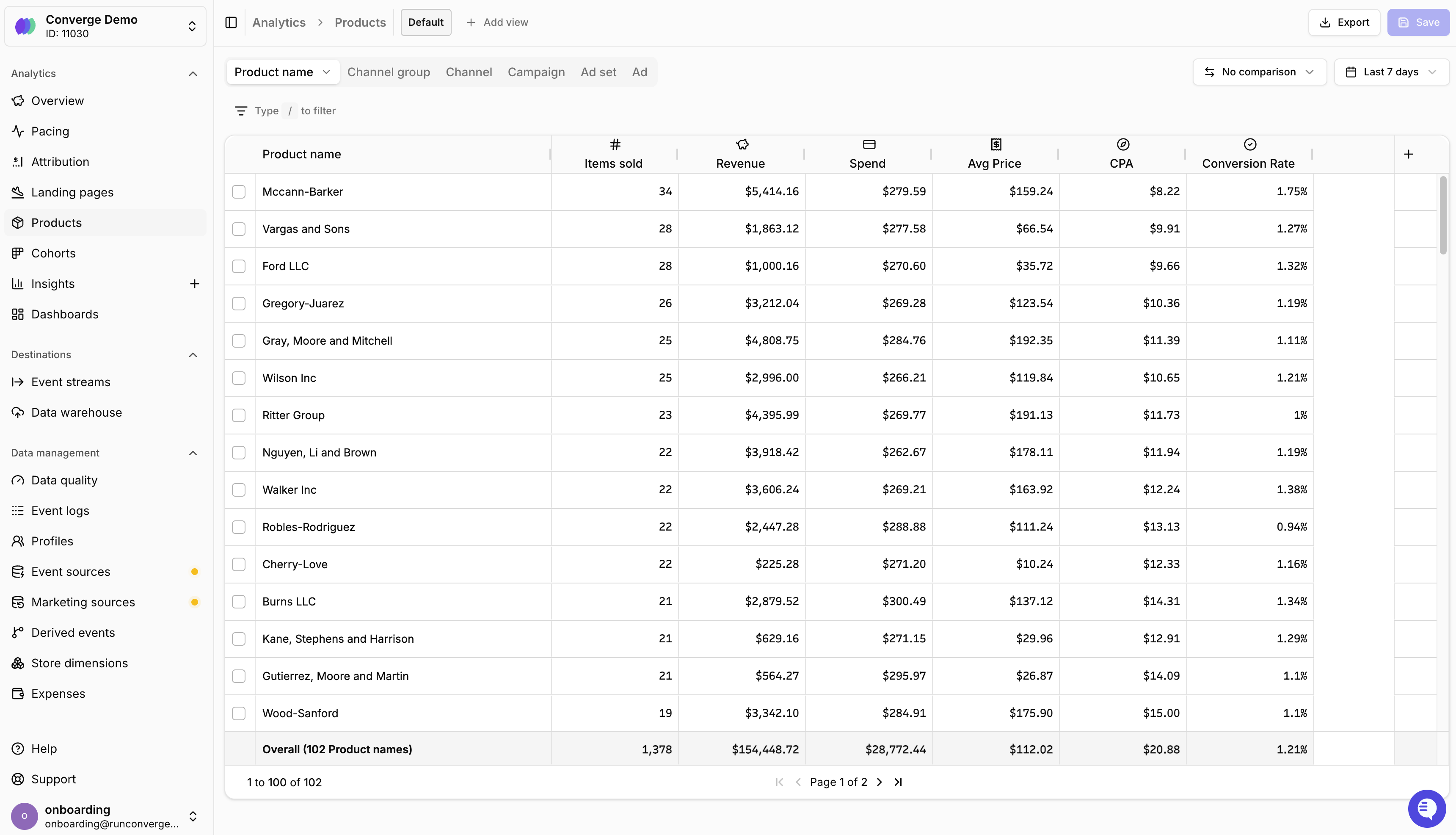
<Frame caption="Products Report">
  <img src="https://mintcdn.com/converge/XyoraSSiIlB234rP/images/getting-started/analytics/analytics-products-page.png?fit=max&auto=format&n=XyoraSSiIlB234rP&q=85&s=984fb885ec3607029901ca509e04bbea" alt="Products Report" width="3440" height="1972" data-path="images/getting-started/analytics/analytics-products-page.png" />
</Frame>

## Where to find the Products Report

You can access the Products Report by clicking on <IconText text="Products" iconSource="local" name="package" /> in the **Analytics** section, or by navigating directly to the <OutboundLink linkText="Products Report" linkTarget="https://app.runconverge.com/-/attribution/products" />.
<Info> Check the <OutboundLink linkText="Metrics Dictionary" linkTarget="https://docs.runconverge.com/attribution/metrics#product" /> to understand the precise definition of all product metrics. </Info>

## Understanding the Products Report

The Products Report gives you a per-product breakdown of your store's performance. Each row represents a product, so you can quickly see which items drive revenue, which ones get added to cart most often, and which are actually profitable after accounting for costs.

Your product data is displayed in a table format where:

* **Rows** represent individual products (by default grouped by product name)
* **Columns** represent metrics (e.g., Items sold, Revenue, Added to Cart, COGS)
* **Totals row** at the bottom shows totals or averages across all products

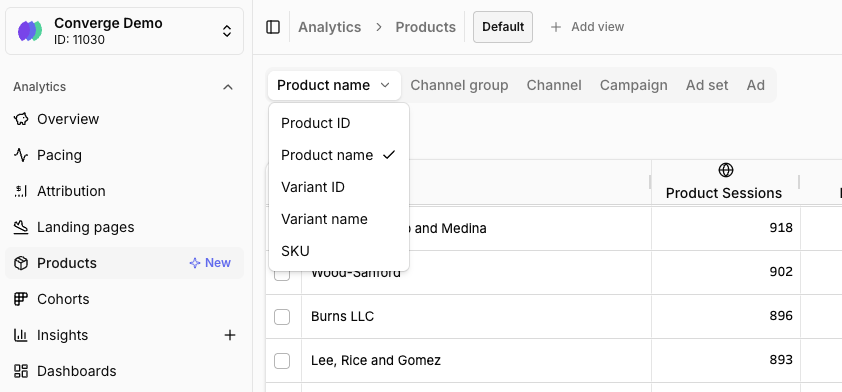
Click the dropdown on the first column header to change how rows are grouped. You can switch between **Product name** (default), **Product ID**, **Variant ID**, **Variant name**, or **SKU**.

<Frame caption="Products Breakdown ID">
  <img src="https://mintcdn.com/converge/h5COl2wwAusAPfvH/images/attribution/product-list-by-id.png?fit=max&auto=format&n=h5COl2wwAusAPfvH&q=85&s=080fb7af4e72d674ae3c0930285d6565" alt="View products by product id, product name, variant id, variant name or sku" width="842" height="392" data-path="images/attribution/product-list-by-id.png" />
</Frame>

### Key metrics

The Products Report includes metrics across several categories:

* **Sales metrics**: Items sold, Total Revenue, Net Revenue, Avg Price
* **Funnel metrics**: Product Sessions, Product Views, Added to Cart, Started Checkout, Conversion Rate
* **Cost & profitability metrics**: COGS, Gross Profit, POAS (Profit on Ad Spend)
* **Advertising metrics**: Ad spend, ROAS, ACOS, CPA

### Profitability metrics

The Products Report includes profitability columns like **COGS**, **Gross Profit**, and **POAS** (Profit on Ad Spend), giving you insight into the gross margin and profit profile of each product.
<Warning>
  Profitability metrics are only accurate if your costs are configured. See the [Expenses](/data-management/expenses) page for more information on setting up the Expenses module for profit tracking. Without cost data, Converge uses a fallback estimate which can lead to inaccurate results.
</Warning>

POAS is especially useful as an alternative to ROAS — instead of measuring revenue per dollar of ad spend, it measures **profit** per dollar of ad spend. This gives you a much clearer picture of which products are actually worth advertising.

See the [Metrics Dictionary](/attribution/metrics#product) for all available profitability metrics.

### Ad spend allocation

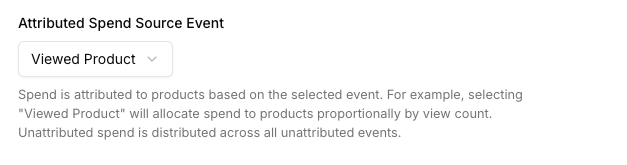
Ad spend is allocated proportionally to products based on a product event from paid sessions. By default, Converge uses "Viewed Product" events, but you can configure this to any product event (e.g., "Added to Cart" or "Started Checkout") in your [Settings](https://app.runconverge.com/-/settings).

<Frame caption="Configure the product event used for spend allocation">
  <img src="https://mintcdn.com/converge/h5COl2wwAusAPfvH/images/attribution/attributed-spend-event-setting.png?fit=max&auto=format&n=h5COl2wwAusAPfvH&q=85&s=35d4d75c17afd82096d61b5f86ae57f4" alt="Product spend allocation setting" width="627" height="165" data-path="images/attribution/attributed-spend-event-setting.png" />
</Frame>

For example, if an ad costs \$3 and leads to 2 "Viewed Product" events for Product A and 1 for Product B, then \$2 is allocated to Product A and \$1 to Product B.

All product-level ad metrics (ROAS, POAS, ACOS, CPA) are derived from this allocated spend.

## Common workflows

There are two common ways to use the Products Report with filters:

1. **Start from a product, find the best campaigns.** Filter the report to a specific product and then break down by campaign or ad. This shows you which campaigns and ads are converting best for that product — so you can double down on what's working.

2. **Start from a campaign, see which products convert.** Filter by a specific campaign or ad and see how spend is distributed across products. This helps you understand which products a campaign is actually selling and whether the product mix aligns with your goals.

## Customizing the Products Report

You can customize which metrics appear, adjust the date range, and sort by any column to find your best (or worst) performing products.

<Accordion title="Add a metric" icon="circle-plus">
  1. Click the <Icon name="plus" /> button in the rightmost column of the table
  2. Select a metric from the product metrics list
  3. The new column appears in your table immediately
</Accordion>

<Accordion title="Remove a metric" icon="trash">
  1. Hover over the metric column header you want to remove
  2. Click the <Icon name="ellipsis-vertical" /> menu icon that appears
  3. Select **Remove** from the dropdown menu
</Accordion>

<Accordion title="Re-order columns" icon="grip-vertical">
  1. Click and hold on a metric column header
  2. Drag it to the desired position
  3. Release to drop the column in its new position
</Accordion>

***

## FAQ

<Accordion title="How is ad spend allocated to products?">
  Product spend is calculated based on "Viewed Product" events from paid sessions. Converge attributes a share of ad spend to each product proportional to the product views it received from paid traffic.
</Accordion>

<Accordion title="Why are my profitability metrics missing or inaccurate?">
  Profitability metrics (COGS, Gross Profit, POAS) rely on cost data. If you haven't configured your product costs, Converge either estimates them using a fallback gross margin or can't calculate them at all.

  To fix this, go to **Data Management > [Expenses](/data-management/expenses)** and set your product costs. You can set individual costs per SKU or configure a fallback gross margin as a starting point.
</Accordion>

<Accordion title="What's the difference between ROAS and POAS?">
  * **ROAS** (Return on Ad Spend) = Revenue / Ad Spend
  * **POAS** (Profit on Ad Spend) = Gross Profit / Ad Spend

  ROAS tells you how much revenue each ad dollar generates. POAS tells you how much **profit** each ad dollar generates. A product with high ROAS but low margins might have a low POAS — meaning it's not actually profitable to advertise.
</Accordion>

<Accordion title="How is the Products Report different from the Attribution Report?">
  The **Attribution Report** shows performance by channel, campaign, ad set, or ad. The **Products Report** shows performance by individual product, making it ideal for:

  * Identifying your most (and least) profitable products
  * Understanding which products drive the most ad-attributed revenue
  * Optimizing your product catalog based on real cost and profit data
  * Spotting products with high traffic but low conversion
</Accordion>
