> ## Documentation Index
> Fetch the complete documentation index at: https://docs.runconverge.com/llms.txt
> Use this file to discover all available pages before exploring further.
# Costs & Expenses
Configure your costs in the **Costs & Expenses** module so Converge can calculate profitability metrics. Without cost data, Converge tracks revenue but can't tell you how much is actually profit. Each tab covers a different cost type, and a final **Fallback costs** tab handles any gaps.
Converge supports three cost types:
* [**Product costs (COGS)**](#product-costs-cogs): the cost of goods sold per product variant
* [**Transaction costs**](#transaction-costs): payment processing fees per order
* [**Shipping costs**](#shipping-costs): inbound fulfillment and delivery costs per order
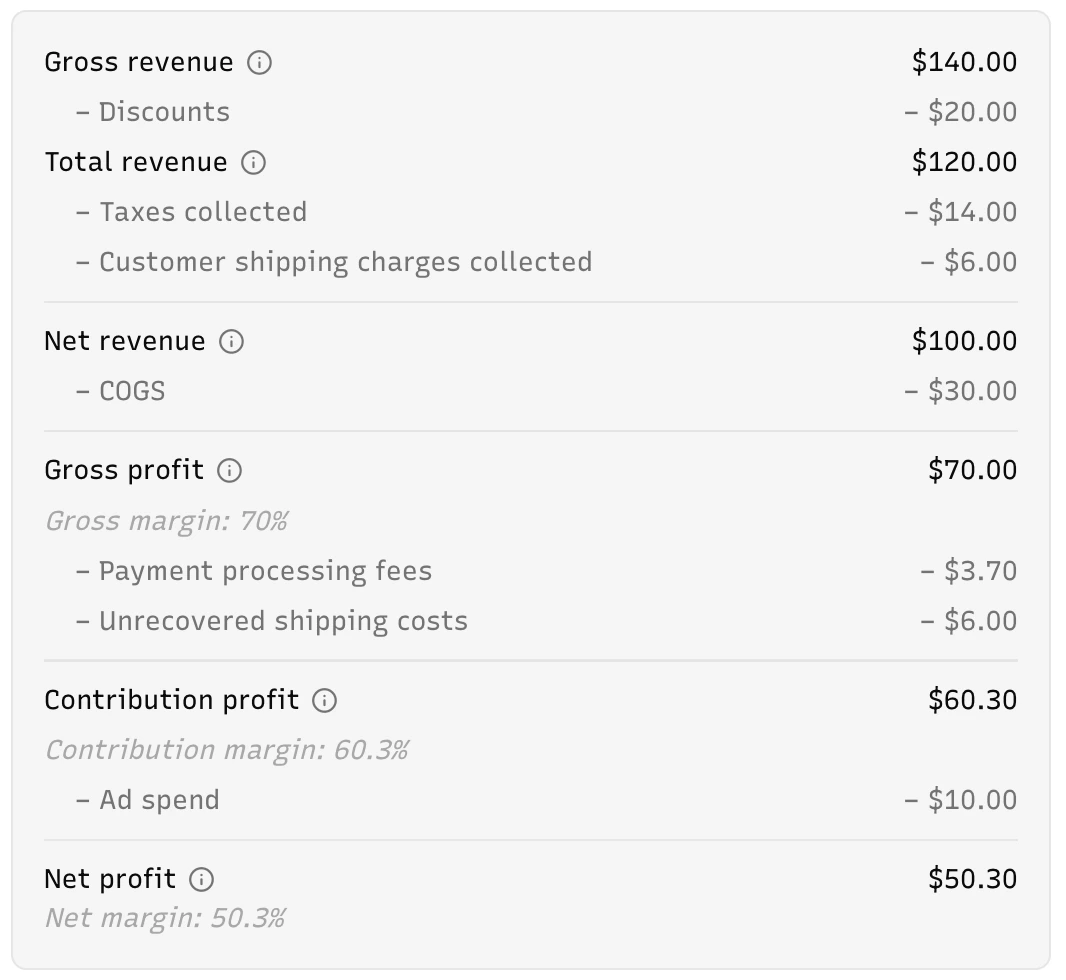
The example report below shows a step-by-step breakdown of how revenue is reduced by discounts, costs, and expenses to arrive at gross, contribution, and net profit.
 ## Product costs (COGS)
The [**Product costs**](https://app.runconverge.com/-/data-management/expenses) tab shows every product variant (with SKU) per event source, alongside its cost of goods sold (COGS) data. Use this tab to review synced unit costs (from your e-commerce platform), spot gaps, and set manual overrides.
## Product costs (COGS)
The [**Product costs**](https://app.runconverge.com/-/data-management/expenses) tab shows every product variant (with SKU) per event source, alongside its cost of goods sold (COGS) data. Use this tab to review synced unit costs (from your e-commerce platform), spot gaps, and set manual overrides.
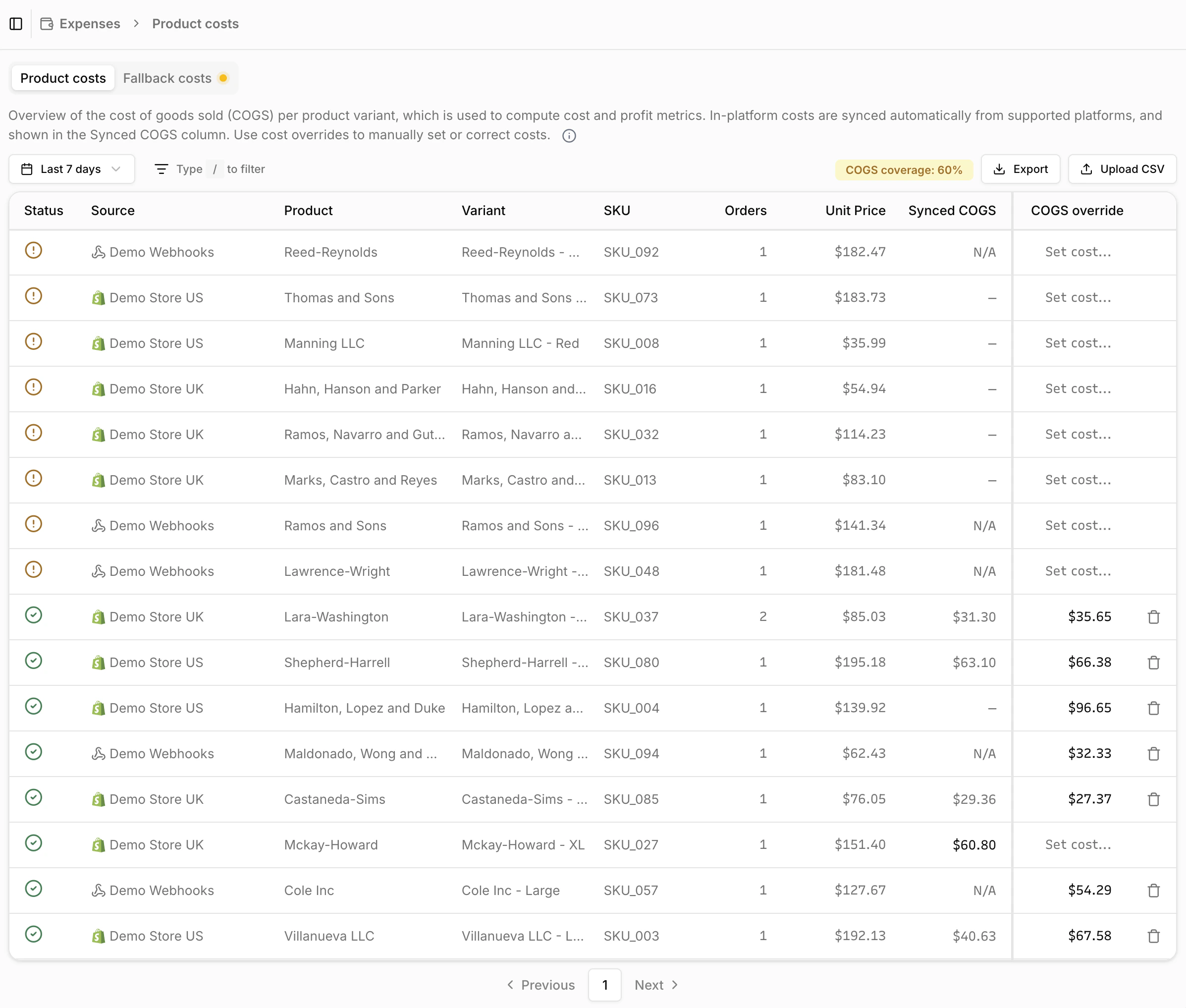 | Column | Description |
| ----------------- | ----------------------------------------------------------------------------------------- |
| **Status** | The mapping status of the product variant (see below) |
| **Source** | The source that ingested the order |
| **Product** | The product name |
| **Variant** | The variant name |
| **Orders** | The number of orders that include this variant |
| **SKU** | The product variant's SKU identifier |
| **Unit Price** | The selling price of the variant |
| **Synced COGS** | The (in-platform) cost of goods sold synced from your e-commerce platform (e.g. Shopify) |
| **COGS Override** | A manual cost override you set in Converge. This takes priority over the in-platform cost |
Automatic COGS syncing is currently supported for **Shopify**,
**BigCommerce**, and **Magento**. You can monitor the sync status in the
**Products** tab of the corresponding event source. If your e-commerce
platform is not listed but supports cost-of-goods data, reach out to the
Converge team to request support. In the meantime, you can use cost overrides
or a CSV upload to configure costs manually.
Each SKU has a data status indicator:
* = No
COGS data exists for this variant. The COGS value will be estimated using the
fallback gross margin.
* = COGS data is
available for this variant (either an override, an in-platform cost, or both).
The **COGS coverage** badge in the top-right corner of the table shows what percentage of orders have a COGS mapping. It reflects your current view, including the selected date range and any active filters. The badge is color-coded:
* **Green**: 85% or more of orders are covered
* **Yellow**: between 50% and 85%
* **Red**: below 50%
### Product cost hierarchy
Converge determines the cost for each variant using a three-tier hierarchy. The first available value wins:
1. **Cost override** (highest priority): If you've set a manual override in the COGS Override column, Converge uses that value.
2. **In-platform cost**: If no override exists, Converge uses the cost price synced from your e-commerce platform (shown in the Unit COGS column).
3. **Fallback gross margin** (lowest priority): If neither of the above is available, Converge estimates the cost using the gross margin percentage configured in the [Fallback costs](https://app.runconverge.com/-/data-management/expenses/fallback-costs) tab.
### Setting a (single) manual override
1. Find the product variant in the table (use the search bar to filter by SKU, product name, or variant name).
2. Click **Set cost...** in the COGS Override column for that variant.
3. Enter the cost value, click **Save**.
The override takes effect shortly after saving and applies to all future cost and profit calculations for that variant.
### Bulk override using a CSV upload
To set or update COGS for many product variants at once, use the **Upload CSV** button in the top-right corner of the table.
A common workflow is: filter the table to only show variants with missing
costs, export the result, fill in the COGS values in the exported file, and
upload it back into Converge.
Your CSV file should have the following columns:
| Column | Required | Description |
| --------------- | -------- | -------------------------------------------------------------------------- |
| `sku` | Yes | The product variant's SKU |
| `datasource_id` | Yes | The numeric ID of the event source (find it in **Event Sources**) |
| `cogs` | Yes | The cost of goods sold for one unit (non-negative number) |
| `currency` | No | ISO 4217 currency code (e.g. `USD`, `EUR`). Defaults to workspace currency |
To upload a CSV file:
1. Click **Upload CSV** in the top-right corner of the Product costs table.
2. Drag and drop a `.csv` file into the upload area, or click to browse for one.
3. Review the preview table (it shows the first 10 valid rows), and check for any validation warnings.
4. Click **Upload** to apply the overrides. Only the valid rows are saved.
If your CSV contains duplicate SKU + datasource ID combinations, the last
occurrence wins. After upload, a toast notification shows how many SKUs were
updated and how many duplicates were detected.
### Fallback gross margin
In the [**Fallback costs**](https://app.runconverge.com/-/data-management/expenses/fallback-costs) tab, you can configure a default **gross margin percentage**. Converge uses this to estimate COGS for any product variant without a specific cost mapping. Always set this field.
Gross margin is the percentage of a product's selling price that's profit after subtracting the cost of goods. For example, a product selling for **\$100** with a gross margin of **60%** has:
* **\$60** in gross profit
* **\$40** in estimated cost (COGS)
The fallback gross margin applies the same margin to every product. For more accurate profitability data, set individual cost prices in the **Product costs** tab, especially for high-volume or high-value items.
## Transaction costs
Transaction costs represent payment processing fees. Converge subtracts these from revenue when calculating contribution profit. The [**Transaction costs**](https://app.runconverge.com/-/data-management/expenses/transaction-costs) tab shows every payment method per event source, alongside its transaction cost configuration. Use this tab to review synced fees, spot gaps, and set manual overrides. Orders without a payment method or synced fees default to the fallback transaction costs.
| Column | Description |
| ----------------- | ----------------------------------------------------------------------------------------- |
| **Status** | The mapping status of the product variant (see below) |
| **Source** | The source that ingested the order |
| **Product** | The product name |
| **Variant** | The variant name |
| **Orders** | The number of orders that include this variant |
| **SKU** | The product variant's SKU identifier |
| **Unit Price** | The selling price of the variant |
| **Synced COGS** | The (in-platform) cost of goods sold synced from your e-commerce platform (e.g. Shopify) |
| **COGS Override** | A manual cost override you set in Converge. This takes priority over the in-platform cost |
Automatic COGS syncing is currently supported for **Shopify**,
**BigCommerce**, and **Magento**. You can monitor the sync status in the
**Products** tab of the corresponding event source. If your e-commerce
platform is not listed but supports cost-of-goods data, reach out to the
Converge team to request support. In the meantime, you can use cost overrides
or a CSV upload to configure costs manually.
Each SKU has a data status indicator:
* = No
COGS data exists for this variant. The COGS value will be estimated using the
fallback gross margin.
* = COGS data is
available for this variant (either an override, an in-platform cost, or both).
The **COGS coverage** badge in the top-right corner of the table shows what percentage of orders have a COGS mapping. It reflects your current view, including the selected date range and any active filters. The badge is color-coded:
* **Green**: 85% or more of orders are covered
* **Yellow**: between 50% and 85%
* **Red**: below 50%
### Product cost hierarchy
Converge determines the cost for each variant using a three-tier hierarchy. The first available value wins:
1. **Cost override** (highest priority): If you've set a manual override in the COGS Override column, Converge uses that value.
2. **In-platform cost**: If no override exists, Converge uses the cost price synced from your e-commerce platform (shown in the Unit COGS column).
3. **Fallback gross margin** (lowest priority): If neither of the above is available, Converge estimates the cost using the gross margin percentage configured in the [Fallback costs](https://app.runconverge.com/-/data-management/expenses/fallback-costs) tab.
### Setting a (single) manual override
1. Find the product variant in the table (use the search bar to filter by SKU, product name, or variant name).
2. Click **Set cost...** in the COGS Override column for that variant.
3. Enter the cost value, click **Save**.
The override takes effect shortly after saving and applies to all future cost and profit calculations for that variant.
### Bulk override using a CSV upload
To set or update COGS for many product variants at once, use the **Upload CSV** button in the top-right corner of the table.
A common workflow is: filter the table to only show variants with missing
costs, export the result, fill in the COGS values in the exported file, and
upload it back into Converge.
Your CSV file should have the following columns:
| Column | Required | Description |
| --------------- | -------- | -------------------------------------------------------------------------- |
| `sku` | Yes | The product variant's SKU |
| `datasource_id` | Yes | The numeric ID of the event source (find it in **Event Sources**) |
| `cogs` | Yes | The cost of goods sold for one unit (non-negative number) |
| `currency` | No | ISO 4217 currency code (e.g. `USD`, `EUR`). Defaults to workspace currency |
To upload a CSV file:
1. Click **Upload CSV** in the top-right corner of the Product costs table.
2. Drag and drop a `.csv` file into the upload area, or click to browse for one.
3. Review the preview table (it shows the first 10 valid rows), and check for any validation warnings.
4. Click **Upload** to apply the overrides. Only the valid rows are saved.
If your CSV contains duplicate SKU + datasource ID combinations, the last
occurrence wins. After upload, a toast notification shows how many SKUs were
updated and how many duplicates were detected.
### Fallback gross margin
In the [**Fallback costs**](https://app.runconverge.com/-/data-management/expenses/fallback-costs) tab, you can configure a default **gross margin percentage**. Converge uses this to estimate COGS for any product variant without a specific cost mapping. Always set this field.
Gross margin is the percentage of a product's selling price that's profit after subtracting the cost of goods. For example, a product selling for **\$100** with a gross margin of **60%** has:
* **\$60** in gross profit
* **\$40** in estimated cost (COGS)
The fallback gross margin applies the same margin to every product. For more accurate profitability data, set individual cost prices in the **Product costs** tab, especially for high-volume or high-value items.
## Transaction costs
Transaction costs represent payment processing fees. Converge subtracts these from revenue when calculating contribution profit. The [**Transaction costs**](https://app.runconverge.com/-/data-management/expenses/transaction-costs) tab shows every payment method per event source, alongside its transaction cost configuration. Use this tab to review synced fees, spot gaps, and set manual overrides. Orders without a payment method or synced fees default to the fallback transaction costs.
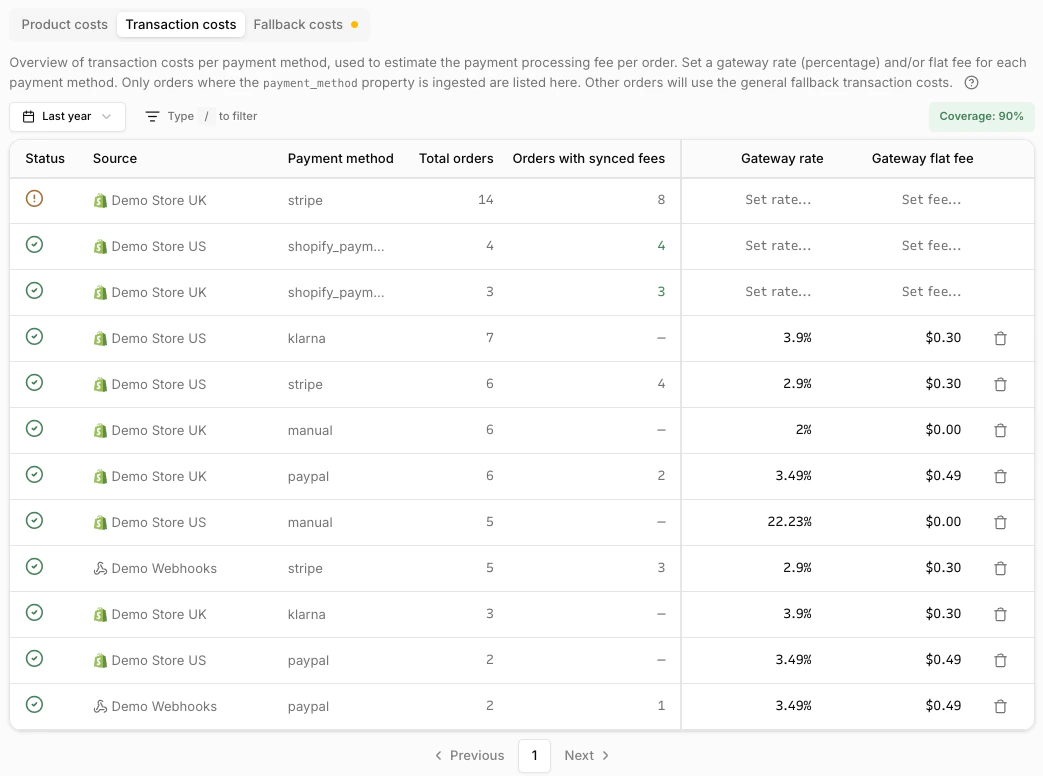 | Column | Description |
| --------------------------- | ------------------------------------------------------------------------------ |
| **Status** | Whether the payment method has a cost mapping (see below) |
| **Source** | The event source that ingested the order |
| **Payment method** | The payment method name (e.g. "Stripe", "PayPal") |
| **Total orders** | The number of orders using this payment method from this source |
| **Orders with synced fees** | How many of those orders have actual transaction fees synced from the platform |
| **Gateway rate** | A percentage rate charged per transaction for this payment method (editable) |
| **Gateway flat fee** | A fixed fee charged per transaction for this payment method (editable) |
Each payment method has a data status indicator:
* = The payment
method has a cost mapping configured, or all orders have synced fees.
* = No
mapping exists and not all orders have synced fees. The missing transaction
cost will be estimated using the fallback processing fees.
The **Transaction cost coverage** badge in the top-right corner of the table shows what percentage of orders have a transaction cost mapping. It reflects your current view, including the selected date range and any active filters. The badge is color-coded using similar thresholds as the COGS coverage.
### Transaction cost hierarchy
Converge determines the transaction cost for each order using a three-tier hierarchy. The first available value wins:
1. **Synced transaction fees** (highest priority): If your e-commerce platform provides actual transaction fees per order, Converge uses those. Currently, only **Shopify** syncs transaction fees (for Shopify Payments).
2. **Payment method override**: If no synced fees exist, Converge uses the per-payment-method gateway rate and flat fee configured in the [Transaction costs](https://app.runconverge.com/-/data-management/expenses/transaction-costs) tab.
3. **Fallback processing fees** (lowest priority): If neither of the above is available, Converge estimates the cost using the processing rate and flat fee configured in the [Fallback costs](https://app.runconverge.com/-/data-management/expenses/fallback-costs) tab.
### Setting a manual override
1. Find the payment method in the table (use the search bar to filter by payment method name or source).
2. Click the **Gateway rate** or **Gateway flat fee** cell for that payment method.
3. Enter the value and click **Save**.
The override takes effect shortly after saving and applies to all future transaction cost calculations for orders using that payment method (where synced fees are not available).
### Fallback transaction costs
In the [**Fallback costs**](https://app.runconverge.com/-/data-management/expenses/fallback-costs) tab, configure fallback transaction costs. These are used when neither synced fees nor a payment method override are available. Any field that has not been configured shows an amber warning indicator.
Depending on your payment provider, you may need one or both settings:
* **Payment processing rate**: A percentage of the order total charged per transaction.
* **Payment processing flat fee**: A fixed amount charged per order. You can select the currency for this fee separately from your workspace currency.
Most providers combine both (e.g. **2.9% + \$0.30** per transaction), but some only charge a flat fee or only a percentage. Configure whichever applies to your setup. Converge uses the formula: `order total × rate + flat fee`.
## Shipping costs
Shipping costs represent inbound fulfillment and delivery expenses. Converge subtracts these from revenue alongside COGS and transaction costs when calculating contribution profit.
Converge does not currently sync shipping costs from your e-commerce platform,
and there is no dedicated Shipping costs tab. You can configure a
workspace-level estimate in the [**Fallback
costs**](https://app.runconverge.com/-/data-management/expenses/fallback-costs)
tab. For per-order shipping cost configuration, please contact support.
### Fallback shipping costs
In the [**Fallback costs**](https://app.runconverge.com/-/data-management/expenses/fallback-costs) tab, you can configure how Converge estimates shipping costs.
Two modes are available, choose whichever best matches your business:
* **Use customer shipping charges**: Sets your shipping cost equal to what customers paid for shipping on each order. This works well when your shipping charges closely reflect your actual fulfillment costs.
* **Flat fee per order**: A fixed amount representing the average cost you pay to ship one order. You can set the amount and currency independently. This is useful when your shipping costs are relatively uniform regardless of what customers are charged.
| Column | Description |
| --------------------------- | ------------------------------------------------------------------------------ |
| **Status** | Whether the payment method has a cost mapping (see below) |
| **Source** | The event source that ingested the order |
| **Payment method** | The payment method name (e.g. "Stripe", "PayPal") |
| **Total orders** | The number of orders using this payment method from this source |
| **Orders with synced fees** | How many of those orders have actual transaction fees synced from the platform |
| **Gateway rate** | A percentage rate charged per transaction for this payment method (editable) |
| **Gateway flat fee** | A fixed fee charged per transaction for this payment method (editable) |
Each payment method has a data status indicator:
* = The payment
method has a cost mapping configured, or all orders have synced fees.
* = No
mapping exists and not all orders have synced fees. The missing transaction
cost will be estimated using the fallback processing fees.
The **Transaction cost coverage** badge in the top-right corner of the table shows what percentage of orders have a transaction cost mapping. It reflects your current view, including the selected date range and any active filters. The badge is color-coded using similar thresholds as the COGS coverage.
### Transaction cost hierarchy
Converge determines the transaction cost for each order using a three-tier hierarchy. The first available value wins:
1. **Synced transaction fees** (highest priority): If your e-commerce platform provides actual transaction fees per order, Converge uses those. Currently, only **Shopify** syncs transaction fees (for Shopify Payments).
2. **Payment method override**: If no synced fees exist, Converge uses the per-payment-method gateway rate and flat fee configured in the [Transaction costs](https://app.runconverge.com/-/data-management/expenses/transaction-costs) tab.
3. **Fallback processing fees** (lowest priority): If neither of the above is available, Converge estimates the cost using the processing rate and flat fee configured in the [Fallback costs](https://app.runconverge.com/-/data-management/expenses/fallback-costs) tab.
### Setting a manual override
1. Find the payment method in the table (use the search bar to filter by payment method name or source).
2. Click the **Gateway rate** or **Gateway flat fee** cell for that payment method.
3. Enter the value and click **Save**.
The override takes effect shortly after saving and applies to all future transaction cost calculations for orders using that payment method (where synced fees are not available).
### Fallback transaction costs
In the [**Fallback costs**](https://app.runconverge.com/-/data-management/expenses/fallback-costs) tab, configure fallback transaction costs. These are used when neither synced fees nor a payment method override are available. Any field that has not been configured shows an amber warning indicator.
Depending on your payment provider, you may need one or both settings:
* **Payment processing rate**: A percentage of the order total charged per transaction.
* **Payment processing flat fee**: A fixed amount charged per order. You can select the currency for this fee separately from your workspace currency.
Most providers combine both (e.g. **2.9% + \$0.30** per transaction), but some only charge a flat fee or only a percentage. Configure whichever applies to your setup. Converge uses the formula: `order total × rate + flat fee`.
## Shipping costs
Shipping costs represent inbound fulfillment and delivery expenses. Converge subtracts these from revenue alongside COGS and transaction costs when calculating contribution profit.
Converge does not currently sync shipping costs from your e-commerce platform,
and there is no dedicated Shipping costs tab. You can configure a
workspace-level estimate in the [**Fallback
costs**](https://app.runconverge.com/-/data-management/expenses/fallback-costs)
tab. For per-order shipping cost configuration, please contact support.
### Fallback shipping costs
In the [**Fallback costs**](https://app.runconverge.com/-/data-management/expenses/fallback-costs) tab, you can configure how Converge estimates shipping costs.
Two modes are available, choose whichever best matches your business:
* **Use customer shipping charges**: Sets your shipping cost equal to what customers paid for shipping on each order. This works well when your shipping charges closely reflect your actual fulfillment costs.
* **Flat fee per order**: A fixed amount representing the average cost you pay to ship one order. You can set the amount and currency independently. This is useful when your shipping costs are relatively uniform regardless of what customers are charged.