> ## Documentation Index
> Fetch the complete documentation index at: https://docs.runconverge.com/llms.txt
> Use this file to discover all available pages before exploring further.
# Store dimensions
export const OutboundLink = ({linkText, linkTarget}) => {
return {linkText}
;
};
Use **store dimensions** to understand marketing performance across **countries**, **brands**, and **sales channels**.
A store dimension is a reusable way to group your website and marketing data and use those groups as filters in all analytics.
## Example
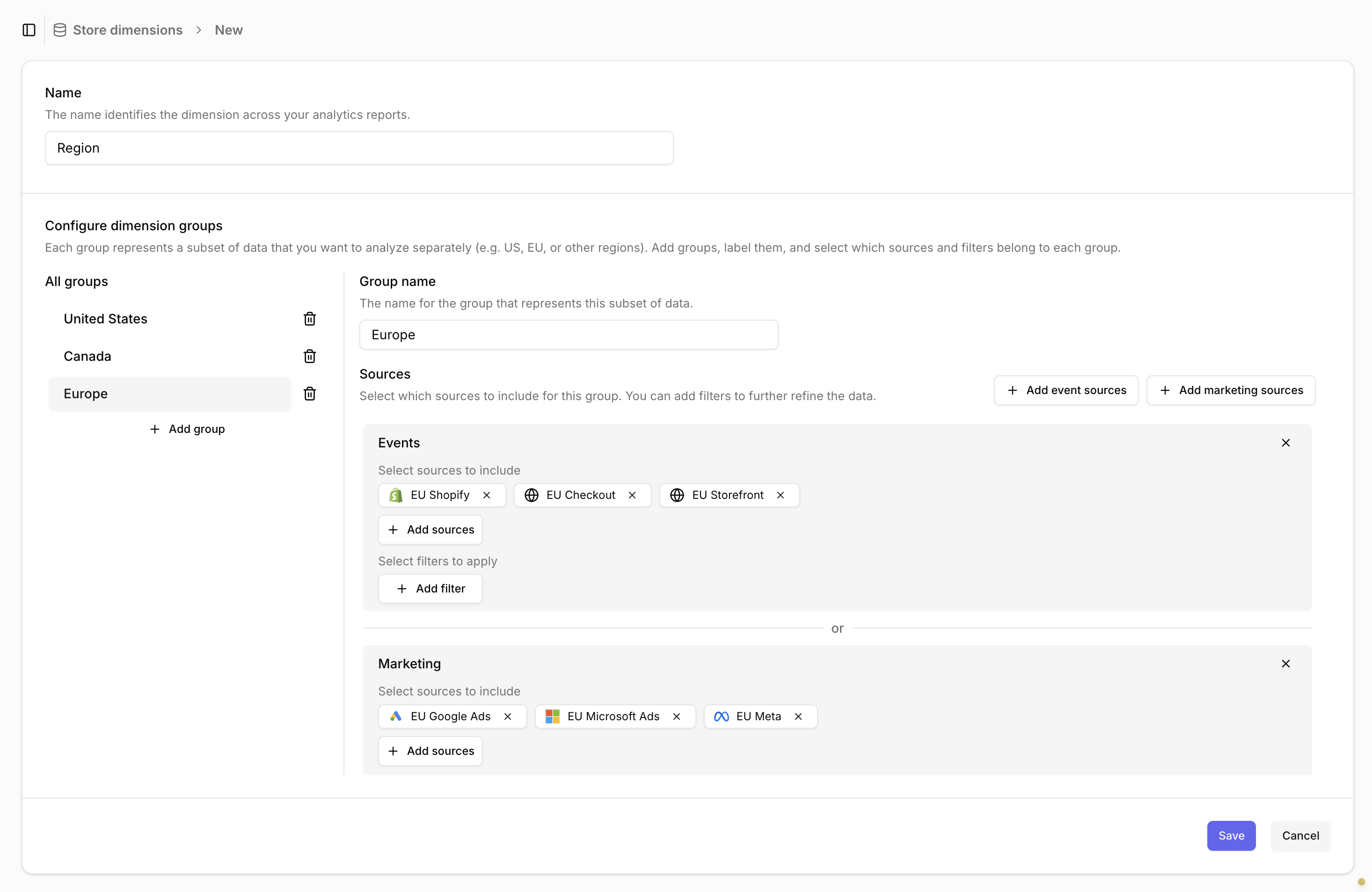
If your brand operates in multiple regions (for example the US, Canada, and Europe), you can create a **Region** store dimension with one group per region: **United States**, **Canada**, and **Europe**.
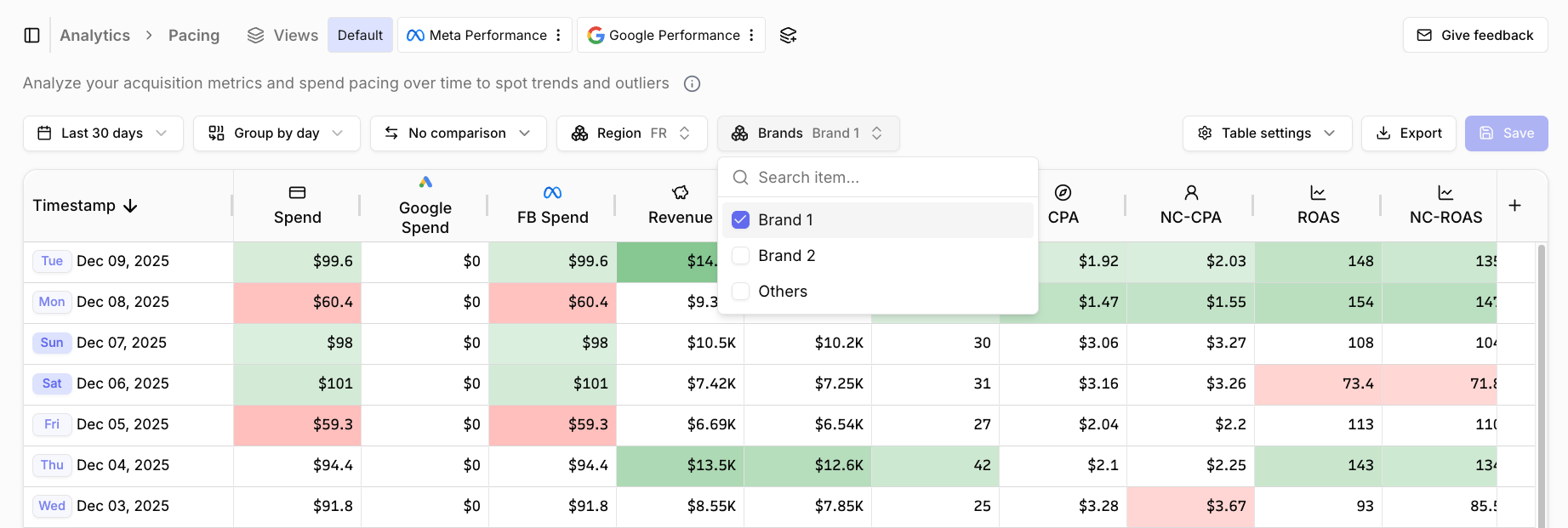
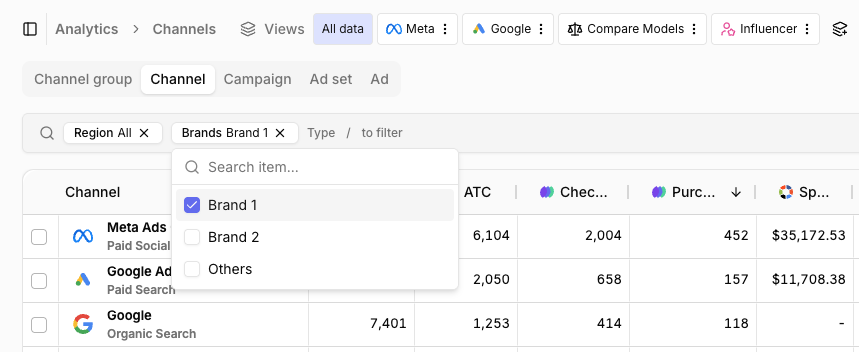
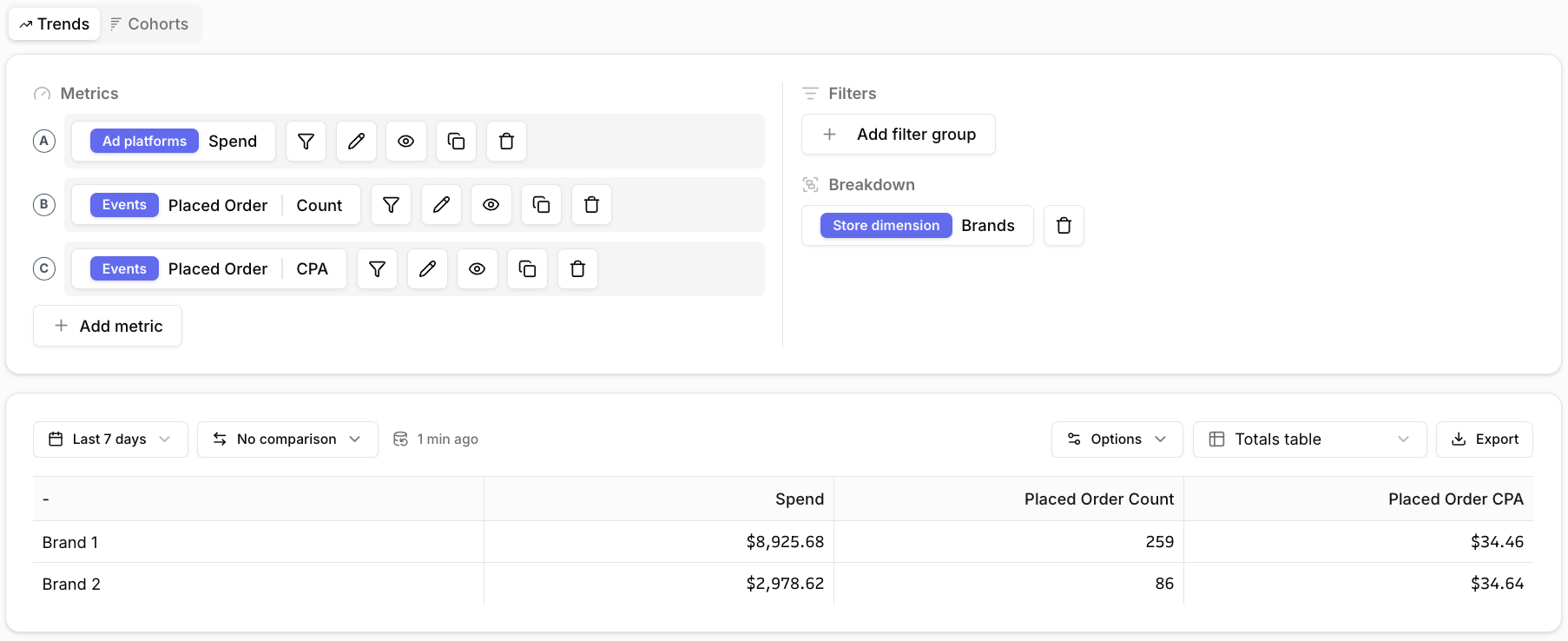
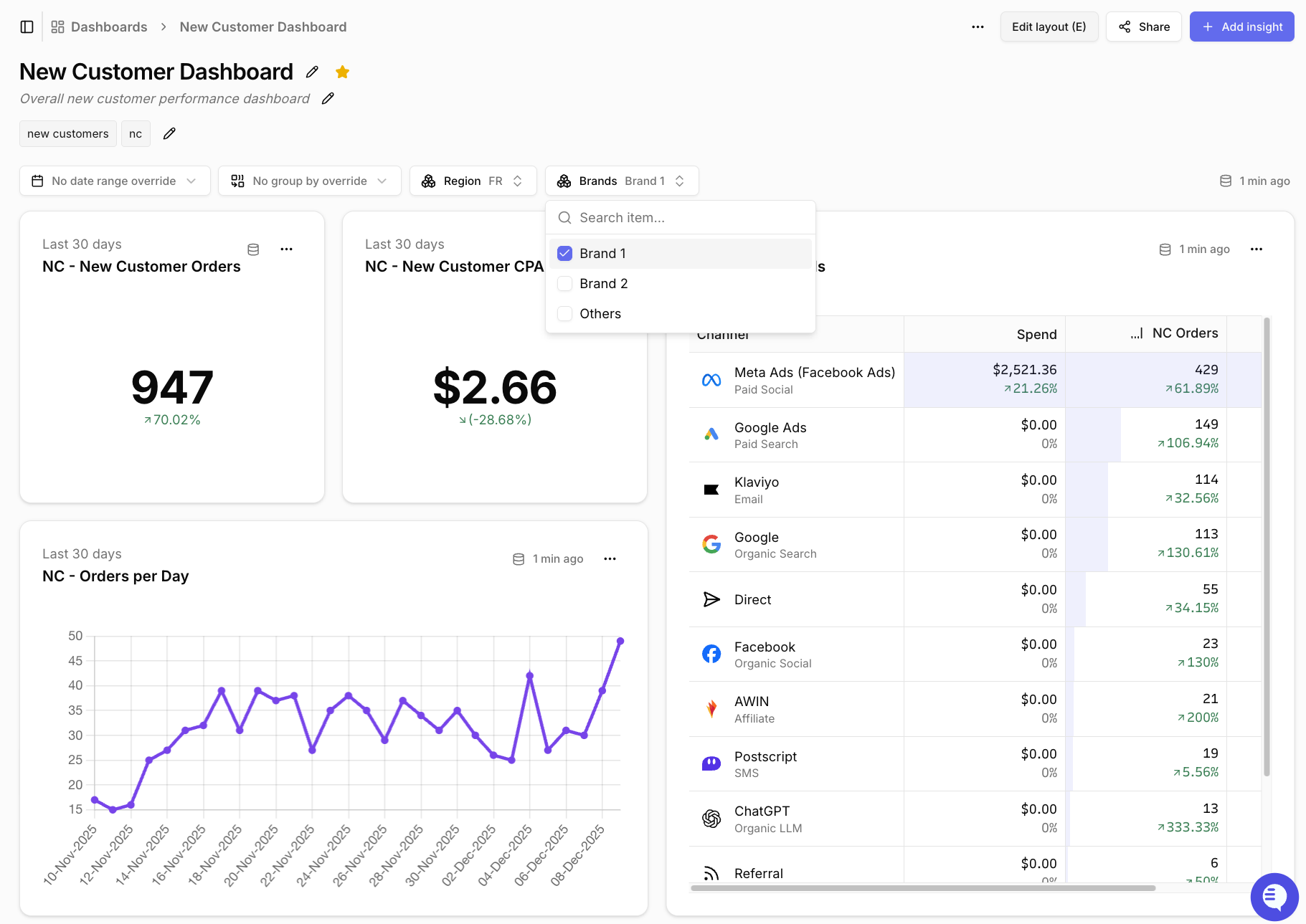
You can then filter any report in Converge by this Region dimension.
In the Overview report above, you can see all blended metrics per region.
## Adding a store dimension
1. Go to the [**Store dimensions** tab](https://app.runconverge.com/-/data-management/store-dimensions) in the main menu and click **Create store dimension**.
2. Name your dimension, e.g. **Region** or **Brand**.
3. Add the first group and give it a name, e.g. **United States**.
4. Select which **sources** contain data for this group. Optionally add **filters** to further narrow down the data. See [Choosing sources and filters](#choosing-sources-and-filters).
5. Click **Add group** to create more groups. You can also duplicate an existing group using the icon next to it. Repeat steps 3 and 4 for each group.
6. Click **Save** to create the store dimension.
## Choosing sources and filters
The key decision is how you split your data into groups.
### Events and Marketing
To understand marketing performance for a store, you need **blended metrics** (CPA, ROAS, ...). This means you must identify both:
* **Events** - which website traffic and revenue belong to which store?\
*For example, all traffic landing on `us.mybrand.com` or `mybrand.com/us`.*
* **Marketing** - which marketing spend drives traffic to which store?\
*For example, all campaigns running in the United States, tagged with a `US | ...` naming convention.*
### Sources
The simplest way to split data is by **source**.
If each store already has separate websites and ad accounts, and these are set up as different sources in Converge, you can reference those sources directly in the store dimension groups.
### Filters
Splitting by source alone is not always enough.
If a single ad account or website serves multiple countries or brands, you must use **filters** to define which data belongs to each group.
If a single marketing source serves multiple stores, you need to specify which spend drives traffic to which store.
This requires differentiating your spend with a **naming convention** on the campaign, adset, or ad name.
If you have this in place, add a **filter on the campaign, adset, or ad name** under the Marketing section of each group. For example: *Campaign name starts with `US | ...`*.
Store dimensions cannot be used to break out spend for campaigns, adsets, or ads that run across multiple stores.
If your website has a subdomain or page per store, we recommend filtering **Events** by the **landing URL of the session**.
For example:
* Session properties > Landing URL > Contains `us.mybrand.com`
* Session properties > Landing URL > Contains `mybrand.com/us`
If your website does not have a subdomain or page per store, we recommend filtering by the **country code of the session**.
For example:
* Session properties > Country Code > Equals `US`
* Session properties > Country Code > Equals `CA`
We **recommend using session properties for events**. This ensures the property is set for every session and stays consistent. Otherwise, session metrics such as conversion rate may not be correct.
You can use other properties such as the shipping address, but then you cannot review session metrics such as conversion rate or new visitor %.
### Matching groups
For every event or marketing spend line, Converge assigns it to the **first** group in the dimension that matches it.
A group matches if for **any** of the **Event** or **Marketing** sections:
* its **sources** match, and
* **any** of its filters match.
This matching always follows the group order shown in the UI.
Anything that matches no group goes into an **Others** group.
## Common store dimensions
### Sales Channel
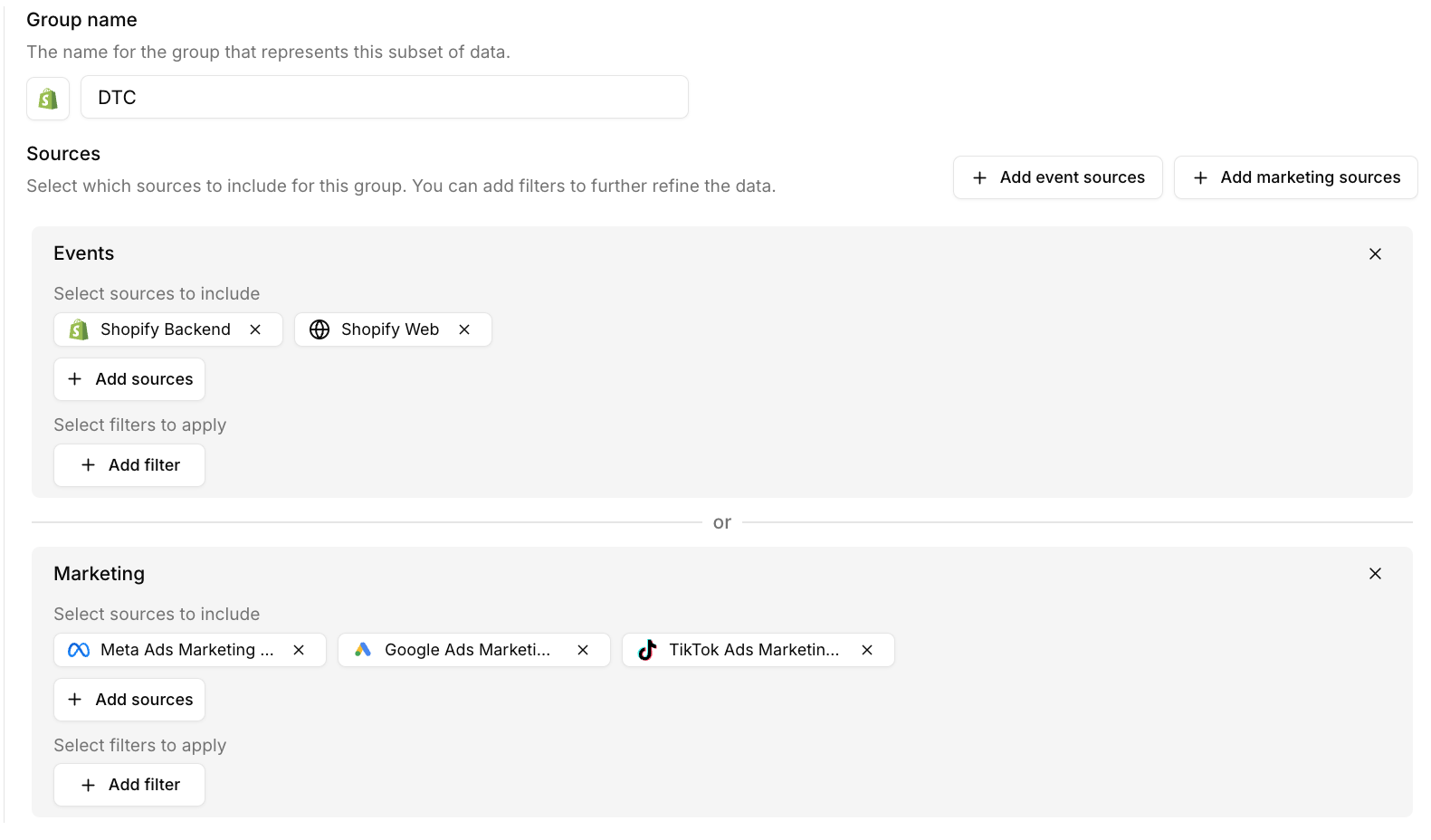
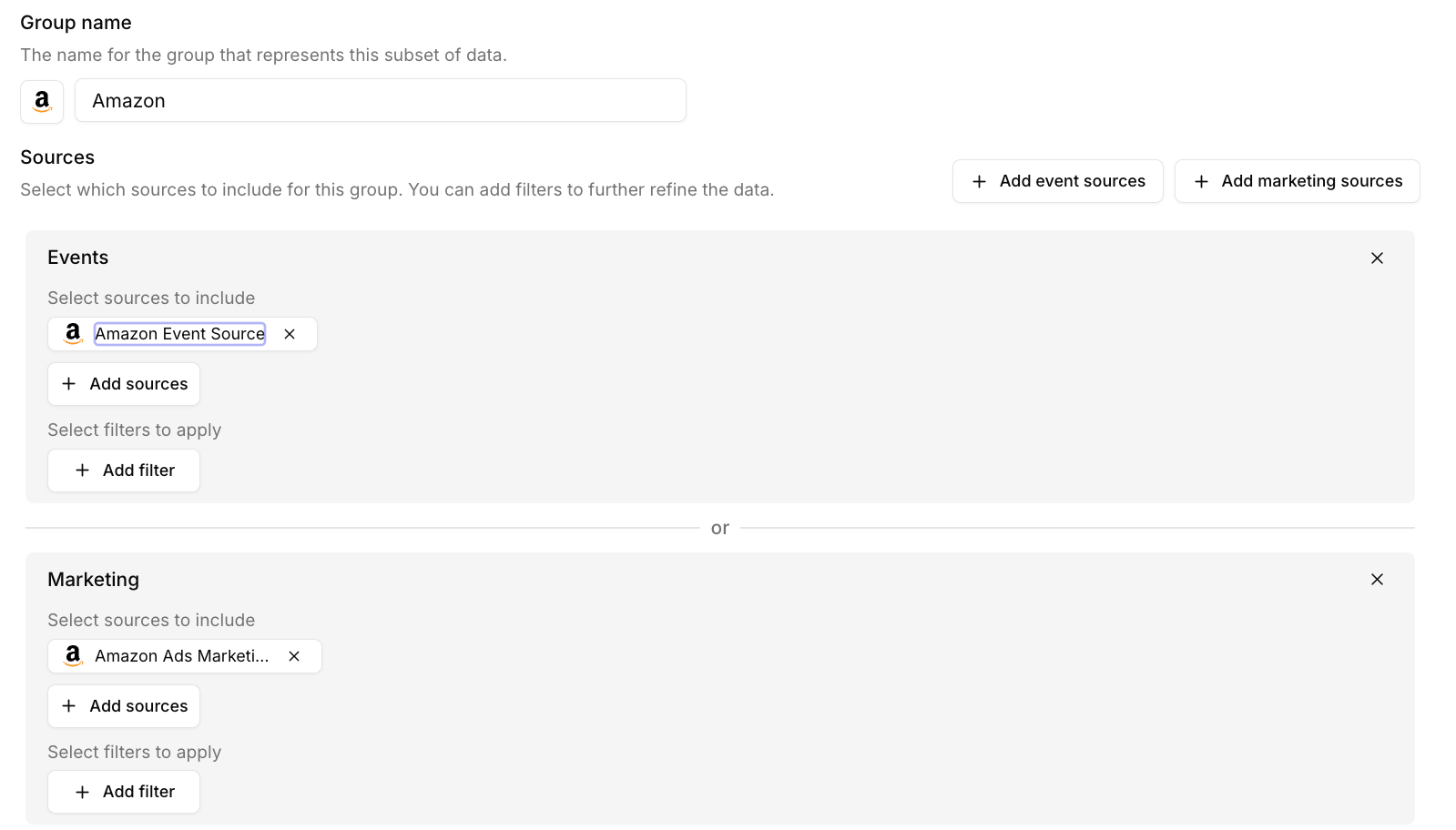
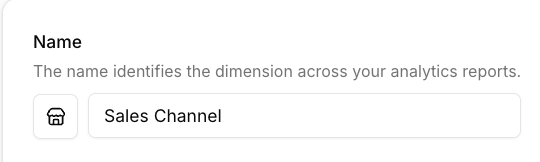
If you sell through multiple channels — for example a DTC website and Amazon — create a **Sales Channel** dimension to compare blended metrics across channels.
Create one group per channel:
Add all website sources (e.g. Shopify Backend, Shopify Web) under **Events** and all ad platform sources (e.g. Meta Ads, Google Ads, TikTok Ads) under **Marketing**.
Add your Amazon Event Source under **Events** and your Amazon Ads Marketing Source under **Marketing**.
## Analytics
Store dimensions become very powerful once you start using them across your analytics.
Store dimensions are currently not available for **Landing pages**. We will add support for this soon. Reach out to let us know if you are interested.
## FAQ
The Others group contains all data that was not matched to any group.
* Confirm that all of your sources are assigned to at least one group.
* Confirm that the filters you applied are available across both website and server-side events or marketing spend.
* If you still see too much data in Others and you are correctly filtering on session properties, you may have many "unstitched" events that do not have any session properties. See our [Debugging stitching issues](/guides/debugging-stitching-issues) guide for more information.
The shipping address only lets you split **order data** by country, not the rest of your website data.
As a result, all website data is added to the Others group, so you cannot review website analytics such as conversion rate or new visitor % per country.
If you rely only on attribution models, you exclude traffic that is not directly attributed to a specific campaign.
For example, you may have a large organic presence in a region or traffic leaking into direct. These should still be included when reviewing region or brand performance at an aggregated level.
Instead of splitting the dimension by the session's source, split it by where the traffic lands. That way, you can review blended metrics across all sources.
It is not possible to use store dimensions in this case. Converge does not break out performance for an individual ad down to the region level.
If reviewing blended marketing performance per region is critical, you should restructure your campaigns so that each campaign targets a single region and includes that region in the naming convention.
 You can then filter any report in Converge by this Region dimension.
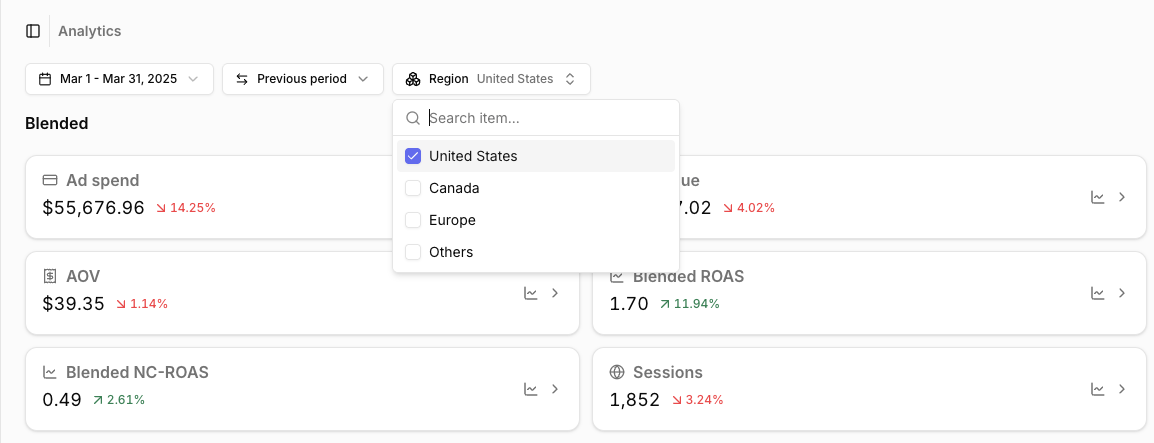 In the Overview report above, you can see all blended metrics per region.
## Adding a store dimension
1. Go to the [**Store dimensions** tab](https://app.runconverge.com/-/data-management/store-dimensions) in the main menu and click **Create store dimension**.
2. Name your dimension, e.g. **Region** or **Brand**.
3. Add the first group and give it a name, e.g. **United States**.
4. Select which **sources** contain data for this group. Optionally add **filters** to further narrow down the data. See [Choosing sources and filters](#choosing-sources-and-filters).
5. Click **Add group** to create more groups. You can also duplicate an existing group using the icon next to it. Repeat steps 3 and 4 for each group.
6. Click **Save** to create the store dimension.
## Choosing sources and filters
The key decision is how you split your data into groups.
### Events and Marketing
To understand marketing performance for a store, you need **blended metrics** (CPA, ROAS, ...). This means you must identify both:
* **Events** - which website traffic and revenue belong to which store?\
*For example, all traffic landing on `us.mybrand.com` or `mybrand.com/us`.*
* **Marketing** - which marketing spend drives traffic to which store?\
*For example, all campaigns running in the United States, tagged with a `US | ...` naming convention.*
### Sources
The simplest way to split data is by **source**.
If each store already has separate websites and ad accounts, and these are set up as different sources in Converge, you can reference those sources directly in the store dimension groups.
### Filters
Splitting by source alone is not always enough.
If a single ad account or website serves multiple countries or brands, you must use **filters** to define which data belongs to each group.
In the Overview report above, you can see all blended metrics per region.
## Adding a store dimension
1. Go to the [**Store dimensions** tab](https://app.runconverge.com/-/data-management/store-dimensions) in the main menu and click **Create store dimension**.
2. Name your dimension, e.g. **Region** or **Brand**.
3. Add the first group and give it a name, e.g. **United States**.
4. Select which **sources** contain data for this group. Optionally add **filters** to further narrow down the data. See [Choosing sources and filters](#choosing-sources-and-filters).
5. Click **Add group** to create more groups. You can also duplicate an existing group using the icon next to it. Repeat steps 3 and 4 for each group.
6. Click **Save** to create the store dimension.
## Choosing sources and filters
The key decision is how you split your data into groups.
### Events and Marketing
To understand marketing performance for a store, you need **blended metrics** (CPA, ROAS, ...). This means you must identify both:
* **Events** - which website traffic and revenue belong to which store?\
*For example, all traffic landing on `us.mybrand.com` or `mybrand.com/us`.*
* **Marketing** - which marketing spend drives traffic to which store?\
*For example, all campaigns running in the United States, tagged with a `US | ...` naming convention.*
### Sources
The simplest way to split data is by **source**.
If each store already has separate websites and ad accounts, and these are set up as different sources in Converge, you can reference those sources directly in the store dimension groups.
### Filters
Splitting by source alone is not always enough.
If a single ad account or website serves multiple countries or brands, you must use **filters** to define which data belongs to each group.
 Create one group per channel: