> ## Documentation Index
> Fetch the complete documentation index at: https://docs.runconverge.com/llms.txt
> Use this file to discover all available pages before exploring further.
# Conversion amount
> Configure which revenue value Converge forwards to a destination
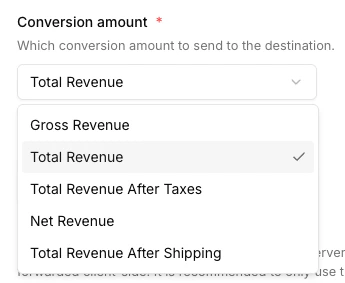
For conversion events like `Placed Order`, Converge forwards a revenue value to the destination. The **Conversion amount** setting controls which revenue value is sent. For example, you can pick whether to include or exclude taxes and shipping.
 ## Available values
| Option | Description |
| -------------------------------- | ------------------------------------------------------------------------------------------ |
| **Gross Revenue** | Unit price times quantity, summed across items. Before any adjustments. Also known as GMV. |
| **Total Revenue** (default) | Gross revenue plus shipping and taxes, minus discounts. |
| **Total Revenue After Taxes** | Total Revenue minus taxes. |
| **Total Revenue After Shipping** | Total Revenue minus shipping. |
| **Net Revenue** | Total Revenue minus taxes and shipping. |
See the [Metric dictionary](/attribution/metrics#revenue) for the formal definitions.
## Configure the conversion amount
The setting is applied per destination and covers every conversion event forwarded to it.
1. Navigate to the [Destinations tab](https://app.runconverge.com/-/connections) and click the destination you want to configure.
2. Click on **Configuration**.
3. Open the **Advanced configuration (optional)** section.
4. Pick your desired **Conversion amount** and click **Save**.
Availability of shipping and tax values depends on the source. Orders from shop platforms like Shopify and WooCommerce include both; orders from custom server-side integrations include them only when you send them in the event payload.
## Supported destinations
Check the **Converge functionality** table on each [destination page](/destinations/overview) to see if Conversion amount is supported.
## Available values
| Option | Description |
| -------------------------------- | ------------------------------------------------------------------------------------------ |
| **Gross Revenue** | Unit price times quantity, summed across items. Before any adjustments. Also known as GMV. |
| **Total Revenue** (default) | Gross revenue plus shipping and taxes, minus discounts. |
| **Total Revenue After Taxes** | Total Revenue minus taxes. |
| **Total Revenue After Shipping** | Total Revenue minus shipping. |
| **Net Revenue** | Total Revenue minus taxes and shipping. |
See the [Metric dictionary](/attribution/metrics#revenue) for the formal definitions.
## Configure the conversion amount
The setting is applied per destination and covers every conversion event forwarded to it.
1. Navigate to the [Destinations tab](https://app.runconverge.com/-/connections) and click the destination you want to configure.
2. Click on **Configuration**.
3. Open the **Advanced configuration (optional)** section.
4. Pick your desired **Conversion amount** and click **Save**.
Availability of shipping and tax values depends on the source. Orders from shop platforms like Shopify and WooCommerce include both; orders from custom server-side integrations include them only when you send them in the event payload.
## Supported destinations
Check the **Converge functionality** table on each [destination page](/destinations/overview) to see if Conversion amount is supported.