> ## Documentation Index
> Fetch the complete documentation index at: https://docs.runconverge.com/llms.txt
> Use this file to discover all available pages before exploring further.
# Filters
> Filter out events in your Destinations
export const OutboundLink = ({linkText, linkTarget}) => {
return {linkText}
;
};
## Overview
Converge allows you to filter out events based on **Event Properties**, **Profile Properties** or by their **Source**.
* [Property filters](#event-and-profile-property-filters)
* [Source filters](#source-filters)
***
## Property filters
Converge allows you to filter out events granularly based on their event properties and profile properties according to the [Converge event spec](/sources/converge-spec).
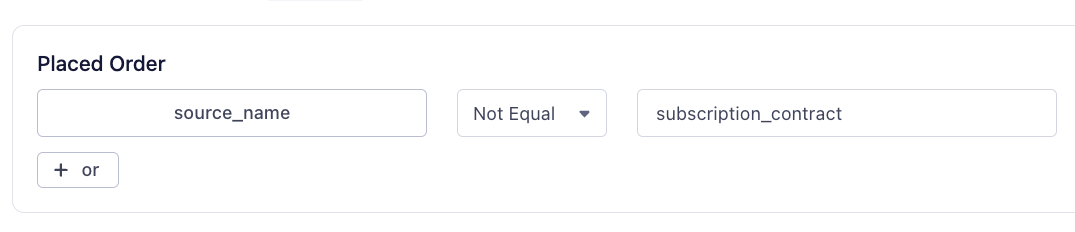
A Converge property filter only forwards events if a condition is **True**. As such, a destination with the following filter only forwards `Placed Order` events if the property is not equal to `subscription_contract`.
Property filters are currently only supported for server-side forwarded events.
Client-side forwarded events will **not** be filtered out.
Property filters apply to both event properties and profile properties. If the same property name exists in the event and profile properties, the filter will check both.
### How to set up a property filter
1. Navigate to the [Destinations Tab](https://app.runconverge.com/-/connections) in your Converge dashboard
2. Click on the Destination for which you want to filter out certain events.
3. Click on the **Configuration** tab and on the **Filters**-subtab to open the Filter Configuration
4. Click on **Edit configuration** to add a Filter.
5. Click on **Add condition** and choose the Event for which you want to set up a filtering rule.
6. Click on **Select Property** and choose the property on which you want to filter.
7. Once you are happy with your rule, click **Save**.
### Examples
#### Filtering out subscription orders from a Destination
Subscription brands typically want to filter out recurring purchases when forwarding to ad platforms. To achieve this, you can set up a Filter on the `Placed Order` event on a per-destination basis.
1. Navigate to the and filter on the `Placed Order` event.
2. Check a few `Placed Order` events by clicking on them to see all of their properties, **find a property and property value that uniquely define a subscription purchase**.
If you are using the [Shopify Server Integration](/sources/server-integrations/shopify.mdx) in a standard setup, then the following property and property value pair defines a recurring purchase:
`source_name` → `subscription_contract`
3. Set up a filter for the `Placed Order` event as follows. Replace the property and property value with the ones you identified in *Step 2*.
***
## Source filters
Converge allows you to filter out all events of a specific source with a single filter.
This is especially helpful when you have multiple sales channels, such as multiple storefronts.
### How to set up a source filter
1. Navigate to the [Destinations Tab](https://app.runconverge.com/-/connections) in your Converge dashboard
2. Click on the Destination for which you want to filter out certain sources.
3. Click on the **Configuration** tab and on the **Sources**-subtab to open the Source Filter Configuration
4. Click on **Edit configuration** to modify the configuration.
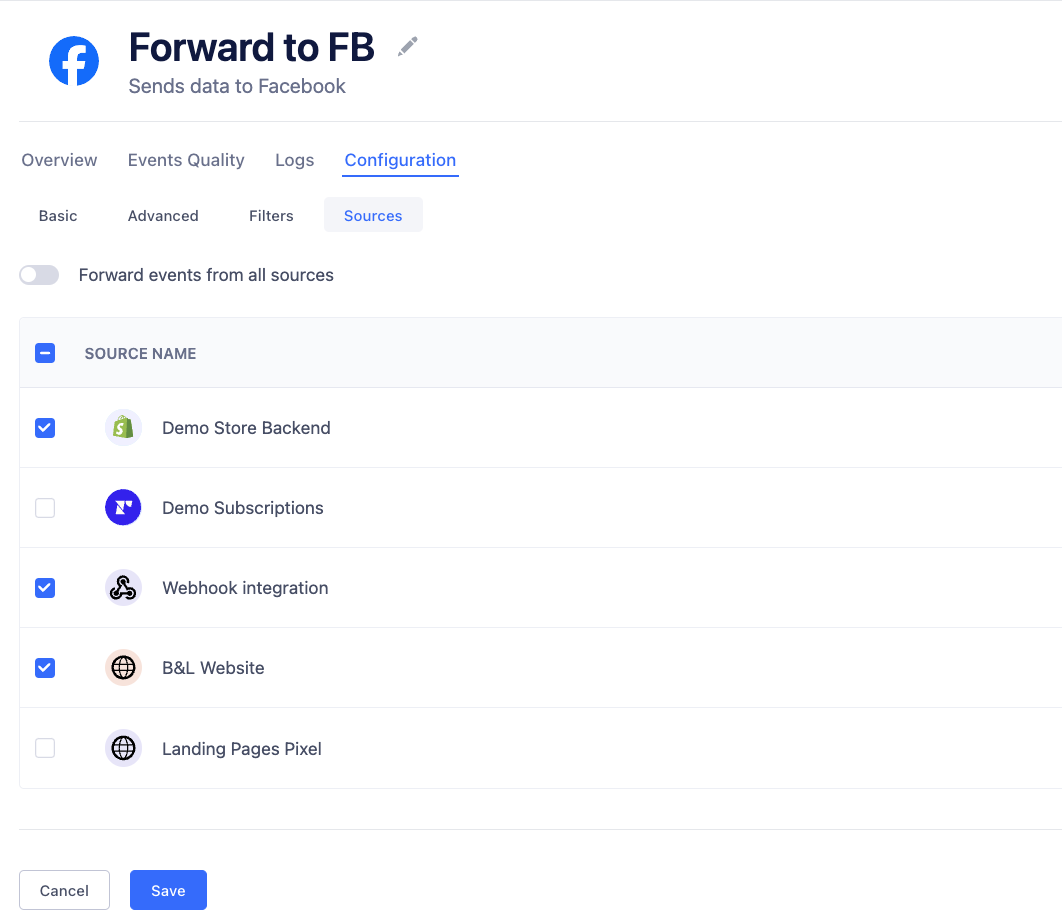
5. Choose the Sources for which you want to send events.
6. Once you are happy with your selection, click **Save**.
### Multi-store or multi-website setups
A typical example of source filters is when you are setting up multiple stores.
You might want to set up different Google Ads Destinations for each store for example.
You can use source filters to filter out the appropriate sources per destination.
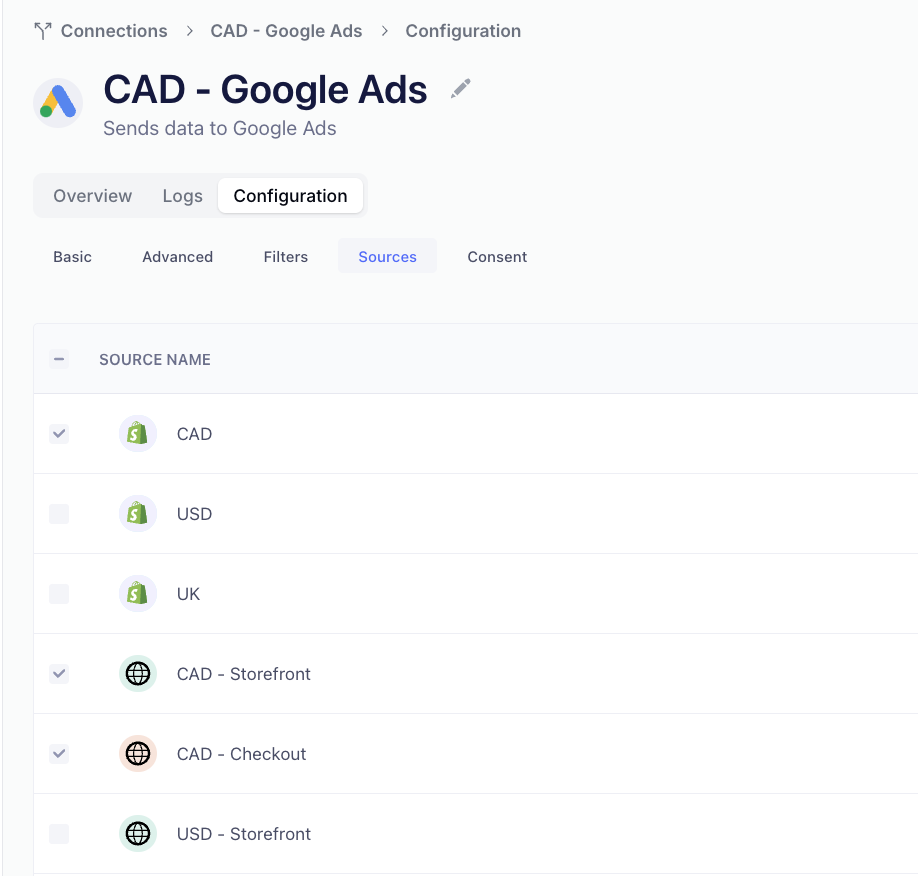
As an example, if you have a US and CA store, and you are creating a Google Ads Destination for the CA Store -- you will want to configure your Canadian Sources to be the only ones streaming into this Destination.
 ### Examples
#### Filtering out subscription orders from a Destination
Subscription brands typically want to filter out recurring purchases when forwarding to ad platforms. To achieve this, you can set up a Filter on the `Placed Order` event on a per-destination basis.
### Examples
#### Filtering out subscription orders from a Destination
Subscription brands typically want to filter out recurring purchases when forwarding to ad platforms. To achieve this, you can set up a Filter on the `Placed Order` event on a per-destination basis.
 ### Multi-store or multi-website setups
A typical example of source filters is when you are setting up multiple stores.
You might want to set up different Google Ads Destinations for each store for example.
You can use source filters to filter out the appropriate sources per destination.
As an example, if you have a US and CA store, and you are creating a Google Ads Destination for the CA Store -- you will want to configure your Canadian Sources to be the only ones streaming into this Destination.
### Multi-store or multi-website setups
A typical example of source filters is when you are setting up multiple stores.
You might want to set up different Google Ads Destinations for each store for example.
You can use source filters to filter out the appropriate sources per destination.
As an example, if you have a US and CA store, and you are creating a Google Ads Destination for the CA Store -- you will want to configure your Canadian Sources to be the only ones streaming into this Destination.