> ## Documentation Index
> Fetch the complete documentation index at: https://docs.runconverge.com/llms.txt
> Use this file to discover all available pages before exploring further.

# AWIN

> An introduction to the AWIN affiliate tracking destination

export const OutboundLink = ({linkText, linkTarget}) => {
  return <a target="_blank" href={linkTarget}> {linkText} 
    <div className="inline h-3 w-3 fill-gray-500 dark:fill-gray-100 text-gray-500 dark:text-gray-300 ml-1 mr-1">
      <svg className="inline w-2.5 h-2.5 bg-gray-500 dark:bg-gray-300" style={{
    maskImage: `url('https://mintlify.b-cdn.net/v6.5.1/solid/up-right-from-square.svg')`,
    maskRepeat: "no-repeat",
    maskPosition: "center center"
  }}></svg> 
    </div>
    </a>;
};

export const IconText = ({name, text, iconSource = "mintlify", iconLocation = "before", iconType = "solid"}) => {
  const sourceUrl = iconSource === 'local' ? `url('/images/icons/${name}.svg')` : `url('https://mintlify.b-cdn.net/v6.5.1/${iconType}/${name}.svg')`;
  return <>
            <div className="inline-block pl-2">
                {iconLocation === 'before' && <div className="h-3.5 w-3.5 fill-gray-800 dark:fill-gray-100 text-gray-800 dark:text-gray-100 inline-block align-middle mr-2">
                        <svg className="w-4 h-4 bg-gray-800 dark:bg-gray-100 " style={{
    maskImage: sourceUrl,
    maskRepeat: "no-repeat",
    maskPosition: "center center"
  }} />
                    </div>}
                <span className="inline-block align-middle font-semibold fill-gray-800 dark:fill-gray-100 text-gray-800 dark:text-gray-100 pl-1 pr-2">{text}</span>
                {iconLocation === 'after' && <div className="h-3.5 w-3.5 fill-gray-800 dark:fill-gray-100 text-gray-800 dark:text-gray-100 inline-block align-middle mr-2">
                        <svg className="w-4 h-4 bg-gray-800 dark:bg-gray-100 pr-3" style={{
    maskImage: sourceUrl,
    maskRepeat: "no-repeat",
    maskPosition: "center center"
  }} />
                    </div>}
            </div>
        </>;
};

export const Icon = ({name}) => {
  return <div className="h-4 w-4 fill-gray-800 dark:fill-gray-100 text-gray-800 dark:text-gray-100 inline-block align-middle">
            <svg className="w-4 h-4 bg-gray-800 dark:bg-gray-100" style={{
    maskImage: `url('https://mintlify.b-cdn.net/v6.5.1/solid/${name}.svg')`,
    maskRepeat: "no-repeat",
    maskPosition: "center center"
  }} />
        </div>;
};

## Overview

Destination Type: <IconText text="Client-side" name="browser" iconType="duotone" iconLocation="after" />  and <IconText text="Server-side" name="server" iconType="duotone" iconLocation="after" />

* Loads the <OutboundLink linkText="AWIN MasterTag" linkTarget="https://wiki.awin.com/index.php/Advertiser_Tracking_Guide#Journey_Tag_.2F_Mastertag" /> on all pages
* Sends conversions through the <OutboundLink linkText="S2S" linkTarget="https://wiki.awin.com/index.php/Advertiser_Tracking_Guide/Conversion_Pixel_Only_Tracking#Server_To_Server_.28S2S.29" /> integration
* Includes <OutboundLink linkText="voucher codes" linkTarget="https://wiki.awin.com/index.php/Advertiser_Tracking_Guide/Discount_.2F_Voucher_Code_Tracking" />, if multiple voucher codes are used, the first one will be sent
* Supports distinguishing between <OutboundLink linkText="new and existing customers" linkTarget="https://wiki.awin.com/index.php/Advertiser_Tracking_Guide/Commission_Groups#New_vs_Existing" />
* Supports <OutboundLink linkText="custom tracking parameters" linkTarget="https://wiki.awin.com/index.php/Advertiser_Tracking_Guide/Custom_Tracking_Parameters" />
* Supports <OutboundLink linkText="product-level tracking" linkTarget="https://wiki.awin.com/index.php/Advertiser_Tracking_Guide/Product_Level_Tracking" />

***

## Installation instructions

1. Obtain your AWIN advertiser ID. You can find this ID in the top right corner of your <OutboundLink linkText="AWIN dashboard" linkTarget="https://ui.awin.com/idp/en/awin/login" />.

2. In the Converge sidebar, click on <IconText name="arrow-right-from-line" text="Event streams" /> and then click **Create new Destination**.

3. Select the **AWIN** destination and click **Next**.

4. Give your destination a **name** (e.g. AWIN Destination) and click **Next**.

5. Fill in the **Advertiser ID** you copied from **AWIN** and click **Next**.

6. Select **Use default mapping** and click **Next**.

<Note>You can find the Default mapping for the AWIN destination [here](#event-mapping). For more information on setting up Custom mappings, look [here](/destinations/event-mapping).</Note>

7. Select the sources you want to forward events from, then click **Next**.

8. Review any issues and click **Submit**.

<Warning>
  Set this destination to **Deactivated** while you remove your existing AWIN tracking setup. Running both in parallel leads to duplicate conversion data. Follow the **Turn off your old AWIN tracking** instructions below, then set the destination to **Active** when you're ready.
</Warning>

***

## Turn off your old AWIN tracking

### Uninstalling the Shopify AWIN app

1. Navigate to your <OutboundLink linkText="Shopify Admin Dashboard" linkTarget="https://admin.shopify.com/" />.

2. Click on <IconText name="gear" text="Settings" iconLocation="before" /> and choose **Apps and sales channels** from the menu.

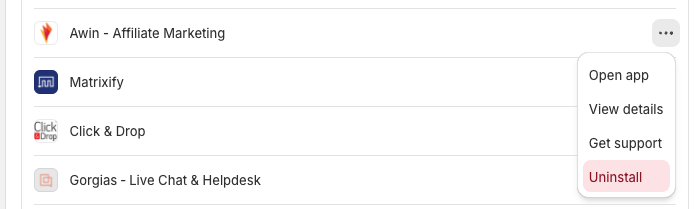
3. Click on <Icon name="ellipsis" /> next to **Awin - Affiliate Marketing**, and click on **Uninstall**.

   <Frame>
     <img src="https://mintcdn.com/converge/zWlDFBz7l1F_0PFn/images/guides/turn-off-tracking/awin-sales-channel/awin-1.png?fit=max&auto=format&n=zWlDFBz7l1F_0PFn&q=85&s=d0ce496fd8b661e3a68989e733c84880" alt="settings-awin" width="695" height="209" data-path="images/guides/turn-off-tracking/awin-sales-channel/awin-1.png" />
   </Frame>

***

## Exclude VAT and shipping from commission payments

Some companies send the order value with tax and shipping costs included back to AWIN in their conversion tracking setup.

However, AWIN calculates commission (usually somewhere between 10% - 15%) on the order value that is passed back.
When you send the order value with tax and shipping included back to AWIN, you will effectively pay a commission on those.

Therefore, many companies prefer to pay AWIN commission based on their **net revenue**.

### An example

As an example, take a product that has a price of 100 USD.
Now, the total price that the customer will pay will look something like `price + tax + shipping`, for example: `$100 + $15 + $5 = $120`.

Now, imagine that you are paying AWIN 15% commission.

* In the case that you send back the **gross order value** with VAT and shipping, then you will pay AWIN `15% * $120` or **\$18**.
* However, in the case that you would send back the **net order value**, then you will pay AWIN `15% * 100` or **\$15**

### Setting up Net Order Value in your AWIN configuration

In the destination configuration, under the advanced tab, you can configure whether you want to send **gross** or **net** order values.

***

## Converge functionality

This integration supports the following Converge destination functionality.

| Converge Feature                                     |       Supported       |
| :--------------------------------------------------- | :-------------------: |
| Custom Events                                        | <Icon name="xmark" /> |
| Filters                                              | <Icon name="xmark" /> |
| Server-side Conversions                              | <Icon name="check" /> |
| [Conversion amount](/destinations/conversion-amount) | <Icon name="check" /> |

***

## FAQ

<AccordionGroup>
  <Accordion title="Why are my events not being forwarded?">
    Verify that you've configured the events you want to forward as **Conversion events** in the destination configuration.

    If your events are showing up as **skipped** in the destination logs, double-check that your event properties conform with the [Placed Order](/sources/converge-spec#placed-order) event spec.
    If Converge cannot parse the event into an AWIN order, the event cannot be forwarded and shows as **skipped**.
  </Accordion>

  <Accordion title="Can I send other events to AWIN?">
    AWIN only supports tracking orders. You can configure which events are forwarded as orders, but cannot register events besides orders.

    The following customizations are possible

    * **Customer type**: Converge by default includes whether the order comes from a new or existing customer.
    * **Custom parameters**: you can include event properties as custom parameters on your orders.
  </Accordion>

  <Accordion title="How do I send custom parameters to AWIN?">
    Under the **Advanced** tab in the AWIN destination, you can add custom parameters to your events. Only string or numeric parameters are supported. These are sent as a list of values.

    For example, when specifying <code>order\_type</code> and <code>language</code> custom parameters, the following lists could be sent to AWIN

    ```
    [Placed Order, sample, en]
    [Placed Order, gold, de]
    ```

    <Note>The Converge event name is automatically included as a custom parameter.</Note>
  </Accordion>

  <Accordion title="Do you support differentiating between new and existing customers?">
    Yes, this is enabled by default.
  </Accordion>

  <Accordion title="How do I track the channel parameter">
    By default, this is set to <code>aw</code>, as recommended by AWIN. You can customize this by setting an <code>\$awin\_channel</code> profile property on your events.

    ```javascript theme={null}
    cvg({
        method: 'track',
        eventName: 'Registered Custom Channel',
        profileProperties: {
            $awin_channel: 'custom_channel'
        }
    })
    ```
  </Accordion>
</AccordionGroup>

***

## Event mapping

Converge automatically maps the following events from the [Converge event spec](/sources/converge-spec) to AWIN events:

| Converge Event Name                                 | AWIN Event Name |
| --------------------------------------------------- | --------------- |
| [Placed Order](/sources/converge-spec#placed-order) | `Order`         |
