> ## Documentation Index
> Fetch the complete documentation index at: https://docs.runconverge.com/llms.txt
> Use this file to discover all available pages before exploring further.

# Microsoft Ads (Bing Ads)

> An introduction to the Bing Ads Destination

export const OutboundLink = ({linkText, linkTarget}) => {
  return <a target="_blank" href={linkTarget}> {linkText} 
    <div className="inline h-3 w-3 fill-gray-500 dark:fill-gray-100 text-gray-500 dark:text-gray-300 ml-1 mr-1">
      <svg className="inline w-2.5 h-2.5 bg-gray-500 dark:bg-gray-300" style={{
    maskImage: `url('https://mintlify.b-cdn.net/v6.5.1/solid/up-right-from-square.svg')`,
    maskRepeat: "no-repeat",
    maskPosition: "center center"
  }}></svg> 
    </div>
    </a>;
};

export const IconText = ({name, text, iconSource = "mintlify", iconLocation = "before", iconType = "solid"}) => {
  const sourceUrl = iconSource === 'local' ? `url('/images/icons/${name}.svg')` : `url('https://mintlify.b-cdn.net/v6.5.1/${iconType}/${name}.svg')`;
  return <>
            <div className="inline-block pl-2">
                {iconLocation === 'before' && <div className="h-3.5 w-3.5 fill-gray-800 dark:fill-gray-100 text-gray-800 dark:text-gray-100 inline-block align-middle mr-2">
                        <svg className="w-4 h-4 bg-gray-800 dark:bg-gray-100 " style={{
    maskImage: sourceUrl,
    maskRepeat: "no-repeat",
    maskPosition: "center center"
  }} />
                    </div>}
                <span className="inline-block align-middle font-semibold fill-gray-800 dark:fill-gray-100 text-gray-800 dark:text-gray-100 pl-1 pr-2">{text}</span>
                {iconLocation === 'after' && <div className="h-3.5 w-3.5 fill-gray-800 dark:fill-gray-100 text-gray-800 dark:text-gray-100 inline-block align-middle mr-2">
                        <svg className="w-4 h-4 bg-gray-800 dark:bg-gray-100 pr-3" style={{
    maskImage: sourceUrl,
    maskRepeat: "no-repeat",
    maskPosition: "center center"
  }} />
                    </div>}
            </div>
        </>;
};

export const Icon = ({name}) => {
  return <div className="h-4 w-4 fill-gray-800 dark:fill-gray-100 text-gray-800 dark:text-gray-100 inline-block align-middle">
            <svg className="w-4 h-4 bg-gray-800 dark:bg-gray-100" style={{
    maskImage: `url('https://mintlify.b-cdn.net/v6.5.1/solid/${name}.svg')`,
    maskRepeat: "no-repeat",
    maskPosition: "center center"
  }} />
        </div>;
};

## Overview

Destination Type: <IconText text="Client-side" name="browser" iconType="duotone" iconLocation="after" />

* Includes support for <OutboundLink linkText="Bing Enhanced Conversions" linkTarget="https://help.ads.microsoft.com/apex/index/3/en/60178" />
* Includes support for  <OutboundLink linkText="Bing Dynamic Remarketing" linkTarget="https://about.ads.microsoft.com/en-gb/solutions/audience-targeting/dynamic-remarketing" />

***

## Installation instructions

<Note> This is a client-side-only destination, meaning that you will need to be tracking all events client-side (including `Placed Order`) for this destination to work properly. </Note>
<Warning>Set up consent mode to track conversion in the EEA. See [below](#consent-mode).</Warning>

<Steps>
  <Step icon="list" title="1. Set up the Destination">
    1. Navigate to your Microsoft Advertising Dashboards and choose **Tools > UET Tag**.

    2. If you already have a UET Tag, copy the **Tag ID** and go to *Step 6*, otherwise go to *Step 3*
        

    3. Click on **Create**
        

    4. Choose a UET tag name, and UET Tag Description and click on **Save and next**.
        

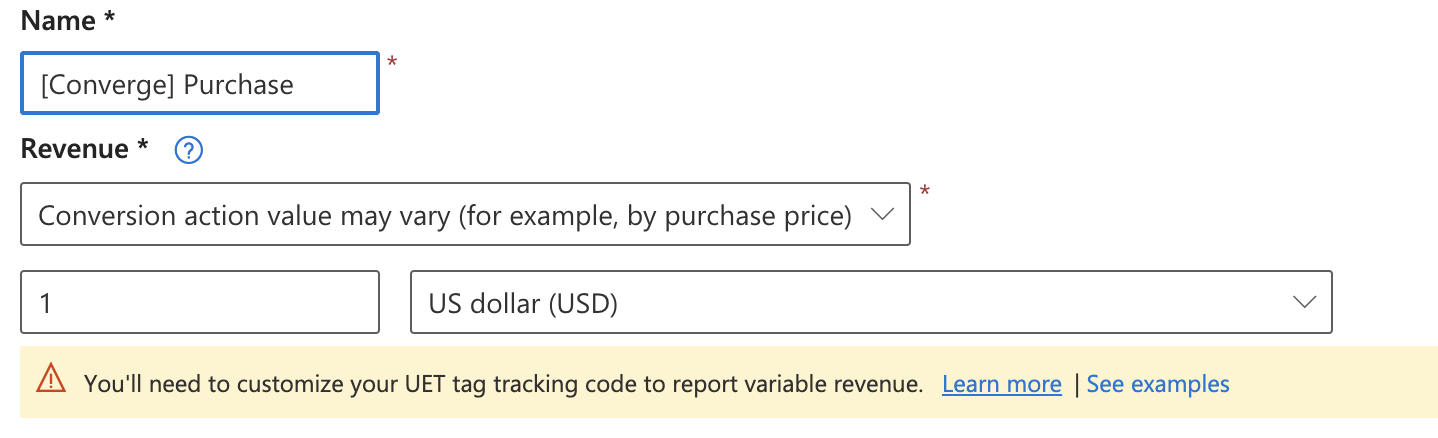
    5. Choose `Install the tag yourself` and click on **Next**. From the code snippet, copy your Tag ID (marked in pink in the screenshot below) and click on **Next**. After that click on **Done**
           <Frame>
             <img src="https://mintcdn.com/converge/dh0K_Fgr0_qazJsh/images/destinations/bing-ads/bing-ads-destination-0.png?fit=max&auto=format&n=dh0K_Fgr0_qazJsh&q=85&s=b75e49c1031dd1bd6224593b87be15c7" alt="bing-1" width="1089" height="862" data-path="images/destinations/bing-ads/bing-ads-destination-0.png" />
           </Frame>

    6. In the Converge sidebar, click on <IconText name="arrow-right-from-line" text="Event streams" /> and then click **Create new Destination**.

    7. Select the **Microsoft Ads (Bing Ads)** destination and click **Next**.

    8. Give your destination a **name** (e.g. Microsoft Ads Destination) and click **Next**.

    9. Fill in the **Tag ID** you copied from **Microsoft Ads** and click **Next**.

    10. Select **Use default mapping** and click **Next**.

    <Note>You can find the Default mapping for the Microsoft Ads destination [here](#event-mapping). For more information on setting up Custom mappings, look [here](/destinations/event-mapping).</Note>

    11. Select the sources you want to forward events from, then click **Next**.

    <Note>This is a client-side destination, meaning that only client-side sources can be used with this destination. You can still select server-side sources but the events will not be sent to Microsoft Ads.</Note>

    12. Review any issues and click **Submit**.
  </Step>

  <Step icon="circle-dollar-to-slot" title="2. Create your Conversion goals">
    13. Navigate to your Microsoft Advertising Dashboards and choose **Tools > Conversion goals**.

    14. Click on the **Create** button.
         

    15. Choose `Website` as your conversion goal type and press **Next**.
         

    16. Choose your conversion goal category and press **Next**.

    <Info>For most businesses, we advise setting up at least a `Purchase` conversion goal but Converge supports any of the events in the [Bing Ads Event Mapping](#event-mapping).</Info>

    17. As a Goal Type, choose **Event** and click **Next**.
         

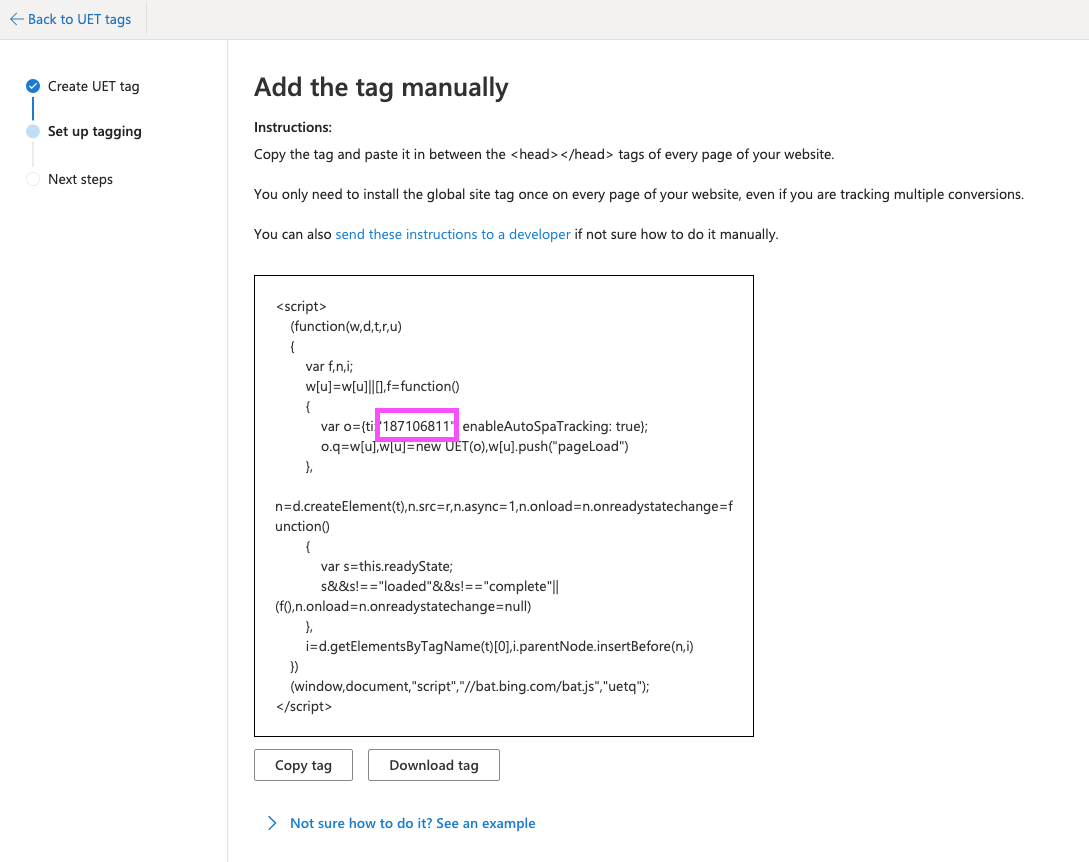
    18. Give your conversion goal a name, e.g. `[Converge] Purchase` and choose `Conversion action value may vary` as **Revenue**. Leave the other options unchanged and click **Next**.

    <Frame>
      <img src="https://mintcdn.com/converge/dh0K_Fgr0_qazJsh/images/destinations/bing-ads/bing-ads-conversion-0.png?fit=max&auto=format&n=dh0K_Fgr0_qazJsh&q=85&s=5badabc9390a4944454d9b5214ea78b4" alt="bing set up conversion action" width="1438" height="438" data-path="images/destinations/bing-ads/bing-ads-conversion-0.png" />
    </Frame>

    19. Choose **Turn on enhanced conversions** and tick the checkbox to enable enhanced conversions. Click on **Save and next**.

    20. Choose the Tag you set up in `Installation instructions` and click **Skip base tag setup**.

    21. Ignore the enhanced conversion instructions. Just click on **Next**.

    22. Choose **Manual installation** and click **Next**.

    23. Fill in `purchase` in the Action Name field.
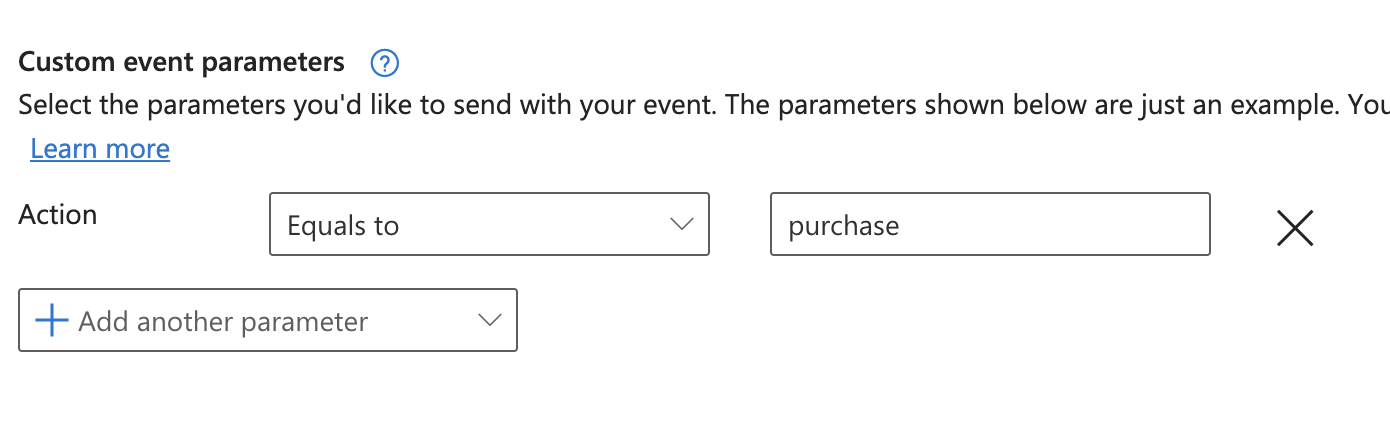
    <Info>If you are not setting up a `purchase` event, you should check the [Bing Ads Event Mapping](#event-mapping) for the appropriate action name (e.g. `add_to_cart`).</Info>

    <Frame>
      <img src="https://mintcdn.com/converge/dh0K_Fgr0_qazJsh/images/destinations/bing-ads/bing-ads-conversion-1.png?fit=max&auto=format&n=dh0K_Fgr0_qazJsh&q=85&s=4b9bee1b67aa0338dc5e5f68d06be2e7" alt="bing install event tag" width="1390" height="446" data-path="images/destinations/bing-ads/bing-ads-conversion-1.png" />
    </Frame>

    24. Choose **Track event on inline action** under **When do you want to track this event?**. Ignore the code generated below and click **Save and next.**

    25. You are done. Your conversion goal should populate with conversions from the Bing Ads Destination.

    <Note>Repeat the steps above for all the conversion goals you want to report on in Bing Ads.</Note>
  </Step>
</Steps>

<Warning> Once you have installed your Converge Destination, you should **pause or remove all existing Bing Ads tracking**. Leaving these on will lead to duplicate tracking.  </Warning>

***

## Consent mode

Bing Ads requires implementing [consent mode](https://help.ads.microsoft.com/#apex/ads/en/60119/1).
In EEA, conversions may be ignored if consent is not explicitly granted.

You should configure consent mode through your cookie banner, or instrument it manually according to the [documentation](https://help.ads.microsoft.com/#apex/ads/en/60119/1).

The Converge destination will automatically pick up on the configured consent configuration.

***

## Modify your Content ID

The Converge Bing Ads Connection will use the **Default** content mode to define the Content ID forwarded by default.
However, you can configure the connection to use explicitly the **Product ID**, the **Variant ID** or **SKU** instead.

1. Navigate to your Microsoft Ads (Bing Ads) Destination, click on **Configuration**.
2. Click on the **Configuration**-subtab
3. Open the **Advanced configuration (optional)** section
4. Pick your desired Content ID, and click on **Save**

**List of Content ID Modes**

| Content ID Mode | Behavior                                                          |
| --------------- | ----------------------------------------------------------------- |
| Default         | Use the `variant_id` if available, otherwise use the `product_id` |
| Product Id      | Always use the `product_id`                                       |
| Variant Id      | Always use the `variant_id`                                       |
| SKU             | Always use the `sku`                                              |

***

## Converge functionality

This integration supports the following Converge destination functionality.

| Converge Feature                                     |       Supported       |
| ---------------------------------------------------- | :-------------------: |
| Custom Events                                        | <Icon name="check" /> |
| Filters                                              | <Icon name="xmark" /> |
| Server-side Conversions                              | <Icon name="xmark" /> |
| [Conversion amount](/destinations/conversion-amount) | <Icon name="check" /> |

***

## Event mapping

Converge automatically maps the following events from the [Converge event spec](/sources/converge-spec) to the Bing Ads spec.

| Converge Event Name                                             | Bing Ads Event Name   |
| --------------------------------------------------------------- | --------------------- |
| [\$page\_load](/sources/converge-spec#page-load)                | `page_view`           |
| [Viewed Product](/sources/converge-spec#viewed-product)         | `view_item`           |
| [Viewed Collection](/sources/converge-spec#viewed-collection)   | `view_item_list`      |
| [Added To Cart](/sources/converge-spec#added-to-cart)           | `add_to_cart`         |
| [Searched](/sources/converge-spec#searched)                     | `view_search_results` |
| [Started Checkout](/sources/converge-spec#started-checkout)     | `begin_checkout`      |
| [Added Payment Info](/sources/converge-spec#added-payment-info) | `add_payment_info`    |
| [Placed Order](/sources/converge-spec#placed-order)             | `purchase`            |