> ## Documentation Index
> Fetch the complete documentation index at: https://docs.runconverge.com/llms.txt
> Use this file to discover all available pages before exploring further.

# Customer.io

> An introduction to the Customer.io Destination

export const OutboundLink = ({linkText, linkTarget}) => {
  return <a target="_blank" href={linkTarget}> {linkText} 
    <div className="inline h-3 w-3 fill-gray-500 dark:fill-gray-100 text-gray-500 dark:text-gray-300 ml-1 mr-1">
      <svg className="inline w-2.5 h-2.5 bg-gray-500 dark:bg-gray-300" style={{
    maskImage: `url('https://mintlify.b-cdn.net/v6.5.1/solid/up-right-from-square.svg')`,
    maskRepeat: "no-repeat",
    maskPosition: "center center"
  }}></svg> 
    </div>
    </a>;
};

export const IconText = ({name, text, iconSource = "mintlify", iconLocation = "before", iconType = "solid"}) => {
  const sourceUrl = iconSource === 'local' ? `url('/images/icons/${name}.svg')` : `url('https://mintlify.b-cdn.net/v6.5.1/${iconType}/${name}.svg')`;
  return <>
            <div className="inline-block pl-2">
                {iconLocation === 'before' && <div className="h-3.5 w-3.5 fill-gray-800 dark:fill-gray-100 text-gray-800 dark:text-gray-100 inline-block align-middle mr-2">
                        <svg className="w-4 h-4 bg-gray-800 dark:bg-gray-100 " style={{
    maskImage: sourceUrl,
    maskRepeat: "no-repeat",
    maskPosition: "center center"
  }} />
                    </div>}
                <span className="inline-block align-middle font-semibold fill-gray-800 dark:fill-gray-100 text-gray-800 dark:text-gray-100 pl-1 pr-2">{text}</span>
                {iconLocation === 'after' && <div className="h-3.5 w-3.5 fill-gray-800 dark:fill-gray-100 text-gray-800 dark:text-gray-100 inline-block align-middle mr-2">
                        <svg className="w-4 h-4 bg-gray-800 dark:bg-gray-100 pr-3" style={{
    maskImage: sourceUrl,
    maskRepeat: "no-repeat",
    maskPosition: "center center"
  }} />
                    </div>}
            </div>
        </>;
};

export const Icon = ({name}) => {
  return <div className="h-4 w-4 fill-gray-800 dark:fill-gray-100 text-gray-800 dark:text-gray-100 inline-block align-middle">
            <svg className="w-4 h-4 bg-gray-800 dark:bg-gray-100" style={{
    maskImage: `url('https://mintlify.b-cdn.net/v6.5.1/solid/${name}.svg')`,
    maskRepeat: "no-repeat",
    maskPosition: "center center"
  }} />
        </div>;
};

## Overview

Destination Type: <IconText text="Server-side" name="server" iconType="duotone" iconLocation="after" />

***

## Installation instructions

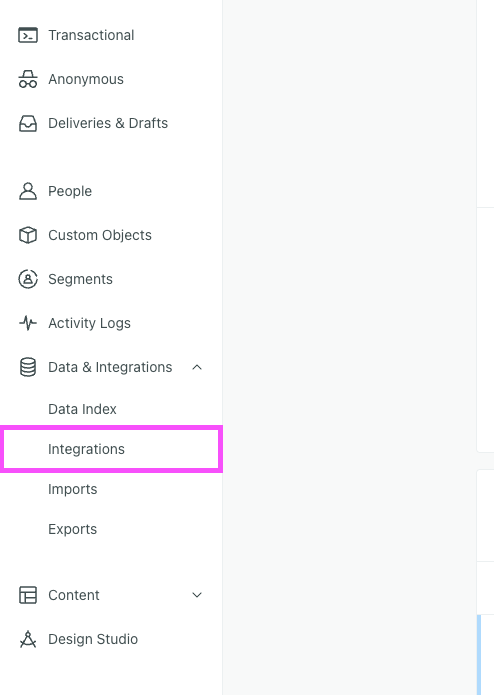
1. Navigate to your <OutboundLink linkTarget="https://fly.customer.io" linkText="Customer.io Dashboard" />.

2. On the left sidebar of the dashboard, click on **Data & Integration** and then on **Integrations**.

<Frame>
  <img src="https://mintcdn.com/converge/dh0K_Fgr0_qazJsh/images/destinations/customerio/customerio-install-0.png?fit=max&auto=format&n=dh0K_Fgr0_qazJsh&q=85&s=55530e2bf8a0cf4d7fd90d7fbc1f3811" alt="customerio-1" width="494" height="695" data-path="images/destinations/customerio/customerio-install-0.png" />
</Frame>

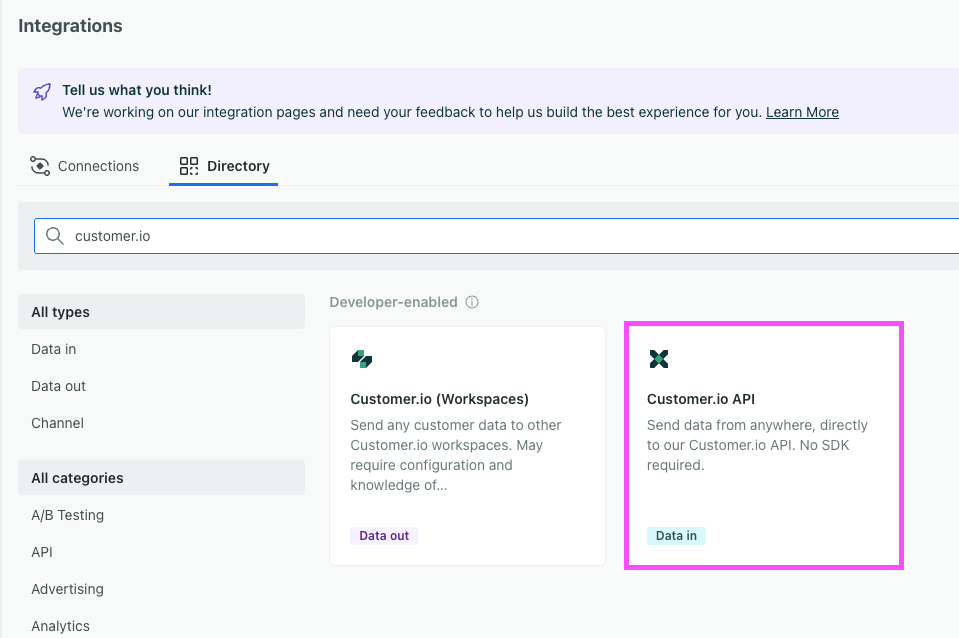
3. Under the **Directory**-tab, type in **customer.io**.

4. Click on **Customer.io API** labeled Data In.
<Frame>
  <img src="https://mintcdn.com/converge/dh0K_Fgr0_qazJsh/images/destinations/customerio/customerio-install-1.png?fit=max&auto=format&n=dh0K_Fgr0_qazJsh&q=85&s=eac492d29aa8b0d2c5c6dd330d37aba8" alt="customerio-1" width="959" height="638" data-path="images/destinations/customerio/customerio-install-1.png" />
</Frame>

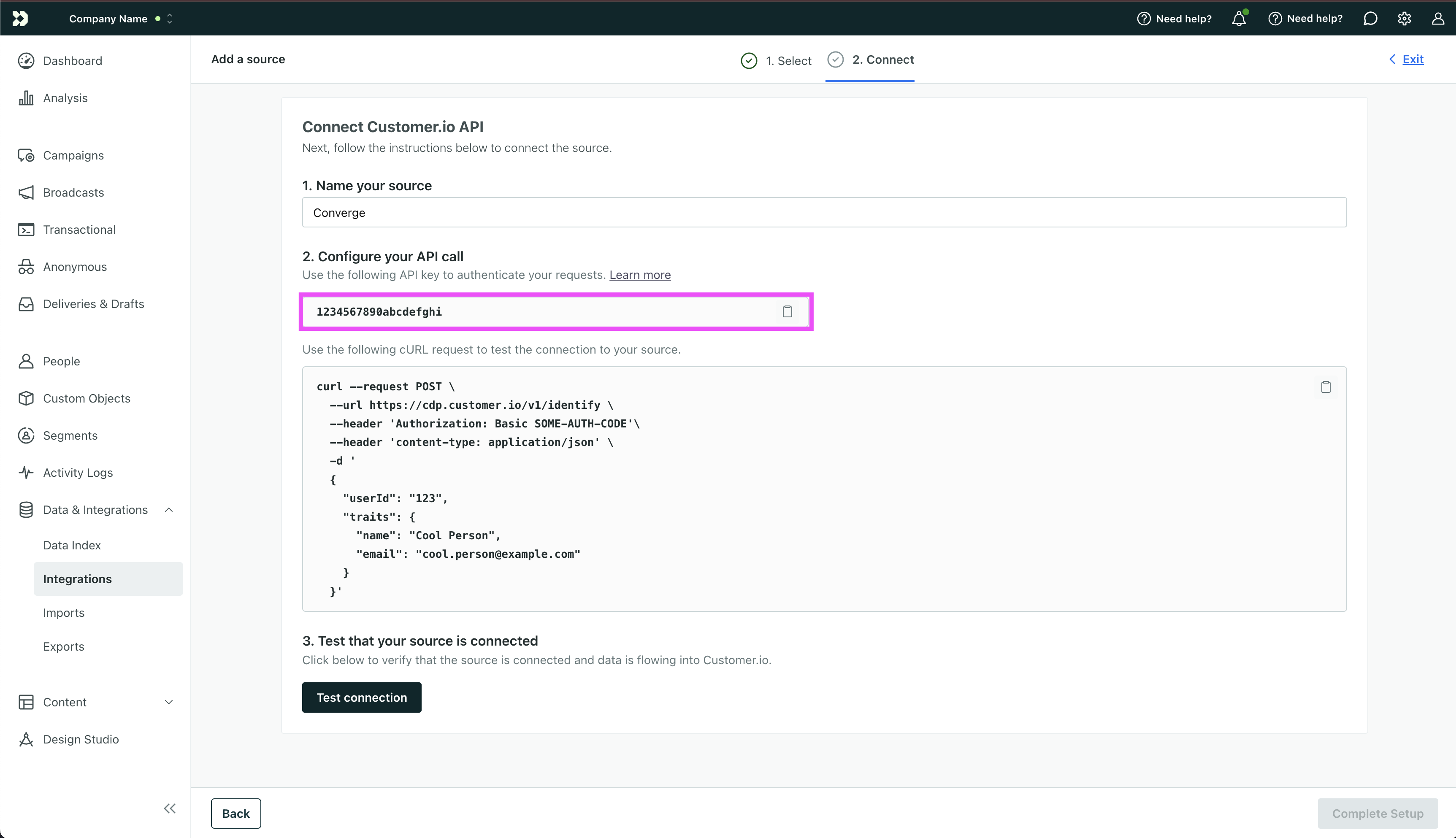
5. Copy the **API Key**, you will need it later.
<Frame>
  <img src="https://mintcdn.com/converge/dh0K_Fgr0_qazJsh/images/destinations/customerio/customerio-install-2.png?fit=max&auto=format&n=dh0K_Fgr0_qazJsh&q=85&s=de66c9c4bb9800c8d2614470ff1b34e3" alt="customerio-1" width="3450" height="1986" data-path="images/destinations/customerio/customerio-install-2.png" />
</Frame>

6. In the Converge sidebar, click on <IconText name="arrow-right-from-line" text="Event streams" /> and then click **Create new Destination**.

7. Select the **Customer.io** destination and click **Next**.

8. Give your destination a **name** (e.g. Customer.io Destination) and click **Next**.

9. Fill in the **Private API Key** you copied from **Customer.io** and click **Test Connection**.

10. Back in the Customer.io dashboard, click on **Test Connection**

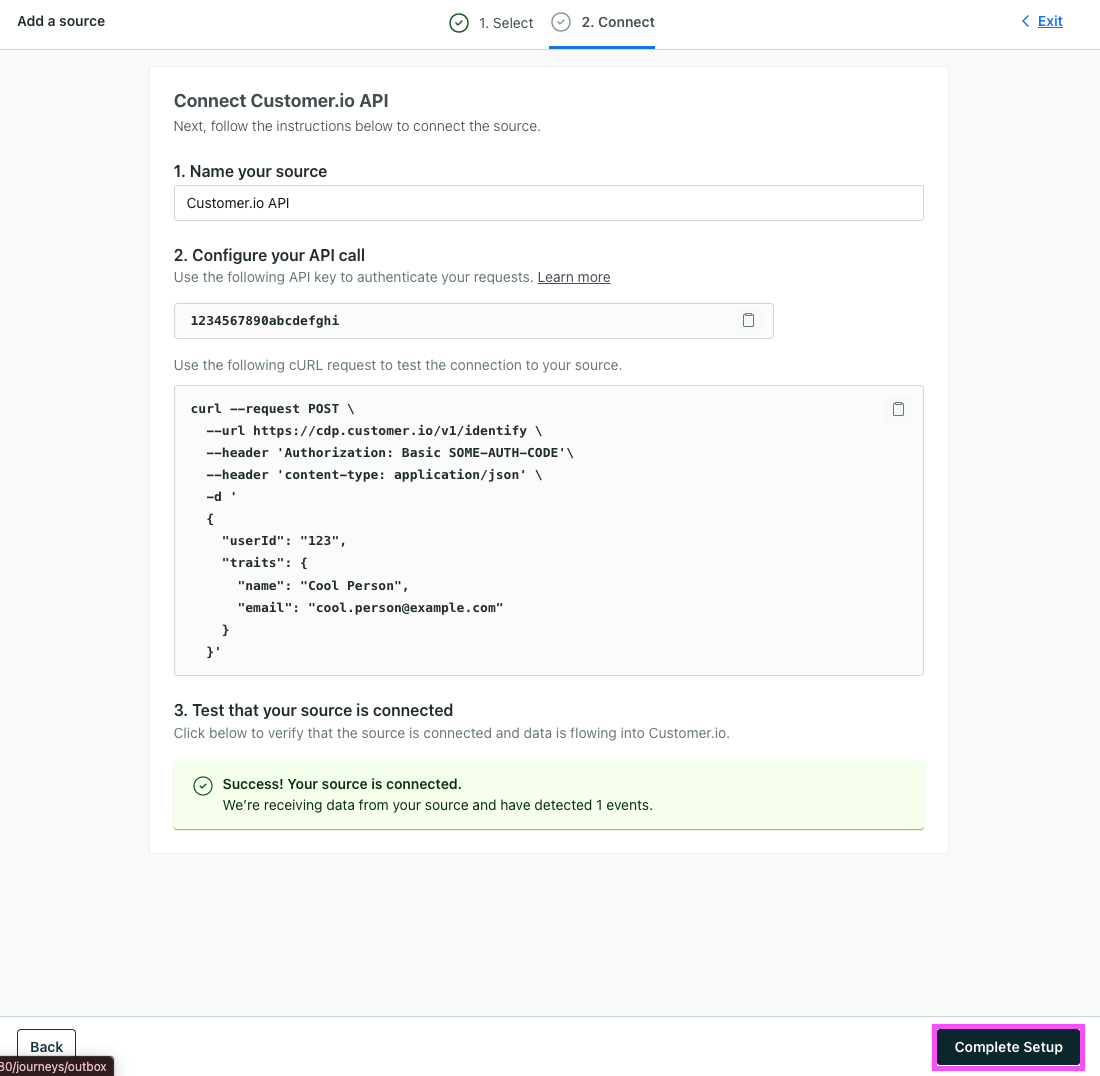
11. Click on **Complete Setup**

<Frame>
  <img src="https://mintcdn.com/converge/dh0K_Fgr0_qazJsh/images/destinations/customerio/customerio-install-3.png?fit=max&auto=format&n=dh0K_Fgr0_qazJsh&q=85&s=c4072327461273027f07f1316d382373" alt="customerio-1" width="1100" height="1076" data-path="images/destinations/customerio/customerio-install-3.png" />
</Frame>

12. Back in Converge, click **Next**.

13. Select **Use default mapping** and click **Next**.

14. Select the sources you want to forward events from, then click **Next**.

15. Review any issues and click **Submit**.

***

## Converge functionality

This integration supports the following Converge destination functionality.

| Converge Feature        |       Supported       |
| ----------------------- | :-------------------: |
| Custom Events           | <Icon name="check" /> |
| Filters                 | <Icon name="check" /> |
| Server-side Conversions | <Icon name="xmark" /> |