> ## Documentation Index
> Fetch the complete documentation index at: https://docs.runconverge.com/llms.txt
> Use this file to discover all available pages before exploring further.

# Meta Ads (Facebook Ads)

> An introduction to the Meta/Facebook Ads Destination

export const OutboundLink = ({linkText, linkTarget}) => {
  return <a target="_blank" href={linkTarget}> {linkText} 
    <div className="inline h-3 w-3 fill-gray-500 dark:fill-gray-100 text-gray-500 dark:text-gray-300 ml-1 mr-1">
      <svg className="inline w-2.5 h-2.5 bg-gray-500 dark:bg-gray-300" style={{
    maskImage: `url('https://mintlify.b-cdn.net/v6.5.1/solid/up-right-from-square.svg')`,
    maskRepeat: "no-repeat",
    maskPosition: "center center"
  }}></svg> 
    </div>
    </a>;
};

export const FacebookIcon = ({size = 'large'}) => {
  const sizeClass = size === 'small' ? 'w-4' : 'w-6';
  return <div className={sizeClass}>
            <svg viewBox="0 0 287.56 191" xmlns="http://www.w3.org/2000/svg">
                <defs>
                    <linearGradient id="b" x1="61" x2="259" y1="117" y2="127" gradientUnits="userSpaceOnUse">
                        <stop stopColor="#0064e1" offset="0" />
                        <stop stopColor="#0064e1" offset=".4" />
                        <stop stopColor="#0073ee" offset=".83" />
                        <stop stopColor="#0082fb" offset="1" />
                    </linearGradient>
                    <linearGradient id="a" x1="45" x2="45" y1="139" y2="66" gradientUnits="userSpaceOnUse">
                        <stop stopColor="#0082fb" offset="0" />
                        <stop stopColor="#0064e0" offset="1" />
                    </linearGradient>
                </defs>
                <path d="m31.06 125.96c0 10.98 2.41 19.41 5.56 24.51 4.13 6.68 10.29 9.51 16.57 9.51 8.1 0 15.51-2.01 29.79-21.76 11.44-15.83 24.92-38.05 33.99-51.98l15.36-23.6c10.67-16.39 23.02-34.61 37.18-46.96 11.56-10.08 24.03-15.68 36.58-15.68 21.07 0 41.14 12.21 56.5 35.11 16.81 25.08 24.97 56.67 24.97 89.27 0 19.38-3.82 33.62-10.32 44.87-6.28 10.88-18.52 21.75-39.11 21.75v-31.02c17.63 0 22.03-16.2 22.03-34.74 0-26.42-6.16-55.74-19.73-76.69-9.63-14.86-22.11-23.94-35.84-23.94-14.85 0-26.8 11.2-40.23 31.17-7.14 10.61-14.47 23.54-22.7 38.13l-9.06 16.05c-18.2 32.27-22.81 39.62-31.91 51.75-15.95 21.24-29.57 29.29-47.5 29.29-21.27 0-34.72-9.21-43.05-23.09-6.8-11.31-10.14-26.15-10.14-43.06z" fill="#0081fb" />
                <path d="m24.49,37.3c14.24-21.95 34.79-37.3 58.36-37.3 13.65,0 27.22,4.04 41.39,15.61 15.5,12.65 32.02,33.48 52.63,67.81l7.39,12.32c17.84,29.72 27.99,45.01 33.93,52.22 7.64,9.26 12.99,12.02 19.94,12.02 17.63,0 22.03-16.2 22.03-34.74l27.4-.86c0,19.38-3.82,33.62-10.32,44.87-6.28,10.88-18.52,21.75-39.11,21.75-12.8,0-24.14-2.78-36.68-14.61-9.64-9.08-20.91-25.21-29.58-39.71l-25.79-43.08c-12.94-21.62-24.81-37.74-31.68-45.04-7.39-7.85-16.89-17.33-32.05-17.33-12.27,0-22.69,8.61-31.41,21.78z" fill="url(#b)" />
                <path d="m82.35 31.23c-12.27 0-22.69 8.61-31.41 21.78-12.33 18.61-19.88 46.33-19.88 72.95 0 10.98 2.41 19.41 5.56 24.51l-26.48 17.44c-6.8-11.31-10.14-26.15-10.14-43.06 0-30.75 8.44-62.8 24.49-87.55 14.24-21.95 34.79-37.3 58.36-37.3z" fill="url(#a)" />
            </svg>
        </div>;
};

export const IconText = ({name, text, iconSource = "mintlify", iconLocation = "before", iconType = "solid"}) => {
  const sourceUrl = iconSource === 'local' ? `url('/images/icons/${name}.svg')` : `url('https://mintlify.b-cdn.net/v6.5.1/${iconType}/${name}.svg')`;
  return <>
            <div className="inline-block pl-2">
                {iconLocation === 'before' && <div className="h-3.5 w-3.5 fill-gray-800 dark:fill-gray-100 text-gray-800 dark:text-gray-100 inline-block align-middle mr-2">
                        <svg className="w-4 h-4 bg-gray-800 dark:bg-gray-100 " style={{
    maskImage: sourceUrl,
    maskRepeat: "no-repeat",
    maskPosition: "center center"
  }} />
                    </div>}
                <span className="inline-block align-middle font-semibold fill-gray-800 dark:fill-gray-100 text-gray-800 dark:text-gray-100 pl-1 pr-2">{text}</span>
                {iconLocation === 'after' && <div className="h-3.5 w-3.5 fill-gray-800 dark:fill-gray-100 text-gray-800 dark:text-gray-100 inline-block align-middle mr-2">
                        <svg className="w-4 h-4 bg-gray-800 dark:bg-gray-100 pr-3" style={{
    maskImage: sourceUrl,
    maskRepeat: "no-repeat",
    maskPosition: "center center"
  }} />
                    </div>}
            </div>
        </>;
};

export const Icon = ({name}) => {
  return <div className="h-4 w-4 fill-gray-800 dark:fill-gray-100 text-gray-800 dark:text-gray-100 inline-block align-middle">
            <svg className="w-4 h-4 bg-gray-800 dark:bg-gray-100" style={{
    maskImage: `url('https://mintlify.b-cdn.net/v6.5.1/solid/${name}.svg')`,
    maskRepeat: "no-repeat",
    maskPosition: "center center"
  }} />
        </div>;
};

## Overview

Destination Type: <IconText text="Client-side" name="browser" iconType="duotone" iconLocation="after" />  and <IconText text="Server-side" name="server" iconType="duotone" iconLocation="after" />

* Includes support for the <OutboundLink linkText="Facebook Conversions API" linkTarget="https://www.facebook.com/business/help/2041148702652965" />

***

## Installation instructions

1. Navigate to your [Facebook Events Manager](https://business.facebook.com/events_manager2).

2. From your Events Manager, **click on the Facebook Pixel** you would like to connect.

3. In the Facebook Pixel menu, choose the **Settings** subtab.

4. From this subtab, you can find your **Pixel ID**, and copy it -- you will need it in a later step.

<Warning>
  Ensure that the **Track events automatically without code** setting is turned off in the **Event Setup** subtab.
  This can lead to over-reporting of events and incorrect conversion values.
</Warning>

5. Scroll down in the Settings subtab until you find **Generate access token**, and click on it. Copy this token as well.

6. In the Converge sidebar, click on <IconText name="arrow-right-from-line" text="Event streams" /> and then click **Create new Destination**.

7. Select the **Meta Ads (Facebook Ads)** destination and click **Next**.

8. Give your destination a **name** (e.g. Meta Ads Destination) and click **Next**.

9. Fill in the **Pixel ID** and **Access Token** you copied from **Facebook** and click **Next**.

10. Fill in your homepage domain name in the **Your Domain name** field, it does not need to include `https://`. Click **Next**.

11. Select **Use default mapping** and click **Next**.

<Note>You can find the Default mapping for the Meta Ads (Facebook Ads) destination [here](#event-mapping). For more information on setting up Custom mappings, look [here](/destinations/event-mapping).</Note>

12. Select the sources you want to forward events from, then click **Next**.

13. Review any issues and click **Submit**.

<Warning>
  Set this destination to **Deactivated** while you remove your existing Facebook tracking setup. Running both in parallel leads to duplicate conversion data. Follow the **Turn off your old Facebook tracking** instructions below, then set the destination to **Active** when you're ready.
</Warning>

***

## Turn off your old Facebook tracking

### Turning off the Shopify Facebook Sales Channel data sharing

1. Navigate to your <OutboundLink linkText="Shopify Admin Dashboard" linkTarget="https://admin.shopify.com/" />.

2. Click on **Sales channels** and choose **Facebook & Instagram** from the *Installed sales channels* menu.

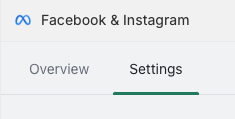
3. Click on **Settings**.

   <Frame>
     <img src="https://mintcdn.com/converge/zWlDFBz7l1F_0PFn/images/guides/turn-off-tracking/shopify-facebook-sales-channel/shopify-facebook-sales-channel-0.png?fit=max&auto=format&n=zWlDFBz7l1F_0PFn&q=85&s=5934881238367ac999117fdd7790c707" alt="settings-facebook" width="235" height="119" data-path="images/guides/turn-off-tracking/shopify-facebook-sales-channel/shopify-facebook-sales-channel-0.png" />
   </Frame>

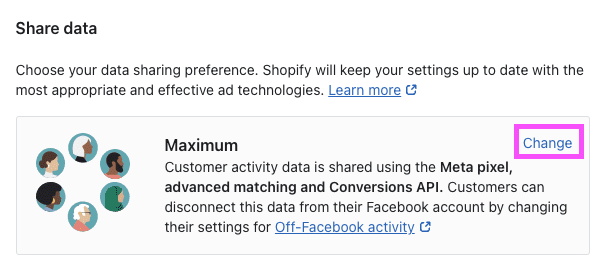
4. Click on **Change** in the **Share data** submenu.
   <Frame>
     <img src="https://mintcdn.com/converge/zWlDFBz7l1F_0PFn/images/guides/turn-off-tracking/shopify-facebook-sales-channel/shopify-facebook-sales-channel-1.png?fit=max&auto=format&n=zWlDFBz7l1F_0PFn&q=85&s=e6adc3d11db43dfe2f4cd6da456dbca4" alt="settings-facebook-1" width="605" height="267" data-path="images/guides/turn-off-tracking/shopify-facebook-sales-channel/shopify-facebook-sales-channel-1.png" />
   </Frame>

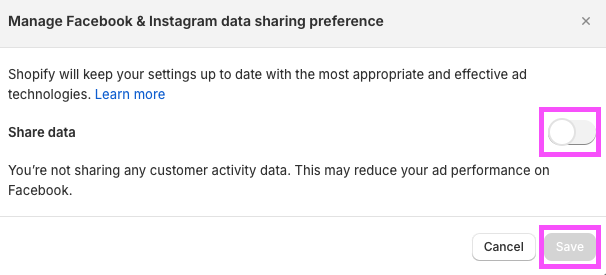
5. Turn the **Share data** switch **off** (it should be gray) and press **Save**.
   <Frame>
     <img src="https://mintcdn.com/converge/zWlDFBz7l1F_0PFn/images/guides/turn-off-tracking/shopify-facebook-sales-channel/shopify-facebook-sales-channel-2.png?fit=max&auto=format&n=zWlDFBz7l1F_0PFn&q=85&s=f94d6b3b12cd6ae1ab143662dd7dbfed" alt="settings-facebook-2" width="606" height="275" data-path="images/guides/turn-off-tracking/shopify-facebook-sales-channel/shopify-facebook-sales-channel-2.png" />
   </Frame>

***

## Modify your Content ID

The Converge Meta Ads Destination will use the **Default** content mode to define the Content ID forwarded by default.
However, you can configure the destination to use explicitly the **Product ID**, the **Variant ID** or **SKU** instead.

1. Navigate to your Meta Ads Destination, click on **Configuration**.
2. Click on the **Configuration**-subtab
3. Open the **Advanced configuration (optional)** section
4. Pick your desired Content ID, and click on **Save**

**List of Content ID Modes**

| Content ID Mode | Behavior                                                          |
| --------------- | ----------------------------------------------------------------- |
| Default         | Use the `variant_id` if available, otherwise use the `product_id` |
| Product Id      | Always use the `product_id`                                       |
| Variant Id      | Always use the `variant_id`                                       |
| SKU             | Always use the `sku`                                              |

***

## Converge functionality

This integration supports the following Converge destination functionality.

| Converge Feature                                     |       Supported       |
| :--------------------------------------------------- | :-------------------: |
| Custom Events                                        | <Icon name="check" /> |

| Filters                                              | <Icon name="check" /> |
| Server-side Conversions                              | <Icon name="check" /> |
| [Conversion amount](/destinations/conversion-amount) | <Icon name="check" /> |

***

## FAQ

<AccordionGroup>
  <Accordion title="Why do I see a Duplicate Pixel ID warning in my console?">
    If you are a Shopify store, Converge needs to load both a `theme.liquid` pixel and a Shopify Custom Pixel to track reliably.
    See the [FAQ in the Shopify Integration](/sources/website-integrations/shopify#faq) for more detailed information.

    Converge makes sure that no duplicate events get sent, even though the Facebook Pixel needs to be loaded in two separate places for complete event coverage.

    <Note> If you are not using the Shopify Web integration, you might have an old pixel installed using a different tracking method, and you should turn this one off.</Note>
  </Accordion>

  <Accordion title="Why do I see &#x22;increase coverage&#x22;-warnings in my Events Manager?">
    <Frame>
      <img src="https://mintcdn.com/converge/dh0K_Fgr0_qazJsh/images/destinations/facebook/facebook-increase-coverage.png?fit=max&auto=format&n=dh0K_Fgr0_qazJsh&q=85&s=101913d455597a6ea68c4ebbbe76f04a" alt="increase-coverage" width="770" height="98" data-path="images/destinations/facebook/facebook-increase-coverage.png" />
    </Frame>

    Meta is warning you here that not all of your events are receiving identifiable information (e.g. `email`).
    Ideally, Facebook would have an email for every Added To Cart that ever happens on your website so they can easily attribute it.

    However, many people on the website are anonymous (they have never given their email to your store and thus Converge cannot track it). If the user never gives their email or address, then we can never send that email back.

    **Converge sends as many of these parameters as there are available.**

    The only events where you'd expect a very high email match rate are events where the user always has to give an email (e.g., `purchase`).

    For all events where certain parameters are not always available (e.g., you don't expect all `AddToCart` or an `InitiateCheckout` to have an `email`), you can safely ignore this warning.

  </Accordion>

  <Accordion title="Why is my Click ID (fbc) percentage low?">
    <Frame>
      <img src="https://mintcdn.com/converge/dh0K_Fgr0_qazJsh/images/destinations/facebook/facebook-click-id.png?fit=max&auto=format&n=dh0K_Fgr0_qazJsh&q=85&s=8e46fb5382e4e932fb998e76a16c0911" alt="Facebook Click ID (fbc)" width="1676" height="204" data-path="images/destinations/facebook/facebook-click-id.png" />
    </Frame>

    When inspecting the Event match quality score in Meta Events Manager, it's common to see a low percentage for the `Click ID (fbc)` parameter. In most cases, this is an expected value given how the `fbc` parameter works.

    The `Click ID (fbc)` is a parameter generated by Meta that's added to the URLs of your ads and used by Meta to track and identify events and conversions. See <OutboundLink linkText="ClickID and the fbp and fbc Parameters" linkTarget="https://developers.facebook.com/docs/marketing-api/conversions-api/parameters/fbp-and-fbc/" /> for additional information.

    In an extreme scenario where all of your visitors arrive from a Meta ad, the `Click ID (fbc)` parameter would be present in 100% of your events.

    Not all your traffic will originate from Meta, though. Users can reach your store through, for example, search engines, other ad platforms, or even directly. This traffic won't contain the `fbc` parameter in the URL, as it's exclusive to Meta ads.

    Given that, consider another extreme scenario where none of your traffic originates from Meta ads—it's expected that `Click ID (fbc)` would be zero.

    Overall, you should expect the percentage of `Click ID (fbc)` to be directly related to the percentage of traffic your store receives that originates from Meta ads.

    In summary, if your store uses multiple marketing channels with no particular focus on Meta, it's expected to see low percentages for the `Click ID (fbc)` parameter. On the other hand, if your store relies heavily on Meta with a majority of your traffic coming through it, you should expect higher percentages.
  </Accordion>

  <Accordion title="How do I use the NewCustomerPurchase event?">
    Converge automatically sends the `NewCustomerPurchase` event to Facebook. To start using it for reporting and optimization, you need to create a custom conversion in Facebook Events Manager.

    We have a guide on setting up this custom event in the Meta Ads Manager [here](/guides/set-up-nc-purchase).
  </Accordion>

  <Accordion title="Why do I see &#x22;update recommended&#x22; warnings about IPv6 addresses in the Events Manager?">
    <Frame>
      <img src="https://mintcdn.com/converge/dh0K_Fgr0_qazJsh/images/destinations/facebook/facebook-update-recommended.png?fit=max&auto=format&n=dh0K_Fgr0_qazJsh&q=85&s=b086aa48c9201b86e1fec7b0b053545f" alt="update-recommended" width="636" height="72" data-path="images/destinations/facebook/facebook-update-recommended.png" />
    </Frame>

    Meta asks you to send an IP Address as part of the Event Matching parameters when you send over events. There are currently two versions of IP addresses in use: IPv4 and IPv6.

    Both are still widely in use, but the IPv6 standard is newer, which is why Meta flags that it's still receiving IPv4 addresses. Converge supports IPv6 and sends IPv6 addresses whenever they're available.

    However, there's not always an IPv6 address available. In that case, Converge sends the IPv4 address instead. The IP address version is dependent on the customer's browser and network configuration. If the customer's network configuration and browser only support IPv4, then Converge will need to send an IPv4 address as well.

    Note that Meta does accept IPv4 addresses—it just wants to make sure that all advertisers support IPv6 as well. Therefore, you can safely ignore this warning.
  </Accordion>

  <Accordion title="The Facebook Ads manager is over-reporting conversions and/or the conversion value is wrong.">
    Confirm the following steps to troubleshoot:

    * The Facebook pixel is correctly configured. When the Facebook **Automatic Events** are enabled, Facebook tracks purchases automatically across your website—typically with a wrong AOV. This is a common source of over-reporting. You can turn this off in the Facebook Events Manager under **Settings** > **Event setup** > **Track events automatically without code**.
    * Converge is the only active Facebook integration. In the Converge destination logs, you can recognize it as **External** pixel events. Make sure all other Facebook tracking integrations other than Converge are turned off. See [here](#turn-off-your-old-facebook-tracking).
    * Converge tracks the correct number of `Placed Order` events. Compare the **Attribution** > **Orders** numbers with your backend.
    * The correct dataset is linked to your Facebook ads. The dataset ID should match your Converge destination configuration.

    If none of the above provides a solution to your problem, take a closer look at the **Facebook Events Manager**. Verify the Purchase event by looking at the number of events arriving from the server and browser, and the sampled activities.
  </Accordion>
</AccordionGroup>

***

## Event mapping

Converge automatically maps the following events from the [Converge event spec](/sources/converge-spec) to the Meta spec.

| Converge Event Name                                                                               | Meta Event Name                         |
| ------------------------------------------------------------------------------------------------- | --------------------------------------- |
| [\$page\_load](/sources/converge-spec#page-load)                                                  | `PageView`                              |
| [Viewed Product](/sources/converge-spec#viewed-product)                                           | `ViewContent`                           |
| [Viewed Collection](/sources/converge-spec#viewed-collection)                                     | `ViewContent`                           |
| [Added To Cart](/sources/converge-spec#added-to-cart)                                             | `AddToCart`                             |
| [Added To Wishlist](/sources/converge-spec#added-to-wishlist)                                     | `AddToWishlist`                         |
| [Started Checkout](/sources/converge-spec#started-checkout)                                       | `InitiateCheckout`                      |
| [Added Payment Info](/sources/converge-spec#added-payment-info)                                   | `AddPaymentInfo`                        |
| [Placed Order](/sources/converge-spec#placed-order)                                               | `Purchase`                              |
| [Started Subscription](/sources/converge-spec#started-subscription)                               | `Subscribe`                             |
| [Activated Subscription](/sources/converge-spec#activated-subscription)                           | `Subscribe`                             |
| [Placed Recurring Subscription Order](/sources/converge-spec#placed-recurring-subscription-order) | `RecurringSubscriptionPaymentSucceeded` |
| [Cancelled Subscription](/sources/converge-spec#cancelled-subscription)                           | `CancelSubscription`                    |
| [Subscribed To Newsletter](/sources/converge-spec#subscribed-to-newsletter)                       | `Lead`                                  |
| [Searched](/sources/converge-spec#searched)                                                       | `Search`                                |
| [Searched for Store](/sources/converge-spec#searched-for-store)                                   | `FindLocation`                          |

This integration also auto-tracks some additional events that are not part of the Meta Base Spec but are so heavily requested that we automatically forward them.

| Converge Event Name                                                       | Meta Event Name       |
| ------------------------------------------------------------------------- | --------------------- |
| [Placed Order](/sources/converge-spec#placed-order)  (New Customers Only) | `NewCustomerPurchase` |
|                                                                           |                       |

<Warning>
  To track custom conversion events in Converge, you must first set up the corresponding custom conversions in the [Facebook Ad Manager](https://www.facebook.com/events_manager2/custom_conversions). Without setting up these custom conversions, Converge will be unable to display the associated metrics.
</Warning>
