> ## Documentation Index
> Fetch the complete documentation index at: https://docs.runconverge.com/llms.txt
> Use this file to discover all available pages before exploring further.

# Google Analytics 4

> An introduction to the GA4 Destination

export const OutboundLink = ({linkText, linkTarget}) => {
  return <a target="_blank" href={linkTarget}> {linkText} 
    <div className="inline h-3 w-3 fill-gray-500 dark:fill-gray-100 text-gray-500 dark:text-gray-300 ml-1 mr-1">
      <svg className="inline w-2.5 h-2.5 bg-gray-500 dark:bg-gray-300" style={{
    maskImage: `url('https://mintlify.b-cdn.net/v6.5.1/solid/up-right-from-square.svg')`,
    maskRepeat: "no-repeat",
    maskPosition: "center center"
  }}></svg> 
    </div>
    </a>;
};

export const IconText = ({name, text, iconSource = "mintlify", iconLocation = "before", iconType = "solid"}) => {
  const sourceUrl = iconSource === 'local' ? `url('/images/icons/${name}.svg')` : `url('https://mintlify.b-cdn.net/v6.5.1/${iconType}/${name}.svg')`;
  return <>
            <div className="inline-block pl-2">
                {iconLocation === 'before' && <div className="h-3.5 w-3.5 fill-gray-800 dark:fill-gray-100 text-gray-800 dark:text-gray-100 inline-block align-middle mr-2">
                        <svg className="w-4 h-4 bg-gray-800 dark:bg-gray-100 " style={{
    maskImage: sourceUrl,
    maskRepeat: "no-repeat",
    maskPosition: "center center"
  }} />
                    </div>}
                <span className="inline-block align-middle font-semibold fill-gray-800 dark:fill-gray-100 text-gray-800 dark:text-gray-100 pl-1 pr-2">{text}</span>
                {iconLocation === 'after' && <div className="h-3.5 w-3.5 fill-gray-800 dark:fill-gray-100 text-gray-800 dark:text-gray-100 inline-block align-middle mr-2">
                        <svg className="w-4 h-4 bg-gray-800 dark:bg-gray-100 pr-3" style={{
    maskImage: sourceUrl,
    maskRepeat: "no-repeat",
    maskPosition: "center center"
  }} />
                    </div>}
            </div>
        </>;
};

export const Icon = ({name}) => {
  return <div className="h-4 w-4 fill-gray-800 dark:fill-gray-100 text-gray-800 dark:text-gray-100 inline-block align-middle">
            <svg className="w-4 h-4 bg-gray-800 dark:bg-gray-100" style={{
    maskImage: `url('https://mintlify.b-cdn.net/v6.5.1/solid/${name}.svg')`,
    maskRepeat: "no-repeat",
    maskPosition: "center center"
  }} />
        </div>;
};

## Overview

Destination Type: <IconText text="Client-side" name="browser" iconType="duotone" iconLocation="after" />  and <IconText text="Server-side" name="server" iconType="duotone" iconLocation="after" />

* Includes support for <OutboundLink linkText="Server-side GTM" linkTarget="https://support.google.com/tagmanager/answer/6106009" />
* Includes support for <OutboundLink linkText="Consent Mode V2" linkTarget="https://developers.google.com/tag-platform/security/guides/consent?sjid=5329592855679349930-EU&consentmode=advanced#upgrade-consent-v2" />

***

## Installation instructions

1. Navigate to your GA4 Property and choose <IconText name="gear" text="Admin" /> > **Data collection and modification** > **Data streams**.

2. If you do not have a data stream yet, you should click **Add stream** > **Web**. If you do have a data stream already, you should click on the datastream.

3. Copy the **Measurement ID** from the top right corner. You will need it later.

4. Click on **Measurement Protocol API secrets** on the same page.

   <Info> If you do not see the Measurement Protocol API secrets option, this means that you do not have `Edit` permissions for this GA4 Property.  </Info>

5. Click on **Create** to generate a new secret, and give it the name Converge. After creating, copy the **Secret value**.

6. In the Converge sidebar, click on <IconText name="arrow-right-from-line" text="Event streams" /> and then click **Create new Destination**.

7. Select the **Google Analytics 4** destination and click **Next**.

8. Give your destination a **name** (e.g. GA4 Destination) and click **Next**.

9. Fill in the **Measurement ID** and **Measurement Protocol API Secret** you copied from **GA4** and click **Next**.

10. Keep the defaults on the Configuration page and click **Next**.

11. Select **Use default mapping** and click **Next**.

<Note>You can find the Default mapping for the Google Analytics 4 destination [here](#event-mapping). For more information on setting up Custom mappings, look [here](/destinations/event-mapping).</Note>

12. Select the sources you want to forward events from, then click **Next**.

13. Review any issues and click **Submit**.

<Warning>
  Set this destination to **Deactivated** while you remove your existing GA4 tracking setup. Running both in parallel leads to duplicate conversion data. Follow the **Turn off your old GA4 tracking** instructions below, then set the destination to **Active** when you're ready.
</Warning>

***

## Turn off your old GA4 tracking

### Turning off the Shopify Google Sales Channel data sharing

1. Navigate to your <OutboundLink linkText="Shopify Admin Dashboard" linkTarget="https://admin.shopify.com/" />.

2. Click on **Sales channels** and choose **Google & YouTube** from the *Installed sales channels* menu.

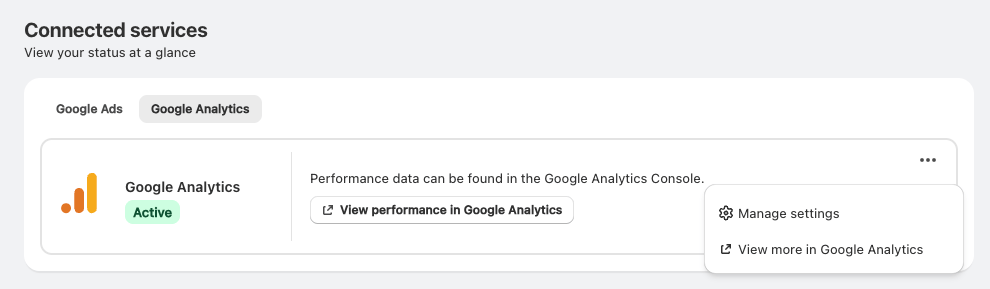
3. Click the **Google Analytics** tab. Then click the **...** menu and select **Manage settings**.

   <Frame>
     <img src="https://mintcdn.com/converge/N3CX8aG3MgYzuML-/images/guides/turn-off-tracking/shopify-ga4-sales-channel/shopify-ga4-sales-channel-0-2026.png?fit=max&auto=format&n=N3CX8aG3MgYzuML-&q=85&s=c40b96bf9127f504296bb5cd6547475b" alt="settings-google-0" width="990" height="289" data-path="images/guides/turn-off-tracking/shopify-ga4-sales-channel/shopify-ga4-sales-channel-0-2026.png" />
   </Frame>

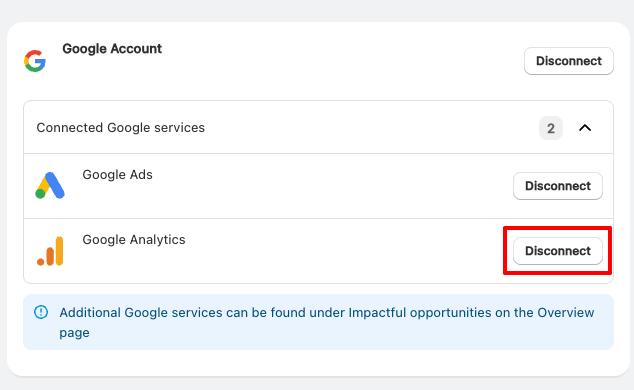
4. Click **Disconnect** next to **Google Analytics**.
   <Frame>
     <img src="https://mintcdn.com/converge/N3CX8aG3MgYzuML-/images/guides/turn-off-tracking/shopify-ga4-sales-channel/shopify-ga4-sales-channel-1-2026.png?fit=max&auto=format&n=N3CX8aG3MgYzuML-&q=85&s=646b6e0c7b8f8481fbf6fd86085b5d5d" alt="settings-google-1" width="634" height="390" data-path="images/guides/turn-off-tracking/shopify-ga4-sales-channel/shopify-ga4-sales-channel-1-2026.png" />
   </Frame>

***

## Configuration Options

The following options can be configured in the Destination Configuration.

***

#### Modify your Content ID

The Converge GA4 Destination will use the **Default** content mode to define the Content ID forwarded by default.
However, you can configure the destination to use explicitly the **Product ID**, the **Variant ID** or **SKU** instead.

1. Navigate to your GA4 Destination, click on **Configuration**.
2. Click on the **Configuration**-subtab
3. Open the **Advanced configuration (optional)** section
4. Pick your desired Content ID, and click on **Save**

**List of Content ID Modes**

| Content ID Mode | Behavior                                                          |
| --------------- | ----------------------------------------------------------------- |
| Default         | Use the `variant_id` if available, otherwise use the `product_id` |
| Product Id      | Always use the `product_id`                                       |
| Variant Id      | Always use the `variant_id`                                       |
| SKU             | Always use the `sku`                                              |

#### Connection Type

How Converge forwards events to Google Analytics 4.
Options include:

* **Client-side**: loads the `gtag` and sends every Converge event client-side.
* **Server-side**: loads the `gtag` and sends every Converge event (except for `$page_load`) server-side through the Measurement Protocol.
* **Server-side GTM (Recommended)**: loads the `gtag` in a server-side GTM container, and sends server-side conversions through the Measurement Protocol.

#### Custom Events

The GA4 destination supports setting up custom events, see [here](/destinations/event-mapping) for a deep-dive.

When the (recommended) sGTM mode is selected, there are two additional configuration options for each custom event:

* **Client** or **Server**.
  Configure where the custom event is sent from.
  By default, custom events are triggered from the browser.
  In some cases, you may want to trigger the event from the server instead.
  This is useful for events that are exclusively sent server-side to Converge.
* **Event** or **Conversion**.
  Choose whether the custom event should be marked as a conversion in GA4.

#### Custom Event Properties

Converge allows you to map properties that were tracked on a source from Converge into a custom property in Google Analytics 4.

<AccordionGroup>
  <Accordion title="Forward a custom event property to GA4">
    <Note>
      We **do not allow nested event properties** to be forwarded as a custom property.

      <Accordion title="Expand for more information">
        I.e. if the event properties look like this:

        ```json theme={null}
        {
        property_1: "value", 
        items: {
              property_2: "value_2"
           }
        }
        ```

        then we do support forwarding `property_1` as a custom property, but we do not support forwarding `property_2`.
      </Accordion>
    </Note>

    <Steps>
      <Step title="Set up the forwarding rule in Converge">
        1. Navigate to the <OutboundLink linkText="Destinations Tab in Converge" linkTarget="https://app.runconverge.com/-/connections" />, and click on the GA4 Destination.
        2. Navigate to the **Configuration** > **Advanced** sub-tab, and click on **Edit Configuration**.
        3. Click on  <IconText name="plus" text="Add Event Property" />
        4. Choose the mapping from the Converge property to the desired GA4 property.

                   <Frame>
                     <img src="https://mintcdn.com/converge/dh0K_Fgr0_qazJsh/images/destinations/ga4/custom-event-props-0.png?fit=max&auto=format&n=dh0K_Fgr0_qazJsh&q=85&s=f145c95cd3036e479901926a4bd83014" alt="custom event property map" width="890" height="152" data-path="images/destinations/ga4/custom-event-props-0.png" />
                   </Frame>
      </Step>

      <Step title="Set up a custom definition in GA4">
        5. Navigate to your Google Analytics Property and click on <IconText name="gear" text="Admin" /> > <br /> <IconText name="shapes" text="Custom definitions" iconType="regular" />
        6. Click on **Create custom dimension**.
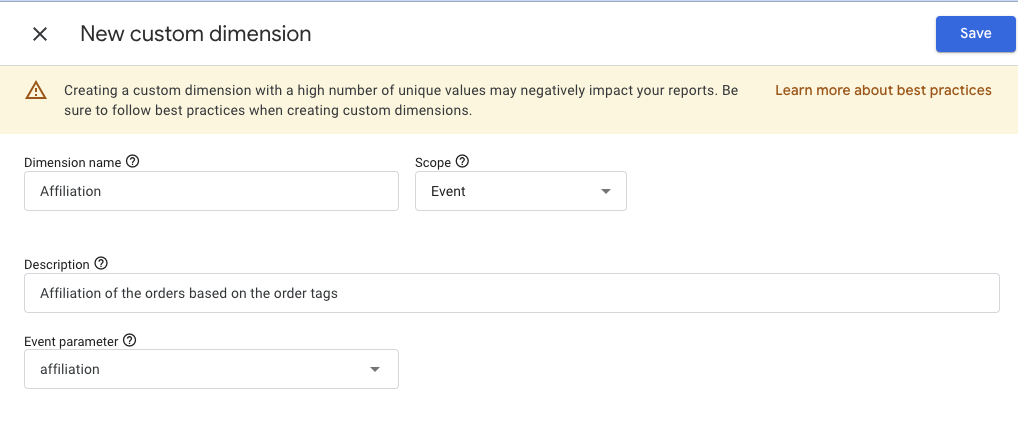
        7. Fill in your desired **Dimension name** (this is how your dimension/property will show up in GA4), and choose **Event** as your Scope. Optionally add a description and choose the mapped property that you set up in *Step 4* to fill in **Event parameter**.

                   <Frame>
                     <img src="https://mintcdn.com/converge/dh0K_Fgr0_qazJsh/images/destinations/ga4/custom-event-props-1.png?fit=max&auto=format&n=dh0K_Fgr0_qazJsh&q=85&s=a66a1e122ec88fb691c9d8aa401aca2a" alt="custom event property map" width="1018" height="433" data-path="images/destinations/ga4/custom-event-props-1.png" />
                   </Frame>
        8. Press **Save**
      </Step>
    </Steps>
  </Accordion>
</AccordionGroup>

#### Custom Ecommerce Properties

You might want to add a custom property on the `items` array for ecommerce events as per the GA4 documentation [here](https://developers.google.com/analytics/devguides/collection/ga4/item-scoped-ecommerce).
For example, you could include a custom `in_stock` parameter on all of the `item` arrays in your GA4 Ecommerce events.

The steps for setting up these custom properties are functionally similar to the steps described above in the [Custom Event Properties](#custom-event-properties)-paragraph.
The only distinction is that you should choose an `item-scoped custom dimension` in the GA4 <IconText name="shapes" text="Custom definitions" iconType="regular" /> settings.

#### Custom User Properties

You might want to forward a profile property as a custom user property.

The steps for setting up these custom properties are functionally similar to the steps described above in the [Custom Event Properties](#custom-event-properties)-paragraph.
The only distinction is that you should choose a `user-scoped custom dimension` in the GA4 <IconText name="shapes" text="Custom definitions" iconType="regular" /> settings.

#### Deploy a separate data layer for Converge

When enabled, Converge creates a new `dataLayer` object, even if there is already an existing `dataLayer` object. This makes sure that any existing implementation does not accidentally push events on the `dataLayer` object that Converge uses to forward events to its destinations.
When you use the `sGTM` connection type, Converge will always use a separate data layer.

#### Pass consent parameters on server-side events

When enabled, Converge makes sure to inject the Google Consent Parameters on server-side captured events as per the corresponding browser session.

***

## Cross-Domain tracking

If you need to track users across multiple domains you will need to set up cross-domain tracking in GA4.

1. Go to your **GA4 property**.
2. Go to **Admin**.
3. Go to **Data streams**.
4. Select your active data stream(s).
5. Click **Configure tag settings**.
6. Under Settings click **Configure your domains**.
7. Add the different domains the user will interact with.
8. Click **Save**.

GA4 will automatically add cross-domain tracking parameters to every link going from domain A to domain B.

<Note>If you also want cross-domain tracking in Converge. You can follow these [instructions](/sources/website-integrations/converge-pixel#cross-domain-tracking).</Note>

***

## Converge functionality

This integration supports the following Converge destination functionality.

| Converge Feature                                     |       Supported       |
| ---------------------------------------------------- | :-------------------: |
| Custom Events                                        | <Icon name="check" /> |
| Filters                                              | <Icon name="check" /> |
| Server-side Conversions                              | <Icon name="check" /> |
| [Conversion amount](/destinations/conversion-amount) | <Icon name="check" /> |

***

## FAQ

<AccordionGroup>
  <Accordion title="Why do I see a lot of events with a Skipped status in the Destination Log?">
    Google Analytics 4 does not natively deduplicate events that are being sent from **both** the server and the browser.

    As such, the Converge destination will automatically not forward the **server** copy of the event and only send the browser copy of the event.

    These server-side copies will show up with a `Skipped` status in the Destination Log. However, the event will still arrive in GA4 through the browser-side copy.
  </Accordion>

  <Accordion title="Why do I see a discrepancy between purchases in GA4 and Placed Orders in Converge?">
    If you see a discrepancy, check the following:

    1. Make sure that your GA4 property and your Converge dashboard are in the same time zone. There might be a difference due to timezone misalignment.
    2. Verify that you have no active <OutboundLink linkText="Filters" linkTarget="/destinations/filters" /> that are filtering out certain purchases. You can check this in the <OutboundLink linkText="Destination Logs" linkTarget="/destinations/monitoring#destination-logs" />.
    3. Make sure that you configured the [connection type](#connection-type) for this destination to be sGTM or server-side. If you're only tracking client-side, then your purchases might not get tracked due to ad blockers and tag-loading issues.
    4. Verify that you've **disabled** "Collect automatically detected user-provided data" under <IconText name="gear" text="Admin" /> > <IconText name="database" text="Data collection" iconType="regular" />.
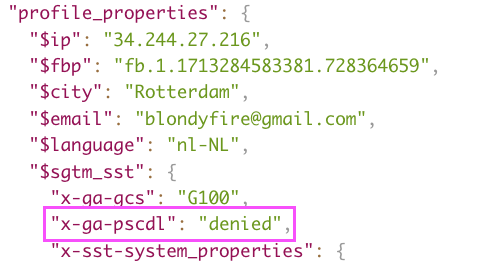
    5. If your cookie banner informs Converge that the user hasn't given consent, then Converge will pass this `denied` consent parameter to GA4 and GA4 will drop this purchase. You can verify whether this is the case by inspecting the GA4 Destination Logs for the `Placed Order` events. If you find a `denied` consent parameter under the profile properties, it means that your cookie banner passed a `denied` status for these purchases.
           <Frame>
             <img src="https://mintcdn.com/converge/dh0K_Fgr0_qazJsh/images/destinations/ga4/consent-denied-0.png?fit=max&auto=format&n=dh0K_Fgr0_qazJsh&q=85&s=639c8607f1555b05176fb26a24f48228" alt="img" width="488" height="266" data-path="images/destinations/ga4/consent-denied-0.png" />
           </Frame>
  </Accordion>

  <Accordion title="How to configure cross-domain tracking in GA4?">
    If your customer journey goes through multiple domains (e.g. landing pages or checkout on a different domain), it is important to configure this in GA4 to avoid broken customer journey reports.

    You can configure cross-domain tracking through the following steps:

    1. Go to <IconText name="gear" text="Admin" /> > **Data collection and modification** > **Data streams**.
    2. Select your data stream > **Configure tag settings** > **Configure your domains**.
    3. You have now arrived at the Cross-domain Linking Configuration. In some cases, GA4 will already provide you with some suggestions. If not, then you can add your domains by adding a condition. When setting up a condition, make sure that you use the **Contains** match type.
    4. Save your changes.
  </Accordion>

  <Accordion title="Why do I see redundant &#x22;Viewed Product&#x22; and &#x22;Added Product&#x22;-events arriving in my GA4 property?">
    This is most likely a legacy Universal Analytics property/pixel that is streaming events into your new GA4 property.

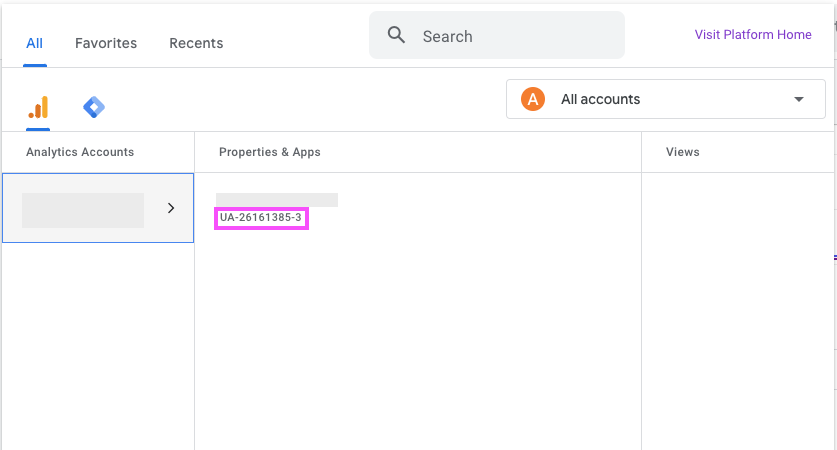
    1. Navigate into your old Universal Analytics Property (usually you can do this by clicking on your GA4 property and then choosing the property whose property ID starts with `UA-`)
           <Frame>
             <img src="https://mintcdn.com/converge/dh0K_Fgr0_qazJsh/images/destinations/ga4/ua-events.png?fit=max&auto=format&n=dh0K_Fgr0_qazJsh&q=85&s=eecdd5fea3986210ac05bec2acc9d14e" alt="ua-1" width="837" height="450" data-path="images/destinations/ga4/ua-events.png" />
           </Frame>

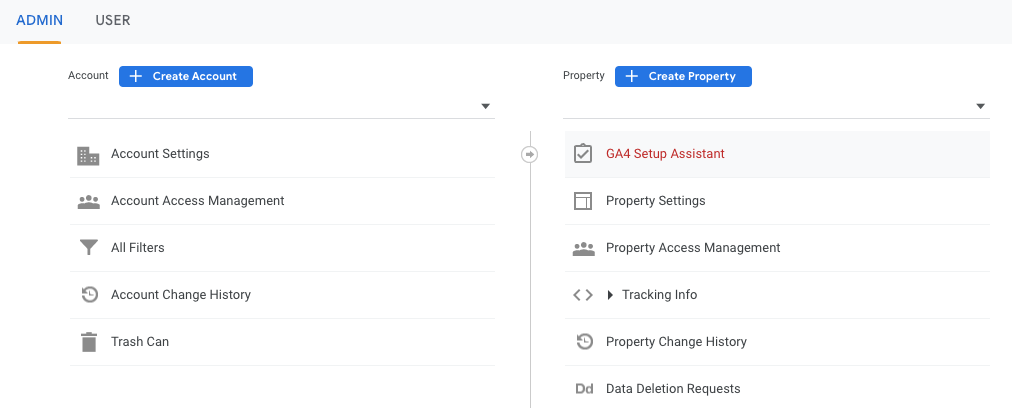
    2. Click on **Admin** > **GA4 Setup Assistant**.
           <Frame>
             <img src="https://mintcdn.com/converge/dh0K_Fgr0_qazJsh/images/destinations/ga4/ua-events-1.png?fit=max&auto=format&n=dh0K_Fgr0_qazJsh&q=85&s=9824b3e98422ef1720c6dc1e672278a2" alt="ua-2" width="1012" height="408" data-path="images/destinations/ga4/ua-events-1.png" />
           </Frame>

    3. Make sure that your Google Analytics 4 property is **not connected**.
  </Accordion>

  <Accordion title="Does Converge support the GA4 user ID feature?">
    Converge does not integrate with the GA4 user ID. This is a conscious decision because it leads to downstream data accuracy issues.

    Capturing the GA4 user ID limits the number of anonymous sessions captured for a customer to one. Therefore, it doesn't make sense to capture this in a marketing attribution context where as much anonymous activity as possible should be captured.

    For example, when an entirely new visitor visits your website, the following activity could be captured:

    * They land on your website after clicking on a Facebook ad.
    * Later in the day, they search Google for your product.
    * They place a purchase, and the user ID is captured.

    In the above case, only the Google session would be attributed to the user ID, and the Facebook session remains anonymous. When the user ID option is not used, all sessions are captured and attributed to the correct source.
  </Accordion>
</AccordionGroup>

***

## Event mapping

Converge automatically maps the following events from the [Converge event spec](/sources/converge-spec) to the Google Analytics 4 spec.

| Converge Event Name                                                                               | GA4 Event Name         |
| ------------------------------------------------------------------------------------------------- | ---------------------- |
| [\$page\_load](/sources/converge-spec#page-load)                                                  | `page_view`            |
| [Viewed Product](/sources/converge-spec#viewed-product)                                           | `view_item`            |
| [Viewed Collection](/sources/converge-spec#viewed-collection)                                     | `view_item_list`       |
| [Added To Cart](/sources/converge-spec#added-to-cart)                                             | `add_to_cart`          |
| [Added To Wishlist](/sources/converge-spec#added-to-wishlist)                                     | `add_to_wishlist`      |
| [Removed From Cart](/sources/converge-spec#removed-from-cart)                                     | `remove_from_cart`     |
| [Removed From Wishlist](/sources/converge-spec#removed-from-wishlist)                             | `remove_from_wishlist` |
| [Viewed Cart](/sources/converge-spec#viewed-cart)                                                 | `view_cart`            |
| [Started Checkout](/sources/converge-spec#started-checkout)                                       | `begin_checkout`       |
| [Added Payment Info](/sources/converge-spec#added-payment-info)                                   | `add_payment_info`     |
| [Added Contact Info](/sources/converge-spec#added-contact-info)                                   | `add_contact_info`     |
| [Added Shipping Info](/sources/converge-spec#added-shipping-info)                                 | `add_shipping_info`    |
| [Placed Order](/sources/converge-spec#placed-order)                                               | `purchase`             |
| [Started Subscription](/sources/converge-spec#start-subscription)                                 | `start_subscription`   |
| [Placed Recurring Subscription Order](/sources/converge-spec#placed-recurring-subscription-order) | `renew_subscription`   |
| [Received Refund](/sources/converge-spec#received-refund)                                         | `refund`               |
| [Logged In](/sources/converge-spec#logged-in)                                                     | `login`                |
| [Signed Up](/sources/converge-spec#signed-up)                                                     | `sign_up`              |
| [Select Product](/sources/converge-spec#select-product)                                           | `select_item`          |
| [Choose Option](/sources/converge-spec#choose-option)                                             | `select_item`          |
| [Searched](/sources/converge-spec#searched)                                                       | `search`               |