
> ## Documentation Index
> Fetch the complete documentation index at: https://docs.runconverge.com/llms.txt
> Use this file to discover all available pages before exploring further.

# Google Ads - Remarketing

> An introduction to the Google Ads - Remarketing Destination

export const OutboundLink = ({linkText, linkTarget}) => {
  return <a target="_blank" href={linkTarget}> {linkText} 
    <div className="inline h-3 w-3 fill-gray-500 dark:fill-gray-100 text-gray-500 dark:text-gray-300 ml-1 mr-1">
      <svg className="inline w-2.5 h-2.5 bg-gray-500 dark:bg-gray-300" style={{
    maskImage: `url('https://mintlify.b-cdn.net/v6.5.1/solid/up-right-from-square.svg')`,
    maskRepeat: "no-repeat",
    maskPosition: "center center"
  }}></svg> 
    </div>
    </a>;
};

export const IconText = ({name, text, iconSource = "mintlify", iconLocation = "before", iconType = "solid"}) => {
  const sourceUrl = iconSource === 'local' ? `url('/images/icons/${name}.svg')` : `url('https://mintlify.b-cdn.net/v6.5.1/${iconType}/${name}.svg')`;
  return <>
            <div className="inline-block pl-2">
                {iconLocation === 'before' && <div className="h-3.5 w-3.5 fill-gray-800 dark:fill-gray-100 text-gray-800 dark:text-gray-100 inline-block align-middle mr-2">
                        <svg className="w-4 h-4 bg-gray-800 dark:bg-gray-100 " style={{
    maskImage: sourceUrl,
    maskRepeat: "no-repeat",
    maskPosition: "center center"
  }} />
                    </div>}
                <span className="inline-block align-middle font-semibold fill-gray-800 dark:fill-gray-100 text-gray-800 dark:text-gray-100 pl-1 pr-2">{text}</span>
                {iconLocation === 'after' && <div className="h-3.5 w-3.5 fill-gray-800 dark:fill-gray-100 text-gray-800 dark:text-gray-100 inline-block align-middle mr-2">
                        <svg className="w-4 h-4 bg-gray-800 dark:bg-gray-100 pr-3" style={{
    maskImage: sourceUrl,
    maskRepeat: "no-repeat",
    maskPosition: "center center"
  }} />
                    </div>}
            </div>
        </>;
};

export const Icon = ({name}) => {
  return <div className="h-4 w-4 fill-gray-800 dark:fill-gray-100 text-gray-800 dark:text-gray-100 inline-block align-middle">
            <svg className="w-4 h-4 bg-gray-800 dark:bg-gray-100" style={{
    maskImage: `url('https://mintlify.b-cdn.net/v6.5.1/solid/${name}.svg')`,
    maskRepeat: "no-repeat",
    maskPosition: "center center"
  }} />
        </div>;
};

## Overview

Destination Type: <IconText text="Client-side" name="browser" iconType="duotone" iconLocation="after" />

* Includes support for the <OutboundLink linkText="Google Dynamic Remarketing" linkTarget="https://support.google.com/tagmanager/answer/6106009" />
* Includes support for <OutboundLink linkText="Consent Mode V2" linkTarget="https://developers.google.com/tag-platform/security/guides/consent?sjid=5329592855679349930-EU&consentmode=advanced#upgrade-consent-v2" />

***

## Installation instructions

<Note>
  This is a client-side destination, meaning that you must track all events client-side (including `Placed Order` and `Started Subscription`) for this destination to work properly.

  If you want to set up a Google Ads conversion, then you should follow the instructions for our [Google Ads - Conversion tracking](/destinations/integrations/google-ads-conversions) destination.
</Note>

<Steps>
  <Step title="Get your Tag ID">
    1. Navigate to your Google Ads account

    2. Go to **Tools** -> **Data manager**

    3. Find your Google Tag and click **Manage**

    4. Find and copy your Tag ID on the top of the page underneath the name of your tag. It should have a pattern matching: AW-XXXXXXXXXX
  </Step>

  <Step title="Set up the destination">
    5. In the Converge sidebar, click on <IconText name="arrow-right-from-line" text="Event streams" /> and then click **Create new Destination**.

    6. Select the **Google Ads - Remarketing** destination and click **Next**.

    7. Give your **destination** a name (e.g. Google Ads Remarketing Destination) and optional **description** and click **Next**.

    8. Copy the **Tag ID** you found earlier in the **Tag ID field** and click **Next**.

    9. Keep the **Default mapping** or setup **Custom mapping** and click **Next**.

    <Note>You can find the Default mapping for this destination [here](/destinations/integrations/google-ads-remarketing#event-mapping). For more information on setting up Custom mappings, look [here](/destinations/event-mapping).</Note>

    10. Select the sources you want to forward events from, then click **Next**.

    <Note>This is a client-side destination, meaning that only client-side sources can be used with this destination. You can still select server-side sources but the events will not be sent to Google Ads.</Note>

    11. Review if there are any issues found in your setup and click **Submit**.
  </Step>
</Steps>

<Warning>
  Set this destination to **Deactivated** while you remove your existing Google Ads tracking setup. Running both in parallel leads to duplicate conversion data. Follow the **Turn off your old Google Ads tracking** instructions below, then set the destination to **Active** when you're ready.
</Warning>

<Warning> Converge automatically loads the AW tag on all pages. If you already have an AW tag with the same tag ID in GTM, pause or remove it to prevent tracking conflicts. </Warning>

***

## Turn off your old Google Ads tracking

### Turning off the Shopify Google Sales Channel data sharing

1. Navigate to your <OutboundLink linkText="Shopify Admin Dashboard" linkTarget="https://admin.shopify.com/" />.

2. Click on **Sales channels** and choose **Google & YouTube** from the *Installed sales channels* menu.

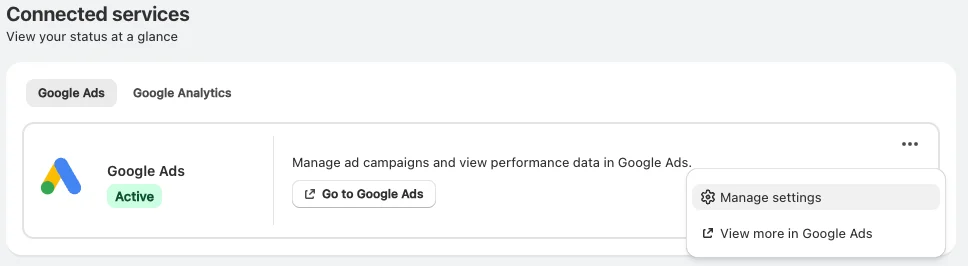
3. Click the **Google Ads** tab. Then click the **...** menu and select **Manage settings**.

   <Frame>
     <img src="https://mintcdn.com/converge/N3CX8aG3MgYzuML-/images/guides/turn-off-tracking/shopify-googleads-sales-channel/shopify-googleads-sales-channel-0-2026.png?fit=max&auto=format&n=N3CX8aG3MgYzuML-&q=85&s=fe40386c7e8db983370332b0f36a716b" alt="settings-googleads-0" width="968" height="266" data-path="images/guides/turn-off-tracking/shopify-googleads-sales-channel/shopify-googleads-sales-channel-0-2026.png" />
   </Frame>

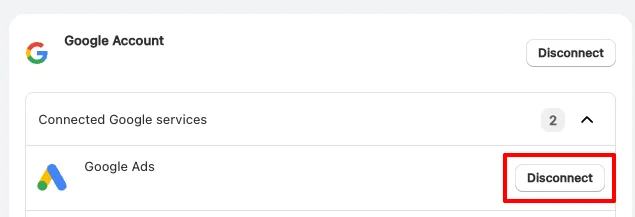
4. Click **Disconnect** next to **Google Ads**.
   <Frame>
     <img src="https://mintcdn.com/converge/N3CX8aG3MgYzuML-/images/guides/turn-off-tracking/shopify-googleads-sales-channel/shopify-googleads-sales-channel-1-2026.png?fit=max&auto=format&n=N3CX8aG3MgYzuML-&q=85&s=01fff290aabbfafbc40cd55da60c1e22" alt="settings-googleads-1" width="635" height="217" data-path="images/guides/turn-off-tracking/shopify-googleads-sales-channel/shopify-googleads-sales-channel-1-2026.png" />
   </Frame>

***

## Modify your Content ID

The Converge Google Ads - Remarketing Destination will use the **Default** content mode to define the Content ID forwarded by default.
However, you can configure the destination to use explicitly the **Product ID**, the **Variant ID** or **SKU** instead.

1. Navigate to your Google Ads - Remarketing Destination, click on **Configuration**.
2. Click on the **Configuration**-subtab
3. Open the **Advanced configuration (optional)** section
4. Pick your desired Content ID, and click on **Save**

**List of Content ID Modes**

| Content ID Mode | Behavior                                                          |
| --------------- | ----------------------------------------------------------------- |
| Default         | Use the `variant_id` if available, otherwise use the `product_id` |
| Product Id      | Always use the `product_id`                                       |
| Variant Id      | Always use the `variant_id`                                       |
| SKU             | Always use the `sku`                                              |

***

## Cross-Domain tracking

If you need to track users across multiple domains you will need to set up cross-domain tracking in your Google Ads account.

1. Go to your **Google Ads account**.
2. Go to **Tools** -> **Data manager**.
3. Find your Google tag and click **Manage**.
4. Under Settings click **Configure your domains**.
5. Add the different domains the user will interact with.
6. Click **Save**

Google Ads will automatically add cross-domain tracking parameters to every link going from domain A to domain B.

<Note>If you also want cross-domain tracking in Converge. You can follow these [instructions](/sources/website-integrations/converge-pixel#cross-domain-tracking).</Note>

***

## Converge functionality

This integration supports the following Converge destination functionality.

| Converge Feature                                     |       Supported       |
| ---------------------------------------------------- | :-------------------: |
| Custom Events                                        | <Icon name="check" /> |
| Filters                                              | <Icon name="xmark" /> |
| Server-side Events                                   | <Icon name="xmark" /> |
| [Conversion amount](/destinations/conversion-amount) | <Icon name="check" /> |

***

## FAQ

<AccordionGroup>
  <Accordion title="Can I have an existing (different) Google Ads Tag running side-by-side Converge?">
    In general, you should be OK running a separate Google Ads Tag and the Converge Google Ads Destination side-by-side.

    However, in rare cases, your existing Google Ads tag and the Converge Google Ads Destination can interfere with each other, especially when the *Deploy a separate data layer for Converge*-option is enabled.

    If you notice under-reporting of your conversions set up through the Converge Google Ads Destination and you have an existing Google Ads Tag installed on the website, turn this functionality off under **Advanced > Edit Configuration**.

    <Frame>
      <img src="https://mintcdn.com/converge/L45wyZk0Nu0wVlB6/images/destinations/google-ads/google-ads-destination-separate-datalayer.png?fit=max&auto=format&n=L45wyZk0Nu0wVlB6&q=85&s=ec77d336cf1d7b972aec2e8d28614a83" alt="img" width="2380" height="284" data-path="images/destinations/google-ads/google-ads-destination-separate-datalayer.png" />
    </Frame>
  </Accordion>
</AccordionGroup>

***

## Event mapping

Converge automatically maps the following events from the [Converge event spec](/sources/converge-spec) to the Google Ads spec.

| Converge Event Name                                             | Google Ads Event Name |
| --------------------------------------------------------------- | --------------------- |
| [Viewed Product](/sources/converge-spec#viewed-product)         | `view_item`           |
| [Viewed Collection](/sources/converge-spec#viewed-collection)   | `view_item_list`      |
| [Added To Cart](/sources/converge-spec#added-to-cart)           | `add_to_cart`         |
| [Started Checkout](/sources/converge-spec#started-checkout)     | `begin_checkout`      |
| [Added Payment Info](/sources/converge-spec#added-payment-info) | `add_payment_info`    |
| [Placed Order](/sources/converge-spec#placed-order)             | `purchase`            |
