> ## Documentation Index
> Fetch the complete documentation index at: https://docs.runconverge.com/llms.txt
> Use this file to discover all available pages before exploring further.

# Snapchat

> An introduction to the Snapchat Ads Destination

export const OutboundLink = ({linkText, linkTarget}) => {
  return <a target="_blank" href={linkTarget}> {linkText} 
    <div className="inline h-3 w-3 fill-gray-500 dark:fill-gray-100 text-gray-500 dark:text-gray-300 ml-1 mr-1">
      <svg className="inline w-2.5 h-2.5 bg-gray-500 dark:bg-gray-300" style={{
    maskImage: `url('https://mintlify.b-cdn.net/v6.5.1/solid/up-right-from-square.svg')`,
    maskRepeat: "no-repeat",
    maskPosition: "center center"
  }}></svg> 
    </div>
    </a>;
};

export const IconText = ({name, text, iconSource = "mintlify", iconLocation = "before", iconType = "solid"}) => {
  const sourceUrl = iconSource === 'local' ? `url('/images/icons/${name}.svg')` : `url('https://mintlify.b-cdn.net/v6.5.1/${iconType}/${name}.svg')`;
  return <>
            <div className="inline-block pl-2">
                {iconLocation === 'before' && <div className="h-3.5 w-3.5 fill-gray-800 dark:fill-gray-100 text-gray-800 dark:text-gray-100 inline-block align-middle mr-2">
                        <svg className="w-4 h-4 bg-gray-800 dark:bg-gray-100 " style={{
    maskImage: sourceUrl,
    maskRepeat: "no-repeat",
    maskPosition: "center center"
  }} />
                    </div>}
                <span className="inline-block align-middle font-semibold fill-gray-800 dark:fill-gray-100 text-gray-800 dark:text-gray-100 pl-1 pr-2">{text}</span>
                {iconLocation === 'after' && <div className="h-3.5 w-3.5 fill-gray-800 dark:fill-gray-100 text-gray-800 dark:text-gray-100 inline-block align-middle mr-2">
                        <svg className="w-4 h-4 bg-gray-800 dark:bg-gray-100 pr-3" style={{
    maskImage: sourceUrl,
    maskRepeat: "no-repeat",
    maskPosition: "center center"
  }} />
                    </div>}
            </div>
        </>;
};

export const Icon = ({name}) => {
  return <div className="h-4 w-4 fill-gray-800 dark:fill-gray-100 text-gray-800 dark:text-gray-100 inline-block align-middle">
            <svg className="w-4 h-4 bg-gray-800 dark:bg-gray-100" style={{
    maskImage: `url('https://mintlify.b-cdn.net/v6.5.1/solid/${name}.svg')`,
    maskRepeat: "no-repeat",
    maskPosition: "center center"
  }} />
        </div>;
};

## Overview

Destination Type: <IconText text="Client-side" name="browser" iconType="duotone" iconLocation="after" />  and <IconText text="Server-side" name="server" iconType="duotone" iconLocation="after" />

* Includes support for the <OutboundLink linkText="Snapchat Conversions API" linkTarget="https://businesshelp.snapchat.com/s/article/conversions-api" />

***

## Installation instructions

1. Navigate to your [Snapchat Ads](https://ads.snapchat.com) > Events Manager (under assets).

2. From your Events Manager, **click on the Snapchat Pixel** you would like to connect or create a new one through 'New Event Source'.

3. Under the name of the pixel, you can find the **Pixel ID**, copy it and save it for later.

4. Go to the business dashboard > Business details > Conversions API tokens. Click the 'Generate Token' button and copy the new **API token** and save it for later.

5. In the Converge sidebar, click on <IconText name="arrow-right-from-line" text="Event streams" /> and then click **Create new Destination**.

6. Select the **Snapchat** destination and click **Next**.

7. Give your destination a **name** (e.g. Snapchat Destination) and click **Next**.

8. Fill in the **Pixel ID** and **API Token** you copied from **Snapchat** and click **Next**.

9. Enter the main URL of your website. Be sure to include the https\:// prefix as well. Then click **Next**.

10. Select **Use default mapping** and click **Next**.

<Note>You can find the Default mapping for the Snapchat destination [here](#event-mapping). For more information on setting up Custom mappings, look [here](/destinations/event-mapping).</Note>

11. Select the sources you want to forward events from, then click **Next**.

12. Review any issues and click **Submit**.

<Warning>
  Set this destination to **Deactivated** while you remove your existing Snapchat tracking setup. Running both in parallel leads to duplicate conversion data. Follow the **Turn off your old Snapchat tracking** instructions below, then set the destination to **Active** when you're ready.
</Warning>

***

## Turn off your old Snapchat tracking

### Turning off the Shopify Snapchat Ads Sales Channel data sharing

1. Navigate to your <OutboundLink linkText="Shopify Admin Dashboard" linkTarget="https://admin.shopify.com/" />.

2. Click on **Sales channels** and choose **Snapchat Ads** from the *Installed sales channels* menu.

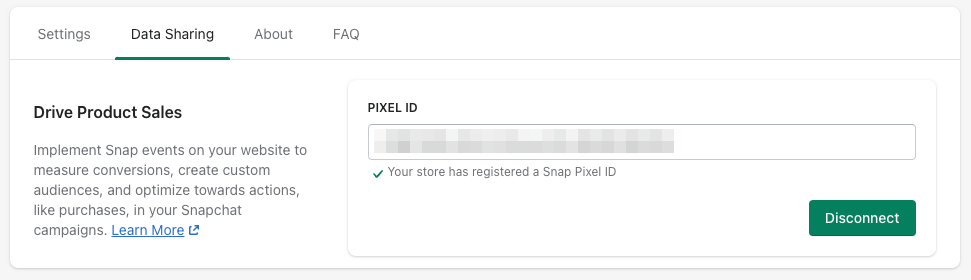
3. Click on **Data Sharing**, and finally click on **Disconnect**.

   <Frame>
     <img src="https://mintcdn.com/converge/zWlDFBz7l1F_0PFn/images/guides/turn-off-tracking/shopify-snapchat-sales-channel/shopify-snapchat-sales-channel-1.png?fit=max&auto=format&n=zWlDFBz7l1F_0PFn&q=85&s=86085fa085556791911c7551c89d29c2" alt="settings-snapchat-1" width="971" height="280" data-path="images/guides/turn-off-tracking/shopify-snapchat-sales-channel/shopify-snapchat-sales-channel-1.png" />
   </Frame>

***

## Modify your Content ID

The Converge Snapchat Destination will use the **Default** content mode to define the Content ID forwarded by default.
However, you can configure the destination to use explicitly the **Product ID**, the **Variant ID** or **SKU** instead.

1. Navigate to your Snapchat Destination, click on **Configuration**.
2. Click on the **Configuration**-subtab
3. Open the **Advanced configuration (optional)** section
4. Pick your desired Content ID, and click on **Save**

**List of Content ID Modes**

| Content ID Mode | Behavior                                                          |
| --------------- | ----------------------------------------------------------------- |
| Default         | Use the `variant_id` if available, otherwise use the `product_id` |
| Product Id      | Always use the `product_id`                                       |
| Variant Id      | Always use the `variant_id`                                       |
| SKU             | Always use the `sku`                                              |

***

## Converge functionality

This integration supports the following Converge destination functionality.

| Converge Feature                                     |       Supported       |
| :--------------------------------------------------- | :-------------------: |
| Custom Events                                        | <Icon name="check" /> |
| Filters                                              | <Icon name="check" /> |
| Server-side Conversions                              | <Icon name="check" /> |
| [Conversion amount](/destinations/conversion-amount) | <Icon name="check" /> |

<Warning>Snapchat does not support multiple pixels on the same website. Installing multiple Snapchat destinations will lead to duplicate tracking.</Warning>

***

## Event mapping

Converge automatically maps the following events from the [Converge event spec](/sources/converge-spec) to the Snapchat spec.

| Converge Event Name                                                 | Snapchat Event Name |
| ------------------------------------------------------------------- | ------------------- |
| [\$page\_load](/sources/converge-spec#page-load)                    | `PAGE_VIEW`         |
| [Viewed Product](/sources/converge-spec#viewed-product)             | `VIEW_CONTENT`      |
| [Viewed Collection](/sources/converge-spec#viewed-collection)       | `LIST_VIEW`         |
| [Added To Cart](/sources/converge-spec#added-to-cart)               | `ADD_CART`          |
| [Added To Wishlist](/sources/converge-spec#added-to-wishlist)       | `ADD_TO_WISHLIST`   |
| [Started Checkout](/sources/converge-spec#started-checkout)         | `START_CHECKOUT`    |
| [Added Payment Info](/sources/converge-spec#added-payment-info)     | `ADD_BILLING`       |
| [Placed Order](/sources/converge-spec#placed-order)                 | `PURCHASE`          |
| [Started Subscription](/sources/converge-spec#started-subscription) | `SUBSCRIBE`         |
| [Logged In](/sources/converge-spec#logged-in)                       | `LOGIN`             |
| [Signed Up](/sources/converge-spec#signed-up)                       | `SIGN_UP`           |
| [Searched](/sources/converge-spec#searched)                         | `SEARCH`            |

<Warning>
  Snapchat only supports up to 5 custom events, and they must be named **exactly** `CUSTOM_EVENT_1`, `CUSTOM_EVENT_2`, `CUSTOM_EVENT_3`, `CUSTOM_EVENT_4`, or `CUSTOM_EVENT_5`. Any other name (e.g. `custom_event_1`, `CustomEvent1`, or a descriptive name like `QUIZ_COMPLETED`) will cause events to fail and be rejected by Snapchat.
</Warning>
