> ## Documentation Index
> Fetch the complete documentation index at: https://docs.runconverge.com/llms.txt
> Use this file to discover all available pages before exploring further.
# X Ads (Twitter Ads)
> An introduction to the X Ads (Twitter Ads) Destination
export const OutboundLink = ({linkText, linkTarget}) => {
return {linkText}
;
};
## Overview
Destination Type:
* Includes support for passing
* Includes support for
***
## Installation instructions
This is a client-side-only destination, meaning that you will need to be tracking all events client-side (including `Placed Order`) for this destination to work properly.
1. Navigate to your X Ads account and choose **Tools > Events Manager**.
2. Copy your X **Pixel ID**
1. If you already have an events source, at the top of the page, find the 'X pixel' section and copy the ID. (e.g. `obarl`)
2. If not, you will be prompted to create a new event source, follow the instructions and copy the **Pixel ID** when you are done.
3. Go to X Ads > Tools > Events Manager and click on the **Create Event** button.
4. Give your event a name, e.g. 'Placed Order' when you are setting up a purchase conversion.
5. Pick a X event type, e.g. 'Purchase'. You can find a suggested mapping of Converge to X Ads event types [below](#event-mapping).
6. Configure your attribution settings and click on **Next**.
7. Choose the 'Define event with code' setup method and click on **Next**.
8. Click 'Save' to finish the setup.
9. You can now find the event in the Events table in the X Ads Events manager.
Under the event, the ID is composed as `tw-{pixelID}-{eventID}`.
Copy the `eventID` save it for the Converge destination configuration.
Repeat the steps 3-9 above for all the conversions you want to track in X Ads.
10. In the Converge sidebar, click on and then click **Create new Destination**.
11. Select the **X Ads (Twitter Ads)** destination and click **Next**.
12. Give your destination a **name** (e.g. X Ads Destination) and click **Next**.
13. Fill in the **Pixel ID** you copied from **X Ads** and click **Next**.
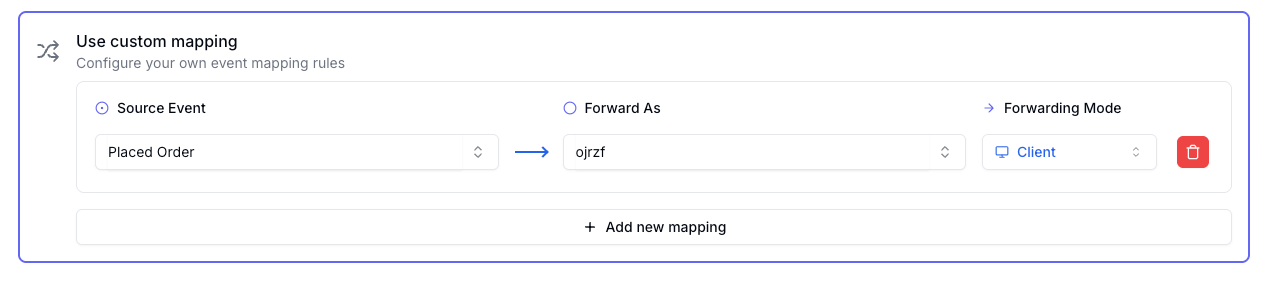
14. Click on and select Placed Order as the source event.
15. In the Forward As value enter **eventID** you saved for the purchase conversion in X Ads.
16. Select **Client** as the Forwarding Mode and click **Next**.
Repeat the steps 14-16 above for all the conversions you track in X Ads
17. Select the sources you want to forward events from, then click **Next**.
This is a client-side destination, meaning that only client-side sources can be used with this destination. You can still select server-side sources but the events will not be sent to X.
18. Review any issues and click **Submit**.
Once you have installed your Converge Destination, you should **pause or remove all existing X Ads tracking**. Leaving these on will lead to duplicate tracking.
***
## Modify your Content ID
The Converge X Ads Destination will use the **Product ID** by default.
However, you can configure the destination to use explicitly the **Variant ID** or **SKU** instead.
1. Navigate to your X Ads Destination, click on **Configuration**.
2. Click on the **Configuration**-subtab
3. Open the **Advanced configuration (optional)** section
4. Pick your desired Content ID, and click on **Save**
**List of available Content ID Modes**
| Content ID Mode | Behavior |
| --------------- | --------------------------- |
| Product Id | Always use the `product_id` |
| Variant Id | Always use the `variant_id` |
| SKU | Always use the `sku` |
***
## Converge functionality
This integration supports the following Converge destination functionality.
| Converge Feature | Supported |
| ---------------------------------------------------- | :-------------------: |
| Custom Events | |
| Filters | |
| Server-side Conversions | |
| [Conversion amount](/destinations/conversion-amount) | |
***
## Event mapping
Events are not automatically mapped, you need to configure the mapping of the [Converge event spec](/sources/converge-spec) to your X Ads events manually.
We recommend the following mapping to the Event Type:
| Converge Event Name | Twitter Event Type |
| --------------------------------------------------------------- | -------------------- |
| [\$page\_load](/sources/converge-spec#page-load) | `Page view` |
| [Viewed Product](/sources/converge-spec#viewed-product) | `Content view` |
| [Added To Cart](/sources/converge-spec#added-to-cart) | `Add to cart` |
| [Started Checkout](/sources/converge-spec#started-checkout) | `Checkout initiated` |
| [Added Payment Info](/sources/converge-spec#added-payment-info) | `Added payment info` |
| [Placed Order](/sources/converge-spec#placed-order) | `Purchase` |
 17. Select the sources you want to forward events from, then click **Next**.