> ## Documentation Index
> Fetch the complete documentation index at: https://docs.runconverge.com/llms.txt
> Use this file to discover all available pages before exploring further.
# Destinations
> How to forward data from Converge to your marketing tools
export const CloudinaryVideo = ({src, controls = true, autoplay = false, loop = false, muted = true, poster = null}) => {
return ;
};
## Introduction
Destinations in Converge let you forward data to other platforms and services. They help streamline your data flow and make your marketing setup more efficient.
***
## Available destinations
Converge supports destinations across your marketing stack, including:
* **Ad platforms**: Meta Ads (Facebook Ads), Google Ads, Pinterest Ads, TikTok Ads
* **Analytics**: Google Analytics 4
* **Other tools**: BigQuery, Klaviyo, Postscript
See the full list of supported destinations [here](/destinations/integrations/overview).
***
## Event mapping
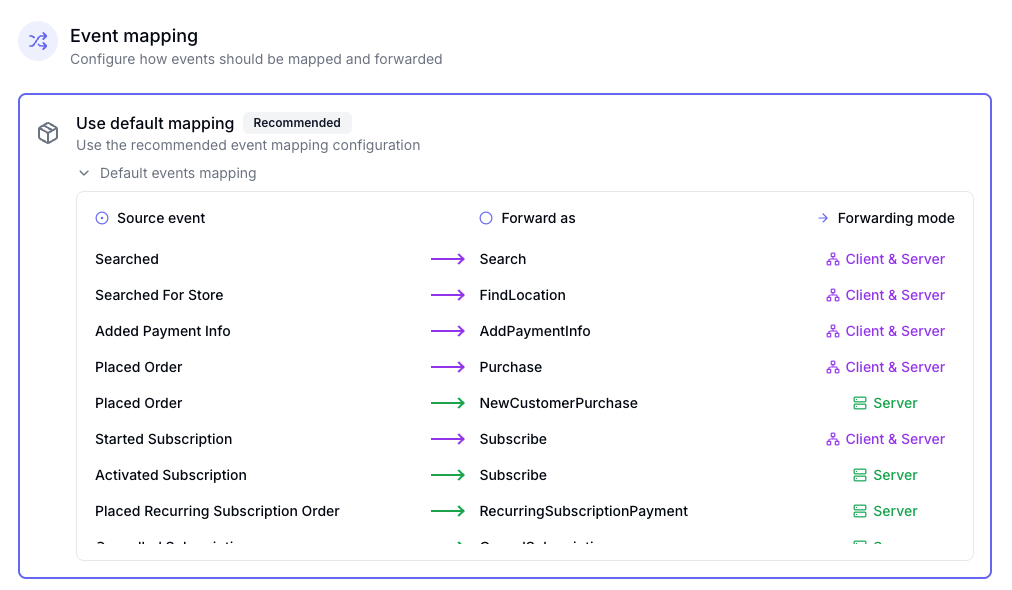
Converge automatically maps your tracked events to the expected format for each destination. For example:
* `Placed Order` → `Purchase` in **Meta Ads**
* `Placed Order` → `purchase` in **GA4**
* `Placed Order` → `PURCHASE` in **Snapchat**
Each destination has a **default mapping**, which automatically translates events that follow the [event spec](/sources/converge-spec) to the right format for your destination.
You can also send **custom events** and map them manually to destination-specific events.
 ***
## Client-side and Server-side
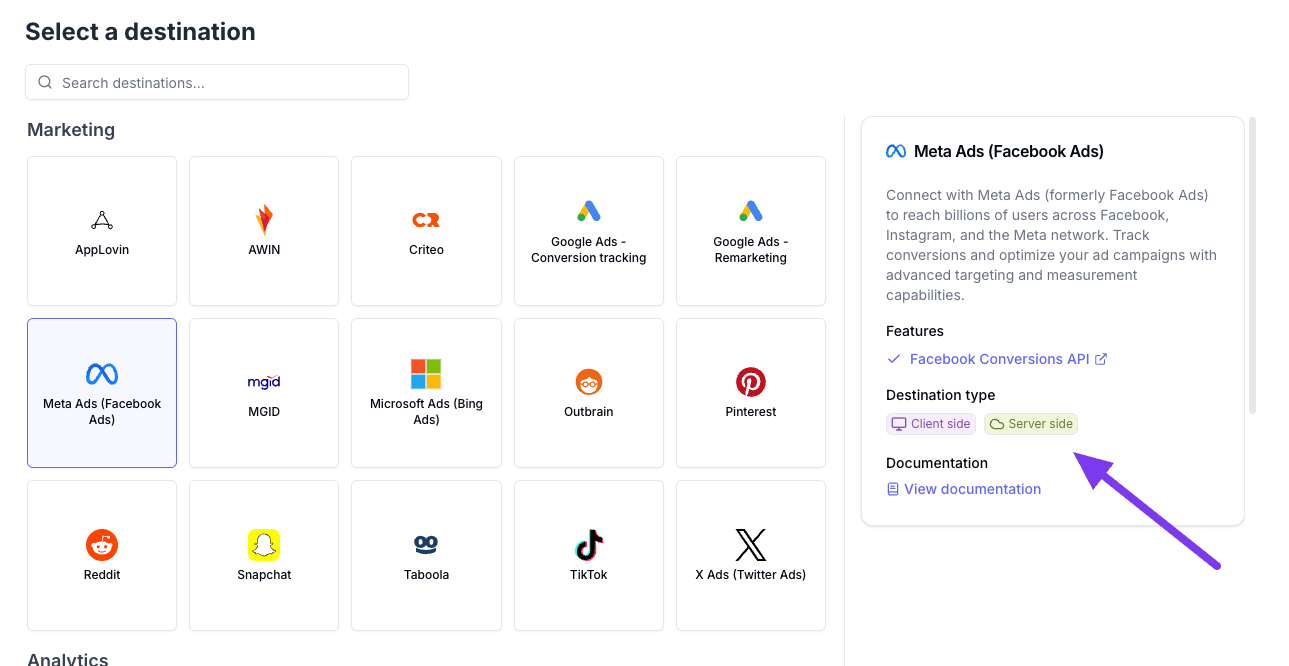
Each destination can forward events either **client-side**, **server-side** or both, depending on what the destination integration supports. You’ll find this info when adding a new destination or in the [docs](/destinations/integrations/overview) for each destination.
***
## Client-side and Server-side
Each destination can forward events either **client-side**, **server-side** or both, depending on what the destination integration supports. You’ll find this info when adding a new destination or in the [docs](/destinations/integrations/overview) for each destination.
 How an event can be forwarded depends on **how the event was tracked**:
| Event source | Forwarding mode | Supported |
| :----------- | :-------------- | :-----------------------------------------------------------: |
| Client-side | Client-side | |
| Client-side | Server-side | |
| Server-side | Client-side | |
| Server-side | Server-side | |
## Event enrichment
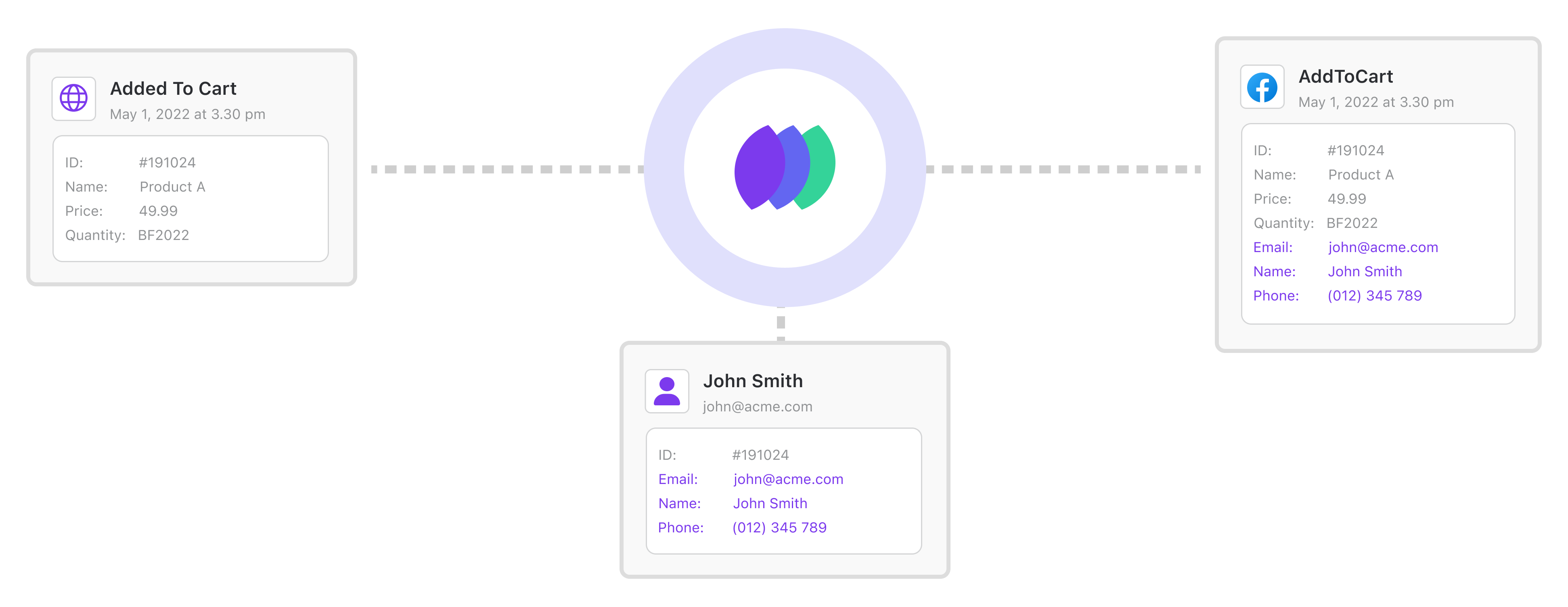
Converge enriches **server-side forwarded events** with data from the user’s profile.
For example, if the event itself doesn’t include an email address, but the profile of user identified by Converge does, Converge will add the email before forwarding the event.
How an event can be forwarded depends on **how the event was tracked**:
| Event source | Forwarding mode | Supported |
| :----------- | :-------------- | :-----------------------------------------------------------: |
| Client-side | Client-side | |
| Client-side | Server-side | |
| Server-side | Client-side | |
| Server-side | Server-side | |
## Event enrichment
Converge enriches **server-side forwarded events** with data from the user’s profile.
For example, if the event itself doesn’t include an email address, but the profile of user identified by Converge does, Converge will add the email before forwarding the event.
 ## Consent
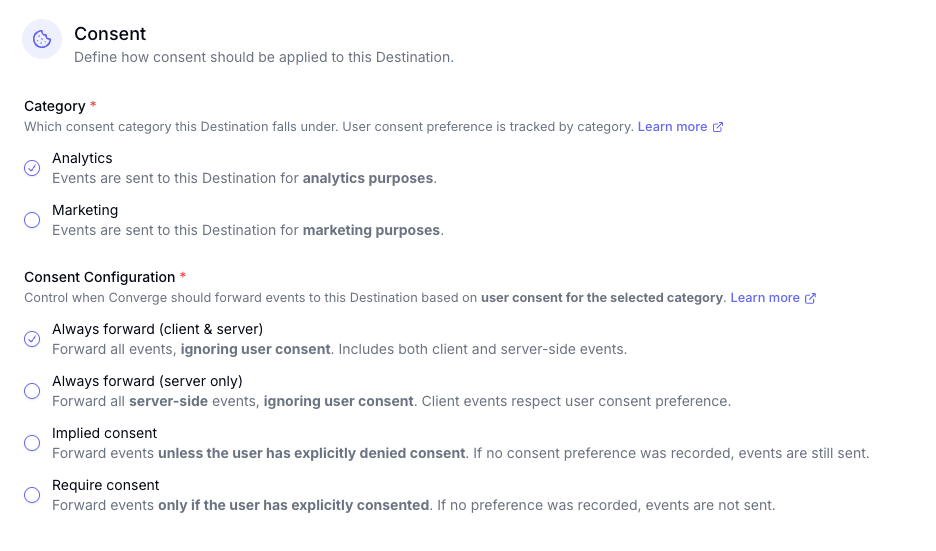
You can control whether an event is forwarded to your destination based on user consent.
Each destination is categorized as either **Analytics** or **Marketing**. You can configure how to forward events in different scenarios.
## Consent
You can control whether an event is forwarded to your destination based on user consent.
Each destination is categorized as either **Analytics** or **Marketing**. You can configure how to forward events in different scenarios.
 Consent in Converge is different from Google Consent Mode or Microsoft Consent Mode. If you need to use those, you’ll need to implement them separately. Learn more [here](/guides/implementing-consent-mode).
## Monitoring destinations
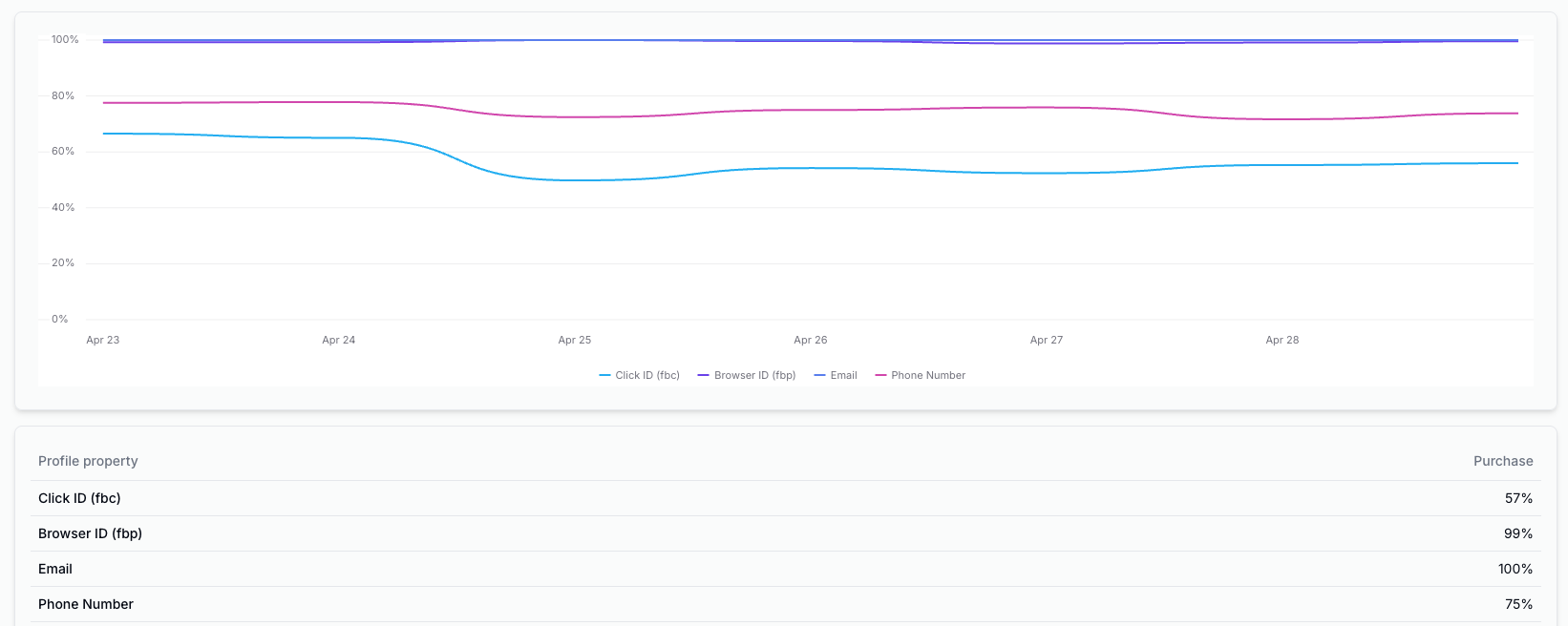
Use **Event Quality** to inspect the properties being forwarded with your events and **Logs** to review individual events sent to each destination.
Consent in Converge is different from Google Consent Mode or Microsoft Consent Mode. If you need to use those, you’ll need to implement them separately. Learn more [here](/guides/implementing-consent-mode).
## Monitoring destinations
Use **Event Quality** to inspect the properties being forwarded with your events and **Logs** to review individual events sent to each destination.
 ## Finding Destinations
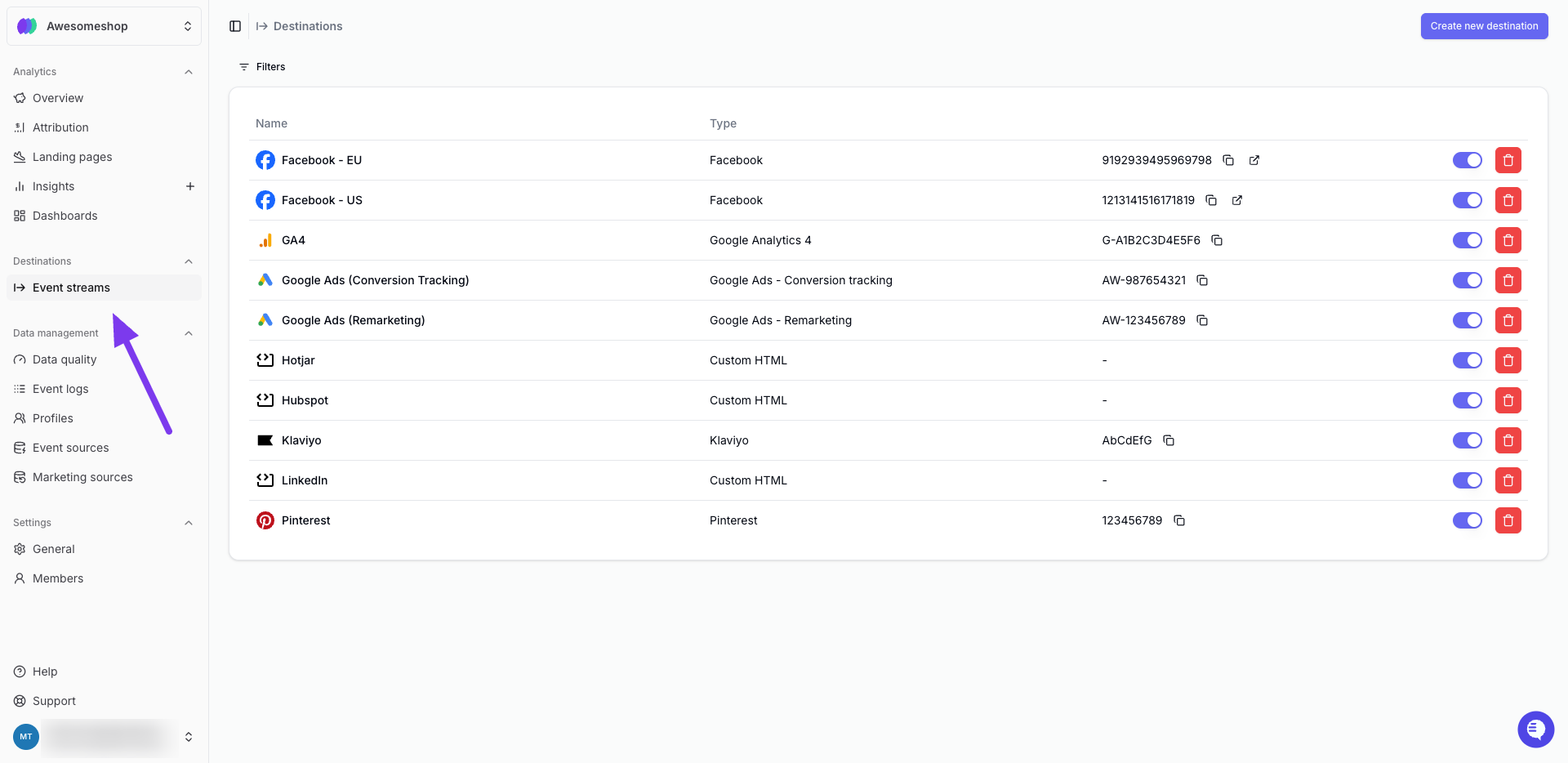
You can find your destinations by going to **Event streams** under **Destinations** in the main menu.
## Finding Destinations
You can find your destinations by going to **Event streams** under **Destinations** in the main menu.
 ## Further reading
* [How to monitor your destinations](/destinations/monitoring)
* [How to apply filters to your destinations](/destinations/filters)
* [How to map events to your destinations](/destinations/event-mapping)
* [How to set consent for a destination](/destinations/consent)
## Further reading
* [How to monitor your destinations](/destinations/monitoring)
* [How to apply filters to your destinations](/destinations/filters)
* [How to map events to your destinations](/destinations/event-mapping)
* [How to set consent for a destination](/destinations/consent)