> ## Documentation Index
> Fetch the complete documentation index at: https://docs.runconverge.com/llms.txt
> Use this file to discover all available pages before exploring further.

# Implementing Consent Mode

> How to implement Google and Microsoft Consent Mode for Converge

export const OutboundLink = ({linkText, linkTarget}) => {
  return <a target="_blank" href={linkTarget}> {linkText} 
    <div className="inline h-3 w-3 fill-gray-500 dark:fill-gray-100 text-gray-500 dark:text-gray-300 ml-1 mr-1">
      <svg className="inline w-2.5 h-2.5 bg-gray-500 dark:bg-gray-300" style={{
    maskImage: `url('https://mintlify.b-cdn.net/v6.5.1/solid/up-right-from-square.svg')`,
    maskRepeat: "no-repeat",
    maskPosition: "center center"
  }}></svg> 
    </div>
    </a>;
};

**Google** and **Microsoft** both introduced a framework called **Consent Mode**. It acts like a translator between your cookie banner and their tracking tools, adjusting what data gets collected based on the user's consent.

This guide shows how to implement Consent Mode when using Converge.

<Note>This guide describes how to implement Google and Microsoft Consent Mode. Converge has additional tools for handling consent for all your destinations that you can read about [here](/destinations/consent).</Note>

***

## Why implement Consent Mode?

Consent Mode allows you to respect users' privacy preferences while still collecting meaningful data for analytics and advertising. Without it, you risk either violating privacy laws or losing valuable insights and attribution information.

* <OutboundLink linkText="Google’s Consent Mode documentation" linkTarget="https://support.google.com/analytics/answer/9976101" />
* <OutboundLink linkText="Microsoft's Consent Mode documentation" linkTarget="https://help.ads.microsoft.com/#apex/ads/en/60341/1" />

***

## Google vs Microsoft Consent Mode

Even though both frameworks are called "Consent Mode" and work similarly, they're separate. If you use products from both companies, you need to implement both frameworks.

### Consent Mode process

Google and Microsoft Consent Mode have the same basic requirements:

1. **Default**: Set a default consent status for all users before they interact with your cookie banner. You can customize defaults per country.
2. **Update**: When a user makes a choice on your cookie banner, update the Consent Mode status to match.

### Consent types

Consent Mode requires you to set statuses for different types of consent. These affect how tracking behaves.

| Consent type            | Description                                       | Required by Google | Required by Microsoft |
| :---------------------- | :------------------------------------------------ | :----------------: | :-------------------: |
| **ad\_storage**         | Allows storage (like cookies) for advertising     |         Yes        |          Yes          |
| **ad\_user\_data**      | Sets consent for sending user data related to ads |         Yes        |           No          |
| **ad\_personalization** | Sets consent for personalized ads                 |         Yes        |           No          |
| **analytics\_storage**  | Allows storage (like cookies) for analytics       |         Yes        |           No          |

Microsoft currently only requires **ad\_storage**. You can still set the others in case they expand support later.

<Info>You can extend Consent Types, but Google and Microsoft tracking tools won't use them. Examples: **functionality\_storage**, **personalization\_storage**, **security\_storage**. These add no value for tracking today.</Info>

### Consent mode behavior

When you've implemented Consent Mode correctly, the tracking products from Google and Microsoft will automatically adjust their tracking behavior based on the consent that has been given. A few examples are:

* **analytics\_storage granted**: GA4 web tracking will place *cookies* and process *IP addresses*.
* **analytics\_storage denied**: GA4 web tracking won't use *cookies* or process *IP addresses* but will send *cookieless pings* used in [behavioral modeling](https://support.google.com/analytics/answer/11161109?sjid=5719561030769842599-EU).
* **ad\_storage granted**: Google Ads web tracking will place *cookies* and process *click IDs* in the URL.
* **ad\_storage denied**: Google Ads web tracking won't use *cookies* or process *click IDs* in the URL but will send *cookieless pings* used in [conversion modeling](https://support.google.com/google-ads/answer/10548233?hl=en-GB).

For a full description of how Consent Mode impacts tracking behavior, you can read this documentation for <OutboundLink linkText="Google Consent Mode" linkTarget="https://support.google.com/analytics/answer/9976101" /> and this documentation about <OutboundLink linkText="Microsoft Consent Mode" linkTarget="https://help.ads.microsoft.com/#apex/ads/en/60341/1/#exp56" />.

<Note>Since Google Consent Mode and Microsoft Consent Mode will impact behavior of their tracking based on the user's consent, **you don't have to set up additional consent settings in Converge**. It's best practice to always load Google and Microsoft destinations from Converge, regardless of consent given. Read more about it [here](#using-consent-mode-with-consent-settings-in-converge).</Note>

<Warning>If you implement Consent Mode after previously tracking users without it, you may see a drop in tracked users or conversions in your Google or Microsoft products.</Warning>

***

## Implementing Consent Mode

The Google and Microsoft destinations in Converge (like *GA4*, *Google Ads*, *Microsoft Ads*) respect Consent Mode settings automatically, but **Converge doesn't set them for you**. You have two options:

* **Consent Management Platform (CMP)**: Many CMPs (like Cookiebot, CookieYes, OneTrust) offer Consent Mode support out of the box.
* **Custom implementation**: You can implement Consent Mode manually with developer help.

### Key requirements

For Converge to work with your Consent Mode setup:

1. Set the **default** consent mode before the Converge JavaScript pixel loads.
2. Set the **update** consent mode (if the user already gave consent) after the **default** but still before the Converge pixel loads.

### Examples

You can use the following examples to implement Consent Mode for Converge.

<AccordionGroup>
  <Accordion title="Cookiebot">
    Cookiebot has built-in support for Consent Mode, but you need to set a default consent status yourself, prior to implementing Cookiebot and Converge.

    Add this code **before the Converge pixel** in the **\<head>** of your website. It:

    * Sets different default statuses for NL, EU, and non-EU countries for Google Consent Mode and Microsoft Consent Mode.
    * Adds the Cookiebot script to handle updates when a user gives consent or has done so previously.

    ```JavaScript theme={null}
    <script data-cookieconsent="ignore">
        //Set default Google Consent Mode status
        window.dataLayer = window.dataLayer || [];
        function gtag() {
            dataLayer.push(arguments);
        }
        gtag("consent", "default", {
            ad_personalization: "granted",
            ad_storage: "granted",
            ad_user_data: "granted",
            analytics_storage: "granted",
            functionality_storage: "granted",
            personalization_storage: "granted",
            security_storage: "granted",
            wait_for_update: 500,
        });
        gtag("consent", "default", {
            ad_personalization: "denied",
            ad_storage: "denied",
            ad_user_data: "denied",
            analytics_storage: "granted",
            functionality_storage: "granted",
            personalization_storage: "granted",
            security_storage: "granted",
            wait_for_update: 500,
            region: ['NL']
        });
        gtag("consent", "default", {
            ad_personalization: "denied",
            ad_storage: "denied",
            ad_user_data: "denied",
            analytics_storage: "denied",
            functionality_storage: "granted",
            personalization_storage: "granted",
            security_storage: "granted",
            wait_for_update: 500,
            region: ['AT','BE','BG','HR','CY','CZ','DK','EE','FI','FR','DE','GR','HU','IE','IT','LV','LT','LU','MT','PL','PT','RO','SK','SI','ES','SE','NO','IS','LI']
        });
        gtag("set", "ads_data_redaction", false);
        gtag("set", "url_passthrough", true);

        //Set default Microsoft Consent Mode status
        window.uetq = window.uetq || [];
        window.uetq.push('consent', 'default', {
            'ad_storage': 'denied',
            'wait_for_update': 500
        });
    </script>
    //Add Cookiebot script
    <script id="Cookiebot" src="https://consent.cookiebot.com/uc.js" data-cbid="[REPLACE WITH YOUR COOKIEBOT ID]"  type="text/javascript"></script>
    ```
  </Accordion>

  <Accordion title="CookieYes">
    CookieYes has built-in support for Consent Mode, but you need to set a default consent status yourself, prior to implementing CookieYes and Converge.

    Add this code **before the Converge pixel** in the **\<head>** of your website. It:

    * Sets different default statuses for NL, EU, and non-EU countries for Google Consent Mode and Microsoft Consent Mode.
    * Adds the CookieYes script to handle updates when a user gives consent or has done so previously.

    ```JavaScript theme={null}
    <script>
        //Set default Google Consent Mode status
        window.dataLayer = window.dataLayer || [];
        function gtag() {
            dataLayer.push(arguments);
        }
        gtag("consent", "default", {
            ad_personalization: "granted",
            ad_storage: "granted",
            ad_user_data: "granted",
            analytics_storage: "granted",
            functionality_storage: "granted",
            personalization_storage: "granted",
            security_storage: "granted",
            wait_for_update: 500,
        });
        gtag("consent", "default", {
            ad_personalization: "denied",
            ad_storage: "denied",
            ad_user_data: "denied",
            analytics_storage: "granted",
            functionality_storage: "granted",
            personalization_storage: "granted",
            security_storage: "granted",
            wait_for_update: 500,
            region: ['NL']
        });
        gtag("consent", "default", {
            ad_personalization: "denied",
            ad_storage: "denied",
            ad_user_data: "denied",
            analytics_storage: "denied",
            functionality_storage: "granted",
            personalization_storage: "granted",
            security_storage: "granted",
            wait_for_update: 500,
            region: ['AT','BE','BG','HR','CY','CZ','DK','EE','FI','FR','DE','GR','HU','IE','IT','LV','LT','LU','MT','PL','PT','RO','SK','SI','ES','SE','NO','IS','LI']
        });
        gtag("set", "ads_data_redaction", false);
        gtag("set", "url_passthrough", true);

        //Set default Microsoft Consent Mode status
        window.uetq = window.uetq || [];
        window.uetq.push('consent', 'default', {
            'ad_storage': 'denied',
            'wait_for_update': 500
        });
    </script>
    //Add CookieYes script
    <script id="cookieyes" type="text/javascript" src="https://cdn-cookieyes.com/client_data/[REPLACE WITH YOUR COOKIEYES WEBSITE KEY]/script.js" ></script>
    ```
  </Accordion>

  <Accordion title="Cookie Script">
    Cookie Script has built-in support for Consent Mode, but you need to set a default consent status yourself, prior to implementing Cookie Script and Converge.

    Add this code **before the Converge pixel** in the **\<head>** of your website. It:

    * Sets different default statuses for NL, EU, and non-EU countries for Google Consent Mode and Microsoft Consent Mode.
    * Adds the Cookie Script script to handle updates when a user gives consent or has done so previously.

    ```JavaScript theme={null}
    <script>
        //Set default Google Consent Mode status
        window.dataLayer = window.dataLayer || [];
        function gtag() {
            dataLayer.push(arguments);
        }
        gtag("consent", "default", {
            ad_personalization: "granted",
            ad_storage: "granted",
            ad_user_data: "granted",
            analytics_storage: "granted",
            functionality_storage: "granted",
            personalization_storage: "granted",
            security_storage: "granted",
            wait_for_update: 500,
        });
        gtag("consent", "default", {
            ad_personalization: "denied",
            ad_storage: "denied",
            ad_user_data: "denied",
            analytics_storage: "granted",
            functionality_storage: "granted",
            personalization_storage: "granted",
            security_storage: "granted",
            wait_for_update: 500,
            region: ['NL']
        });
        gtag("consent", "default", {
            ad_personalization: "denied",
            ad_storage: "denied",
            ad_user_data: "denied",
            analytics_storage: "denied",
            functionality_storage: "granted",
            personalization_storage: "granted",
            security_storage: "granted",
            wait_for_update: 500,
            region: ['AT','BE','BG','HR','CY','CZ','DK','EE','FI','FR','DE','GR','HU','IE','IT','LV','LT','LU','MT','PL','PT','RO','SK','SI','ES','SE','NO','IS','LI']
        });
        gtag("set", "ads_data_redaction", false);
        gtag("set", "url_passthrough", true);

        //Set default Microsoft Consent Mode status
        window.uetq = window.uetq || [];
        window.uetq.push('consent', 'default', {
            'ad_storage': 'denied',
            'wait_for_update': 500
        });
    </script>
    //Add Cookie Script script
    <script type="text/javascript" charset="UTF-8" src="//cdn.cookie-script.com/s/[REPLACE WITH YOUR COOKIE SCRIPT ID].js"></script>
    ```

    <Warning>Make sure that Google Consent Mode is enabled in Cookie Script by following the documentation [here](https://help.cookie-script.com/en/articles/30194-enable-google-consent-mode).</Warning>
  </Accordion>

  <Accordion title="Shopify Cookie Banner">
    You can use this code as a basis for your implementation in Shopify if you're using the Shopify Cookie banner.

    Add this code **before the Converge pixel** in the **\<head>** of your website and in your **Custom Pixel**. It:

    * Sets default consent statuses for Google Consent Mode and Microsoft Consent Mode.
    * Updates Google Consent Mode and Microsoft Consent Mode status after user gives consent.

    ```JavaScript theme={null}
    <script>
      document.addEventListener('DOMContentLoaded', function () {
      // Wait for Shopify object and customerPrivacy API
      if (window.Shopify && Shopify.customerPrivacy) {
        initializeConsent();
      } else {
        // Wait until it's available (retry approach)
        let retryCount = 0;
        const interval = setInterval(() => {
          if (window.Shopify && Shopify.customerPrivacy) {
            clearInterval(interval);
            initializeConsent();
          } else if (retryCount > 10) {
            clearInterval(interval);
          }
          retryCount++;
        }, 200);
      }
    });

    function initializeConsent() {
      var analytics_storage = window.Shopify.customerPrivacy.analyticsProcessingAllowed() ? 'granted' : 'denied';
      var ad_storage = window.Shopify.customerPrivacy.marketingAllowed() ? 'granted' : 'denied';

      //Set default Google Consent Mode status
      window.dataLayer = window.dataLayer || [];
      function gtag() {
          dataLayer.push(arguments);
      }
      gtag("consent", "default", {
          ad_personalization: ad_storage,
          ad_storage: ad_storage,
          ad_user_data: ad_storage,
          analytics_storage: analytics_storage,
          wait_for_update: 500
      });
      gtag("set", "ads_data_redaction", false);
      gtag("set", "url_passthrough", true);

      //Set default Microsoft Consent Mode status
      window.uetq = window.uetq || [];
      window.uetq.push('consent', 'default', {
          'ad_storage': ad_storage,
          'wait_for_update': 500
      });

      // React to consent changes
      document.addEventListener('visitorConsentCollected', function (event) {    
        gtag("consent", "update", {
            ad_personalization: event.detail.marketingAllowed ? "granted" : "denied",
            ad_storage: event.detail.marketingAllowed ? "granted" : "denied",
            ad_user_data: event.detail.marketingAllowed ? "granted" : "denied",
            analytics_storage: event.detail.analyticsAllowed ? "granted" : "denied"
        });
        
        window.uetq.push('consent', 'update', {
            'ad_storage': event.detail.analyticsAllowed ? "granted" : "denied"
        });

        cvg({
          "method": "consent",
          "analytics": event.detail.analyticsAllowed ? "granted" : "denied",
          "marketing": event.detail.analyticsAllowed ? "granted" : "denied"
        });
      });
    }

    </script> 
    ```
  </Accordion>

  <Accordion title="Custom implementation">
    You can use this code as a basis for your custom implementation. It doesn't integrate with any cookie banner and isn't set up to process an update with different values for the Consent Types.

    Add this code **before the Converge pixel** in the **\<head>** of your website. It:

    * Sets default consent statuses for Google Consent Mode and Microsoft Consent Mode.
    * Includes an `updateConsent` function to call when a user accepts all cookies or has done previously.

    ```JavaScript theme={null}
    <script data-cookieconsent="ignore">
        //Set default Google Consent Mode status
        window.dataLayer = window.dataLayer || [];
        function gtag() {
            dataLayer.push(arguments);
        }
        gtag("consent", "default", {
            ad_personalization: "granted",
            ad_storage: "granted",
            ad_user_data: "granted",
            analytics_storage: "granted",
            wait_for_update: 500,
        });
        gtag("consent", "default", {
            ad_personalization: "denied",
            ad_storage: "denied",
            ad_user_data: "denied",
            analytics_storage: "granted",
            wait_for_update: 500,
            region: ['NL']
        });
        gtag("consent", "default", {
            ad_personalization: "denied",
            ad_storage: "denied",
            ad_user_data: "denied",
            analytics_storage: "denied",
            wait_for_update: 500,
            region: ['AT','BE','BG','HR','CY','CZ','DK','EE','FI','FR','DE','GR','HU','IE','IT','LV','LT','LU','MT','PL','PT','RO','SK','SI','ES','SE','NO','IS','LI']
        });
        gtag("set", "ads_data_redaction", false);
        gtag("set", "url_passthrough", true);

        //Set default Microsoft Consent Mode status
        window.uetq = window.uetq || [];
        window.uetq.push('consent', 'default', {
            'ad_storage': 'denied',
            'wait_for_update': 500
        });

        function updateConsent(){
            gtag("consent", "update", {
                ad_personalization: "granted",
                ad_storage: "granted",
                ad_user_data: "granted",
                analytics_storage: "granted",
            });
            
            window.uetq.push('consent', 'update', {
                'ad_storage': 'granted'
            });
        }
    </script>
    ```
  </Accordion>

  <Accordion title="Custom implementation (granted by default)">
    If you want to always enable full tracking features in Google and Microsoft tracking, you can set a default consent status that sets all Consent Types to granted. Since all Consent Types are set to *granted* by **default**, you don't have to send an **update**.

    Add this code **before the Converge pixel** in the **\<head>** of your website. It:

    * Sets **default** consent statuses for Google Consent Mode and Microsoft Consent Mode with all Consent Types as **granted**.

    ```JavaScript theme={null}
    <script data-cookieconsent="ignore">
        //Set default Google Consent Mode status
        window.dataLayer = window.dataLayer || [];
        function gtag() {
            dataLayer.push(arguments);
        }
        gtag("consent", "default", {
            ad_personalization: "granted",
            ad_storage: "granted",
            ad_user_data: "granted",
            analytics_storage: "granted",
        });
        gtag("set", "ads_data_redaction", false);
        gtag("set", "url_passthrough", true);

        //Set default Microsoft Consent Mode status
        window.uetq = window.uetq || [];
        window.uetq.push('consent', 'default', {
            'ad_storage': 'granted',
            'wait_for_update': 500
        });
    </script>
    ```
  </Accordion>
</AccordionGroup>

***

## Using Consent Mode with Consent settings in Converge

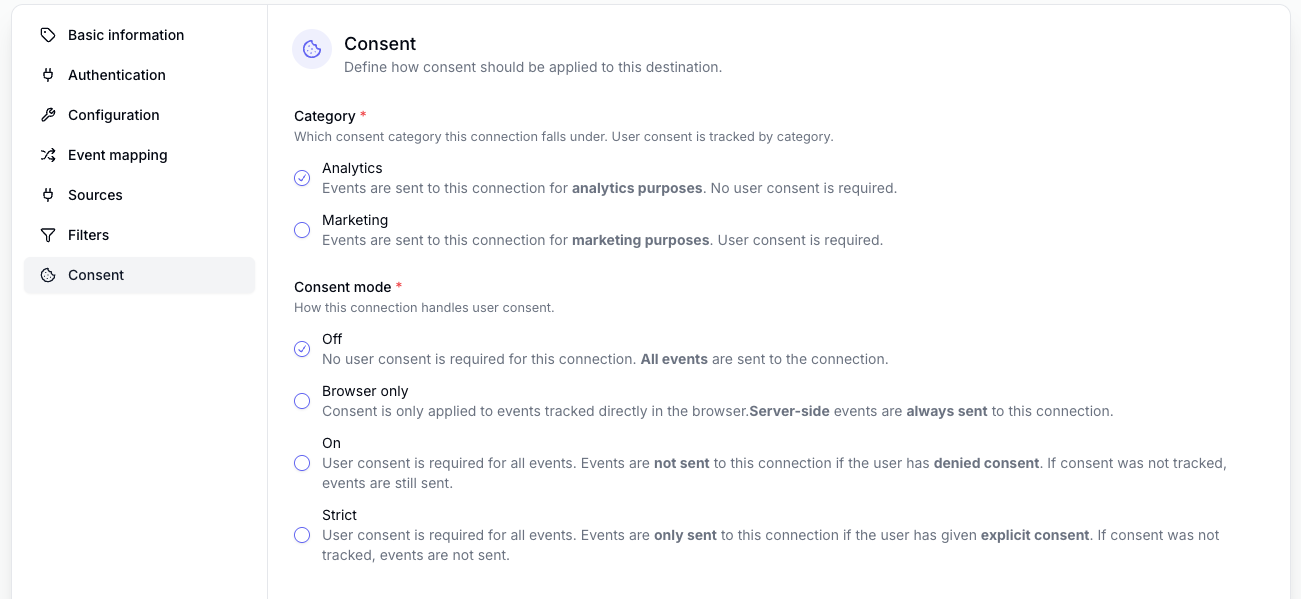
You can also configure which destinations in Converge will load by using the **Consent settings** for each destination. Since Consent Mode is already handling how products from Google and Microsoft will behave based on consent given by the user, it's best practice to not enable any additional restrictions in Converge.

For the best results, configure consent as follows:

* Choose the **Analytics** or **Marketing** category based on the type of destination.
* Set the Consent mode setting to **Off**.

<Frame>
  <img src="https://mintcdn.com/converge/crQaBntMCFTIm3T-/images/guides/consentv2/implementing-consent-mode.png?fit=max&auto=format&n=crQaBntMCFTIm3T-&q=85&s=a22e4963903166f36304caf534e4ab6e" alt="img" width="1301" height="599" data-path="images/guides/consentv2/implementing-consent-mode.png" />
</Frame>

## Verify your implementation

You can validate your Google Consent Mode implementation by following [these docs](https://support.google.com/tagmanager/answer/14218557?hl=en).

You can validate your Microsoft Consent Mode implementation by following [these docs](https://help.ads.microsoft.com/#apex/ads/en/60119/1).

***

*Disclaimer: This guide provides general information. It is not intended as legal advice, and readers should consult with qualified counsel for advice regarding their specific circumstances. Converge disclaims any liability for actions taken based on the information provided in this post.*