> ## Documentation Index
> Fetch the complete documentation index at: https://docs.runconverge.com/llms.txt
> Use this file to discover all available pages before exploring further.
# Measure Klaviyo revenue uplift
> How to measure the revenue uplift generated by Converge in Klaviyo.
export const OutboundLink = ({linkText, linkTarget}) => {
return {linkText}
;
};
## Introduction
If you're using Klaviyo as a destination with Converge, you can benefit from Converge's **re-identification** in your **abandoned browse**, **abandoned cart**, and **abandoned checkout** flows.
Where Klaviyo is only able to recognize returning users to your website by a **short-lived cookie**, Converge uses multiple identifiers that enable us to **recognize more users than Klaviyo**.
This enables us to enrich the server-side events sent to Klaviyo by Converge, which results in **more emails being sent** for event-based flows like abandoned browse, abandoned cart, and abandoned checkout, and will most likely **improve your overall sales**.
This guide shows you how to measure the uplift that's generated by the additional visitors that are identified by Converge.
## Set up uplift flow
1. Set up a Klaviyo destination as described [here](/destinations/integrations/klaviyo).
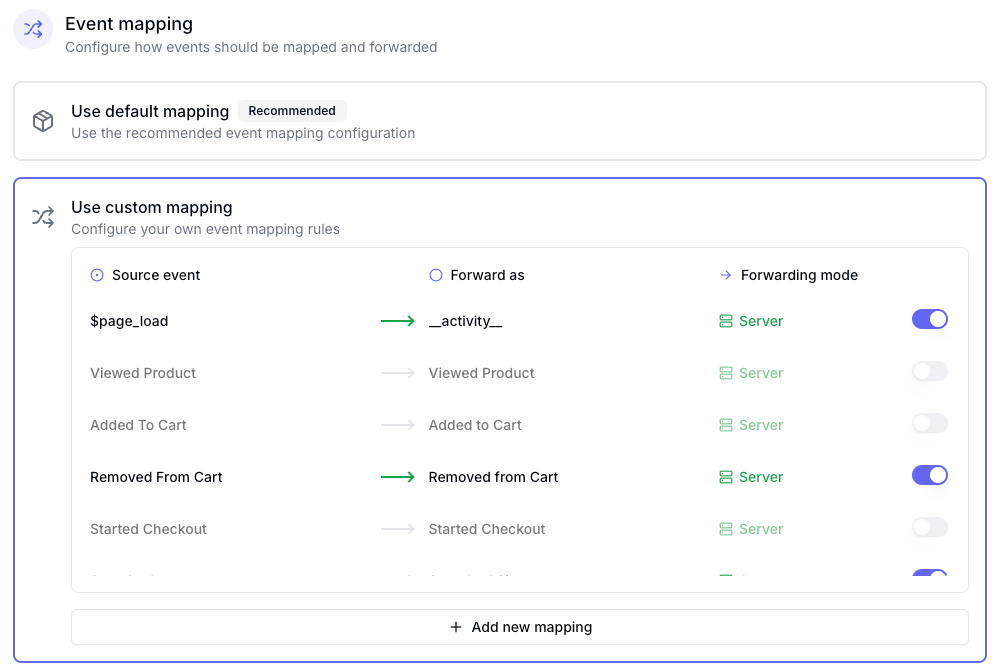
2. Go to your **Klaviyo destination** > **Configuration** > **Event mapping**.
3. Select **Use custom mapping**.
4. Disable the events for **Viewed Product**, **Added to Cart** and **Started Checkout** using the toggle.
5. Click **Add new mapping** at the bottom of the overview.
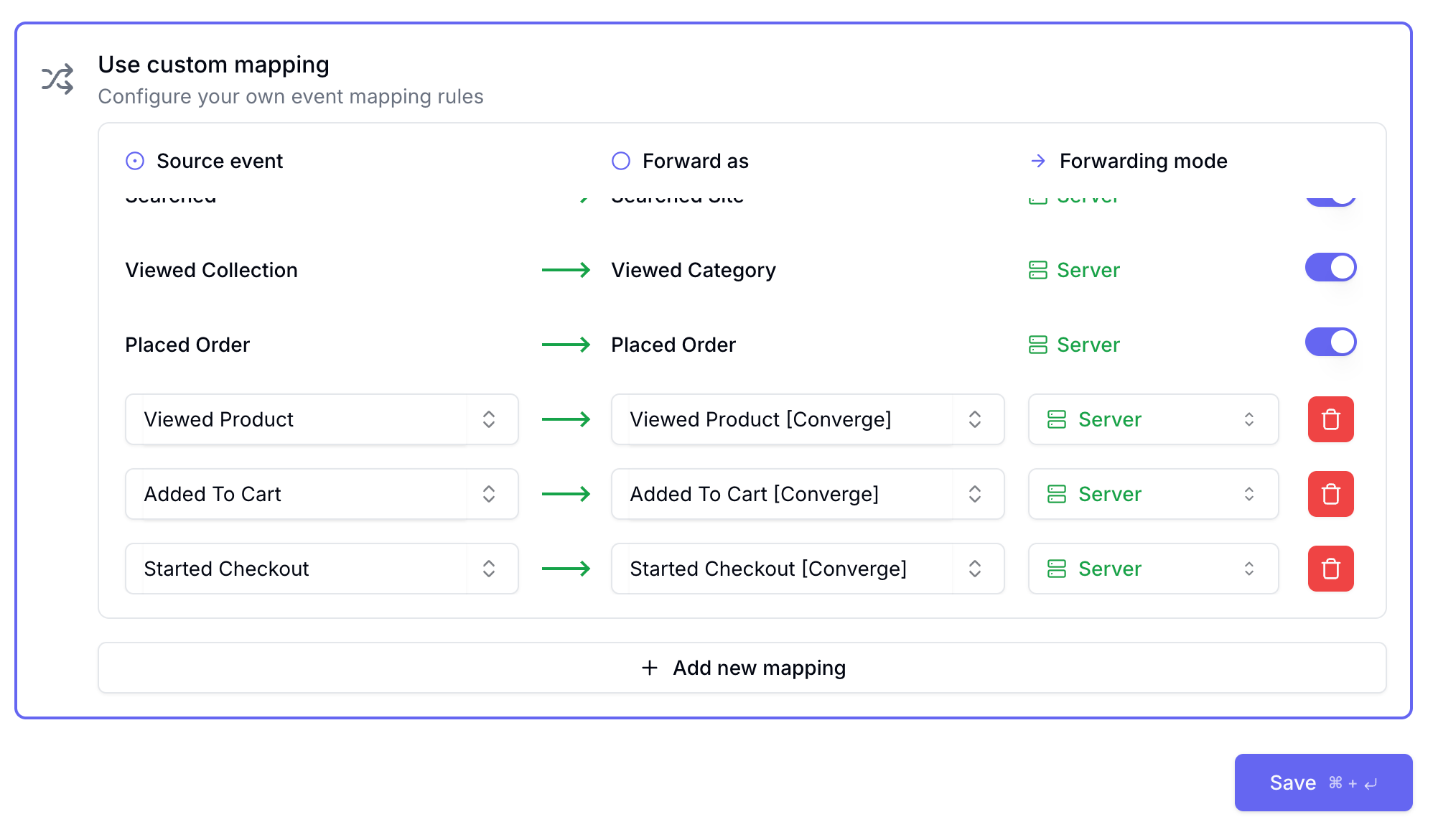
6. Select **Viewed Product** in the **Source event** field.
7. Enter **Viewed Product \[Converge]** in the **Forward as** field.
8. Select **Server** as the **Forwarding mode**.
9. Repeat steps 6-8 for **Added to Cart** → **Added to Cart \[Converge]** and **Started Checkout** → **Started Checkout \[Converge]**.
10. Click **Save**.
1. Go to your Klaviyo account.
2. Go to your existing **abandoned browse**, **abandoned cart**, and **abandoned checkout** flow.
3. Click the 3 vertical dots, click **Clone**, choose **Clone to this account**.
4. Give your new flow a name (i.e., \[name of original flow] + Converge) and click **Continue**.
5. Change the trigger to the equivalent Converge event (i.e., **Added To Cart** → **Added To Cart \[Converge]**).
6. Click **Clone Flow**.
7. Open the newly cloned flow and **select the Trigger**.
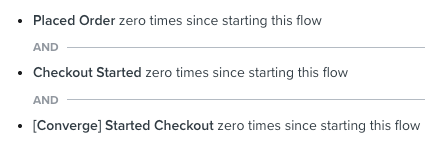
8. Add filters excluding users that have tracked standard and Converge events after the triggered event:
1. For an **abandoned browse** flow, filter users who have tracked:
* **Added To Cart**
* **Added To Cart \[Converge]**
* **Started Checkout**
* **Started Checkout \[Converge]**
* **Placed Order**
2. For an **abandoned cart** flow, filter users who have tracked:
* **Started Checkout**
* **Started Checkout \[Converge]**
* **Placed Order**
3. For an **abandoned checkout** flow, filter users who have tracked:
* **Placed Order**
9. Add any other Profile filter you want.
10. Click **Save**.
11. **Preview** and **test** the new flow and **enable** it when you are done.
## Measure results
Once the new flow is live, you'll start to see revenue attributed to it. All of that revenue is from users Converge recognized and Klaviyo didn't, proof that the extra events are working.
 5. Click **Add new mapping** at the bottom of the overview.
6. Select **Viewed Product** in the **Source event** field.
7. Enter **Viewed Product \[Converge]** in the **Forward as** field.
8. Select **Server** as the **Forwarding mode**.
9. Repeat steps 6-8 for **Added to Cart** → **Added to Cart \[Converge]** and **Started Checkout** → **Started Checkout \[Converge]**.
5. Click **Add new mapping** at the bottom of the overview.
6. Select **Viewed Product** in the **Source event** field.
7. Enter **Viewed Product \[Converge]** in the **Forward as** field.
8. Select **Server** as the **Forwarding mode**.
9. Repeat steps 6-8 for **Added to Cart** → **Added to Cart \[Converge]** and **Started Checkout** → **Started Checkout \[Converge]**.
 10. Click **Save**.
 9. Add any other Profile filter you want.
10. Click **Save**.
11. **Preview** and **test** the new flow and **enable** it when you are done.
9. Add any other Profile filter you want.
10. Click **Save**.
11. **Preview** and **test** the new flow and **enable** it when you are done.
