> ## Documentation Index
> Fetch the complete documentation index at: https://docs.runconverge.com/llms.txt
> Use this file to discover all available pages before exploring further.
# In-platform NC-Purchase
> An introduction guide to setting up a New Customer Purchase event in the Meta Ads Manager for in-platform CAC reporting and optimization
***
## Introduction
After this section, you will be able to see New Customer metrics such as New Customer ROAS (NC-ROAS), Cost per New Customer Purchase (CAC), etc. right in your Meta Ads Manager.
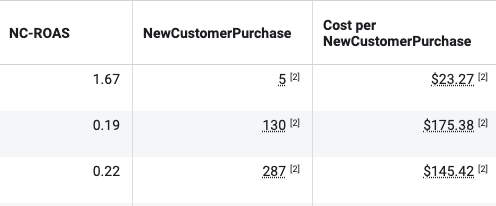 ### Why you should care about New Customer Events in your Meta Ads Manager
Even when you set up exclusions correctly, Meta usually does quite a lot of retargeting on existing customers.
Most performance marketers want to focus their Meta spend (almost) exclusively on acquiring **new** customers.
Sending a `NewCustomerPurchase` event to Meta that excludes all existing customer conversions, allows you to:
* **Report in-platform on CAC**: Brands often want to get a sense of how much they are paying for a new customer (CAC) and not (only) how much they are paying for a purchase.
* **Optimize towards New Customers**: You can force the Meta ad targeting algorithm to only be rewarded for New Customer conversions when using this as an optimization event.
### Step-by-step setup instructions
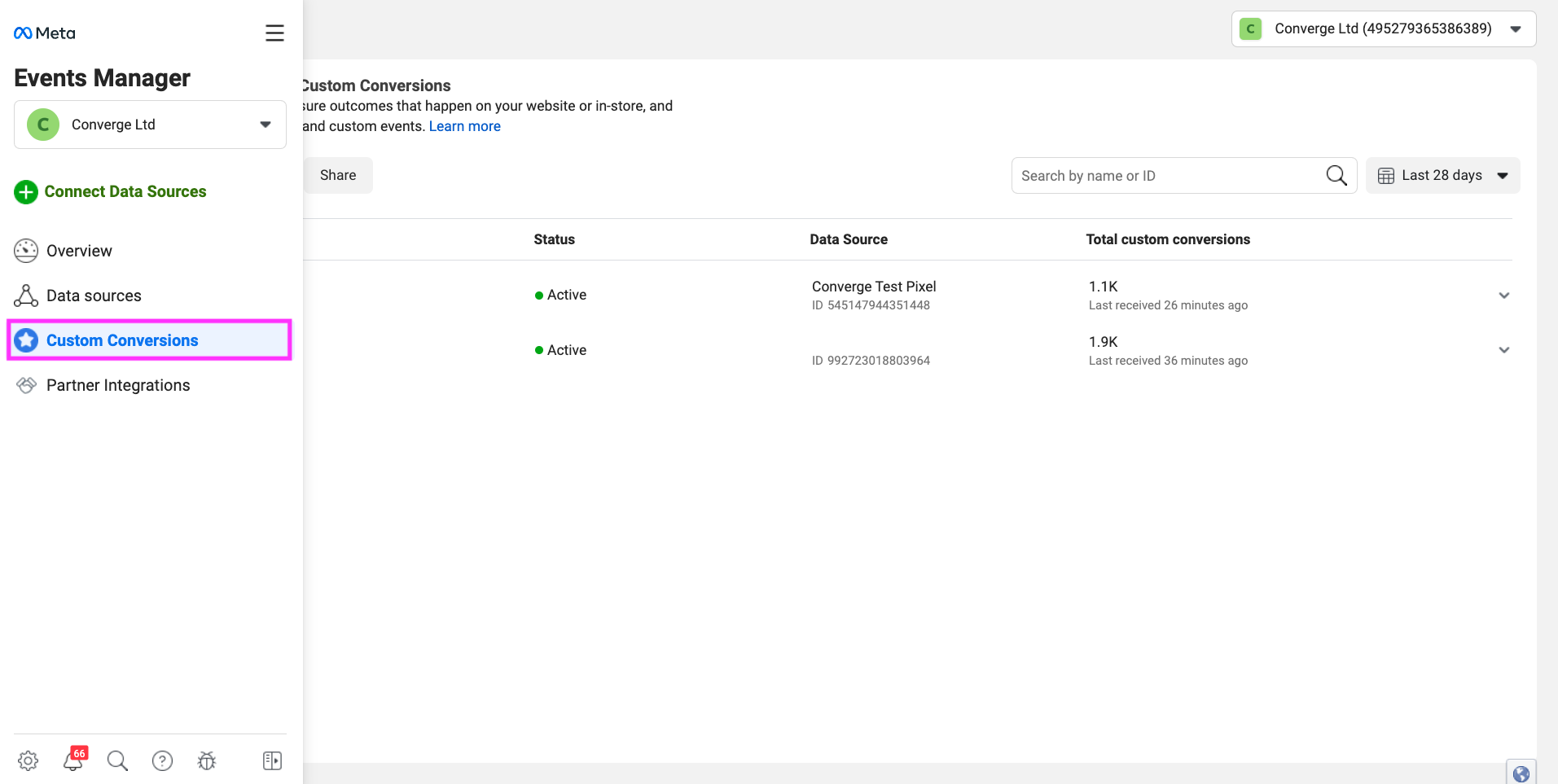
1. Go to your Meta Events Manager and click on **Custom Conversions** > **Create custom conversion**.
### Why you should care about New Customer Events in your Meta Ads Manager
Even when you set up exclusions correctly, Meta usually does quite a lot of retargeting on existing customers.
Most performance marketers want to focus their Meta spend (almost) exclusively on acquiring **new** customers.
Sending a `NewCustomerPurchase` event to Meta that excludes all existing customer conversions, allows you to:
* **Report in-platform on CAC**: Brands often want to get a sense of how much they are paying for a new customer (CAC) and not (only) how much they are paying for a purchase.
* **Optimize towards New Customers**: You can force the Meta ad targeting algorithm to only be rewarded for New Customer conversions when using this as an optimization event.
### Step-by-step setup instructions
1. Go to your Meta Events Manager and click on **Custom Conversions** > **Create custom conversion**.
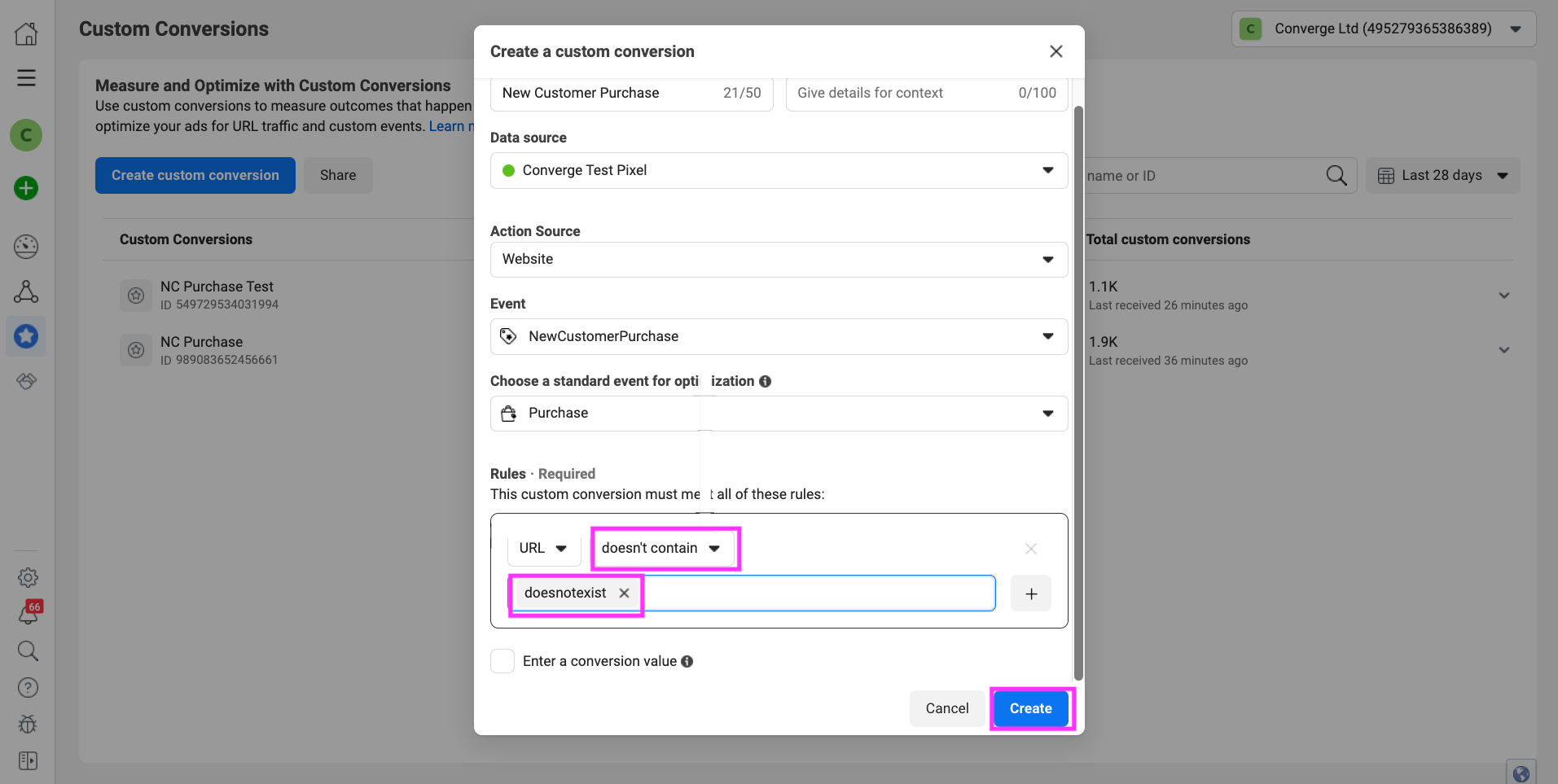
 2. Fill in `New Customer Purchase` in the **Name** field, and pick `NewCustomerPurchase` in the **Event** field.
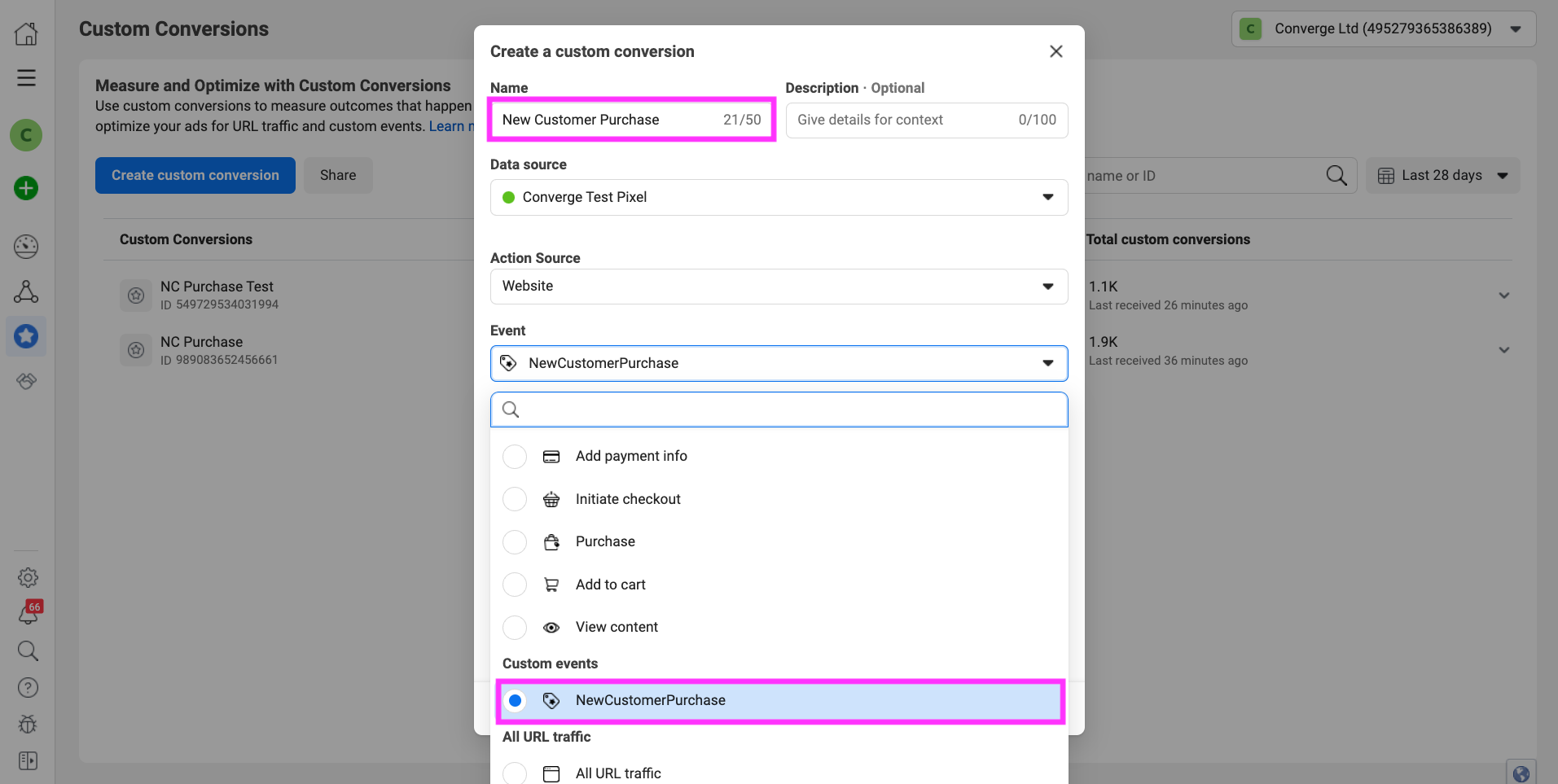 If you do not see the `NewCustomerPurchase` event, go to the Meta Events Manager overview and verify this `NewCustomerPurchase` event before continuing.
3. In the **Choose a standard event for optimization** field, choose `Purchase`.
If you do not see the `NewCustomerPurchase` event, go to the Meta Events Manager overview and verify this `NewCustomerPurchase` event before continuing.
3. In the **Choose a standard event for optimization** field, choose `Purchase`.
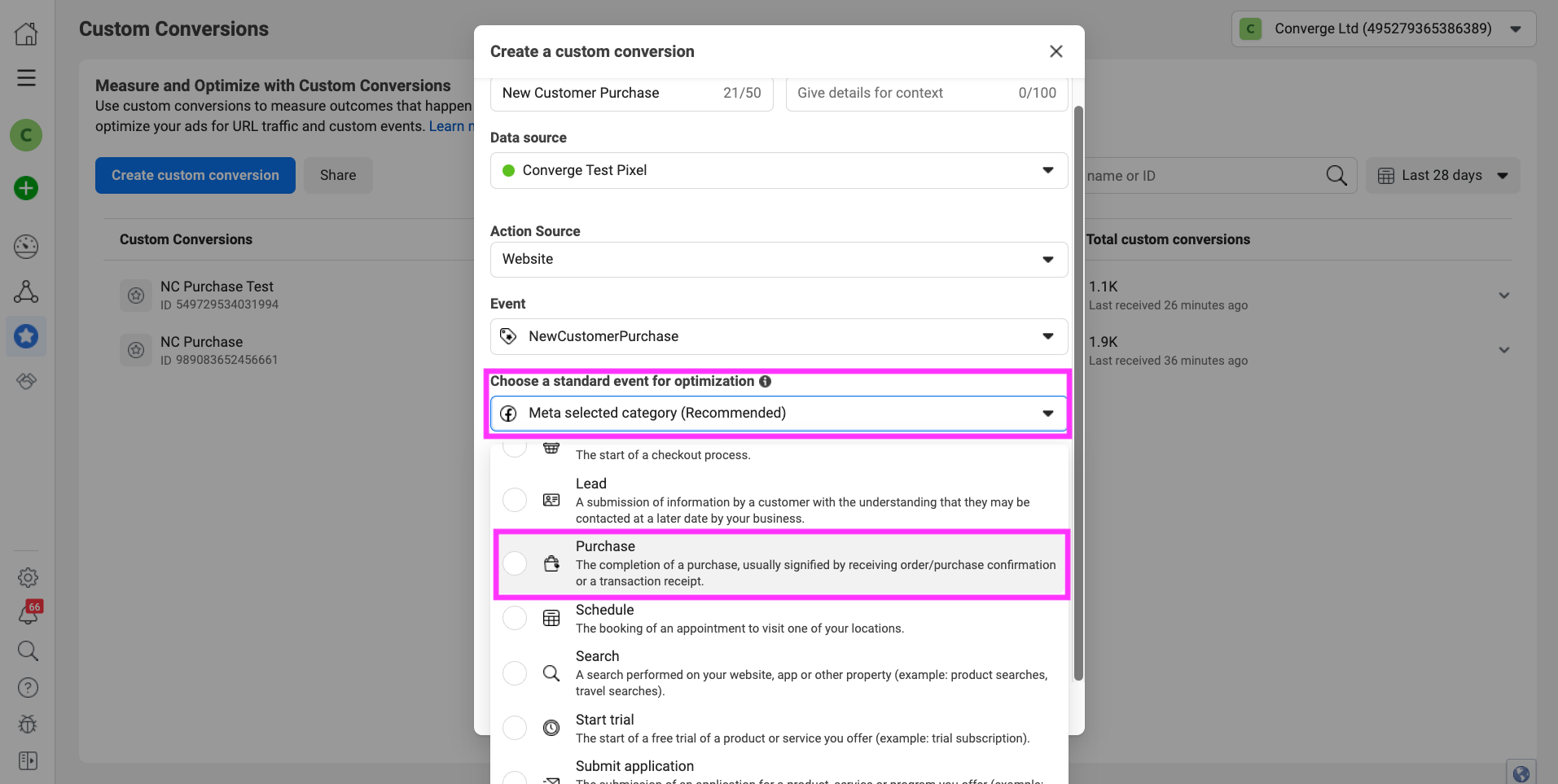 4. In Rules, choose URL, **doesn't contain** and fill in `does_not_exist` in the form field. Press Enter after you fill in until you see your input become light gray. After that, press **Create**.
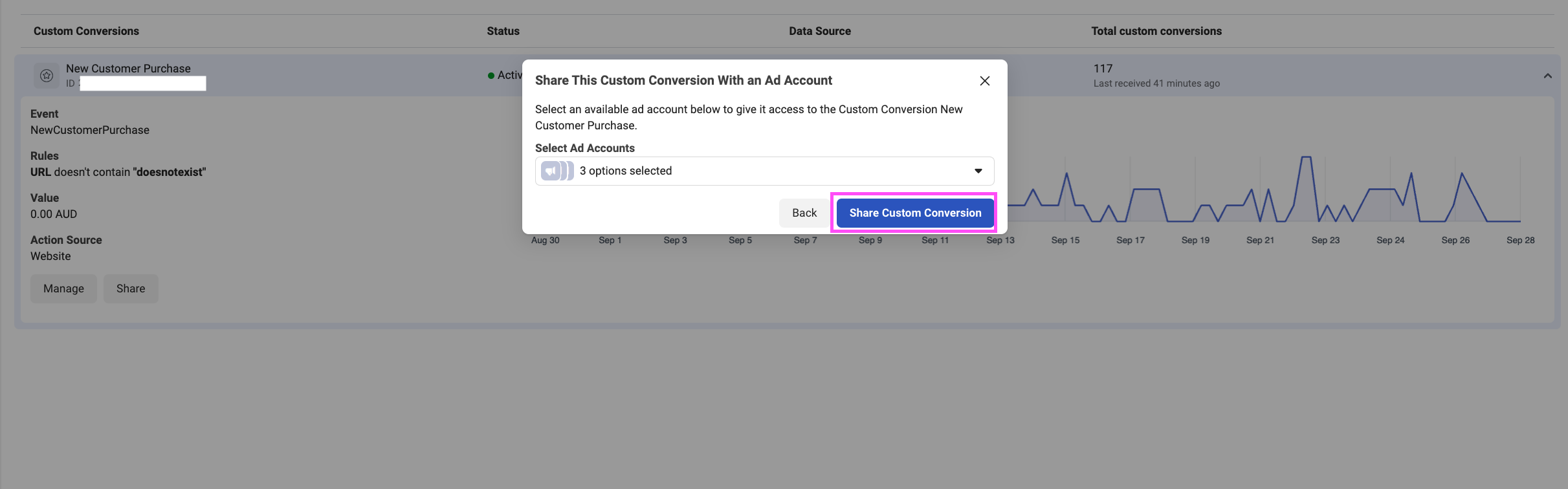
 5. Now that the Custom Conversion is created, share it with your Ad Account.
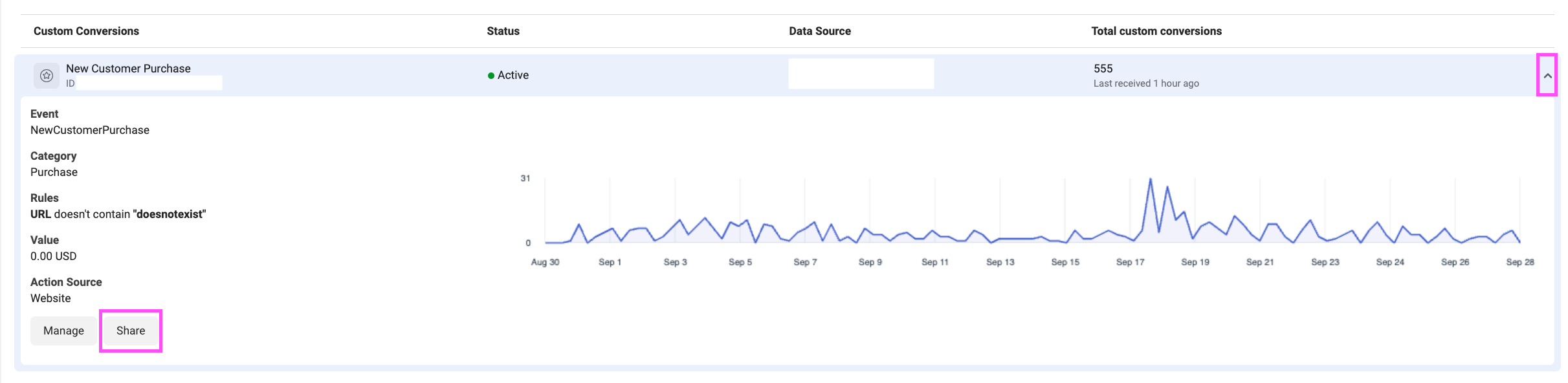
Click on the dropdown on the right for the new conversion you just created, then click **Share**.
5. Now that the Custom Conversion is created, share it with your Ad Account.
Click on the dropdown on the right for the new conversion you just created, then click **Share**.
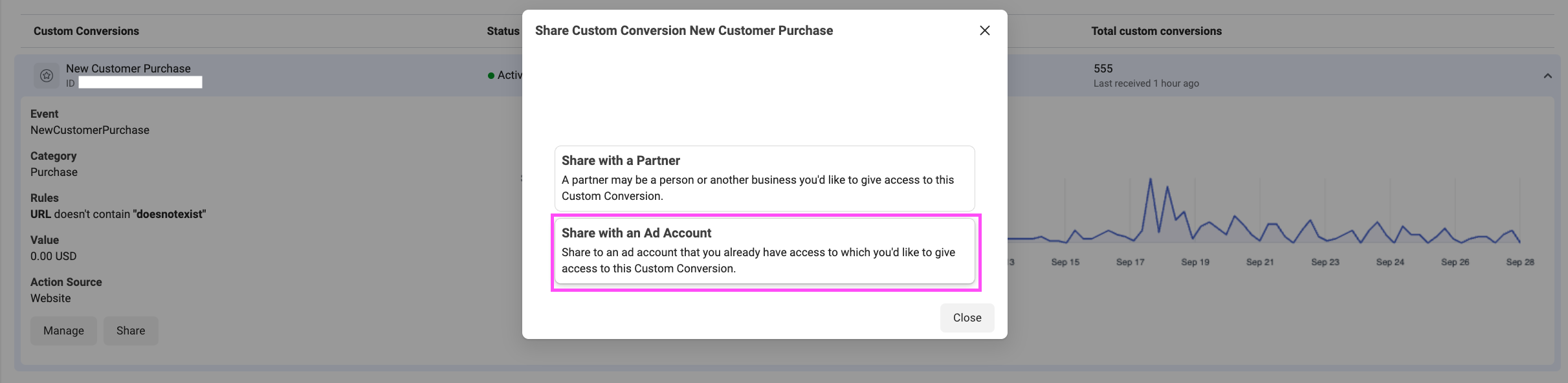
 6. Click **Share with an Ad Account**.
 7. Mark all the ad accounts you want to use this new Custom Conversion in.
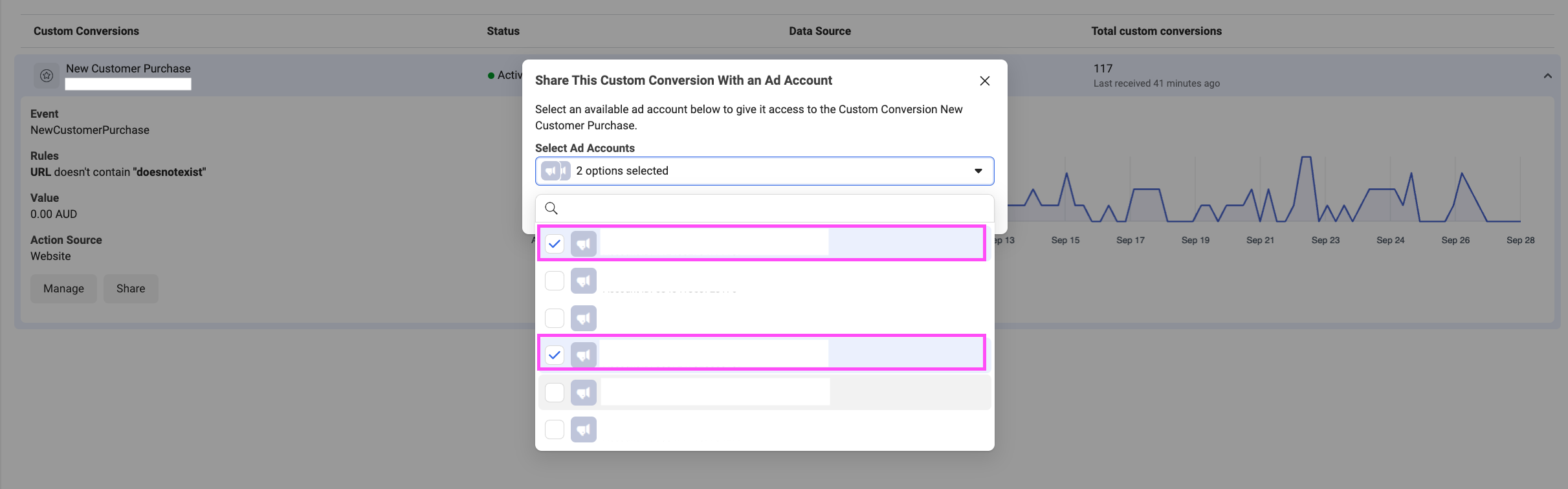 8. Click on **Share Custom Conversion**.
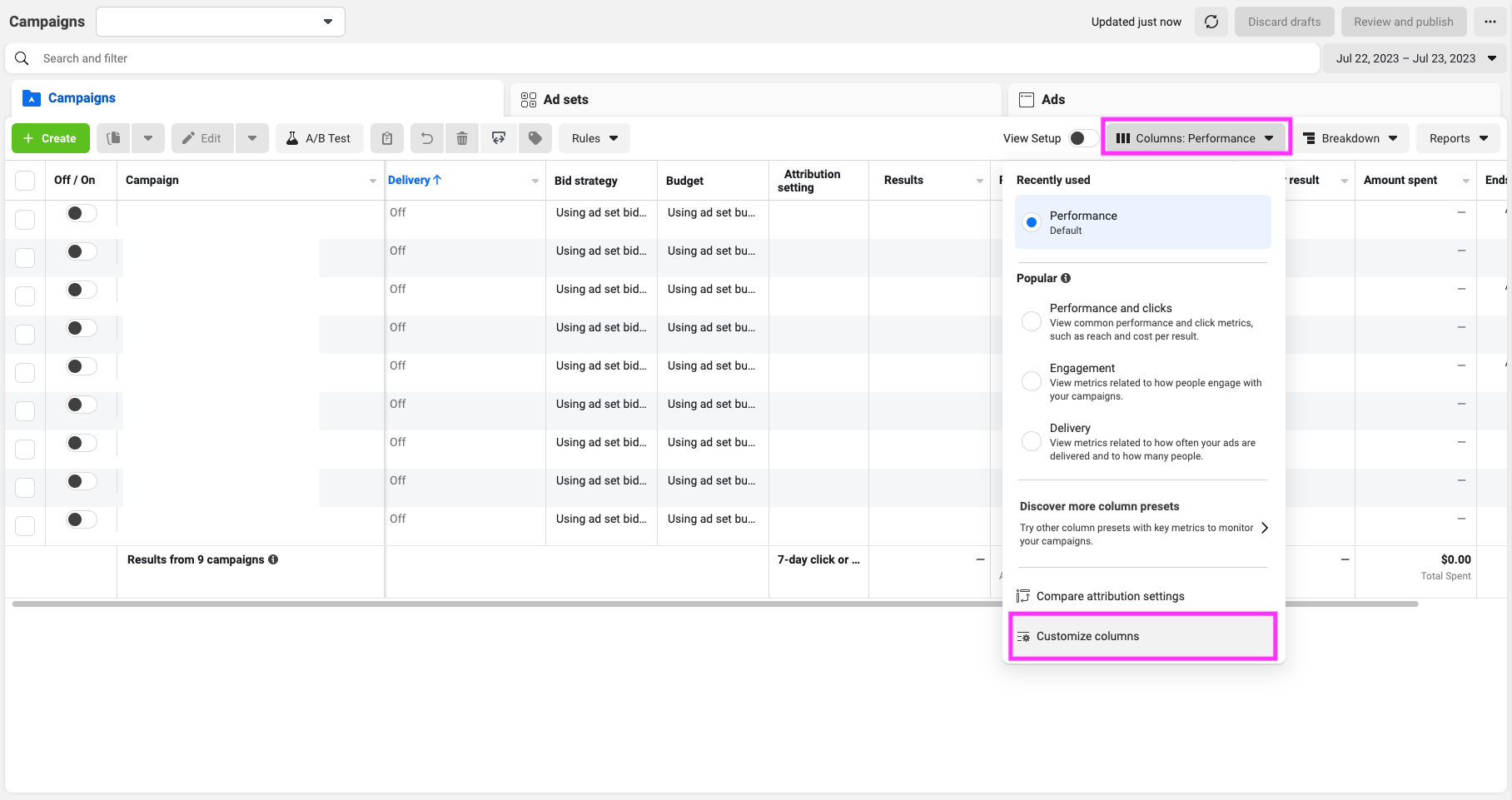
 9. The custom conversion is now created—time to show it in your Meta Ads Manager. Navigate to Meta Ads Manager and click on **Columns** > **Customize Columns**.
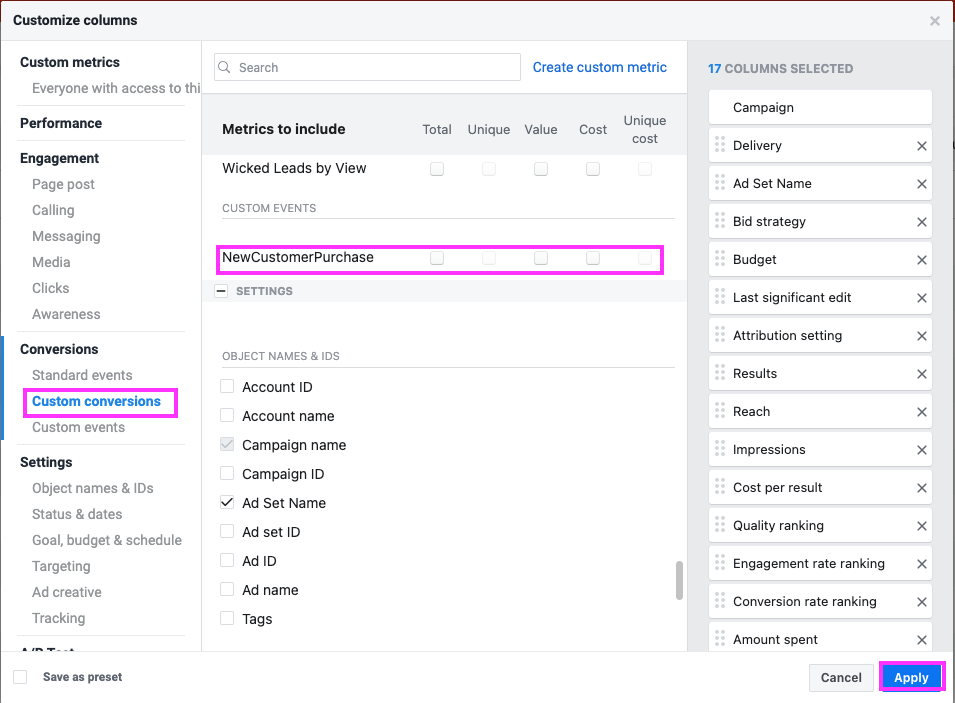
 10. Under **Custom Conversions** you'll find your NewCustomerPurchase. Choose **Total** and **Cost** to show total conversions and cost per New Customer Purchase.
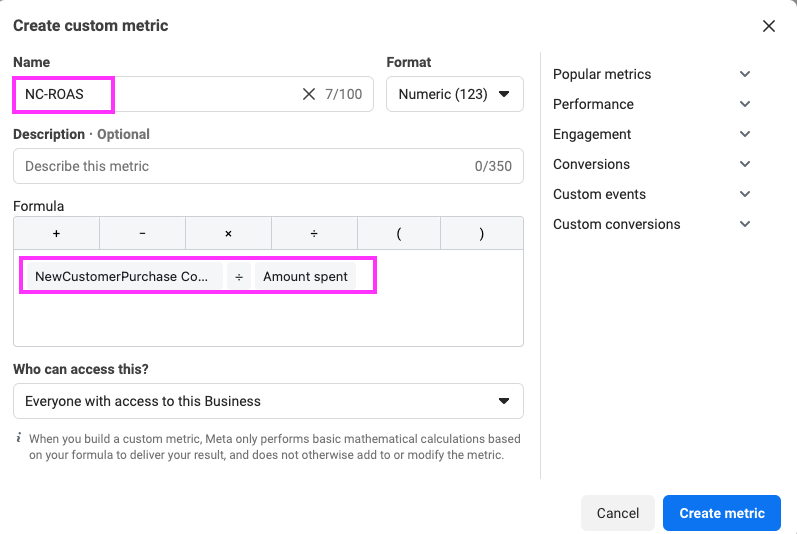
 11. To add NC-ROAS, we need to create a custom metric. Click on **Create custom metric**.
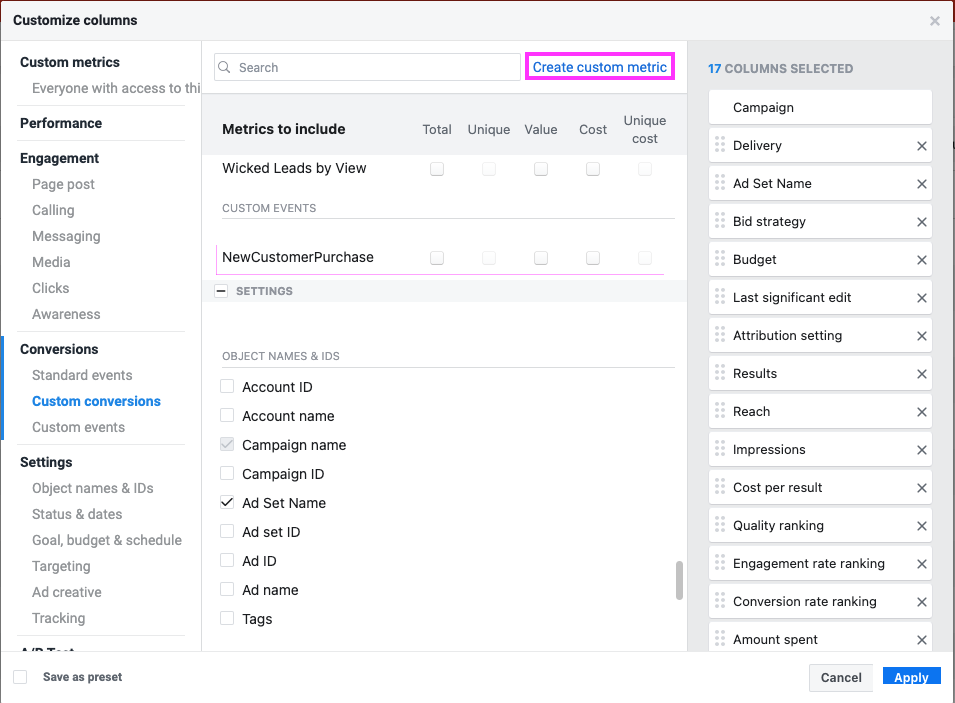 12. Call your custom metric `NC-ROAS` and for Formula choose: `NewCustomerPurchase Conversion Value` `÷` `Amount spent`. Click on **Create metric**. Be sure to mark *Everyone with access to this Business* if you want to share the metric.
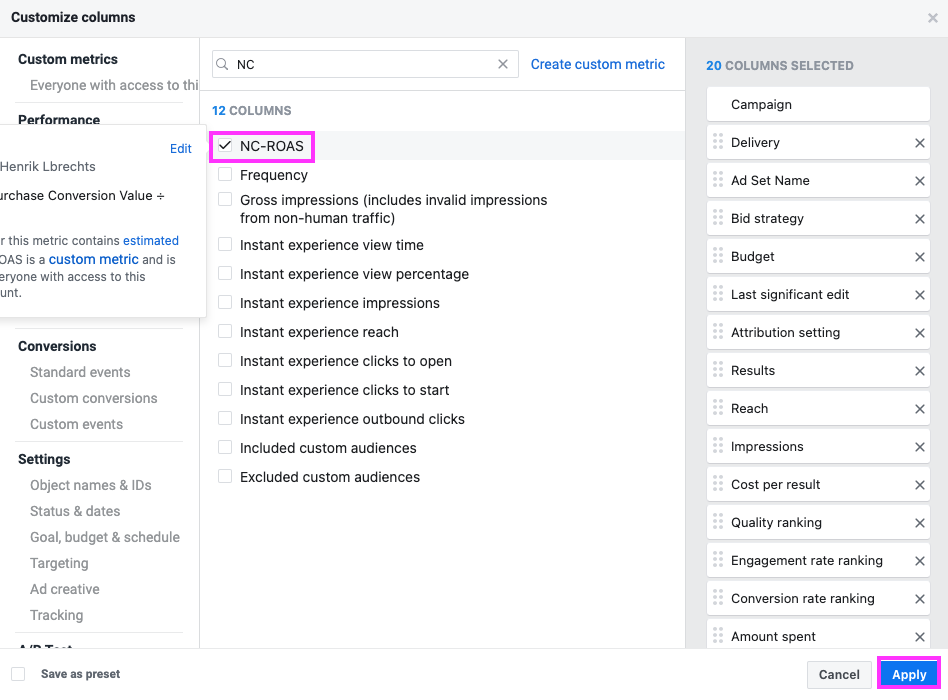
 13. Also include `NC-ROAS` in your **Customize columns** if you want it to appear there.
 14. Done!
Initially, it'll seem like no New Customer Purchase data is showing up in the Ads Manager because Meta doesn't support attributing custom conversions from the past.
14. Done!
Initially, it'll seem like no New Customer Purchase data is showing up in the Ads Manager because Meta doesn't support attributing custom conversions from the past.