> ## Documentation Index
> Fetch the complete documentation index at: https://docs.runconverge.com/llms.txt
> Use this file to discover all available pages before exploring further.
# Export & share
export const CloudinaryVideo = ({src, controls = true, autoplay = false, loop = false, muted = true, poster = null}) => {
return ;
};
export const Icon = ({name}) => {
return
;
};
## Exporting Insights
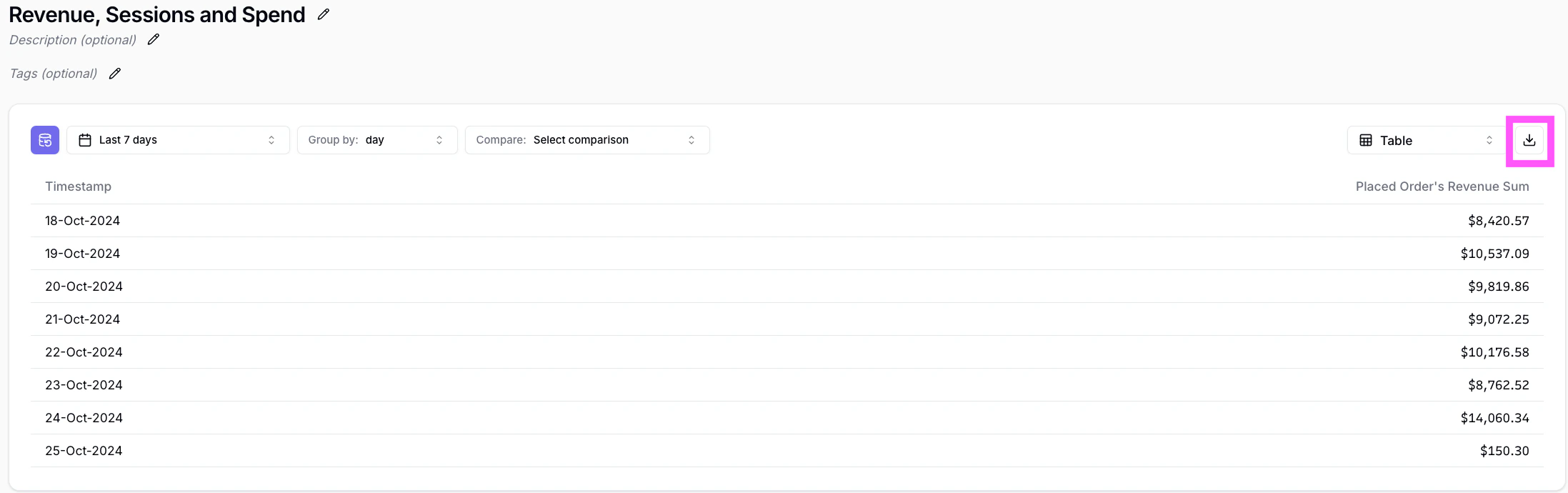
1. Navigate to the Insights page and choose the Insight you want to export.
2. Click on the icon to download a `.csv` export.
3. Done.
### Opening Converge Exports in Google Sheets
Some Google Sheets region configurations do not load Converge exports correctly.
Therefore, it's important to set your Sheets *Locale* to **United States**.
See the recording below for a step-by-step tutorial:
 3. Done.
### Opening Converge Exports in Google Sheets
Some Google Sheets region configurations do not load Converge exports correctly.
Therefore, it's important to set your Sheets *Locale* to **United States**.
See the recording below for a step-by-step tutorial:
3. Done.
### Opening Converge Exports in Google Sheets
Some Google Sheets region configurations do not load Converge exports correctly.
Therefore, it's important to set your Sheets *Locale* to **United States**.
See the recording below for a step-by-step tutorial: