> ## Documentation Index
> Fetch the complete documentation index at: https://docs.runconverge.com/llms.txt
> Use this file to discover all available pages before exploring further.

# Filters

export const Icon = ({name}) => {
  return <div className="h-4 w-4 fill-gray-800 dark:fill-gray-100 text-gray-800 dark:text-gray-100 inline-block align-middle">
            <svg className="w-4 h-4 bg-gray-800 dark:bg-gray-100" style={{
    maskImage: `url('https://mintlify.b-cdn.net/v6.5.1/solid/${name}.svg')`,
    maskRepeat: "no-repeat",
    maskPosition: "center center"
  }} />
        </div>;
};

export const IconText = ({name, text, iconSource = "mintlify", iconLocation = "before", iconType = "solid"}) => {
  const sourceUrl = iconSource === 'local' ? `url('/images/icons/${name}.svg')` : `url('https://mintlify.b-cdn.net/v6.5.1/${iconType}/${name}.svg')`;
  return <>
            <div className="inline-block pl-2">
                {iconLocation === 'before' && <div className="h-3.5 w-3.5 fill-gray-800 dark:fill-gray-100 text-gray-800 dark:text-gray-100 inline-block align-middle mr-2">
                        <svg className="w-4 h-4 bg-gray-800 dark:bg-gray-100 " style={{
    maskImage: sourceUrl,
    maskRepeat: "no-repeat",
    maskPosition: "center center"
  }} />
                    </div>}
                <span className="inline-block align-middle font-semibold fill-gray-800 dark:fill-gray-100 text-gray-800 dark:text-gray-100 pl-1 pr-2">{text}</span>
                {iconLocation === 'after' && <div className="h-3.5 w-3.5 fill-gray-800 dark:fill-gray-100 text-gray-800 dark:text-gray-100 inline-block align-middle mr-2">
                        <svg className="w-4 h-4 bg-gray-800 dark:bg-gray-100 pr-3" style={{
    maskImage: sourceUrl,
    maskRepeat: "no-repeat",
    maskPosition: "center center"
  }} />
                    </div>}
            </div>
        </>;
};

Filters allow you to include or exclude certain values based on specific properties.

Filters allow you to answer questions such as:

* How many Added To Cart events do I have *in Canada*
* How many Website visits come *from mobile users*
* How much Spend comes from *my Summer Facebook campaign*
* How much Purchases can be *first-party attributed to TikTok*

## Applying a Filter

How you apply a filter to an insight depends on whether you want the filter to filter on a **Metric** level (applies to a single metric) or on an **Insight** level (applies to all metrics in the insight).

### Metric Filters

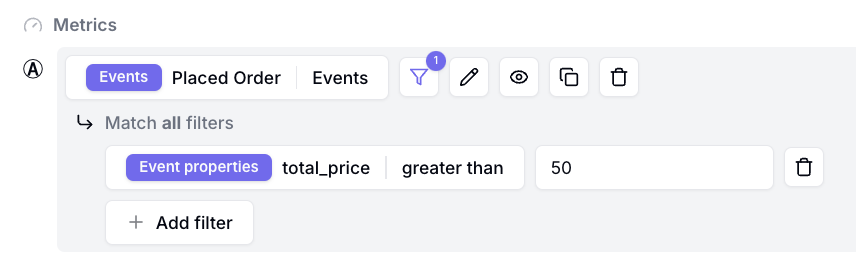
1. Click on the <Icon name="filter" />-icon next to the metric you want to filter.
   <Frame>
     <img src="https://mintcdn.com/converge/zWlDFBz7l1F_0PFn/images/insights-dashboards/filter-icon.png?fit=max&auto=format&n=zWlDFBz7l1F_0PFn&q=85&s=509c8c882efe00eadf91972546fa3a85" alt="filter-icon" width="651" height="115" data-path="images/insights-dashboards/filter-icon.png" />
   </Frame>
2. Click on <IconText name="plus" text="Add filter" />
3. Choose a property to filter on and a condition, e.g. **`total_price` greater than 50**
   <Frame>
     <img src="https://mintcdn.com/converge/zWlDFBz7l1F_0PFn/images/insights-dashboards/active-metric-filter.png?fit=max&auto=format&n=zWlDFBz7l1F_0PFn&q=85&s=e40cb9defab4561c56e164f424bca1e8" alt="filter-icon" width="856" height="256" data-path="images/insights-dashboards/active-metric-filter.png" />
   </Frame>
4. Done, your metric values should be filtered based on this condition.

### Insight Filters

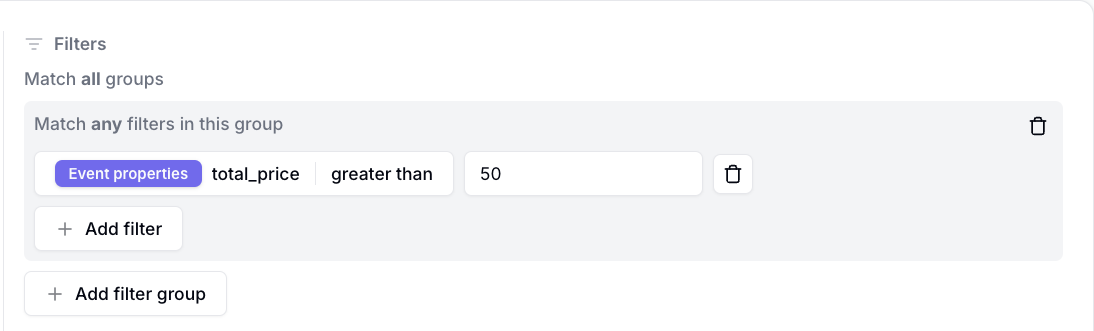
1. Click on <IconText name="plus" text="Add filter group" /> in the <IconText name="bars-filter" text="Add filter" /> section of the query builder.
   <Frame>
     <img src="https://mintcdn.com/converge/ecGnucKsPgTlQzkL/images/insights-dashboards/insight-filter-section.png?fit=max&auto=format&n=ecGnucKsPgTlQzkL&q=85&s=197e2401b001e419e38d3011140256d2" alt="filter-icon" width="856" height="134" data-path="images/insights-dashboards/insight-filter-section.png" />
   </Frame>
2. Click on <IconText name="plus" text="Add filter" />
3. Choose a property to filter on and a condition, e.g. **`total_price` greater than 50**
   <Frame>
     <img src="https://mintcdn.com/converge/ecGnucKsPgTlQzkL/images/insights-dashboards/insight-filter-example.png?fit=max&auto=format&n=ecGnucKsPgTlQzkL&q=85&s=d3125f4a32a326708805c9d849d2759f" alt="filter-icon" width="1094" height="331" data-path="images/insights-dashboards/insight-filter-example.png" />
   </Frame>
4. Done, all of your metric values should be filtered based on this condition.

   <Info>
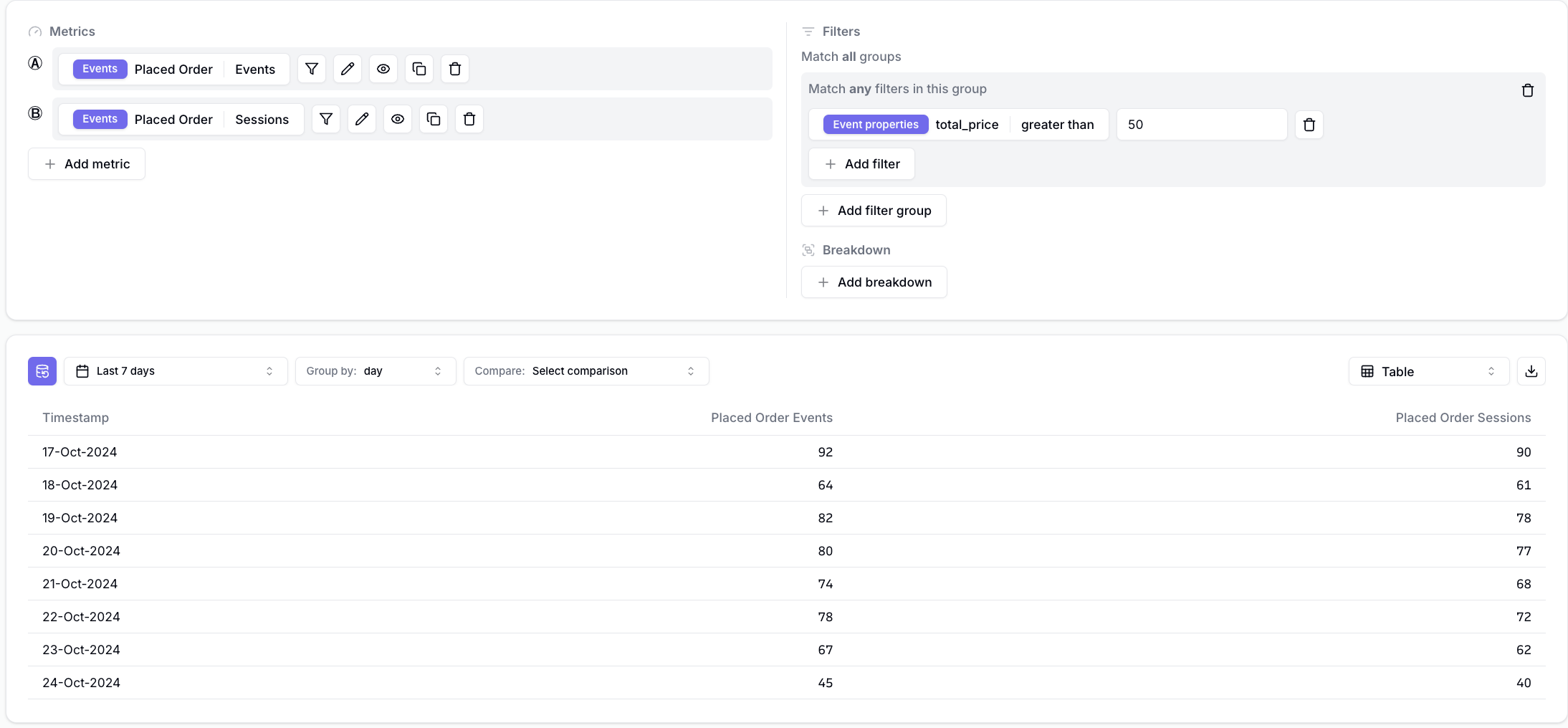
     As an example of a filter that applies across a few metrics, notice the insight below that shows all:

     * `Placed Order` events with a `total_price` greater than 50
     * All sessions with a `Placed Order` event for which this event has a `total_price` greater than 50

     <Frame>
       <img src="https://mintcdn.com/converge/ecGnucKsPgTlQzkL/images/insights-dashboards/filters-on-multiple-metrics.png?fit=max&auto=format&n=ecGnucKsPgTlQzkL&q=85&s=8ae7ce5ff4ddb7caecff33951121e4b5" alt="multiple metrics" width="2188" height="1016" data-path="images/insights-dashboards/filters-on-multiple-metrics.png" />
     </Frame>
   </Info>