> ## Documentation Index
> Fetch the complete documentation index at: https://docs.runconverge.com/llms.txt
> Use this file to discover all available pages before exploring further.
# Insight basics
export const OutboundLink = ({linkText, linkTarget}) => {
return {linkText}
;
};
This serves as a knowledge base for Insights. For a general overview of Insights & Dashboards, see the [Overview](./overview) section.
## What is an insight
Insights are the main building block of your custom marketing analytics.
They allow you to visualize customer events, ad platform metrics, and first-party attribution metrics, and analyze how you acquire customers.
## How to create your first insight
1. From the sidebar click on and click on **Create new Insight**.
2. This will open the query builder, click on the -icon next to "Unnamed insight" and give it a name, e.g. `Revenue over time`.
3. Click on the -icon to save the new name.
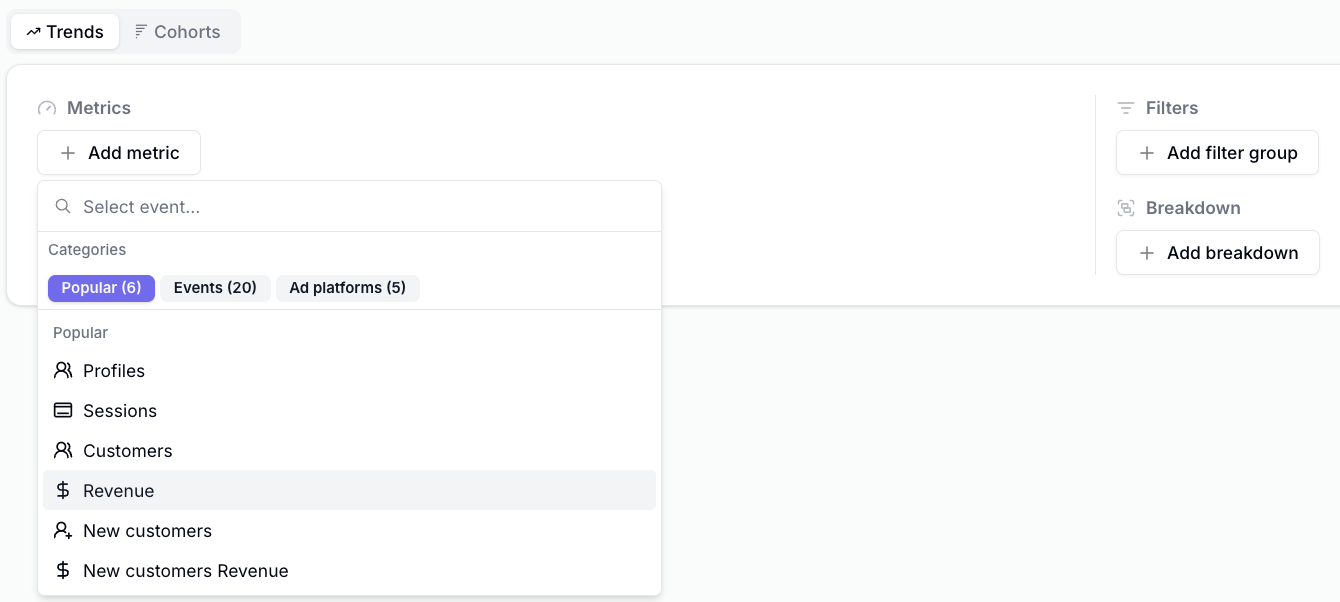
4. Click on
5. Click on
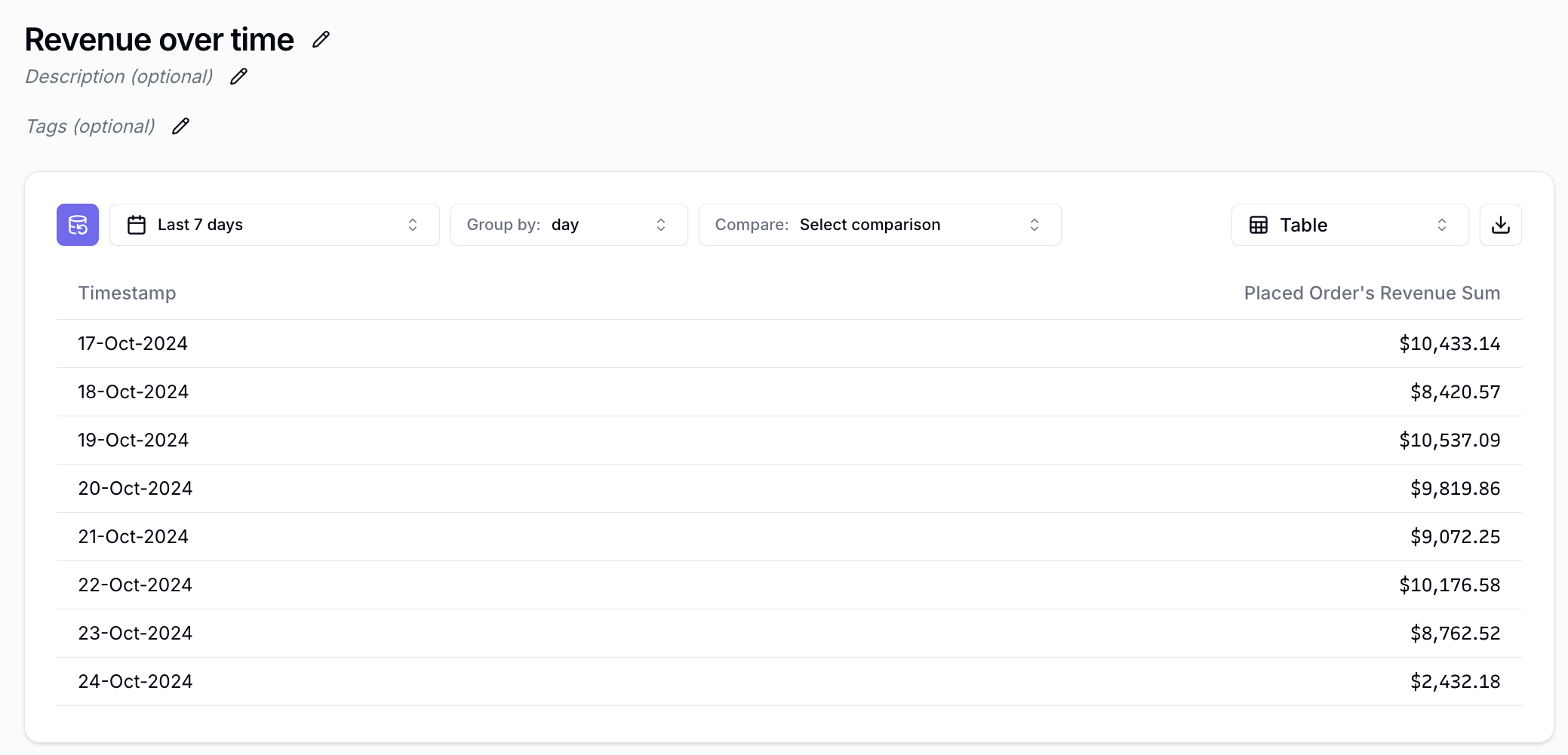
6. Click on in the top right corner.
7. You've created your first insight.
## Insight Building Blocks
Insights are extremely flexible, you can configure the exact insight you want across these dimensions:
* [Metrics](./metrics): Choose which values you'd like to display
* [Visualization Types](./visualization-types): Insights can show up as tables, line charts, pie charts, etc.
* [Filters](./filters): You can flexibly filter in or out based on session, event, attribution, or ad platform properties
* [Breakdowns](./breakdowns): You can break down insights across session, event, attribution, or ad platform properties
* [Cohorts](./cohorts): We support specific cohort-based insights
 3. Click on the
  6. Click on
  ## Insight Building Blocks
Insights are extremely flexible, you can configure the exact insight you want across these dimensions:
* [Metrics](./metrics): Choose which values you'd like to display
* [Visualization Types](./visualization-types): Insights can show up as tables, line charts, pie charts, etc.
* [Filters](./filters): You can flexibly filter in or out based on session, event, attribution, or ad platform properties
* [Breakdowns](./breakdowns): You can break down insights across session, event, attribution, or ad platform properties
* [Cohorts](./cohorts): We support specific cohort-based insights
## Insight Building Blocks
Insights are extremely flexible, you can configure the exact insight you want across these dimensions:
* [Metrics](./metrics): Choose which values you'd like to display
* [Visualization Types](./visualization-types): Insights can show up as tables, line charts, pie charts, etc.
* [Filters](./filters): You can flexibly filter in or out based on session, event, attribution, or ad platform properties
* [Breakdowns](./breakdowns): You can break down insights across session, event, attribution, or ad platform properties
* [Cohorts](./cohorts): We support specific cohort-based insights