> ## Documentation Index
> Fetch the complete documentation index at: https://docs.runconverge.com/llms.txt
> Use this file to discover all available pages before exploring further.
# Overview
> Query your Converge analytics data from any AI tool using the Converge MCP server.
The [Model Context Protocol (MCP)](https://modelcontextprotocol.io/) is an open standard that lets AI assistants connect to external data sources. The **Converge MCP server** gives any MCP-compatible client read access to your analytics data, with no code required.
## Applications and use cases
Pick a use case to get started. Each page walks you through the full setup.
Ask analytics questions from Claude, ChatGPT, or any MCP-compatible
assistant.
Schedule recurring reports with n8n, Zapier, or Claude Cowork.
Query your analytics data by @mentioning Claude in any Slack channel.
## Available tools
The Converge MCP server exposes the following tools:
| Tool | Description |
| -------------------------- | ----------------------------------------------------------------------------------------------------------------------------------------------------------------------------------- |
| `analytics_query` | Run custom queries with full flexibility over metrics, filters, breakdowns, date ranges, and attribution models. |
| `cohort_analysis` | Group customers by acquisition period and measure lifetime value (LTV) or retention rate across follow-up windows. |
| `collect_feedback` | Collects feedback about your experience. Fires automatically when issues arise, or ask your AI assistant to submit feedback anytime. |
| `get_analytics_view_data` | Export a saved analytics view's data. Useful for further analysis. |
| `get_insight_data` | Export a saved insight's data. |
| `list_analytics_views` | Lists your saved analytics views from within the app. The different types are: attribution, overview, pacing, landing page, product. |
| `list_dashboards` | Lists saved dashboards. Dashboards are collections of related insights. |
| `list_insights` | Lists saved insights. Each insight is a saved analytics query. |
| `list_metric_event_names` | Lists metric event names tracked in a workspace. Use to discover valid `event_name` values for `analytics_query`. Optionally includes custom marketing events from ad platforms. |
| `list_store_dimensions` | List store dimensions available for a workspace. Store dimensions are user-defined groupings typically used for separating regions, brands, or sales channels. |
| `list_workspaces` | Lists all workspaces you have access to. |
| `search_touchpoint_values` | Search and validate touchpoint values (channel groups, channels, campaigns, ad sets, ads) before using them in filters. Returns IDs, names, and all parent levels in the hierarchy. |
Given these tools, there are two main ways to pull data:
* **Saved reports** (`get_analytics_view_data`): Pull data directly from a report you've already built in Converge. What you get back is exactly what you see in the app, no extra configuration needed. Use the `list_analytics_views` tool to see what reports are available.
* **Flexible queries** (`analytics_query`): Choose any combination of metrics, date ranges, attribution models, and breakdowns (channel, campaign, ad set, landing page). Far more versatile and powerful, and what you'll use most of the time.
## Workspaces
If your account has access to multiple workspaces, specify the one you want by name in your prompt (e.g. *"Show me last week's spend for **Acme US**"*). If you don't specify one, the AI assistant will fetch your list of available workspaces and ask you to pick one.
Once a workspace is selected, it stays active for the rest of the conversation. You can switch at any time by asking for a different workspace. New conversations start fresh — there's no workspace carried over between chats.
Instead of passing a workspace name, you can also define your workspace ID in
the prompt, which skips the workspace-lookup step and is slightly faster. Find
both your workspace name and ID in the Converge app:
 ## Authentication
The Converge MCP server URL is:
```
https://app.runconverge.com/api/mcp
```
You can authenticate in two ways.
#### Google OAuth (recommended for interactive clients)
On your first interaction, a browser window opens automatically for Google sign-in. Use the same Google account you use to access Converge. This is the easiest option for clients like Claude, ChatGPT, or Cursor that handle the OAuth flow for you.
#### Personal API key (recommended for automations)
For MCP clients that don't support the interactive OAuth flow, authenticate with a personal API key instead. You can create one in the [API keys section](https://app.runconverge.com/-/settings/personal-api-keys) of your account settings.
## Authentication
The Converge MCP server URL is:
```
https://app.runconverge.com/api/mcp
```
You can authenticate in two ways.
#### Google OAuth (recommended for interactive clients)
On your first interaction, a browser window opens automatically for Google sign-in. Use the same Google account you use to access Converge. This is the easiest option for clients like Claude, ChatGPT, or Cursor that handle the OAuth flow for you.
#### Personal API key (recommended for automations)
For MCP clients that don't support the interactive OAuth flow, authenticate with a personal API key instead. You can create one in the [API keys section](https://app.runconverge.com/-/settings/personal-api-keys) of your account settings.
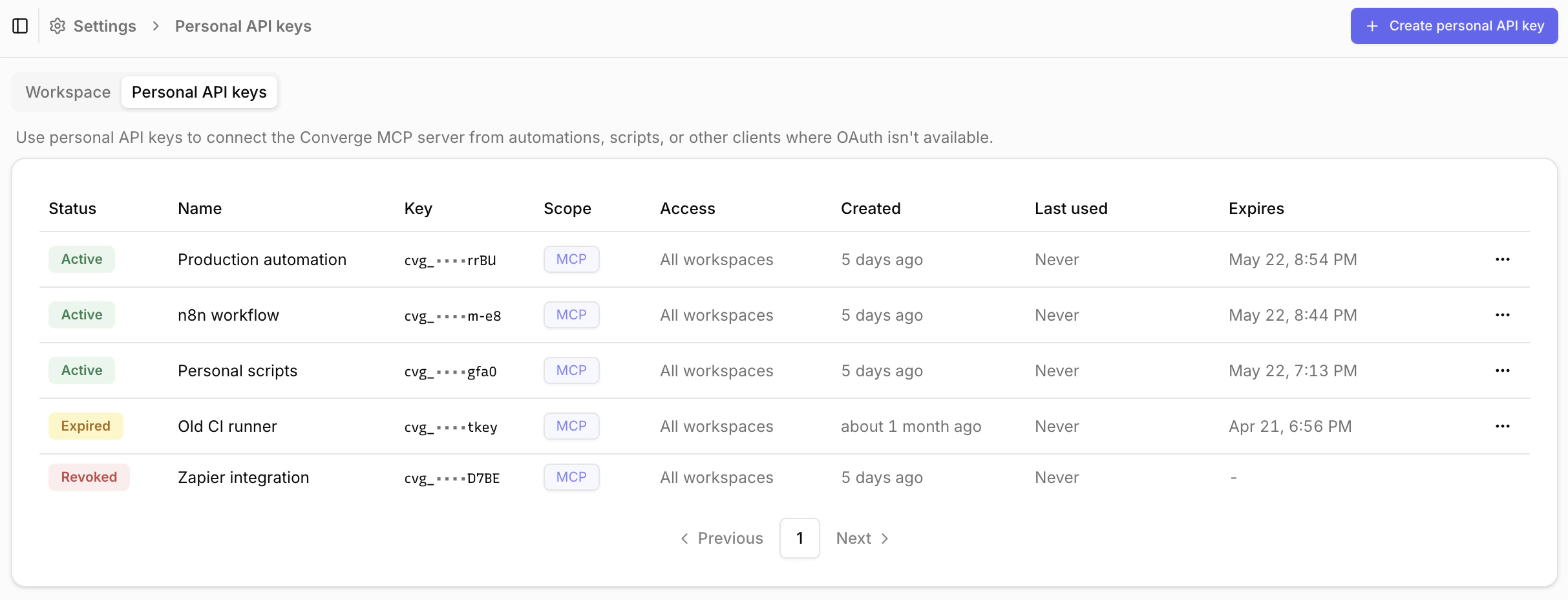 Each key:
* Starts with `cvg_` and is shown only once at creation, so copy it somewhere safe.
* Inherits your own access: it sees the same workspaces and data you do. Other accounts in your workspace will not be able to access this API key.
* Can be given an optional expiry (30 days, 90 days, 1 year, or never) and revoked at any time.
Pass the key as a standard bearer token in the `Authorization` header. For example:
```
Authorization: Bearer cvg_Q29udmVyZ2UgaXMgdGhlIGJlc3Q
```
Most MCP clients have a dedicated field for this. Paste the key there and skip the OAuth flow entirely.
## Example prompts
Anything you can query in Converge, you can ask in natural language. Your AI assistant translates your question into the right metrics, filters, breakdowns, and date ranges automatically.
* **Channel and campaign performance**: *"Break down yesterday's new customer orders, spend, and CPA by channel group."*
* **Ad-level creative analysis**: *"Show total spend and new customer first-touch ROAS for all ads with 'UGC Script' last quarter."*
* **Daily performance and revenue tracking**: *"Pull an MTD summary of spend, revenue, and new customer orders by channel."*
* **Country and market comparisons**: *"Break down monthly Facebook spend, new customer orders, and revenue per country from March 2024 to now."*
* **Landing page and funnel analysis**: *"Which landing pages drove the most new customer orders this month?"*
## FAQ
### Does Converge use my data to train AI models?
No. Converge does not train any AI models on your data, and our MCP server does not send your data to any AI provider on our behalf. The MCP server only responds to queries from the AI client *you* connect (Claude, ChatGPT, Claude Code, etc.), and data flows directly from Converge to that client over your authenticated session.
### Where does my data go when I use the MCP server?
When you ask a question in your AI assistant, two things happen:
1. The assistant calls the Converge MCP server at `app.runconverge.com/api/mcp` over an authenticated session (Google OAuth or a personal API key).
2. Converge returns the requested analytics data directly to the AI client running on your machine or in your AI provider's environment.
Converge does not route your data through any third-party AI provider. The only AI provider involved is the one you've chosen to connect.
### Will my AI provider train on the data returned by Converge?
That depends on which AI assistant you connect and what plan you're on with that provider — not on Converge. Each AI vendor has its own data-handling and training policy which you should confirm with them.
### Where is my data processed?
Converge's application infrastructure runs on AWS in the US. The MCP server runs on the same infrastructure as the rest of the Converge platform. See [Data Subprocessors](/legal/subprocessors) for the full list.
Once data leaves the MCP server, it's processed by the AI provider you connected to, in whichever regions that provider operates.
### What data can the MCP server access?
The MCP server has read-only access to the same analytics data you can see in the Converge app: aggregated marketing performance, attribution, spend, orders, revenue, and the breakdowns and dimensions exposed by the tools listed under [Available tools](#available-tools). It does not read or send customer PII, and it cannot write back to your workspace.
### Can I revoke access?
Yes. Disconnect the connector in your AI assistant's settings, or revoke the personal API key from [Settings > Personal API Keys](https://app.runconverge.com/-/settings/personal-api-keys). For OAuth sessions, you can also revoke access from your Google Account's security settings.
Each key:
* Starts with `cvg_` and is shown only once at creation, so copy it somewhere safe.
* Inherits your own access: it sees the same workspaces and data you do. Other accounts in your workspace will not be able to access this API key.
* Can be given an optional expiry (30 days, 90 days, 1 year, or never) and revoked at any time.
Pass the key as a standard bearer token in the `Authorization` header. For example:
```
Authorization: Bearer cvg_Q29udmVyZ2UgaXMgdGhlIGJlc3Q
```
Most MCP clients have a dedicated field for this. Paste the key there and skip the OAuth flow entirely.
## Example prompts
Anything you can query in Converge, you can ask in natural language. Your AI assistant translates your question into the right metrics, filters, breakdowns, and date ranges automatically.
* **Channel and campaign performance**: *"Break down yesterday's new customer orders, spend, and CPA by channel group."*
* **Ad-level creative analysis**: *"Show total spend and new customer first-touch ROAS for all ads with 'UGC Script' last quarter."*
* **Daily performance and revenue tracking**: *"Pull an MTD summary of spend, revenue, and new customer orders by channel."*
* **Country and market comparisons**: *"Break down monthly Facebook spend, new customer orders, and revenue per country from March 2024 to now."*
* **Landing page and funnel analysis**: *"Which landing pages drove the most new customer orders this month?"*
## FAQ
### Does Converge use my data to train AI models?
No. Converge does not train any AI models on your data, and our MCP server does not send your data to any AI provider on our behalf. The MCP server only responds to queries from the AI client *you* connect (Claude, ChatGPT, Claude Code, etc.), and data flows directly from Converge to that client over your authenticated session.
### Where does my data go when I use the MCP server?
When you ask a question in your AI assistant, two things happen:
1. The assistant calls the Converge MCP server at `app.runconverge.com/api/mcp` over an authenticated session (Google OAuth or a personal API key).
2. Converge returns the requested analytics data directly to the AI client running on your machine or in your AI provider's environment.
Converge does not route your data through any third-party AI provider. The only AI provider involved is the one you've chosen to connect.
### Will my AI provider train on the data returned by Converge?
That depends on which AI assistant you connect and what plan you're on with that provider — not on Converge. Each AI vendor has its own data-handling and training policy which you should confirm with them.
### Where is my data processed?
Converge's application infrastructure runs on AWS in the US. The MCP server runs on the same infrastructure as the rest of the Converge platform. See [Data Subprocessors](/legal/subprocessors) for the full list.
Once data leaves the MCP server, it's processed by the AI provider you connected to, in whichever regions that provider operates.
### What data can the MCP server access?
The MCP server has read-only access to the same analytics data you can see in the Converge app: aggregated marketing performance, attribution, spend, orders, revenue, and the breakdowns and dimensions exposed by the tools listed under [Available tools](#available-tools). It does not read or send customer PII, and it cannot write back to your workspace.
### Can I revoke access?
Yes. Disconnect the connector in your AI assistant's settings, or revoke the personal API key from [Settings > Personal API Keys](https://app.runconverge.com/-/settings/personal-api-keys). For OAuth sessions, you can also revoke access from your Google Account's security settings.