> ## Documentation Index
> Fetch the complete documentation index at: https://docs.runconverge.com/llms.txt
> Use this file to discover all available pages before exploring further.
# Setup
> Connect the Converge MCP server to your AI assistant in under a minute.
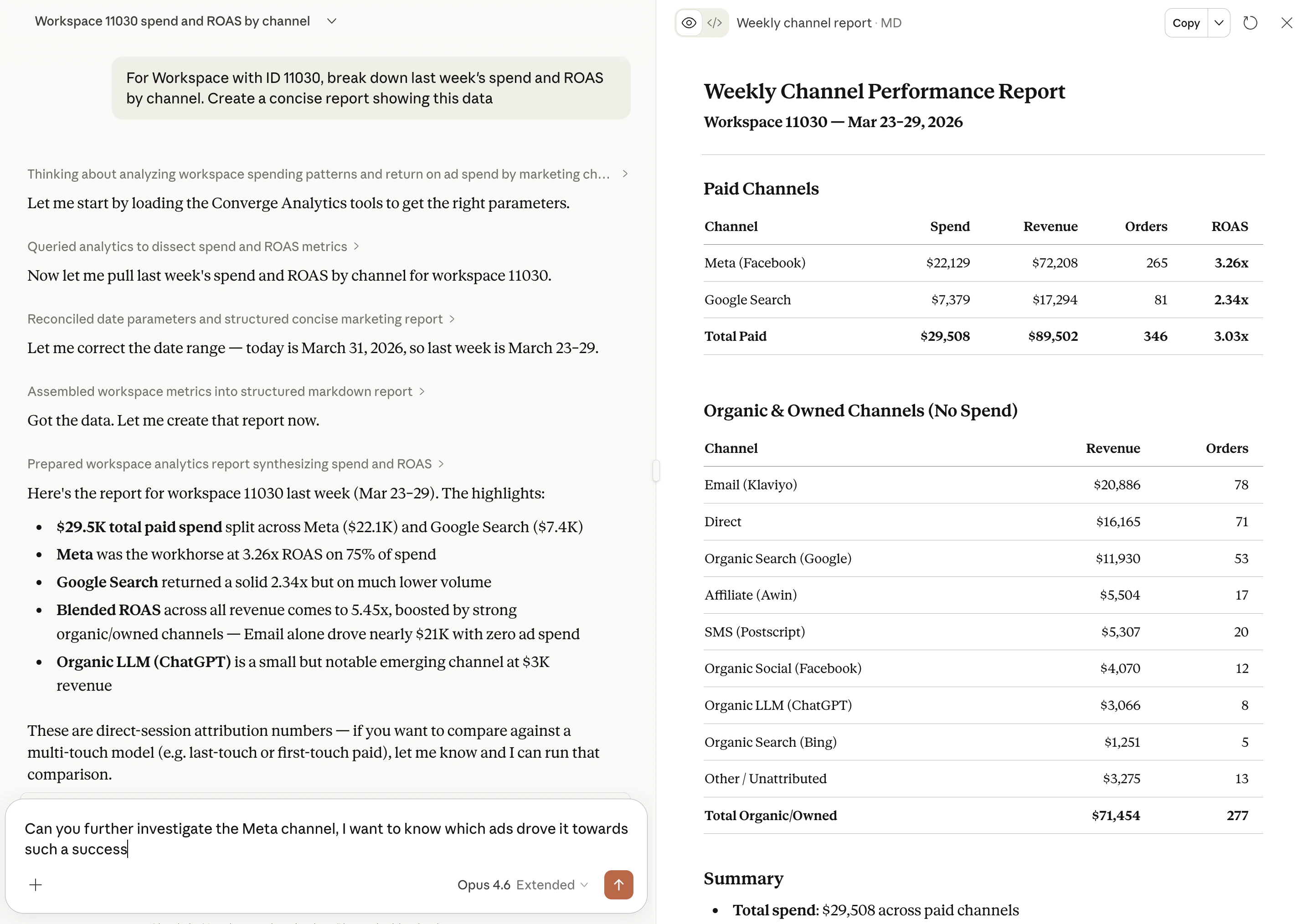
Pull analytics data, compare performance, and ask follow-up questions without leaving the chat. See the [overview](/mcp/overview) for the full list of available tools and authentication details.
 ## Prerequisites
* A [Converge](https://app.runconverge.com) account with access to at least one workspace.
* An MCP-compatible AI assistant: **Claude**, **Claude Code**, or **ChatGPT**.
## Install the Converge MCP server
Connect through Anthropic's web or desktop app at [claude.ai](https://claude.ai). Free accounts support only one custom connector; Pro or Team subscriptions allow adding more.
Open Claude and navigate to **Settings** > **Connectors**.
Click **Add custom connector** and fill in:
* **Name**: `Converge Analytics`
* **URL**: `https://app.runconverge.com/api/mcp`
Start a new conversation and ask a question that triggers the Converge tools (e.g., *"List my Converge workspaces"*). A browser window opens for Google sign-in. Use the same Google account you use to access Converge.
Go to **Settings** > **Capabilities** and scroll to **Additional allowed domains**.
Add `app.runconverge.com` to the list.
## Prerequisites
* A [Converge](https://app.runconverge.com) account with access to at least one workspace.
* An MCP-compatible AI assistant: **Claude**, **Claude Code**, or **ChatGPT**.
## Install the Converge MCP server
Connect through Anthropic's web or desktop app at [claude.ai](https://claude.ai). Free accounts support only one custom connector; Pro or Team subscriptions allow adding more.
Open Claude and navigate to **Settings** > **Connectors**.
Click **Add custom connector** and fill in:
* **Name**: `Converge Analytics`
* **URL**: `https://app.runconverge.com/api/mcp`
Start a new conversation and ask a question that triggers the Converge tools (e.g., *"List my Converge workspaces"*). A browser window opens for Google sign-in. Use the same Google account you use to access Converge.
Go to **Settings** > **Capabilities** and scroll to **Additional allowed domains**.
Add `app.runconverge.com` to the list.
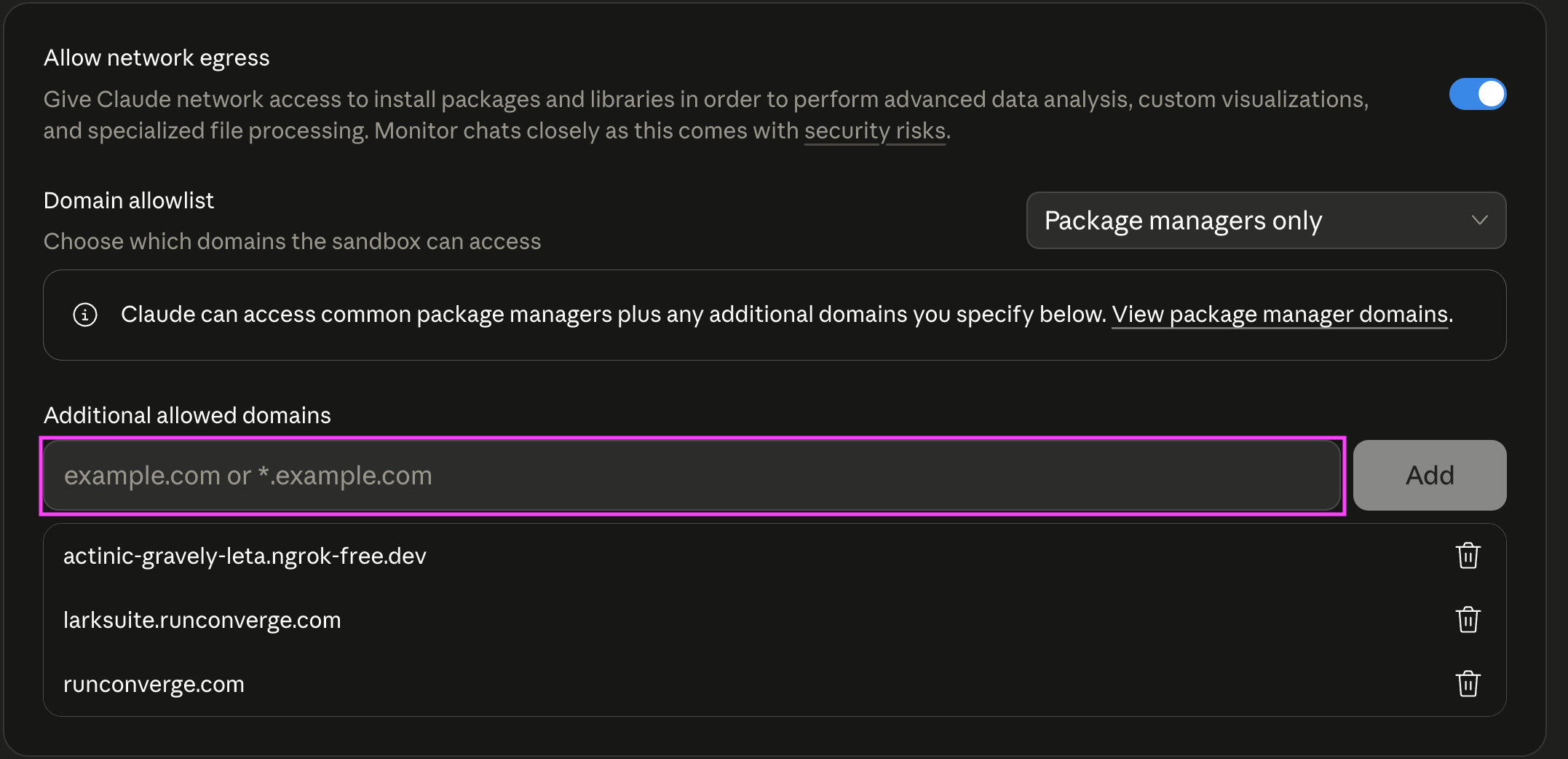 This lets the AI agent download content directly from Converge servers, which saves tokens, uses less context, and makes queries faster.
Claude Code is Anthropic's agentic coding tool that runs in your terminal or
as an IDE extension. If you're using Claude at [claude.ai](https://claude.ai),
use the **Claude** tab instead.
Run the following in your terminal:
```bash theme={null}
claude mcp add -t http -s user Converge "https://app.runconverge.com/api/mcp"
```
```bash theme={null}
claude
```
Inside the Claude Code session, run `/mcp` to trigger the authentication flow. A browser window opens for Google sign-in. Use the same Google account you use to access Converge.
Connect through OpenAI's web or desktop app at [chatgpt.com](https://chatgpt.com). Requires a Pro, Plus, or Team subscription.
Open ChatGPT and navigate to **Settings** > **Advanced Settings** and toggle **Developer Mode** on. Requires a ChatGPT Pro, Plus, or Team subscription.
Go to **Settings** > **Apps & Connectors** and click **Create**. Fill in:
* **Connector name**: `Converge Analytics`
* **Description**: `Query your Converge analytics data`
* **Connector URL**: `https://app.runconverge.com/api/mcp`
Start a new conversation and ask a question that triggers the Converge tools (e.g., *"List my Converge workspaces"*). A browser window opens for Google sign-in. Use the same Google account you use to access Converge.
For MCP clients that don't support the interactive OAuth flow, authenticate with a personal API key instead.
Go to [**Settings** > **Personal API Keys**](https://app.runconverge.com/-/settings/personal-api-keys) and click **Create personal API key**. Fill in a **Name**, pick an **Expiration**, then click **Create**.
Keys start with `cvg_` and are shown only once, so copy it somewhere safe right away. The key inherits your own access and sees the same workspaces and data you do.
Treat it like a password and don't share it. You can revoke a key at any time from the same settings page.
Pass the key as a bearer token in the `Authorization` header:
```
Authorization: Bearer cvg_Q29udmVyZ2UgaXMgdGhlIGJlc3Q
```
Most MCP clients have a dedicated field for this. Paste the key there and skip the OAuth flow entirely.
## Verify the connection
Ask your AI assistant something like:
> *"List my Converge workspaces."*
You should see your workspace names returned. If your account has access to multiple workspaces, specify the one you want by name in your prompt (e.g., *"Show me last week's spend for **Acme US**"*).
## Try a query
Once connected, try one of these prompts:
* *"Break down this week's spend, new customer orders, and CPA by channel."*
* *"Show me campaign-level spend and ROAS for Facebook this week vs last week."*
* *"Which landing pages drove the most new customer orders this month?"*
See the [overview](/mcp/overview#available-tools) for the full list of available tools and query options.
## Next steps
See example prompts and what you can ask your AI assistant.
Schedule recurring reports with n8n, Zapier, or Claude Cowork.
Query your analytics data by @mentioning Claude in any Slack channel.
This lets the AI agent download content directly from Converge servers, which saves tokens, uses less context, and makes queries faster.
Claude Code is Anthropic's agentic coding tool that runs in your terminal or
as an IDE extension. If you're using Claude at [claude.ai](https://claude.ai),
use the **Claude** tab instead.
Run the following in your terminal:
```bash theme={null}
claude mcp add -t http -s user Converge "https://app.runconverge.com/api/mcp"
```
```bash theme={null}
claude
```
Inside the Claude Code session, run `/mcp` to trigger the authentication flow. A browser window opens for Google sign-in. Use the same Google account you use to access Converge.
Connect through OpenAI's web or desktop app at [chatgpt.com](https://chatgpt.com). Requires a Pro, Plus, or Team subscription.
Open ChatGPT and navigate to **Settings** > **Advanced Settings** and toggle **Developer Mode** on. Requires a ChatGPT Pro, Plus, or Team subscription.
Go to **Settings** > **Apps & Connectors** and click **Create**. Fill in:
* **Connector name**: `Converge Analytics`
* **Description**: `Query your Converge analytics data`
* **Connector URL**: `https://app.runconverge.com/api/mcp`
Start a new conversation and ask a question that triggers the Converge tools (e.g., *"List my Converge workspaces"*). A browser window opens for Google sign-in. Use the same Google account you use to access Converge.
For MCP clients that don't support the interactive OAuth flow, authenticate with a personal API key instead.
Go to [**Settings** > **Personal API Keys**](https://app.runconverge.com/-/settings/personal-api-keys) and click **Create personal API key**. Fill in a **Name**, pick an **Expiration**, then click **Create**.
Keys start with `cvg_` and are shown only once, so copy it somewhere safe right away. The key inherits your own access and sees the same workspaces and data you do.
Treat it like a password and don't share it. You can revoke a key at any time from the same settings page.
Pass the key as a bearer token in the `Authorization` header:
```
Authorization: Bearer cvg_Q29udmVyZ2UgaXMgdGhlIGJlc3Q
```
Most MCP clients have a dedicated field for this. Paste the key there and skip the OAuth flow entirely.
## Verify the connection
Ask your AI assistant something like:
> *"List my Converge workspaces."*
You should see your workspace names returned. If your account has access to multiple workspaces, specify the one you want by name in your prompt (e.g., *"Show me last week's spend for **Acme US**"*).
## Try a query
Once connected, try one of these prompts:
* *"Break down this week's spend, new customer orders, and CPA by channel."*
* *"Show me campaign-level spend and ROAS for Facebook this week vs last week."*
* *"Which landing pages drove the most new customer orders this month?"*
See the [overview](/mcp/overview#available-tools) for the full list of available tools and query options.
## Next steps
See example prompts and what you can ask your AI assistant.
Schedule recurring reports with n8n, Zapier, or Claude Cowork.
Query your analytics data by @mentioning Claude in any Slack channel.