> ## Documentation Index
> Fetch the complete documentation index at: https://docs.runconverge.com/llms.txt
> Use this file to discover all available pages before exploring further.

# Workspace

> Modify your workspace settings

export const IconText = ({name, text, iconSource = "mintlify", iconLocation = "before", iconType = "solid"}) => {
  const sourceUrl = iconSource === 'local' ? `url('/images/icons/${name}.svg')` : `url('https://mintlify.b-cdn.net/v6.5.1/${iconType}/${name}.svg')`;
  return <>
            <div className="inline-block pl-2">
                {iconLocation === 'before' && <div className="h-3.5 w-3.5 fill-gray-800 dark:fill-gray-100 text-gray-800 dark:text-gray-100 inline-block align-middle mr-2">
                        <svg className="w-4 h-4 bg-gray-800 dark:bg-gray-100 " style={{
    maskImage: sourceUrl,
    maskRepeat: "no-repeat",
    maskPosition: "center center"
  }} />
                    </div>}
                <span className="inline-block align-middle font-semibold fill-gray-800 dark:fill-gray-100 text-gray-800 dark:text-gray-100 pl-1 pr-2">{text}</span>
                {iconLocation === 'after' && <div className="h-3.5 w-3.5 fill-gray-800 dark:fill-gray-100 text-gray-800 dark:text-gray-100 inline-block align-middle mr-2">
                        <svg className="w-4 h-4 bg-gray-800 dark:bg-gray-100 pr-3" style={{
    maskImage: sourceUrl,
    maskRepeat: "no-repeat",
    maskPosition: "center center"
  }} />
                    </div>}
            </div>
        </>;
};

export const Icon = ({name}) => {
  return <div className="h-4 w-4 fill-gray-800 dark:fill-gray-100 text-gray-800 dark:text-gray-100 inline-block align-middle">
            <svg className="w-4 h-4 bg-gray-800 dark:bg-gray-100" style={{
    maskImage: `url('https://mintlify.b-cdn.net/v6.5.1/solid/${name}.svg')`,
    maskRepeat: "no-repeat",
    maskPosition: "center center"
  }} />
        </div>;
};

## Timezone

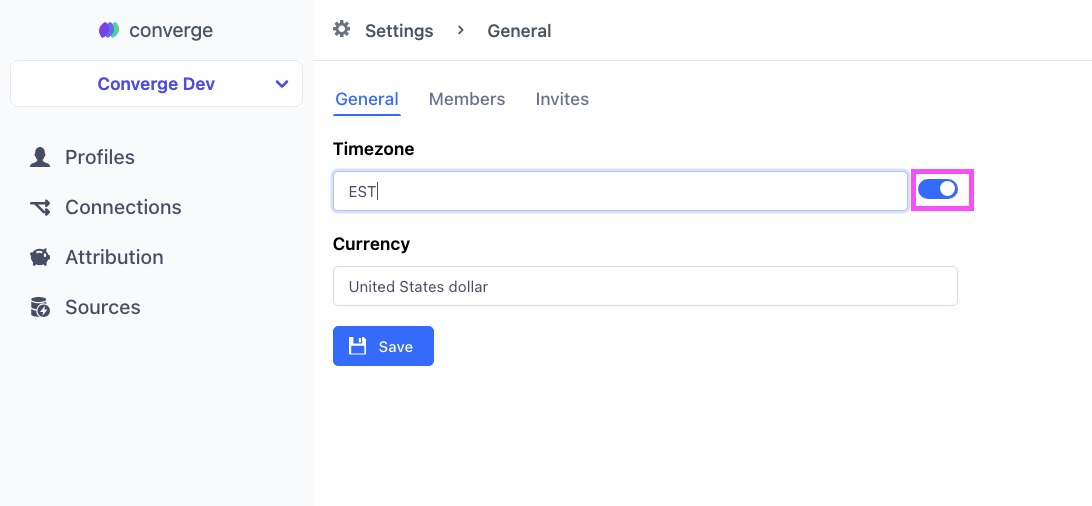
<Note> Typically, you will want to pick the timezone of your Facebook Ads Manager or your local timezone. </Note>

1. Click on the **Settings**-button at the bottom of the sidebar.
2. Navigate to the **General**-subtab.
3. Click on the switch next to the **Timezone** form field.
4. Fill in the Timezone of your choice, e.g. `EST`.
5. Click on **Save**.
   <img src="https://mintcdn.com/converge/ecGnucKsPgTlQzkL/images/settings/workspace/workspace-timezone.png?fit=max&auto=format&n=ecGnucKsPgTlQzkL&q=85&s=d0f5d95f0e0a36c5d97cd6605e86aaf9" alt="workspace timezone" width="1092" height="506" data-path="images/settings/workspace/workspace-timezone.png" />

***

## Currency

### How to modify your Workspace Currency

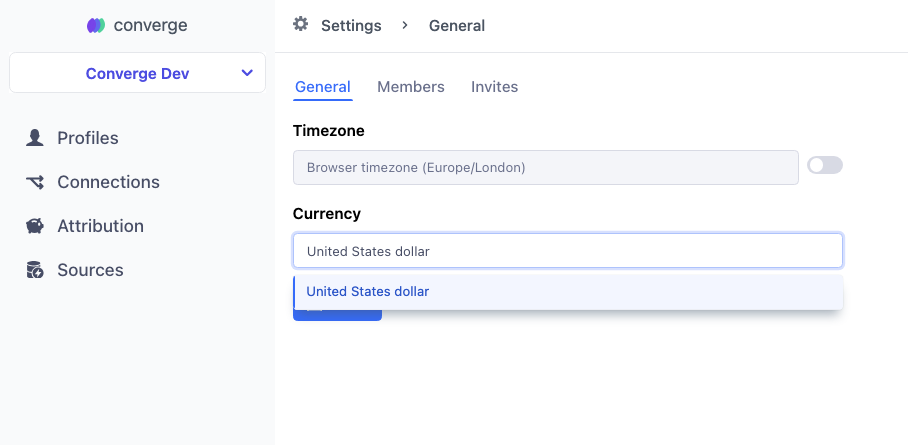
1. Click on the **Settings**-button at the bottom of the sidebar.
2. Navigate to the **General**-subtab.
3. Click on the **Currency** form field
4. Fill in the Currency of your choice, e.g. `United States dollar`.
5. Click on **Save**.
6. Navigate to the **Attribution** tab, you should see that the **Overview** tab now uses your desired currency.
   <img src="https://mintcdn.com/converge/ecGnucKsPgTlQzkL/images/settings/workspace/workspace-currency.png?fit=max&auto=format&n=ecGnucKsPgTlQzkL&q=85&s=31895e6124eead92fab2f9b66b26cb24" alt="workspace currency" width="908" height="445" data-path="images/settings/workspace/workspace-currency.png" />

<Note>Currency rates update every hour. If your events or ad platforms use a different currency than Converge, your results might be slightly off. </Note>

***

## Access

### How do I invite someone to my Workspace

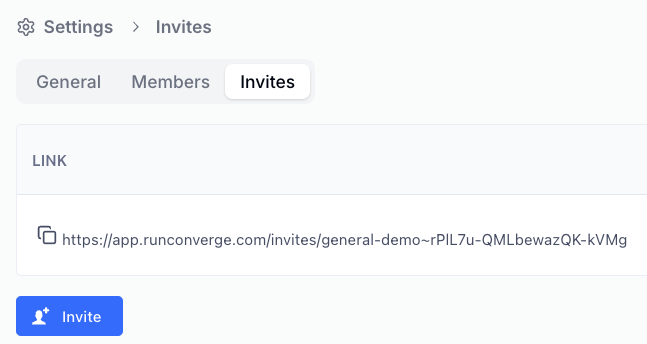
<Note> Invitation links expire after 3 days and can only be used once. </Note>

1. Click on the **Members**-button at the bottom of the sidebar (under Settings).
2. Navigate to the **Invites**-subtab.
   <Frame>
     <img src="https://mintcdn.com/converge/ecGnucKsPgTlQzkL/images/settings/workspace/invites.png?fit=max&auto=format&n=ecGnucKsPgTlQzkL&q=85&s=820e8aea9f671361b5b0e48cd627094c" alt="invites-img" width="647" height="344" data-path="images/settings/workspace/invites.png" />
   </Frame>
3. Click on **Invite** to generate a new invite link
4. Send this link to the person who you want to give access to, they will receive access to your Workspace after logging in to Converge.
<br />

### How do I remove someone from my Workspace

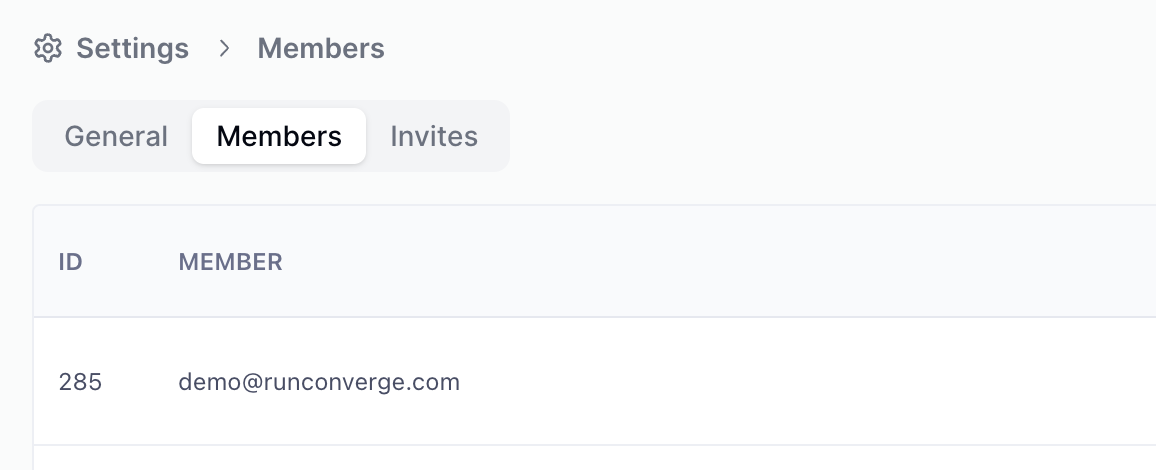
1. Click on the **Members**-button at the bottom of the sidebar. You can now see everyone who has access.
   <Frame>
     <img src="https://mintcdn.com/converge/ecGnucKsPgTlQzkL/images/settings/workspace/members.png?fit=max&auto=format&n=ecGnucKsPgTlQzkL&q=85&s=833039a671c40437c594df2d5c71dc96" alt="members-img" width="1156" height="470" data-path="images/settings/workspace/members.png" />
   </Frame>
2. Click on the <Icon name="trash" />-icon next to the user you want to remove.
3. Done.