> ## Documentation Index
> Fetch the complete documentation index at: https://docs.runconverge.com/llms.txt
> Use this file to discover all available pages before exploring further.

# Monitoring

> Test and monitor your Converge Integration

export const IconText = ({name, text, iconSource = "mintlify", iconLocation = "before", iconType = "solid"}) => {
  const sourceUrl = iconSource === 'local' ? `url('/images/icons/${name}.svg')` : `url('https://mintlify.b-cdn.net/v6.5.1/${iconType}/${name}.svg')`;
  return <>
            <div className="inline-block pl-2">
                {iconLocation === 'before' && <div className="h-3.5 w-3.5 fill-gray-800 dark:fill-gray-100 text-gray-800 dark:text-gray-100 inline-block align-middle mr-2">
                        <svg className="w-4 h-4 bg-gray-800 dark:bg-gray-100 " style={{
    maskImage: sourceUrl,
    maskRepeat: "no-repeat",
    maskPosition: "center center"
  }} />
                    </div>}
                <span className="inline-block align-middle font-semibold fill-gray-800 dark:fill-gray-100 text-gray-800 dark:text-gray-100 pl-1 pr-2">{text}</span>
                {iconLocation === 'after' && <div className="h-3.5 w-3.5 fill-gray-800 dark:fill-gray-100 text-gray-800 dark:text-gray-100 inline-block align-middle mr-2">
                        <svg className="w-4 h-4 bg-gray-800 dark:bg-gray-100 pr-3" style={{
    maskImage: sourceUrl,
    maskRepeat: "no-repeat",
    maskPosition: "center center"
  }} />
                    </div>}
            </div>
        </>;
};

## Overview

Converge provides the following tools to monitor and debug whether your Sources are working correctly:

* [Source Logs](#source-logs)
* [Source Warnings](#source-warnings)
* [Pixel Monitor](#pixel-monitor)

***

## Source Logs

Converge stores detailed logs of every event that gets sent to Converge including [event properties](/sources/converge-spec), [profile properties](/sources/source-concepts#profile-properties) and [aliases](/sources/source-concepts#aliases).

### Where to find Source Logs

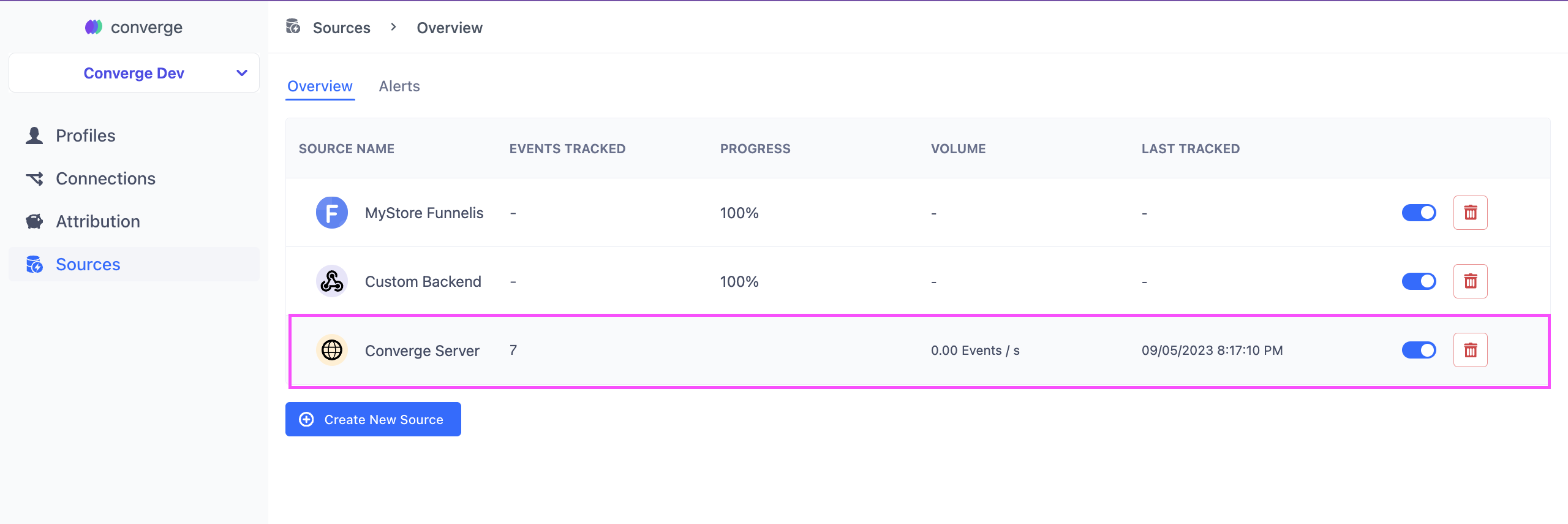
1. Navigate to the [Sources Tab](https://app.runconverge.com/-/sources) in your Converge dashboard
2. Click on the Source you want to debug

<Frame>
  <img src="https://mintcdn.com/converge/126BCCPQQ49NNNIt/images/sources/monitoring/source-monitoring-0.png?fit=max&auto=format&n=126BCCPQQ49NNNIt&q=85&s=b65bc71a46a59ab0410ca66498a23d9b" alt="pick a source" width="2560" height="855" data-path="images/sources/monitoring/source-monitoring-0.png" />
</Frame>

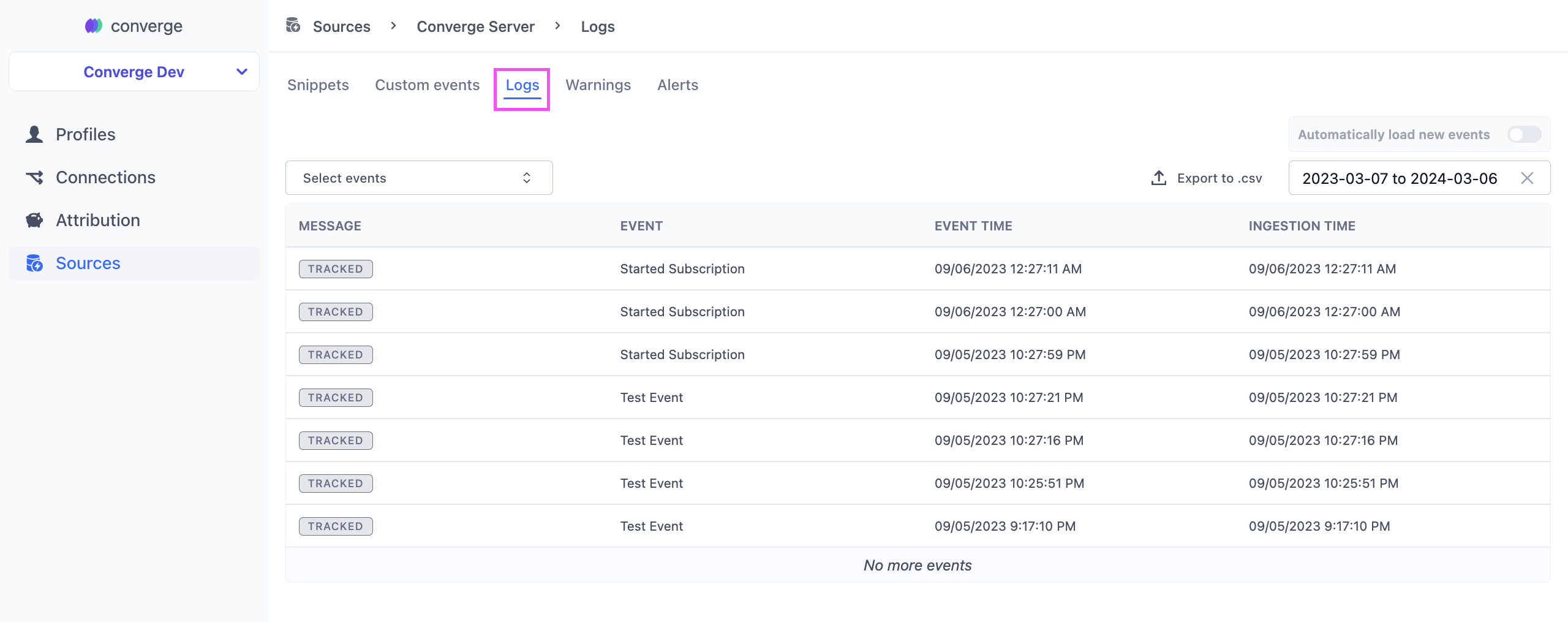
3. Click on the **Logs** tab to see the logs
<Frame>
  <img src="https://mintcdn.com/converge/126BCCPQQ49NNNIt/images/sources/monitoring/source-monitoring-1.png?fit=max&auto=format&n=126BCCPQQ49NNNIt&q=85&s=208c44107abbec6e5aec3fbef088af05" alt="pick logs" width="2560" height="1015" data-path="images/sources/monitoring/source-monitoring-1.png" />
</Frame>

4. Click on any of the Log Lines to inspect the **event properties**, **profile properties**, **aliases**, etc.

### Filter through the logs

* **By Event Name**: You can select a subset of events to show in the log by clicking on **Select events** and then ticking the relevant events.
* **By Date**: You can use the date picker in the right top corner to select log lines from a particular date range.

### Exporting logs

1. Navigate to the [Sources Tab](https://app.runconverge.com/-/sources) in your Converge dashboard
2. Click on the Source you want to debug

<Frame>
  <img src="https://mintcdn.com/converge/126BCCPQQ49NNNIt/images/sources/monitoring/source-monitoring-0.png?fit=max&auto=format&n=126BCCPQQ49NNNIt&q=85&s=b65bc71a46a59ab0410ca66498a23d9b" alt="pick a source" width="2560" height="855" data-path="images/sources/monitoring/source-monitoring-0.png" />
</Frame>

3. Click on the **Logs** tab to see the logs

<Frame>
  <img src="https://mintcdn.com/converge/126BCCPQQ49NNNIt/images/sources/monitoring/source-monitoring-1.png?fit=max&auto=format&n=126BCCPQQ49NNNIt&q=85&s=208c44107abbec6e5aec3fbef088af05" alt="pick logs" width="2560" height="1015" data-path="images/sources/monitoring/source-monitoring-1.png" />
</Frame>

4. You can export your log selection to CSV using the <IconText text="Export to .csv" name="arrow-up-from-bracket" />-button in the right top corner.

<Note>
  Log entries are limited to 10,000 lines.
</Note>

***

## Source Warnings

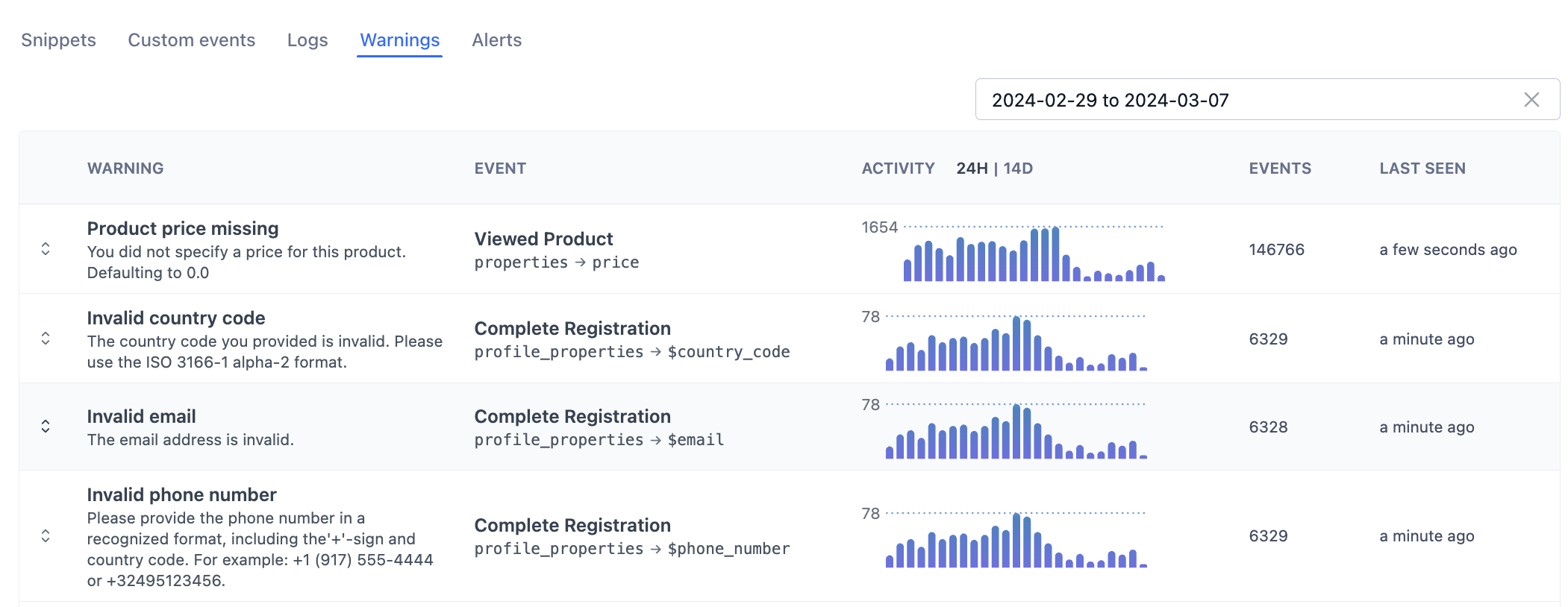
Converge will automatically flag when events do not conform with the [Converge event spec](/sources/converge-spec) and give you pointers as to how to modify your events to be compliant with the spec.

### Where to find Source Warnings

1. Navigate to the [Sources Tab](https://app.runconverge.com/-/sources) in your Converge dashboard
2. Click on the Source you want to see logs from
   <img src="https://mintcdn.com/converge/126BCCPQQ49NNNIt/images/sources/monitoring/source-monitoring-0.png?fit=max&auto=format&n=126BCCPQQ49NNNIt&q=85&s=b65bc71a46a59ab0410ca66498a23d9b" alt="pick a source" width="2560" height="855" data-path="images/sources/monitoring/source-monitoring-0.png" />
3. Click on the **Warnings** tab to see the appropriate warnings. Each warning includes information as to what `property` is malformed, as well as detailed log lines to inspect.
   <img src="https://mintcdn.com/converge/126BCCPQQ49NNNIt/images/sources/monitoring/source-monitoring-2.png?fit=max&auto=format&n=126BCCPQQ49NNNIt&q=85&s=3d045acca375846ad5055b558ad24b44" alt="see warning info" width="2101" height="814" data-path="images/sources/monitoring/source-monitoring-2.png" />

***

## Pixel Monitor

### What is a Pixel Monitor

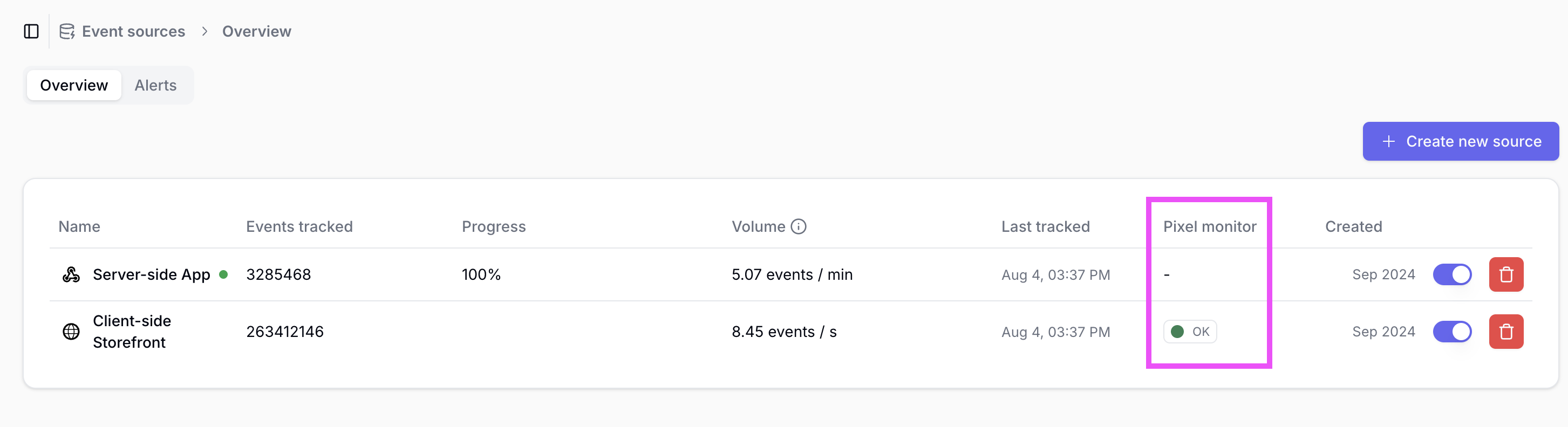
The Pixel Monitor verifies that your Converge tracking pixel is installed and working on your websites. It loads your site in a browser and checks for the Converge tracking script.

The monitor will display one of two statuses:

* **Pixel Installed**: The Converge pixel was successfully detected on your website
* **Pixel Not Found**: The monitor was unable to detect the Converge pixel
<Warning>
  The monitor loads your site through a **US-based browser**. It may not verify sites that use **geographic redirects** or require **user consent** before loading tracking scripts.
</Warning>

### Where to find the Pixel Monitor

1. Navigate to the [Sources Tab](https://app.runconverge.com/-/sources) in your Converge dashboard
2. Check the **Pixel Monitor** tab for the status of each source. Note that pixel monitor checks can only be performed on client-side sources.

<Frame>
  <img src="https://mintcdn.com/converge/126BCCPQQ49NNNIt/images/sources/monitoring/source-monitoring-table.png?fit=max&auto=format&n=126BCCPQQ49NNNIt&q=85&s=201c8fe44b9beb5893b89b5fb108acd7" alt="pick a source" width="2906" height="792" data-path="images/sources/monitoring/source-monitoring-table.png" />
</Frame>

3. Click on the Source for which you would like to view monitoring details.
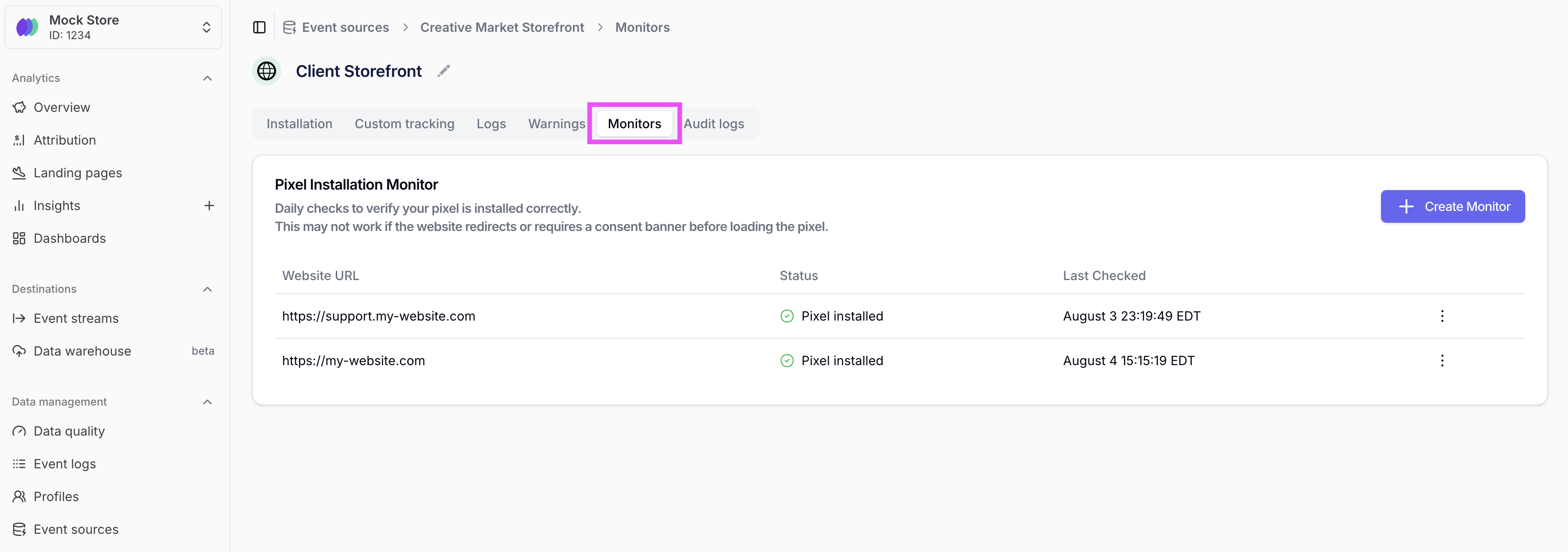
4. Access the **Monitors** tab to view pixel monitoring status. Each monitor performs automated checks every 24 hours to verify proper client-side pixel implementation.
<Frame>
  <img src="https://mintcdn.com/converge/126BCCPQQ49NNNIt/images/sources/monitoring/source-monitoring-monitor-tab.png?fit=max&auto=format&n=126BCCPQQ49NNNIt&q=85&s=71600e424891f25d31f75deb771f3c83" alt="see monitors" width="3446" height="1214" data-path="images/sources/monitoring/source-monitoring-monitor-tab.png" />
</Frame>

### How to create a Pixel Monitor

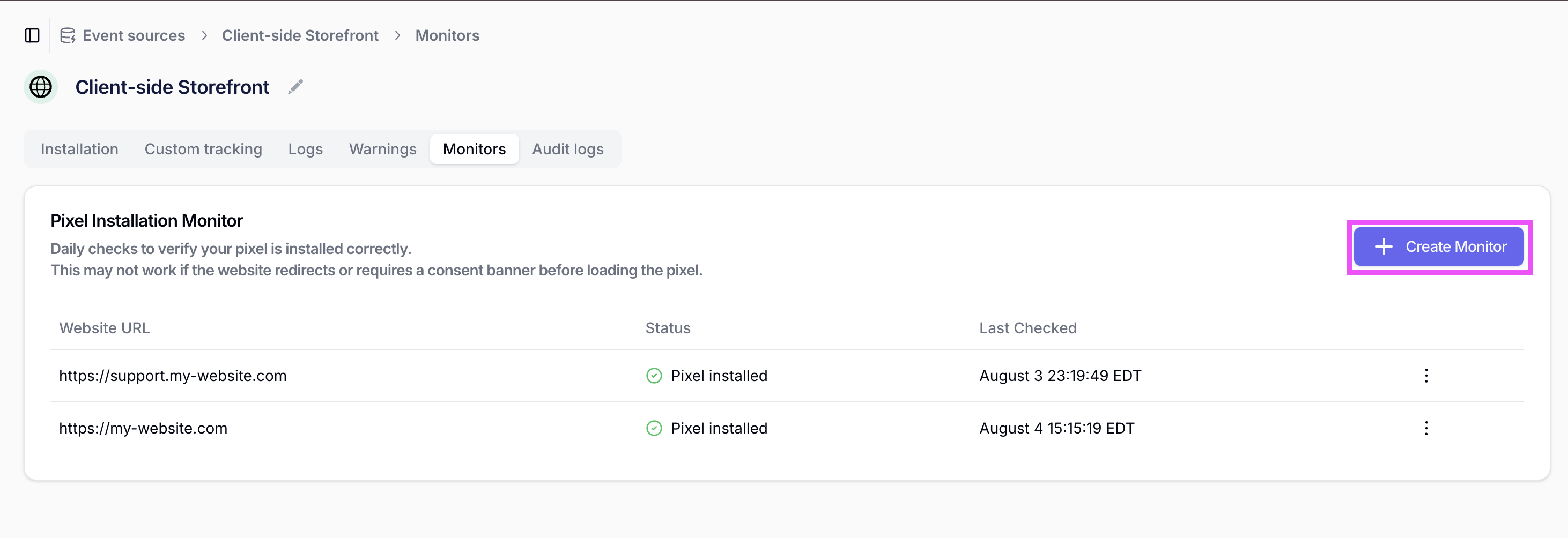
1. Click **Create Monitor** to add a new website monitoring configuration.
<Frame>
  <img src="https://mintcdn.com/converge/126BCCPQQ49NNNIt/images/sources/monitoring/source-monitoring-create-monitor.png?fit=max&auto=format&n=126BCCPQQ49NNNIt&q=85&s=b7c9b73b2092d4a01321f0126fcf05c9" alt="click create a monitor" width="2924" height="1004" data-path="images/sources/monitoring/source-monitoring-create-monitor.png" />
</Frame>

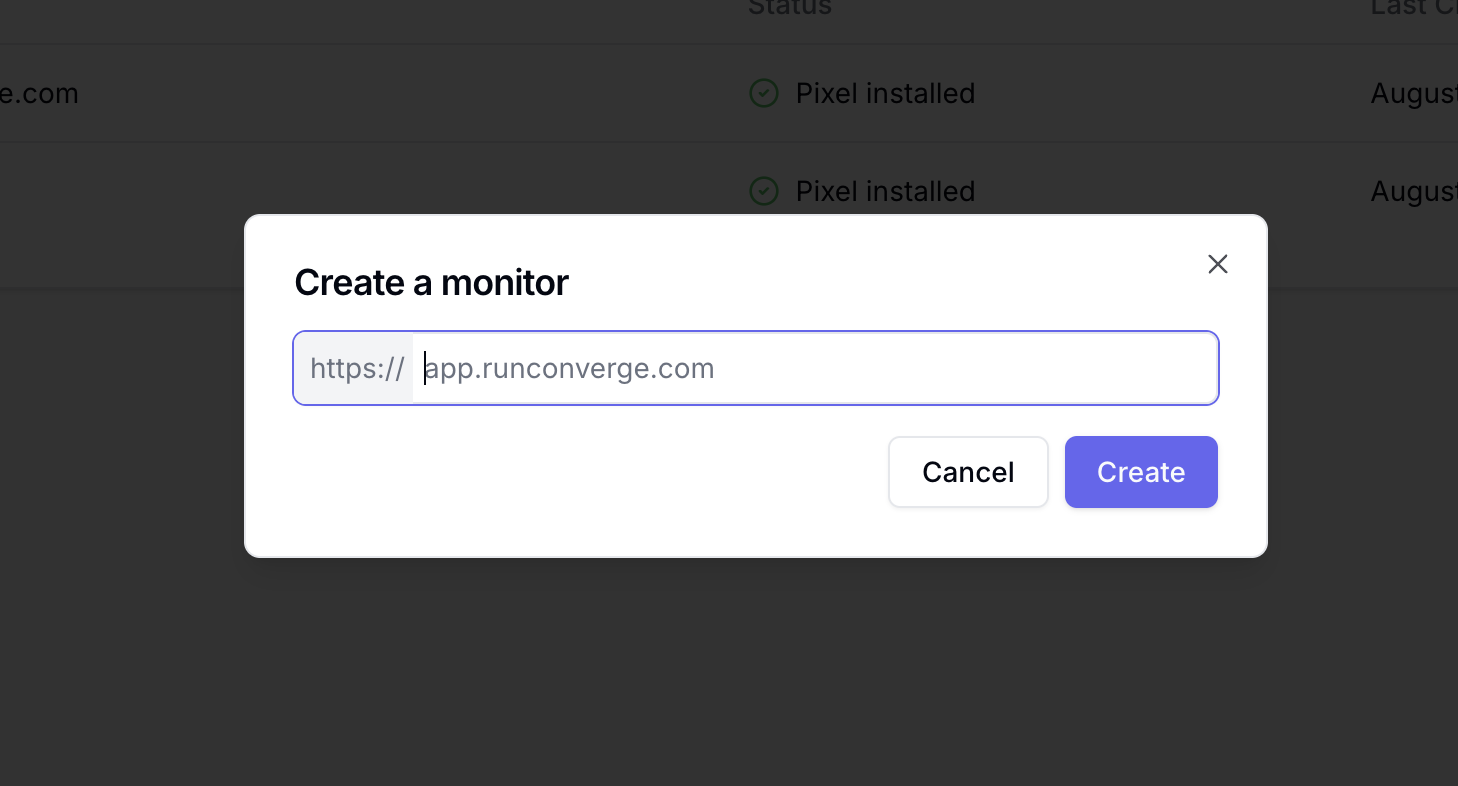
2. Configure individual monitors for each website where the client-side pixel is deployed.
<Frame>
  <img src="https://mintcdn.com/converge/126BCCPQQ49NNNIt/images/sources/monitoring/source-monitoring-input-form.png?fit=max&auto=format&n=126BCCPQQ49NNNIt&q=85&s=57079baf94c5d34b64055999404b3ef1" alt="input website url" width="1458" height="786" data-path="images/sources/monitoring/source-monitoring-input-form.png" />
</Frame>
