> ## Documentation Index
> Fetch the complete documentation index at: https://docs.runconverge.com/llms.txt
> Use this file to discover all available pages before exploring further.
# Shopify
> Connect your Shopify store backend to Converge
export const OutboundLink = ({linkText, linkTarget}) => {
return {linkText}
;
};
## Installation instructions
If you have access to the Shopify store as a **User**, please follow the steps below in the **Store Account**-tab.
If you have access to the Shopify store as a **Partner**, please follow the steps in the **Partner Account**-tab.
1. Go to the [Shopify Developer Portal](https://dev.shopify.com/dashboard)
2. From the Dev Dashboard, be sure you're on Apps in the left-panel navigation and select **Create app** in the top, right corner of the screen.
3. Select **Start from Dev Dashboard**.
4. Name your app, e.g. `Converge Server-side Integration`, then select **Create**.
You don't need to configure anything else on this page for now.
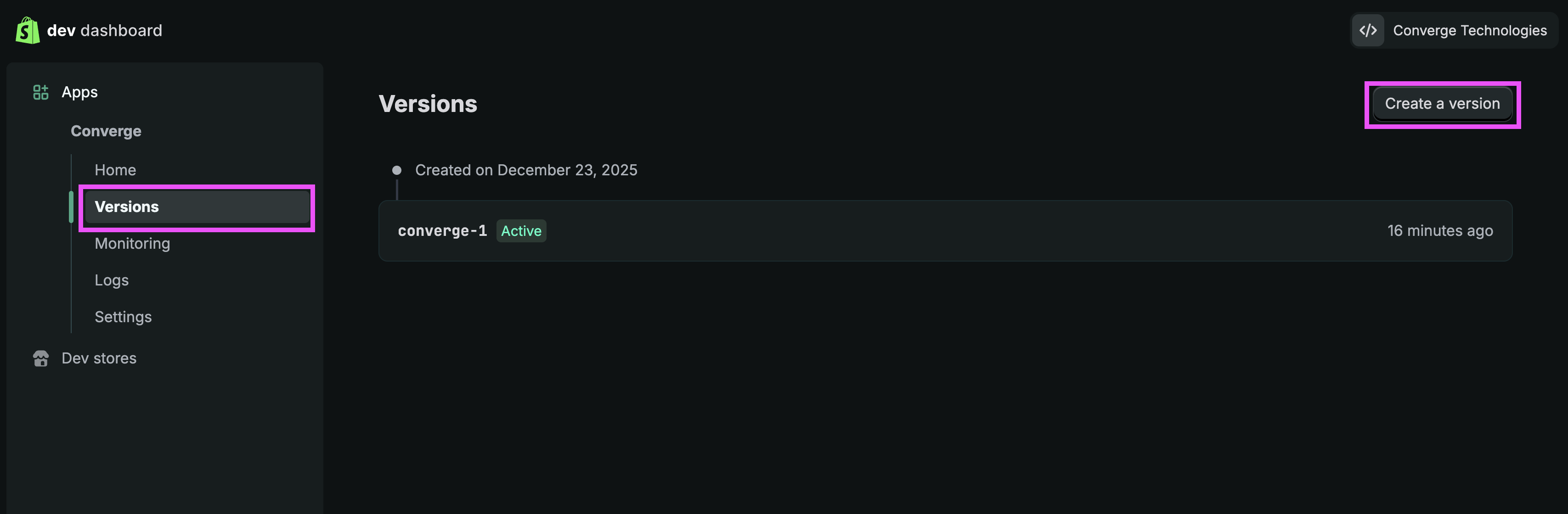
5. Click on **Versions** in the left-panel navigation and **Create a version**.
9. Under **App URL**, enter `https://app.runconverge.com`.
10. Untick the "Embed app in Shopify admin" checkbox.
11. In the textbox, under **Access > Scopes**, paste the following text:
```text theme={null}
read_customer_events, read_customers, read_orders, read_products, read_all_orders
```
If you get a warning that the `read_all_orders`-scope does not exist, then you are most likely a **Partner Account** and you should **follow the steps in the "Partner Account"-tab** instead.
12. In the textbox, under **Access > Redirect URLs**, paste the following text:
```text theme={null}
https://app.runconverge.com/api/datasources/shopify/partner/auth
```
13. In the bottom right corner, click **Release** and then click **Release** again to confirm. You don't need to provide a version name.
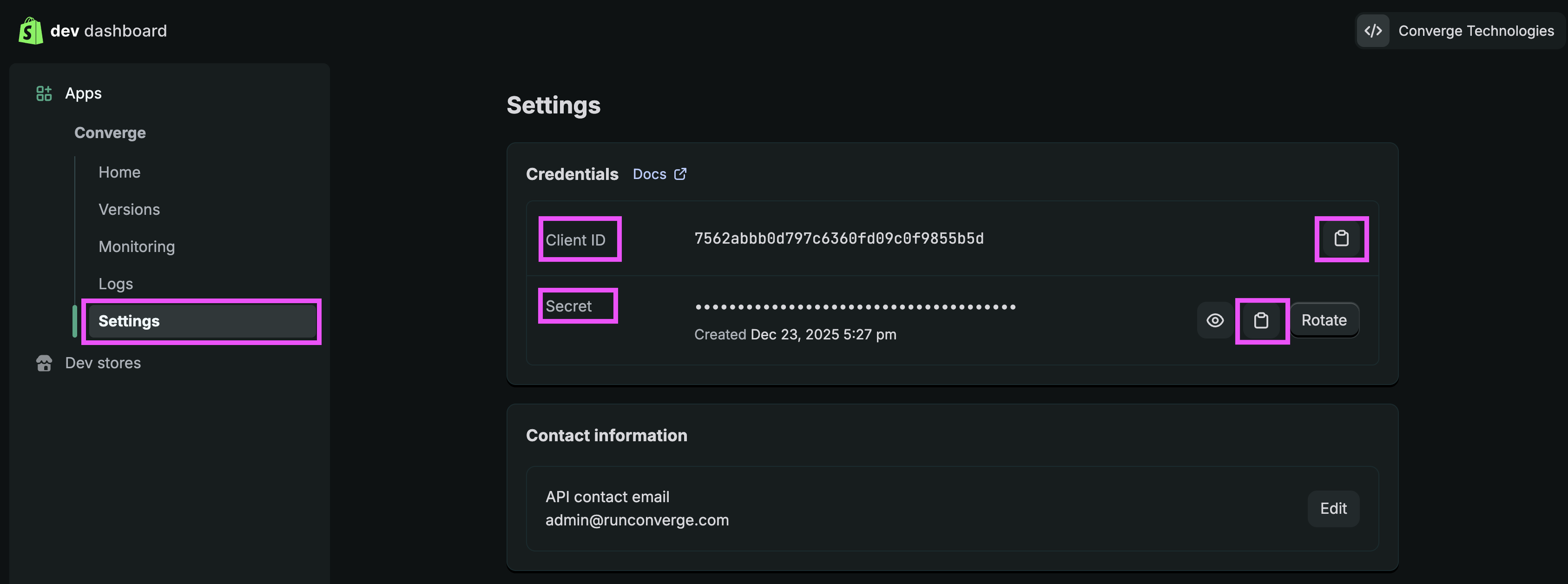
14. In the left-panel navigation, click on **Settings** for the app you just created.
Note down the **Client ID** and **Secret**, you'll need to enter them in Converge later.
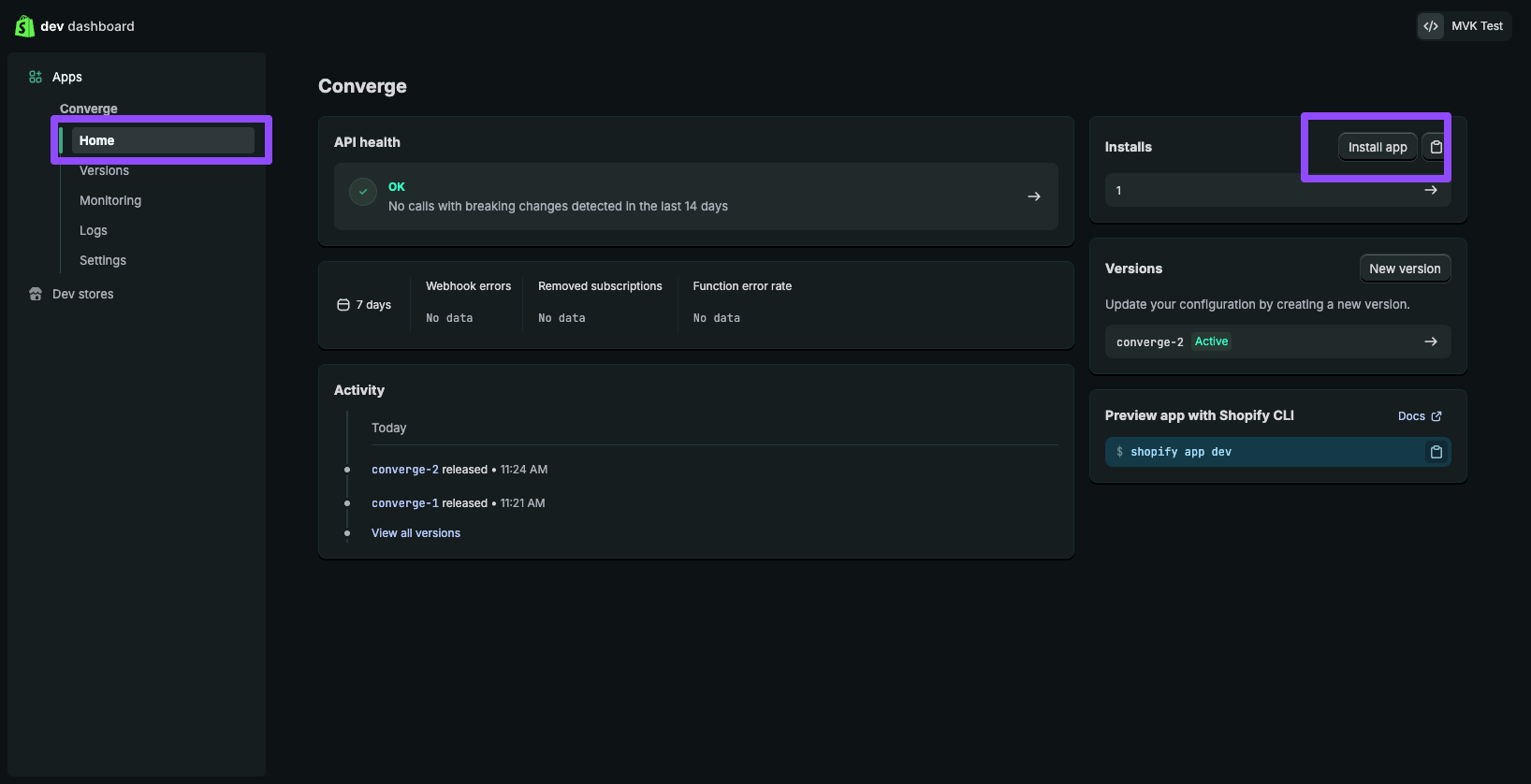
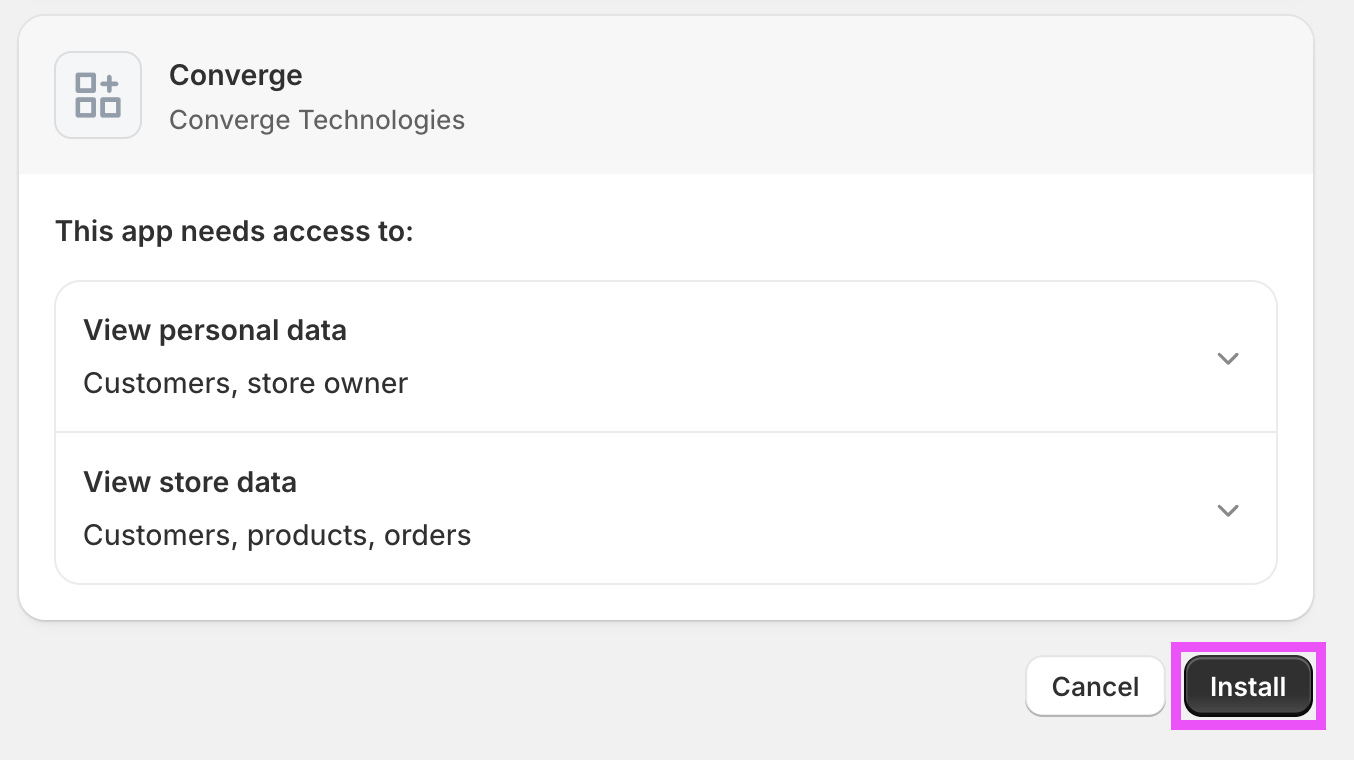
15. In the left-panel navigation, click on **Home** and click on "Install app".
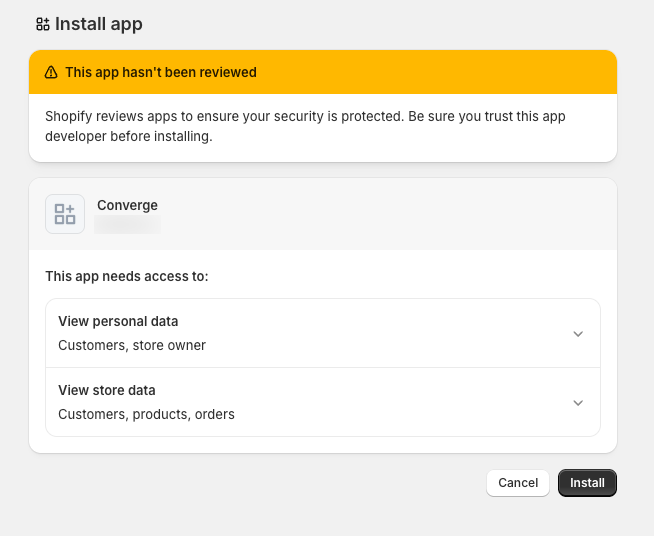
16. Select the store you want to install the app, and click "Install". You'll then be redirected to Converge.
17. In Converge, go to Event sources and click on **Create a new source**.
18. Name your source: e.g. `{Storename} Store Backend`
19. Pick *Server-side* from the modal and choose the **Shopify** app from the dropdown menu.
20. Enter the **Store domain** of the Shopify store you want to use Converge for, this is the string before `myshopify.com` in the Shopify URL.
21. Paste the **Client ID** and **Secret** from the Dev Dashboard in the respective fields.
22. Click **Authorize Shopify Custom App**.
23. Click on **Create Source**.
1. Go to the [Shopify Developer Portal](https://dev.shopify.com/dashboard)
2. From the Dev Dashboard, be sure you're on Apps in the left-panel navigation and select **Create app** in the top, right corner of the screen.
3. Select **Start from Dev Dashboard**.
4. Name your app, e.g. `Converge Server-side Integration`, then select **Create**.
You don't need to configure anything else on this page for now.
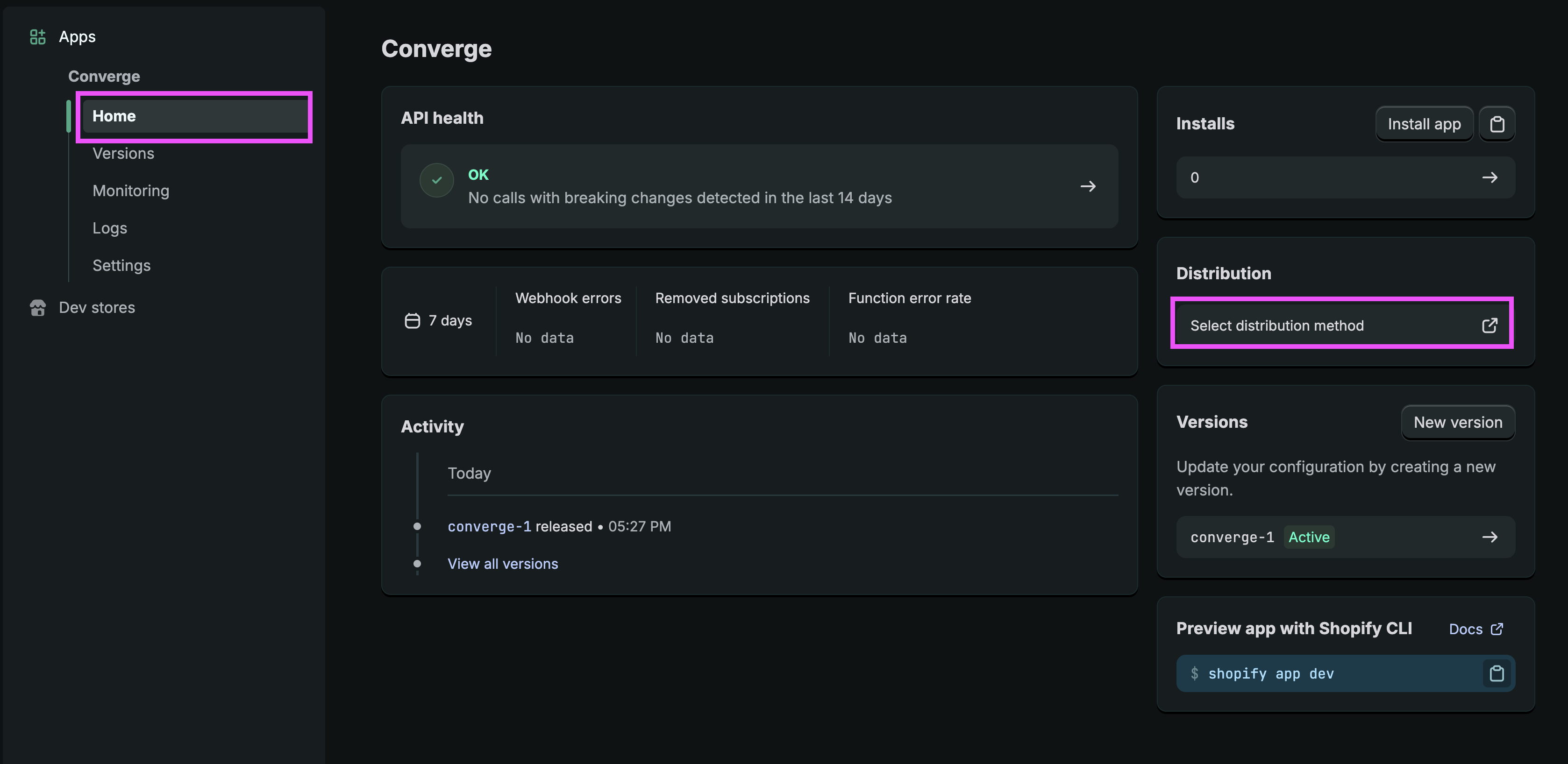
5. In the left-panel navigation, click on **Home**.
In the **Distribution** section, click on **Select distribution method**.
This will open a new modal in the Partners Dashboard.
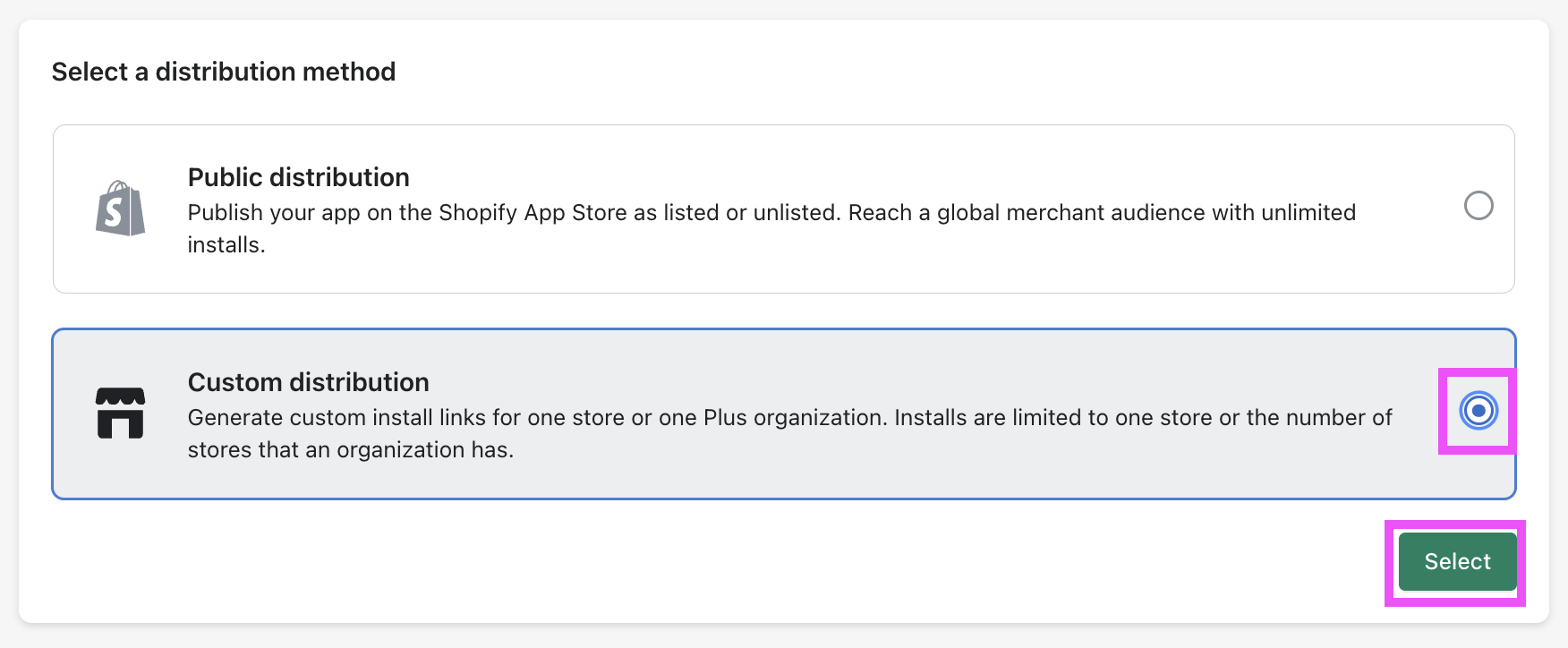
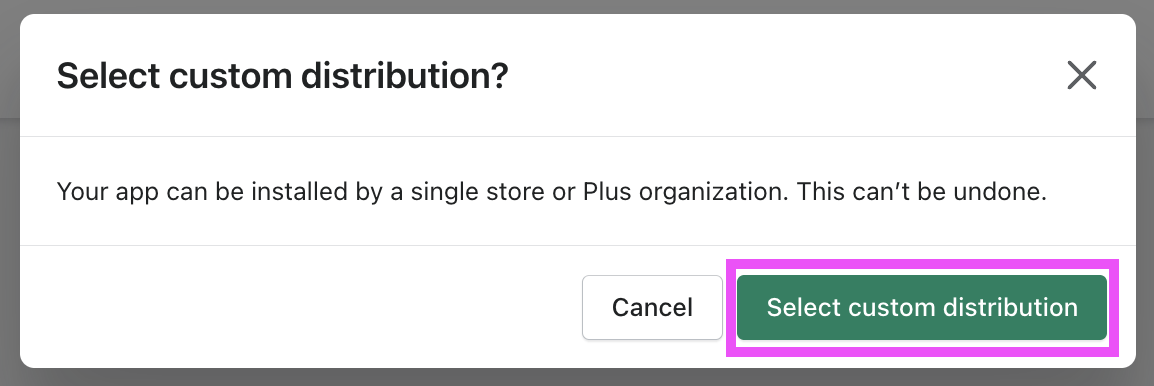
6. Select **Custom distribution** and confirm your selection in the popup.
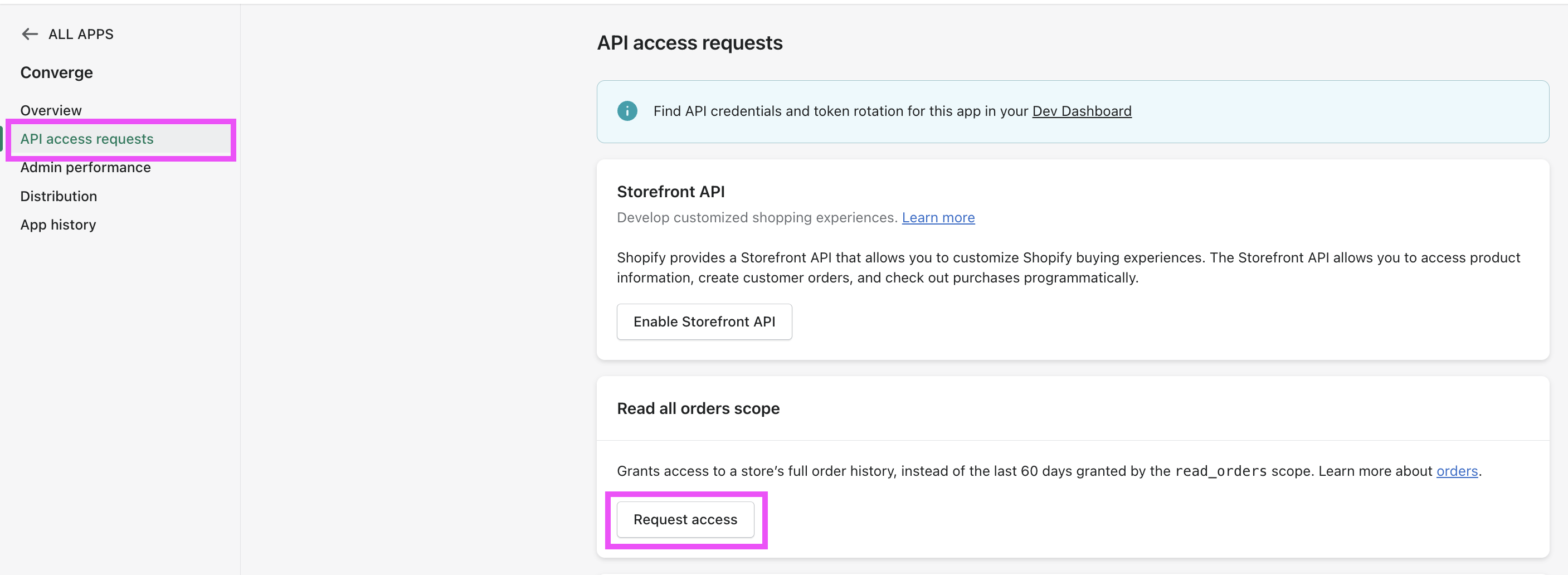
7. In the left-panel navigation, now navigate to **API access requests** and click on **Request access** under the **Read all orders scope** section.
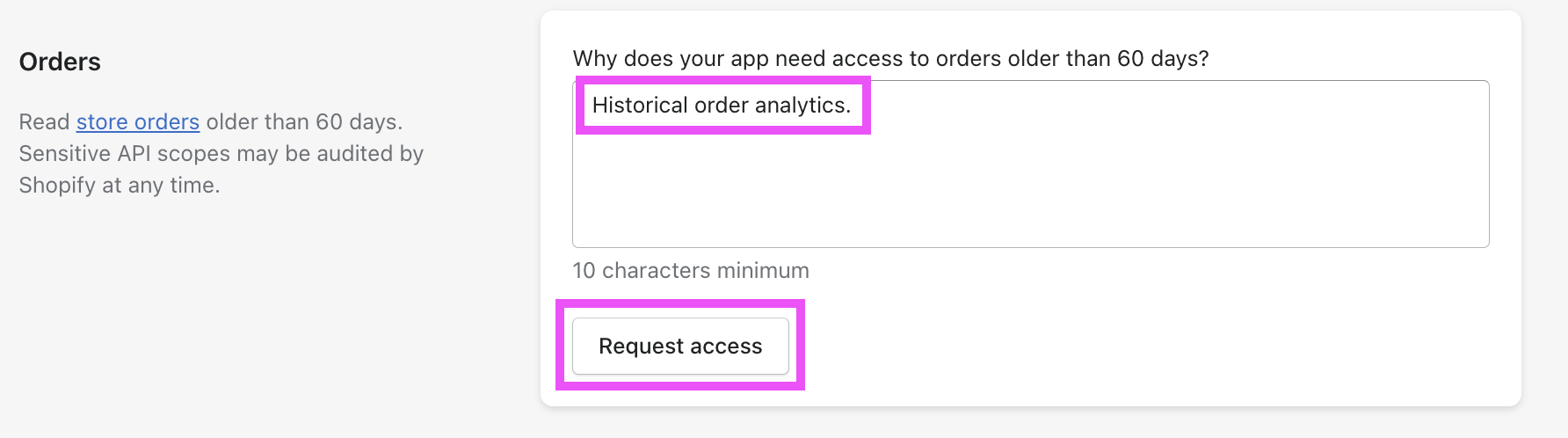
You can copy the explanation below and click on submit, it will get approved automatically.
```text theme={null}
Historical order analytics.
```
8. Go back to your previous tab in the Dev Dashboard. Click on **Versions** in the left-panel navigation and **Create a version**.
9. Under **App URL**, enter `https://app.runconverge.com`.
10. Untick the "Embed app in Shopify admin" checkbox.
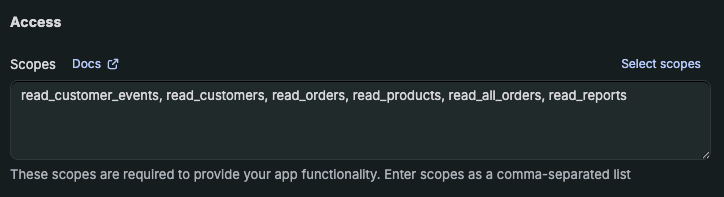
11. In the textbox, under **Access > Scopes**, paste the following text:
```text theme={null}
read_customer_events, read_customers, read_orders, read_products, read_all_orders, read_reports
```
12. In the textbox, under **Access > Redirect URLs**, paste the following text:
```text theme={null}
https://app.runconverge.com/api/datasources/shopify/partner/auth
```
13. In the bottom right corner, click **Release** and then click **Release** again to confirm. You don't need to provide a version name.
14. In the left-panel navigation, click on **Settings** for the app you just created.
Note down the **Client ID** and **Secret**, you'll need to enter them in Converge later.
15. In the left-panel navigation, click on **Home** and navigate to the "Manage custom install link" in the "Distribution" section.
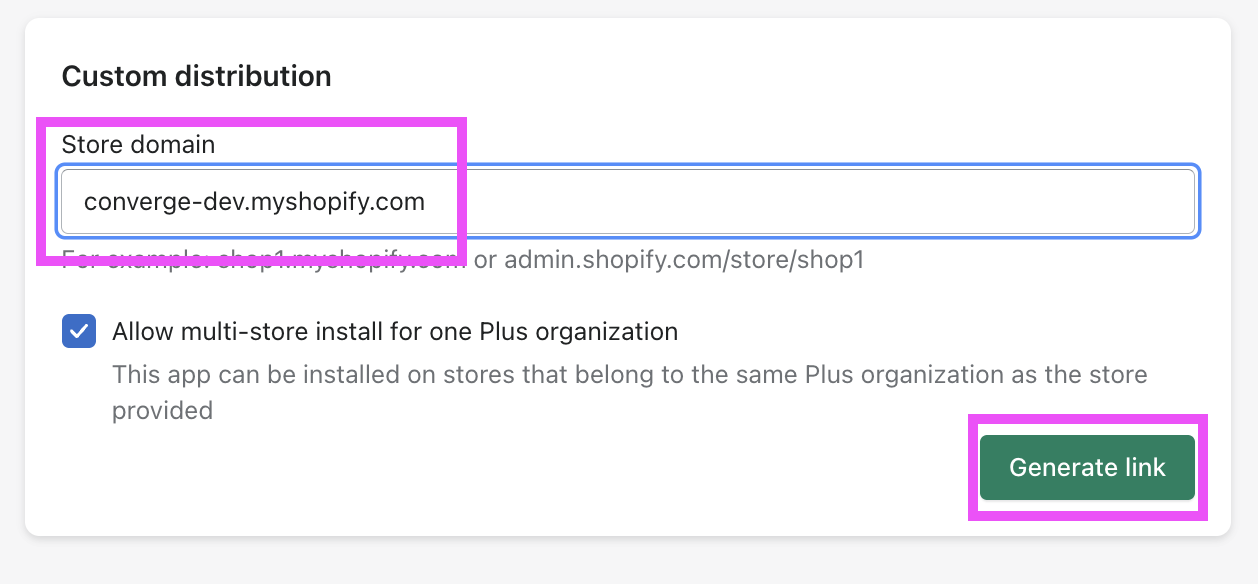
16. Enter the **Store domain** of the Shopify store you want to use Converge for and click **Generate link**.
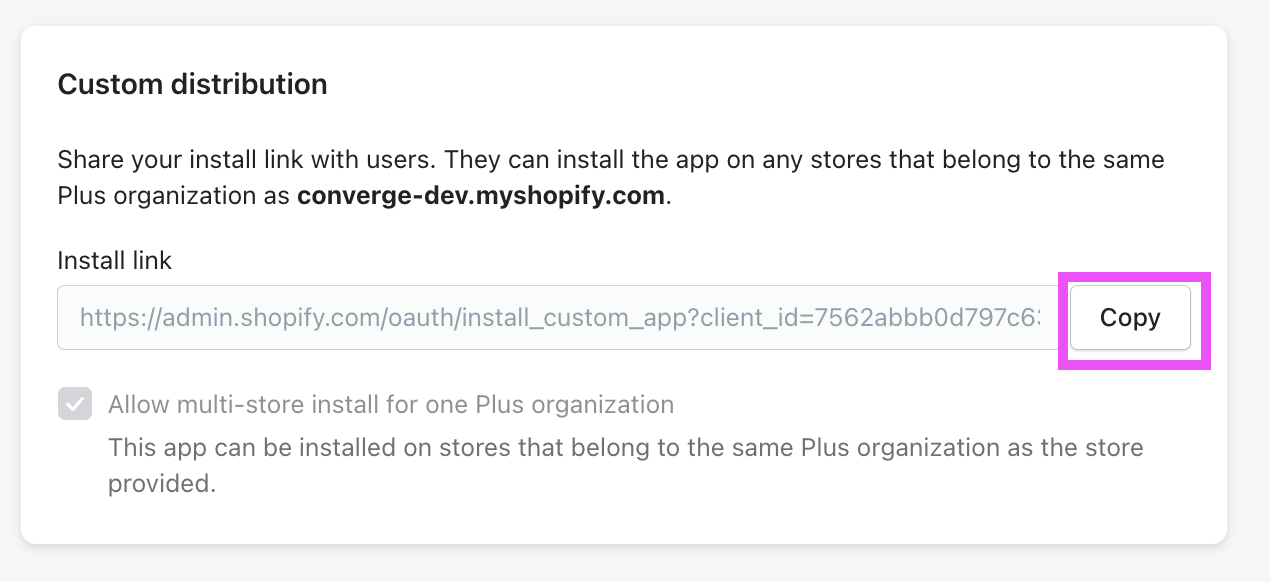
17. Copy the link and paste it in a new tab. Complete the installation flow.
18. In Converge, go to Event sources and click on **Create a new source**.
19. Name your source: e.g. `{Storename} Store Backend`
20. Pick *Server-side* from the modal and choose the **Shopify** app from the dropdown menu.
21. Enter the **Store domain** of the Shopify store you want to use Converge for, this is the string before `myshopify.com` in the Shopify URL.
22. Paste the **Client ID** and **Secret** from the Dev Dashboard in the respective fields.
23. Click **Authorize Shopify Custom App**.
24. Click on **Create Source**.
The installation instructions previously relied on creating a **custom Shopify app through the admin panel**.
This is **no longer supported** by Shopify and is now replaced by the Developer Portal.
Please follow the new installation instructions above for any new installations.
If you already have a custom app for Converge from **before Jan 1st, 2026**, you can still use the **legacy** instructions below.
1. Navigate to the Shopify Admin dashboard, and click on **Settings**
2. Click on **Apps and sales channels** in the Settings modal.
3. Click on **Develop apps**, you might have to choose **allow custom app development** in a pop-up
4. Click on **Create an app**, give the app the name `Converge` and choose your own email address as the developer.
5. Choose **Configure Admin API scopes** and mark the following 4 scopes (i) `read_customer_events`, (ii) `read_customers`, (iii) `read_orders` (iv) `read_products`
6. Click on **Save** and then **Install app**. Reveal and copy the **Admin API access token**
7. In Converge, go to Event sources
8. Click on **Create a new source**
9. Pick *Server-side* from the modal
10. Name your source: e.g. `{Storename} Store Backend`
11. Enter the store name, this is the string before `myshopify.com` in the Shopify URL. E.g. For `convergestore.myshopify.com` the store name would be `convergestore`
12. Paste the Shopify Access Token in the Converge web app under **Shopify API Password**. Do not fill in a starting date, just click on **Create source**
13. Click on **Create Source**.
You should see the Source syncing all historical order data. No need to wait before it's fully synced to create destinations—we'll automatically check which orders are historic and new and forward only the new ones in case a destination is active while historically syncing.
***
## Post-Purchase Upsells
Many Shopify stores use post-purchase upsells such as .
After placing an order, the customer will be prompted to add a new item to the order.
If the customer accepts the upsell, **the original order will be modified by the upsell app**.
For this reason, the only way to track these post-purchase upsells reliably is server-side (as the order is modified server-side).
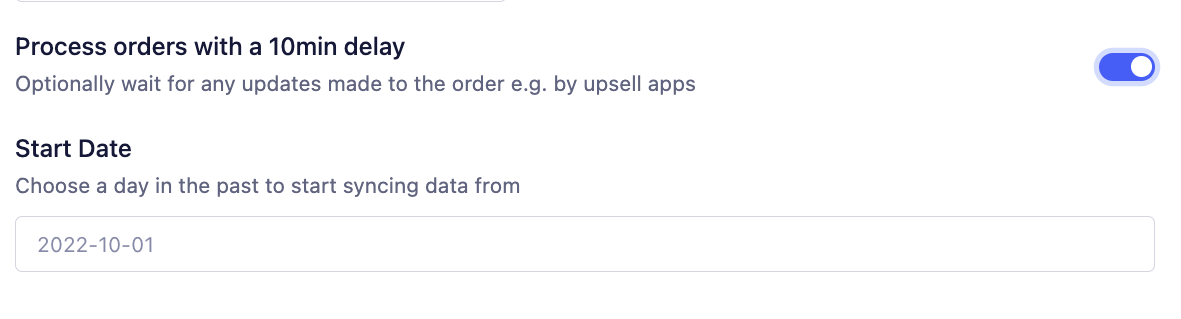
The Shopify Server Integration supports upsell tracking by introducing an optional delay in the integration settings.
If you turn on this delay, Converge will wait 10 minutes for the upsell to come in before forwarding it to destinations.
You can turn this option on in the configuration of the integration:
Please contact Converge support before enabling this feature. This will only work with Destinations that support server-side events. Client-side destinations will not track the upsell.
***
## Filtering out certain orders at ingestion
You might want to make sure certain order types never make it into Converge (e.g. test orders).
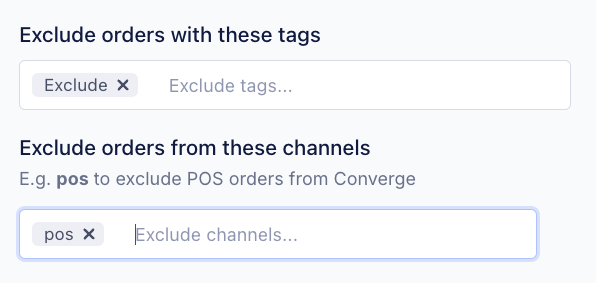
The Converge Shopify source allows you to configure order exclusions based on their channel or applied tag.
E.g. You can filter out all `pos` orders or filter out all orders with an `Exclude` tag.
To configure, navigate to and click on your Shopify source.
Then, under configuration mark the exact criteria by which you want to exclude orders from arriving in Converge.
***
## Event spec
This integration auto-tracks the following events on the server with all properties available according to the [Converge event spec](/sources/converge-spec).
| Event Name | Event Description |
| --------------------------------------------------- | -------------------------------- |
| [Placed Order](/sources/converge-spec#placed-order) | When a customer places an order. |
This integration also auto-tracks some additional events that are not part of the Converge event spec.
| Event Name | Event Description |
| --------------- | --------------------------------- |
| Received Refund | When a customer refunds an order. |
### Sales channels
Events received by Converge from Shopify are automatically mapped to Converge’s [sales channels types](/sources/concepts/sales-channels) whenever possible.
Shopify's various sales channels, such as the web, shop app, and marketplace integrations, are translated into Converge’s standardized sales channels types based on the context and source of each event.
For example, events originating from Shopify checkout are mapped to the web sales channel, while those from POS systems or third-party marketplaces (like Amazon) are categorized as pos and marketplace, respectively.
More on sales channels can be found [here](/sources/concepts/sales-channels).
Due to the extensive nature of Shopify's sales channels and tight integration with third-party apps, it may be difficult to get an accurate sales channels mapping. As such, Converge falls back to "web" if a mapping cannot be found.
An example of how Converge maps Shopify sales channels:
| Shopify | Converge | Description |
| ---------------------- | ---------------------- | ---------------------------------------------------------------- |
| web | web | Shopify checkout |
| subscription\_contract | subscription\_contract | Recurring placed order events, and third party subscription apps |
| shopify\_draft\_order | offline | Manual orders |
| pos | pos | Point of sales orders |
| 12875497473 | web | Shopify headless |
| Edit Order | offline | Orders that are manually edited |
| 3890849 | marketplace | Shopify Shop App |
| 2329312 | facebook\_shop | Meta/Facebook Checkout |
| 4383523 | tiktok\_shop | Tiktok Checkout integration |
| 3009811 | pinterest\_shop | Pinterest Checkout |
| amazon | marketplace | Amazon integration |
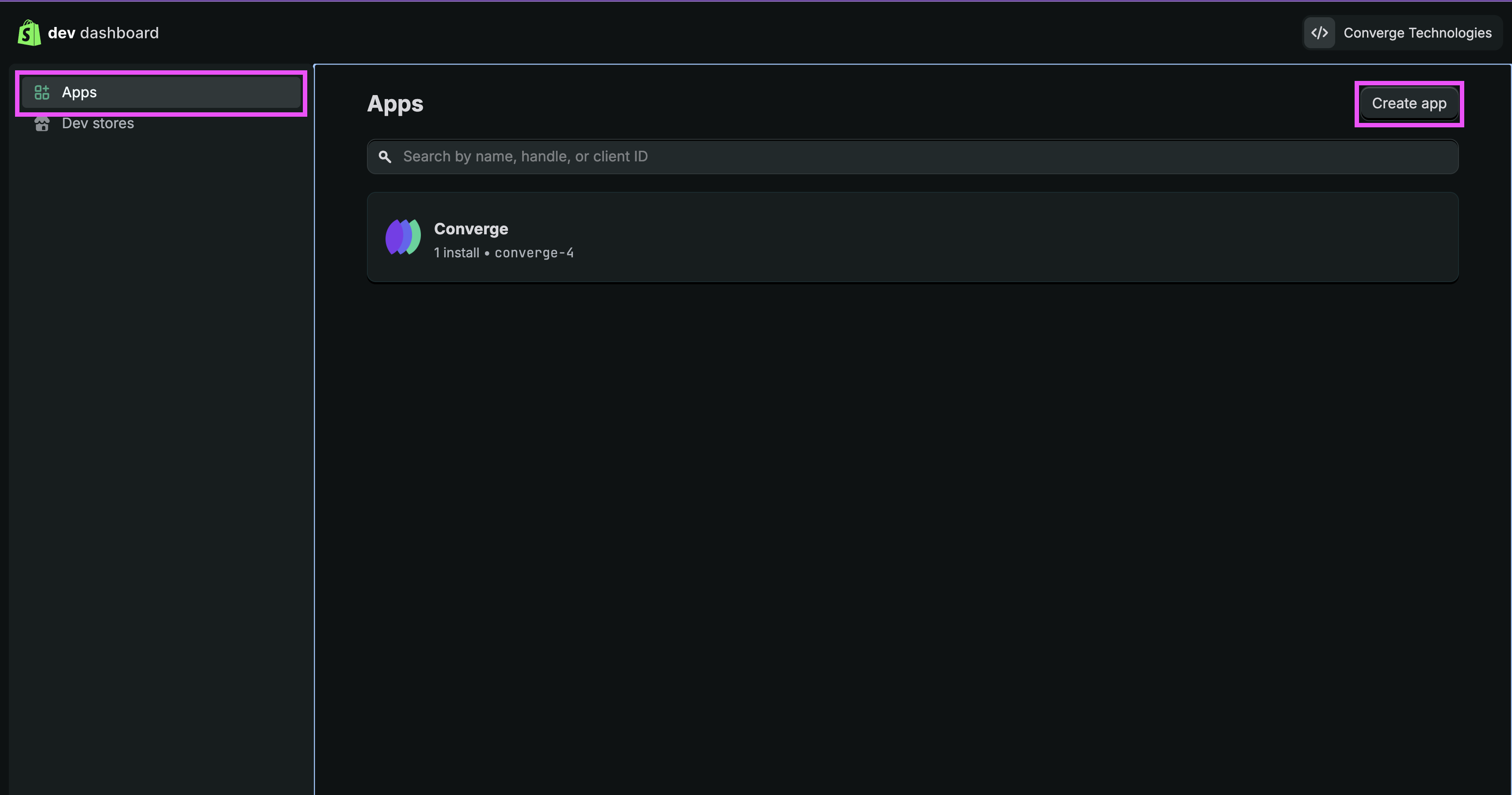 3. Select **Start from Dev Dashboard**.
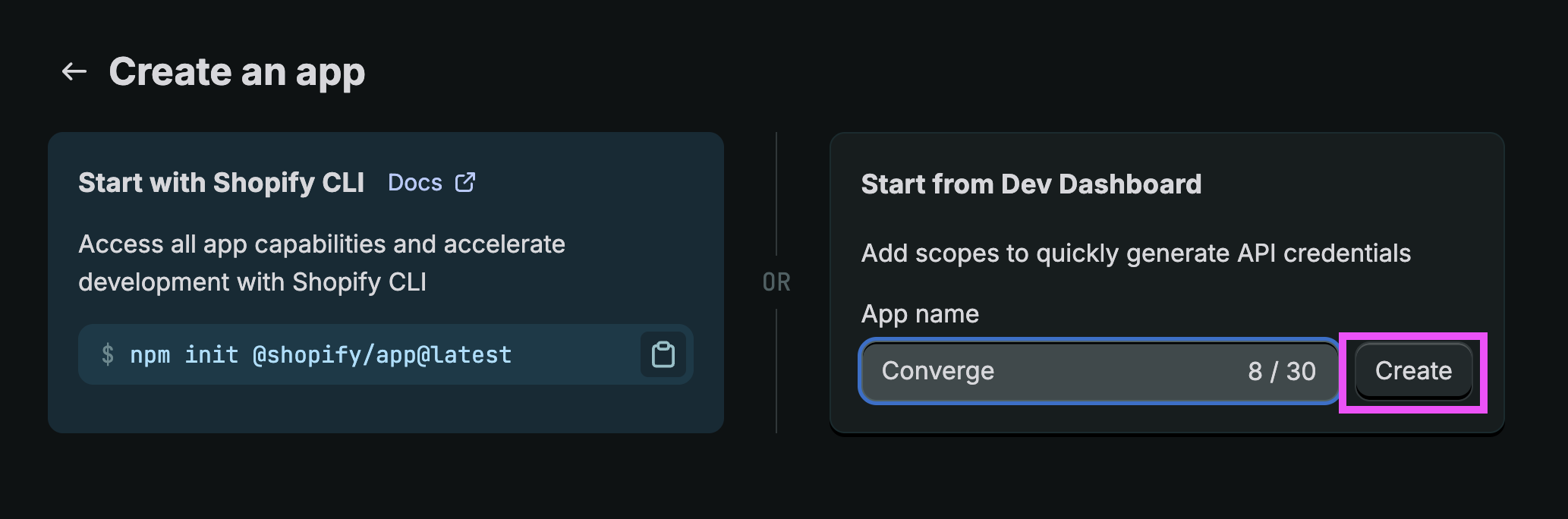 4. Name your app, e.g. `Converge Server-side Integration`, then select **Create**.
You don't need to configure anything else on this page for now.
4. Name your app, e.g. `Converge Server-side Integration`, then select **Create**.
You don't need to configure anything else on this page for now.
 9. Under **App URL**, enter `https://app.runconverge.com`.
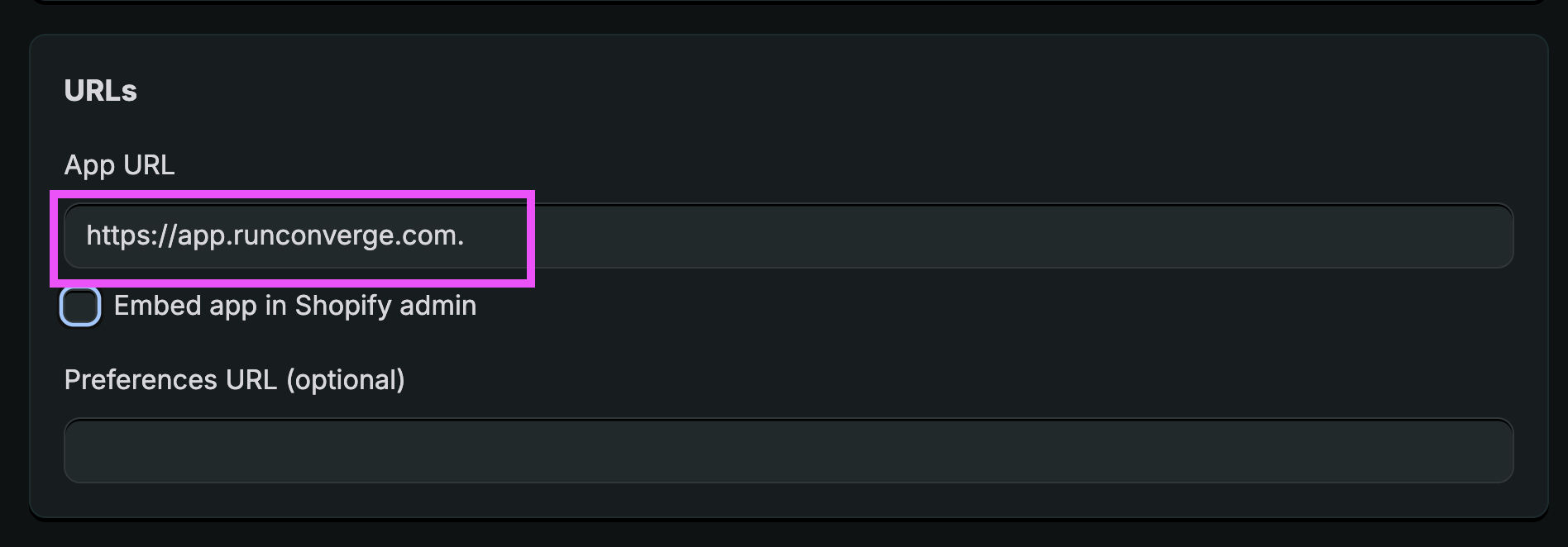 10. Untick the "Embed app in Shopify admin" checkbox.
11. In the textbox, under **Access > Scopes**, paste the following text:
```text theme={null}
read_customer_events, read_customers, read_orders, read_products, read_all_orders
```
10. Untick the "Embed app in Shopify admin" checkbox.
11. In the textbox, under **Access > Scopes**, paste the following text:
```text theme={null}
read_customer_events, read_customers, read_orders, read_products, read_all_orders
```
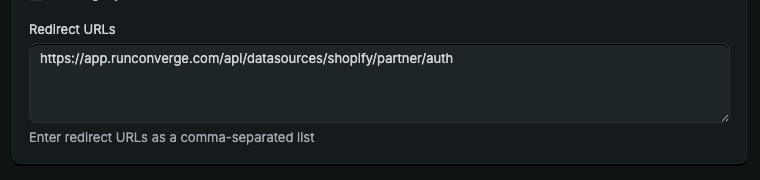 13. In the bottom right corner, click **Release** and then click **Release** again to confirm. You don't need to provide a version name.
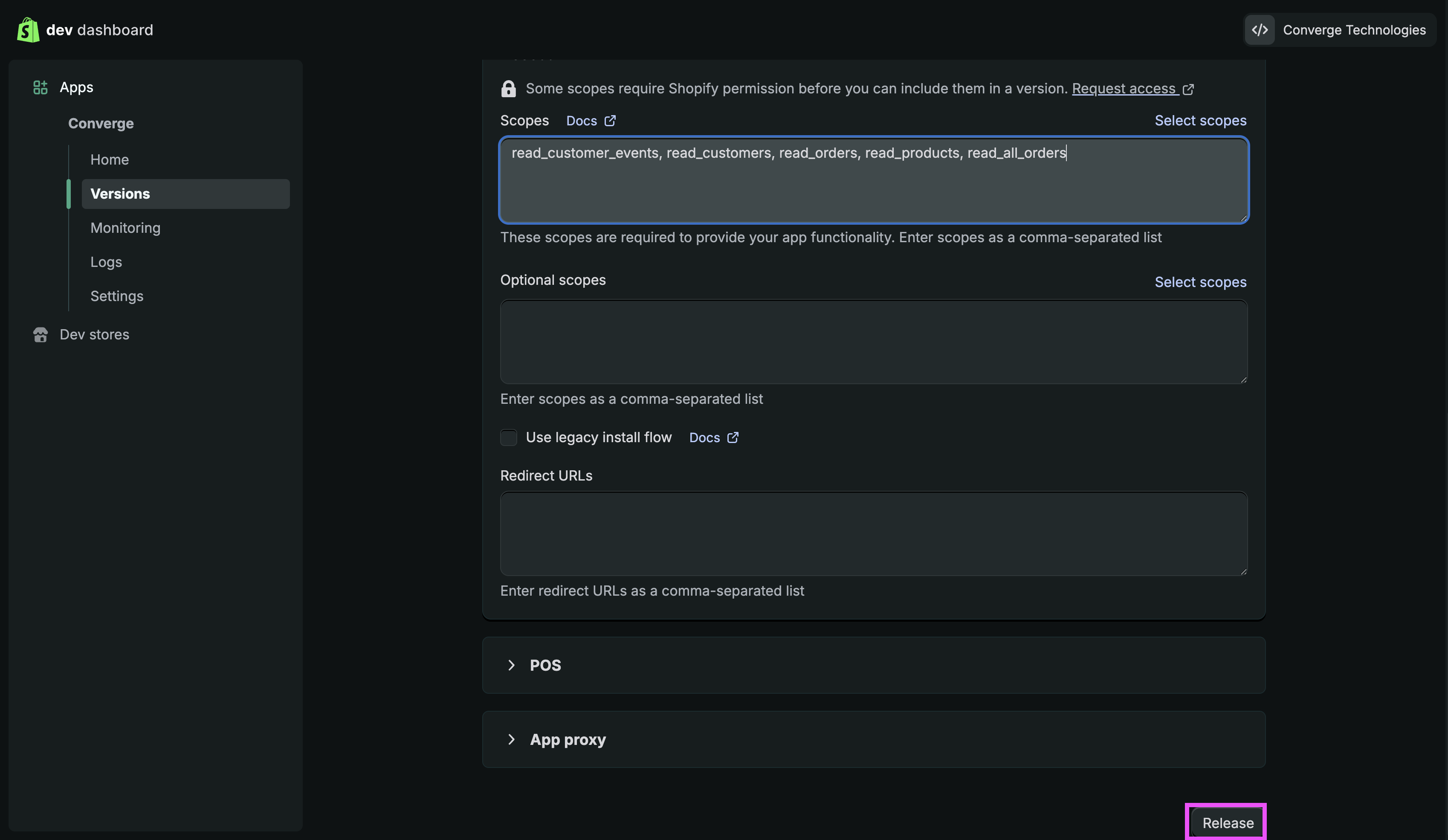
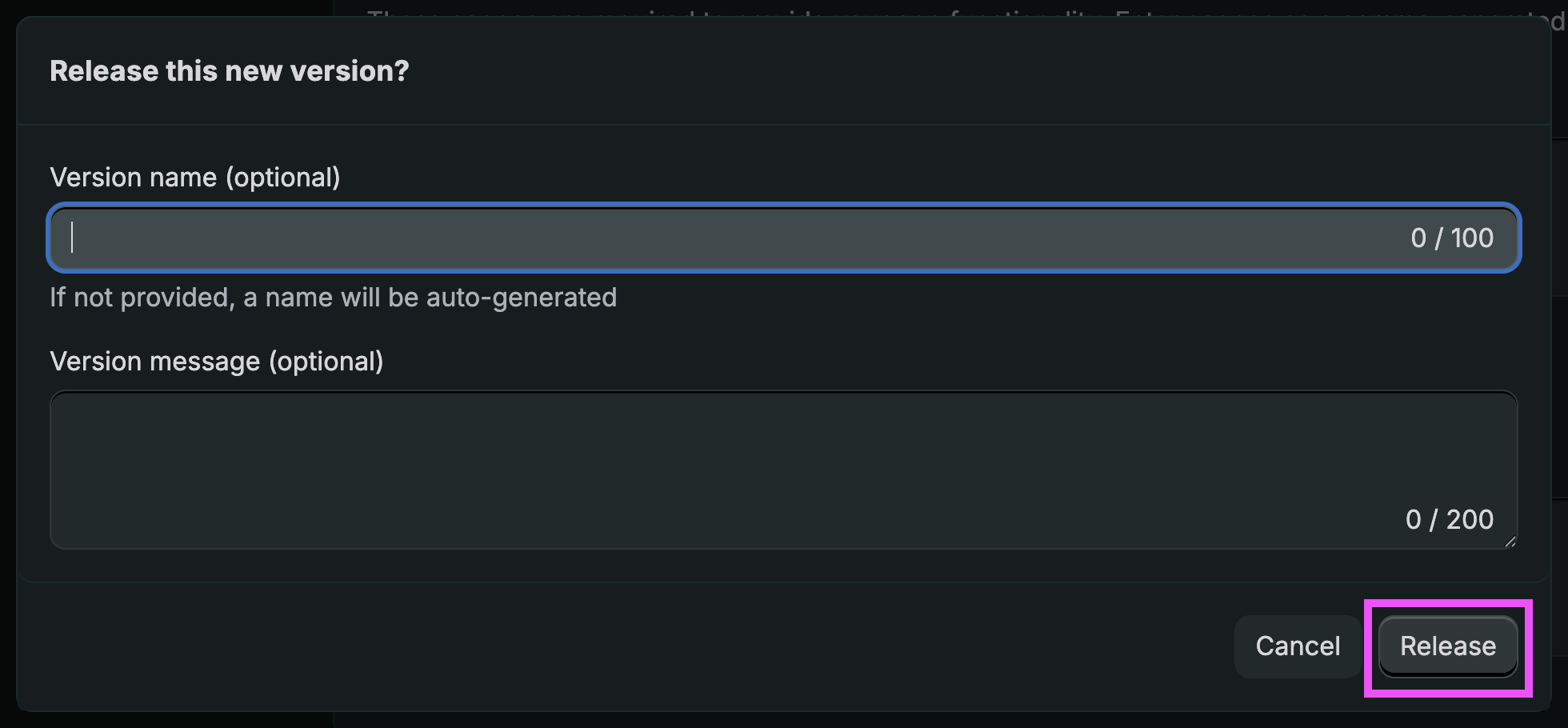 14. In the left-panel navigation, click on **Settings** for the app you just created.
Note down the **Client ID** and **Secret**, you'll need to enter them in Converge later.
14. In the left-panel navigation, click on **Settings** for the app you just created.
Note down the **Client ID** and **Secret**, you'll need to enter them in Converge later.
 16. Select the store you want to install the app, and click "Install". You'll then be redirected to Converge.
 6. Select **Custom distribution** and confirm your selection in the popup.
 7. In the left-panel navigation, now navigate to **API access requests** and click on **Request access** under the **Read all orders scope** section.
You can copy the explanation below and click on submit, it will get approved automatically.
```text theme={null}
Historical order analytics.
```
7. In the left-panel navigation, now navigate to **API access requests** and click on **Request access** under the **Read all orders scope** section.
You can copy the explanation below and click on submit, it will get approved automatically.
```text theme={null}
Historical order analytics.
```
 8. Go back to your previous tab in the Dev Dashboard. Click on **Versions** in the left-panel navigation and **Create a version**.
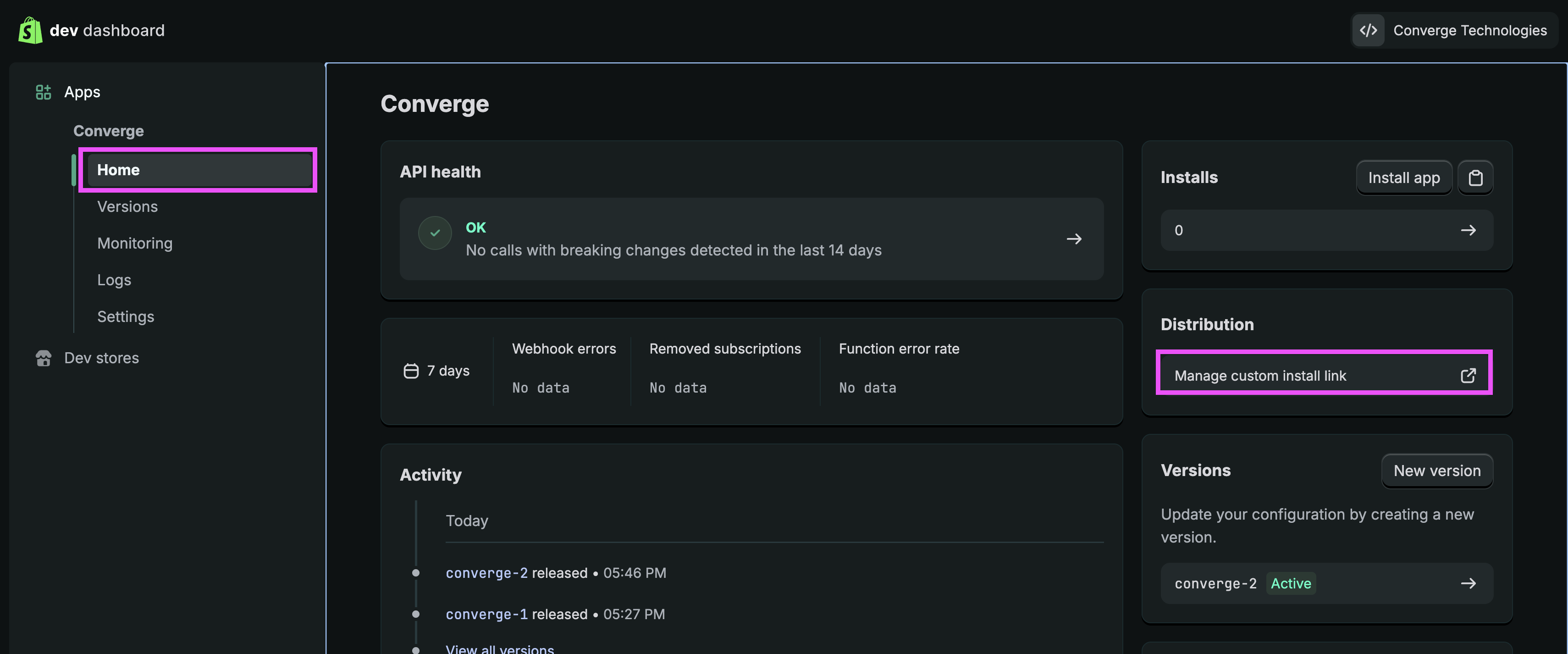 16. Enter the **Store domain** of the Shopify store you want to use Converge for and click **Generate link**.
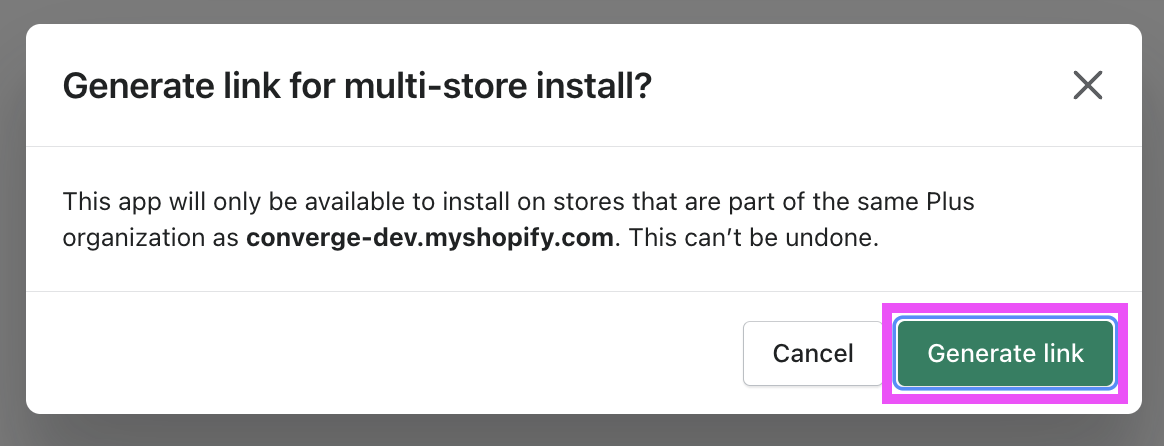 17. Copy the link and paste it in a new tab. Complete the installation flow.
 ***
## Event spec
This integration auto-tracks the following events on the server with all properties available according to the [Converge event spec](/sources/converge-spec).
| Event Name | Event Description |
| --------------------------------------------------- | -------------------------------- |
| [Placed Order](/sources/converge-spec#placed-order) | When a customer places an order. |
This integration also auto-tracks some additional events that are not part of the Converge event spec.
| Event Name | Event Description |
| --------------- | --------------------------------- |
| Received Refund | When a customer refunds an order. |
### Sales channels
Events received by Converge from Shopify are automatically mapped to Converge’s [sales channels types](/sources/concepts/sales-channels) whenever possible.
Shopify's various sales channels, such as the web, shop app, and marketplace integrations, are translated into Converge’s standardized sales channels types based on the context and source of each event.
For example, events originating from Shopify checkout are mapped to the web sales channel, while those from POS systems or third-party marketplaces (like Amazon) are categorized as pos and marketplace, respectively.
More on sales channels can be found [here](/sources/concepts/sales-channels).
***
## Event spec
This integration auto-tracks the following events on the server with all properties available according to the [Converge event spec](/sources/converge-spec).
| Event Name | Event Description |
| --------------------------------------------------- | -------------------------------- |
| [Placed Order](/sources/converge-spec#placed-order) | When a customer places an order. |
This integration also auto-tracks some additional events that are not part of the Converge event spec.
| Event Name | Event Description |
| --------------- | --------------------------------- |
| Received Refund | When a customer refunds an order. |
### Sales channels
Events received by Converge from Shopify are automatically mapped to Converge’s [sales channels types](/sources/concepts/sales-channels) whenever possible.
Shopify's various sales channels, such as the web, shop app, and marketplace integrations, are translated into Converge’s standardized sales channels types based on the context and source of each event.
For example, events originating from Shopify checkout are mapped to the web sales channel, while those from POS systems or third-party marketplaces (like Amazon) are categorized as pos and marketplace, respectively.
More on sales channels can be found [here](/sources/concepts/sales-channels).