> ## Documentation Index
> Fetch the complete documentation index at: https://docs.runconverge.com/llms.txt
> Use this file to discover all available pages before exploring further.
# Shopify Web
> Install the Shopify Website Pixel
export const OutboundLink = ({linkText, linkTarget}) => {
return {linkText}
;
};
The Shopify Website Integration consists of two integrations covering the full tracking spec.
1. The Shopify Storefront Integration
2. The Shopify Checkout Integration
***
## Installation instructions
The installation process of Converge is slightly different based on whether you have a **Shopify Liquid** storefront; or whether you are running a **Shopify Headless** Storefront.
The Converge Website installation for a Shopify Liquid store consists of:
1. In Converge, go to **Event sources**
2. Click on **Create a new source**
3. Pick *Client-side* from the modal
4. Name your pixel: e.g. `{Storename} Storefront`
4. Click on your newly created Source, make sure you pick `Shopify Liquid`, and then copy that snippet.
5. In the Shopify admin dashboard, navigate to **Sales Channels** > **Online Store**.
6. Click on "**...**" next to the **Edit Theme** button, and click **Edit code**.
7. In the left sidebar, open the **Layouts** folder and click on *theme.liquid*. Insert the snippet right above the closing `` tag. Click **Save**.
8. Always double-check that you did not break anything on the site after inserting the snippet.
It's good practice to **add the snippet to other themes in development as well** and to add this snippet to your version control, so a theme switch does not kill website tracking
9. Check that your pixel is working correctly by generating some `$page_load`, `Viewed Product` and `Viewed Collection` events by visiting the store and seeing that these events arrive in the Source Log.
Set up a [Pixel Monitor](/sources/monitoring#pixel-monitor) to automatically verify your pixel stays installed.
10. In Converge, go to **Event sources**
11. Click on **Create a new source**
12. Pick *Client-side* from the modal
13. Name your pixel: e.g. `{Storename} Checkout`
14. Click on your newly created Source and pick `Shopify Custom Pixel`, and copy that snippet.
15. In the Shopify Admin dashboard, navigate to **Settings** > **Customer Events**
16. Click on **Add custom pixel**.
17. Name your pixel, e.g. `Converge Pixel`
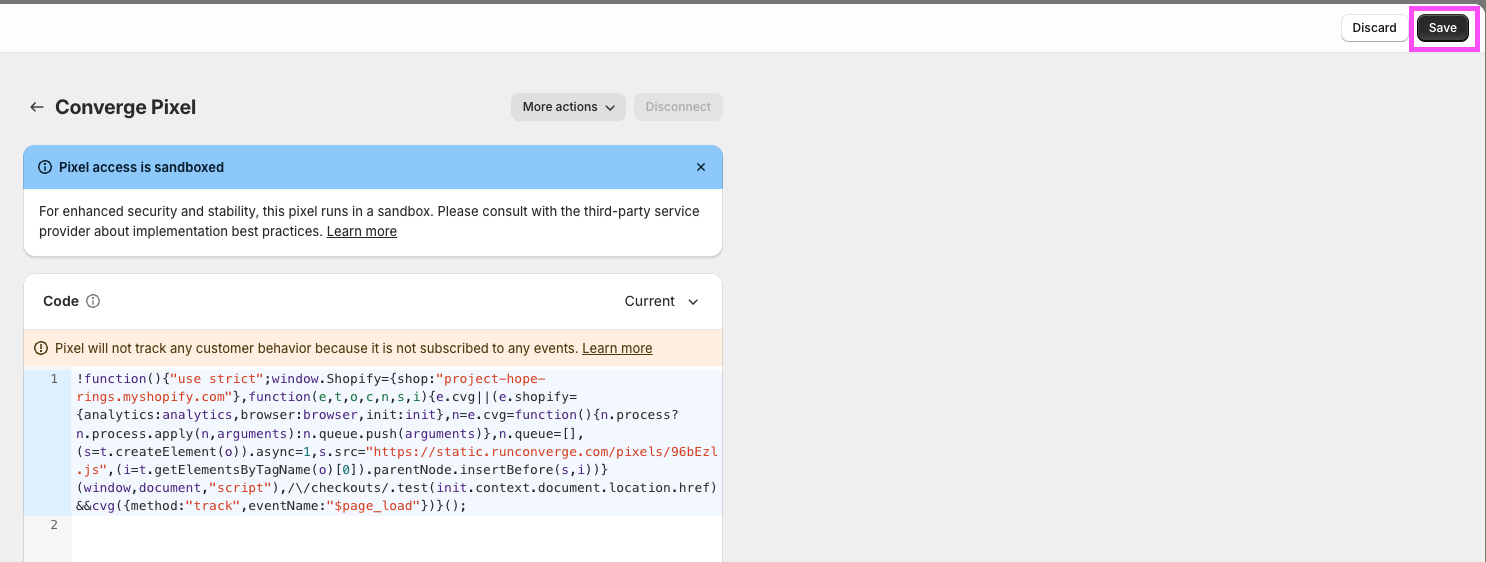
18. Paste the script from the web app here.
19. Click on **Save Pixel**
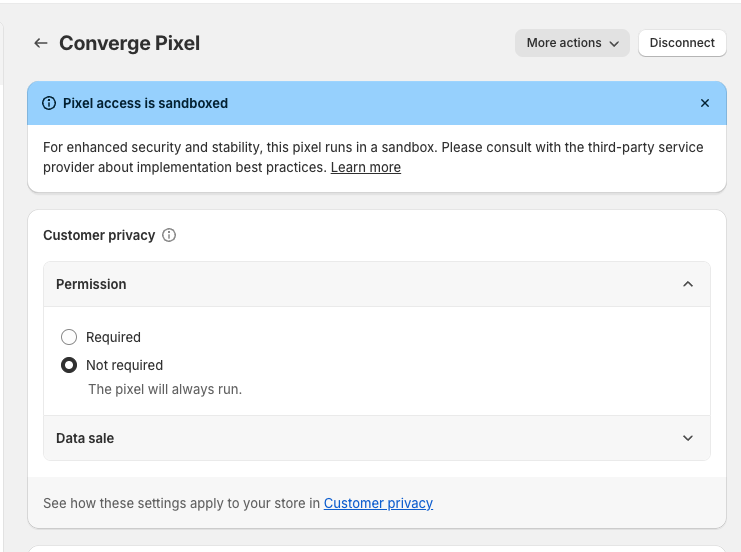
20. Under **Customer Privacy**, set the **Permission** flag to **Not required**.
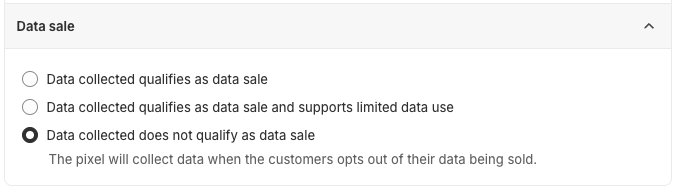
21. Also make sure that **Data sale** is set to **Data collected does not qualify as a data sale**.
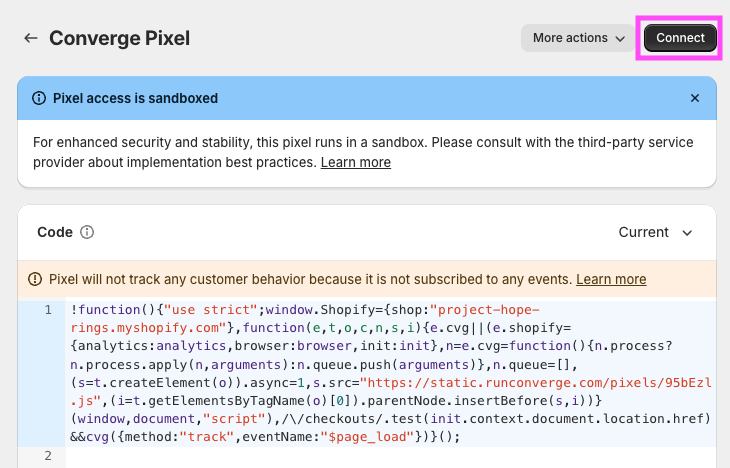
22. Click on **Connect Pixel**
Shopify might throw a warning that the pixel is not subscribed to any events. You can safely ignore this warning.
23. Check that your pixel is working correctly by generating some `Added To Cart`, `Started Checkout` and `Added Payment Info` events by visiting the store and seeing that these events arrive in the Source Log.
The Converge Website installation for a Shopify Headless store consists of:
1. In Converge, click on **Create a new source**
2. Pick *Client-side* from the modal
3. Name your pixel: e.g. `{Storename} Storefront`
4. Install the Converge JS Base Snippet in your storefront following the steps [here](/sources/website-integrations/converge-pixel#installation-instructions)
5. Double-check that `$page_load` events are coming in correctly in the Source Logs.
6. In Converge, go to **Event sources**
7. Click on **Create a new source**
8. Pick *Client-side* from the modal
9. Name your pixel: e.g. `{Storename} Checkout`
10. Click on your newly created Source and pick `Shopify Custom Pixel`, and copy that snippet.
11. In the Shopify Admin dashboard, navigate to **Settings** > **Customer Events**
12. Click on **Add custom pixel**.
13. Name your pixel, e.g. `Converge Pixel`
14. Paste the script from the web app here.
15. Click on **Save Pixel**
16. Under **Customer Privacy**, set the **Permission** flag to **Not required**.
17. Also make sure that **Data sale** is set to **Data collected does not qualify as a data sale**.
18. Click on **Connect Pixel**
Shopify might throw a warning that the pixel is not subscribed to any events. You can safely ignore this warning.
19. The Converge JS pixel only picks up [\$page\_load](/sources/converge-spec#page-load)-events by default for a headless store.
You will typically have to supplement the following events using Converge JS for all Destinations to work optimally.
* [Viewed Product](/sources/converge-spec#viewed-product)
* [Viewed Collection](/sources/converge-spec#viewed-collection)
* [Added To Cart](/sources/converge-spec#added-to-cart)
For more information on manually instrumenting events, read [here](/sources/website-integrations/converge-pixel#manually-instrumenting-events).
20. At this point, you should be tracking the entire Converge Ecommerce Spec.
However, for a Headless setup, it is paramount that you set the `checkout_token` as an alias **before** redirecting the user to the Shopify Checkout to make sure that the storefront session and the checkout session can be linked to the same user.
You can read more about aliases [here](/sources/source-concepts#aliases).
21. Check that your setup is working by doing an entire user journey from `$page_load` to `Placed Order` and verifying that all events are properly tracked without any [Source Warnings](/sources/monitoring#source-warnings).
The integration relies on Shopify Standard Events (see for reference).
If you are using custom code to handle, for example, cart, checkout, or payment, it's possible that the standard Shopify events will not be triggered or will have missing data. In those cases, you may need to implement the affected tracking events manually. See [Manually instrumenting events](/sources/website-integrations/converge-pixel#manually-instrumenting-events) for reference.
***
## FAQ
When you install the Shopify Web integration, you'll install both the Shopify Storefront integration (which lives in the `theme.liquid`) and a Checkout integration, which leverages Shopify App Pixels.
You can check which integration tracks which events in the [Integration event spec](#event-spec).
The difference between the Liquid Pixel and the Checkout Pixel is that the Checkout Pixel is completely sandboxed by Shopify and loads with a large delay, see more info [here](https://help.shopify.com/en/manual/promoting-marketing/pixels/overview) on the limitations of App Pixels.
This is undesirable for events such as `$page_load`, where a user may browse away before the Converge pixel is loaded and before this event can be tracked.
For that reason, you would want to track all events in the `theme.liquid`. However, **Shopify does not allow you to track reliably on the Checkout using this approach**.
#### 1. Verify that Custom Pixel Privacy Settings are set up correctly
You might have Custom Pixel Privacy settings set up in Shopify that limit us from tracking the Checkout.
1. Navigate to the Shopify Admin dashboard, navigate to **Settings** > **Customer Events** and find the `Converge Pixel`.
2. Click on it to open the settings.
3. Verify in your Custom Pixel settings whether you have set the **Permission** flag to **Not required**.
4. Also make sure that **Data sale** is set to **Data collected does not qualify as a data sale**.
#### 2. Verify that a broken cookiebanner integration is not blocking the Converge Pixel
If you are using a custom cookie banner that is not properly integrated with Shopify, then Shopify might block our pixel from loading on their checkout.
To verify, go through the following steps:
1. Navigate to the Shopify Admin dashboard, navigate to **Settings** > **Customer privacy** and verify whether **Regions** is set up:
2. If **Regions** is set up, and you have a custom cookie banner, then Shopify might be blocking our pixel. Click on **Edit** and unselect all countries, then press **Save**.
3. Verify over the coming hours that more checkout events are coming in.
***
## Event spec
This integration auto-tracks the following events on the browser with all properties available according to the [Converge event spec](/sources/converge-spec).
| Event Name | Event Description | Integration |
| --------------------------------------------------------------------------- | -------------------------------------------------------- | ----------- |
| [PageView](/sources/converge-spec#page-load) | When a customer views a page. | Storefront |
| [Viewed Product](/sources/converge-spec#viewed-product) | When a customer views a product. | Storefront |
| [Viewed Collection](/sources/converge-spec#viewed-collection) | When a customer views a collection of products. | Storefront |
| [Added To Cart](/sources/converge-spec#added-to-cart) | When a customer adds an item to cart | Checkout |
| [Removed From Cart](/sources/converge-spec#removed-from-cart) | When a customer removes an item from cart | Checkout |
| [Started Checkout](/sources/converge-spec#started-checkout) | When a customer initiates the checkout process. | Checkout |
| [Added Payment Info](/sources/converge-spec#added-payment-info) | When a customer adds their payment info on the checkout. | Checkout |
| [Subscribed To Newsletter](/sources/converge-spec#subscribed-to-newsletter) | When a customer subscribes to your newsletter. | Checkout |
| [Placed Order](/sources/converge-spec#placed-order) | When a customer places an order. | Checkout |
This integration also auto-tracks some additional events that are not part of the Converge event spec.
| Event Name | Event Description | Integration |
| ------------------- | ---------------------------------------------------------------- | ----------- |
| Added Contact Info | When a customer fills in the contact information in the checkout | Checkout |
| Added Shipping Info | When a customer fills in their shipping info in the checkout | Checkout |
***
## Utility Object
Note that this utility object is not available on the Shopify Checkout.
Converge exposes a utility object called `__cvg_shopify_info` that picks up useful event properties and profile properties automatically.
We give an example below of requesting this object and what it looks like in the code example below.
```js theme={null}
window['__cvg_shopify_info']
>>> {
"product": {
"id": 7104622526660,
"title": "ADIDAS | CLASSIC BACKPACK",
"handle": "adidas-classic-backpack",
"description": "This women's backpack has a glam look, thanks to a faux-leather build with an allover fur print. The front zip pocket keeps small things within reach, while an interior divider reins in potential chaos.",
"published_at": "2022-04-05T12:53:37+02:00",
"created_at": "2022-04-05T12:53:37+02:00",
"vendor": "ADIDAS",
"type": "ACCESSORIES",
"tags": [
"adidas",
"backpack",
"egnition-sample-data"
],
"price": 7000,
"price_min": 7000,
"price_max": 7000,
"available": false,
"price_varies": false,
"compare_at_price": null,
"compare_at_price_min": 0,
"compare_at_price_max": 0,
"compare_at_price_varies": false,
"variants": [
{
"id": 41374006870212,
"title": "OS / black",
"option1": "OS",
"option2": "black",
"option3": null,
"sku": "AD-03-black-OS",
"requires_shipping": true,
"taxable": true,
"featured_image": null,
"available": false,
"name": "ADIDAS | CLASSIC BACKPACK - OS / black",
"public_title": "OS / black",
"options": [
"OS",
"black"
],
"price": 7000,
"weight": 0,
"compare_at_price": null,
"inventory_management": "shopify",
"barcode": null,
"requires_selling_plan": false,
"selling_plan_allocations": [
{
"price_adjustments": [
{
"position": 1,
"price": 7000
}
],
"price": 7000,
"compare_at_price": 7000,
"per_delivery_price": 7000,
"selling_plan_id": 1961754820,
"selling_plan_group_id": "adc3b0fe7ea2b6a111dff9a6fb88114ceab61eec"
}
],
"quantity_rule": {
"min": 1,
"max": null,
"increment": 1
}
}
],
"images": [
"//converge-dev.myshopify.com/cdn/shop/products/85cc58608bf138a50036bcfe86a3a362.jpg?v=1649156017",
"//converge-dev.myshopify.com/cdn/shop/products/8a029d2035bfb80e473361dfc08449be.jpg?v=1649156017",
"//converge-dev.myshopify.com/cdn/shop/products/ad50775123e20f3d1af2bd07046b777d.jpg?v=1649156017"
],
"featured_image": "//converge-dev.myshopify.com/cdn/shop/products/85cc58608bf138a50036bcfe86a3a362.jpg?v=1649156017",
"options": [
"Size",
"Color"
],
"media": [
{
"alt": null,
"id": 23867923562692,
"position": 1,
"preview_image": {
"aspect_ratio": 1.134,
"height": 560,
"width": 635,
"src": "//converge-dev.myshopify.com/cdn/shop/products/85cc58608bf138a50036bcfe86a3a362.jpg?v=1649156017"
},
"aspect_ratio": 1.134,
"height": 560,
"media_type": "image",
"src": "//converge-dev.myshopify.com/cdn/shop/products/85cc58608bf138a50036bcfe86a3a362.jpg?v=1649156017",
"width": 635
},
{
"alt": null,
"id": 23867923595460,
"position": 2,
"preview_image": {
"aspect_ratio": 1.134,
"height": 560,
"width": 635,
"src": "//converge-dev.myshopify.com/cdn/shop/products/8a029d2035bfb80e473361dfc08449be.jpg?v=1649156017"
},
"aspect_ratio": 1.134,
"height": 560,
"media_type": "image",
"src": "//converge-dev.myshopify.com/cdn/shop/products/8a029d2035bfb80e473361dfc08449be.jpg?v=1649156017",
"width": 635
},
{
"alt": null,
"id": 23867923628228,
"position": 3,
"preview_image": {
"aspect_ratio": 1.134,
"height": 560,
"width": 635,
"src": "//converge-dev.myshopify.com/cdn/shop/products/ad50775123e20f3d1af2bd07046b777d.jpg?v=1649156017"
},
"aspect_ratio": 1.134,
"height": 560,
"media_type": "image",
"src": "//converge-dev.myshopify.com/cdn/shop/products/ad50775123e20f3d1af2bd07046b777d.jpg?v=1649156017",
"width": 635
}
],
"requires_selling_plan": false,
"selling_plan_groups": [
{
"id": "adc3b0fe7ea2b6a111dff9a6fb88114ceab61eec",
"name": "Test Plan",
"options": [
{
"name": "Frequency",
"position": 1,
"values": [
"Deliver every month"
]
}
],
"selling_plans": [
{
"id": 1961754820,
"name": "Deliver every month",
"description": "",
"options": [
{
"name": "Frequency",
"position": 1,
"value": "Deliver every month"
}
],
"recurring_deliveries": true,
"price_adjustments": [
{
"order_count": null,
"position": 1,
"value_type": "fixed_amount",
"value": 0
}
],
"checkout_charge": {
"value_type": "percentage",
"value": 100
}
}
],
"app_id": "5284869"
}
],
"content": "This women's backpack has a glam look, thanks to a faux-leather build with an allover fur print. The front zip pocket keeps small things within reach, while an interior divider reins in potential chaos."
},
"variant": {
"id": 41374006870212,
"title": "OS / black",
"option1": "OS",
"option2": "black",
"option3": null,
"sku": "AD-03-black-OS",
"requires_shipping": true,
"taxable": true,
"featured_image": null,
"available": false,
"name": "ADIDAS | CLASSIC BACKPACK - OS / black",
"public_title": "OS / black",
"options": [
"OS",
"black"
],
"price": 7000,
"weight": 0,
"compare_at_price": null,
"inventory_management": "shopify",
"barcode": null,
"requires_selling_plan": false,
"selling_plan_allocations": [
{
"price_adjustments": [
{
"position": 1,
"price": 7000
}
],
"price": 7000,
"compare_at_price": 7000,
"per_delivery_price": 7000,
"selling_plan_id": 1961754820,
"selling_plan_group_id": "adc3b0fe7ea2b6a111dff9a6fb88114ceab61eec"
}
],
"quantity_rule": {
"min": 1,
"max": null,
"increment": 1
}
},
"currency": "GBP",
"collection": {
"products": null
},
"customer_id": null,
"email": null,
"address": null,
"phone": null,
"search": null
}
```
 20. Under **Customer Privacy**, set the **Permission** flag to **Not required**.
 21. Also make sure that **Data sale** is set to **Data collected does not qualify as a data sale**.
 22. Click on **Connect Pixel**
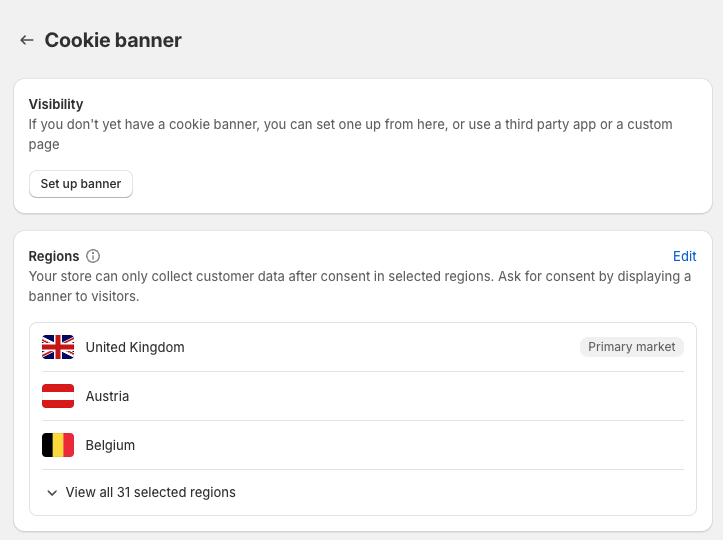 2. If **Regions** is set up, and you have a custom cookie banner, then Shopify might be blocking our pixel. Click on **Edit** and unselect all countries, then press **Save**.
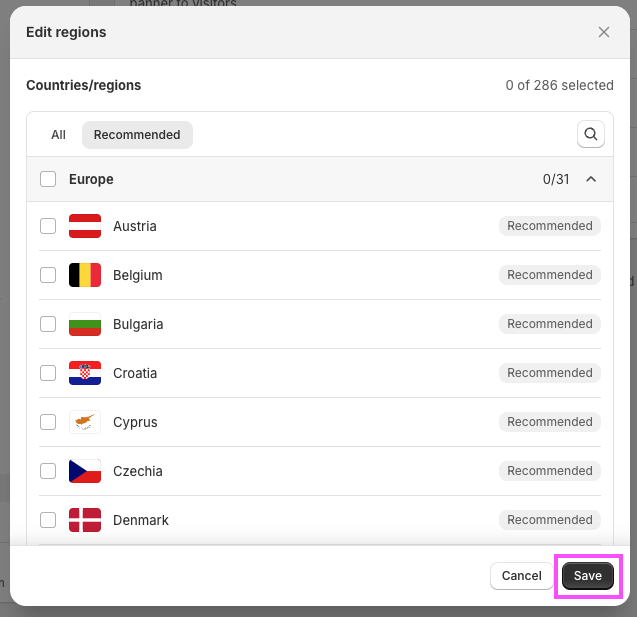 3. Verify over the coming hours that more checkout events are coming in.