

Overview
You can configure how the Converge destinations should behave based on the visitor’s consent preferences.Check out the Consent implementation to learn how to send consent preferences to Converge.
Converge destinations
There are two ways to customize how Converge destinations handle consent: the consent category and the consent mode.Consent category
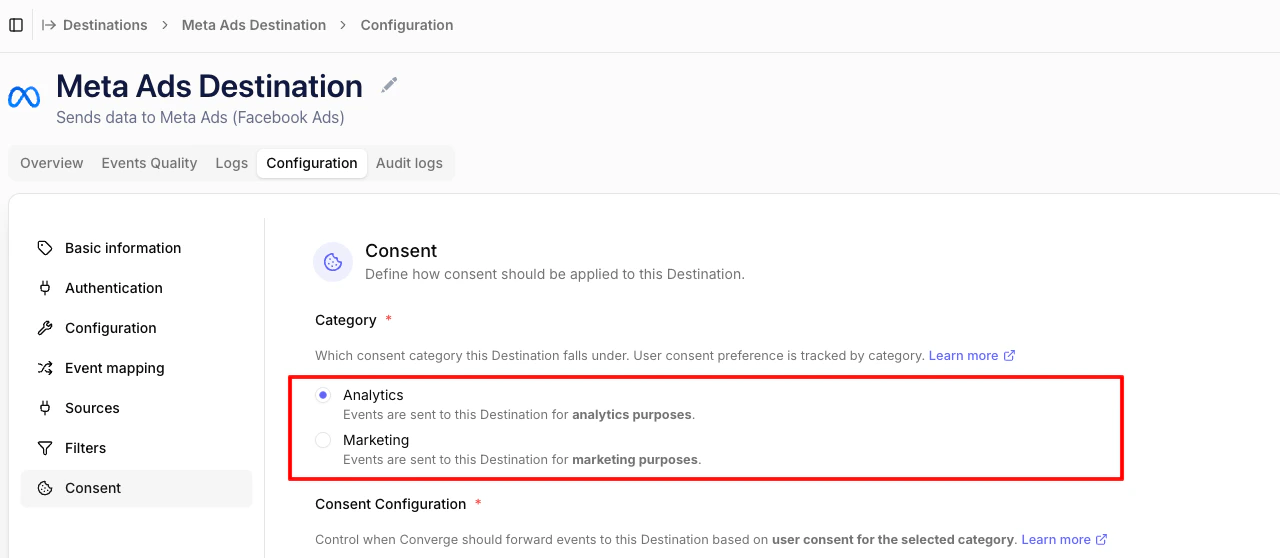
You can classify Converge destinations into two consent categories:analytics and marketing. Consent is tracked separately for each category.
The consent category can be set under the Consent subtab of the destination Configuration
Consent mode
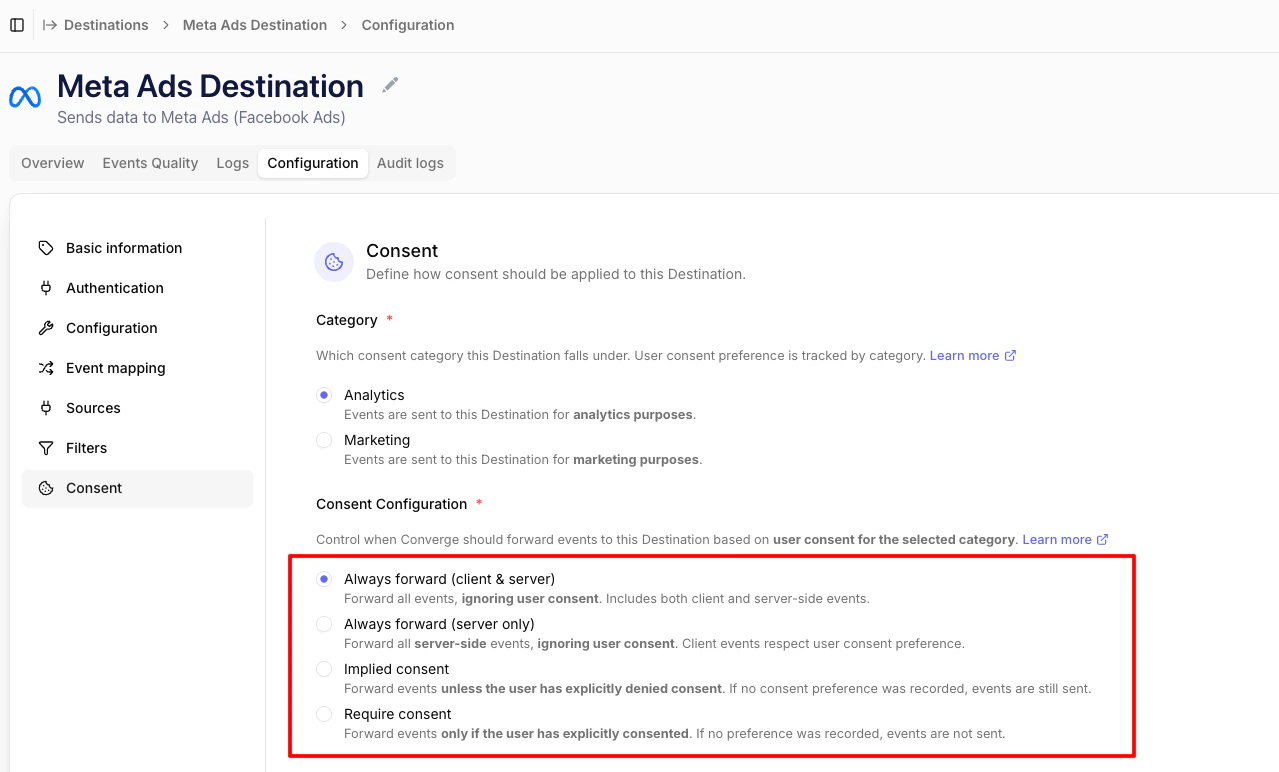
The consent mode controls when Converge forwards events to a destination based on the user’s consent preference for the selected category.- Always forward (client & server) (default): Forward all events, ignoring user consent. Includes both client and server-side events.
- Always forward (server only): Forward all server-side events, ignoring user consent. Client events respect the user’s consent preference.
- Implied consent: Forward events unless the user has explicitly denied consent. If no consent preference was recorded, events are still sent.
- Require consent: Forward events only if the user has explicitly consented. If no preference was recorded, events are not sent.
Choosing a mode
A few rules of thumb:- Always forward (client & server) suits destinations that aren’t subject to consent (internal analytics, server-to-server data warehouse pipelines, attribution platforms processing first-party data on your behalf).
- Always forward (server only) is useful when you want server-side conversions to keep flowing for measurement purposes while still respecting consent on the browser-side pixel.
- Implied consent fits an opt-out model: in regions or for visitors where tracking is allowed by default, only stopping when the user explicitly opts out. Use this when your cookie banner is opt-out (e.g. most US states under current state privacy laws) or only shown to specific regions.
- Require consent fits an opt-in model: nothing is forwarded until the user explicitly grants consent. Use this for GDPR-style regimes (EU/EEA, UK) where consent must be collected before any marketing tracking takes place.
How consent is recorded
Converge stores consent in two places:- On the profile (
profile_properties.$consent), so server-side events for a known visitor inherit the most recent preference. - On each event, snapshotting the consent state at the moment the event was tracked.
Server-side forwarding always uses the profile-level consent. Client-side forwarding uses the event-level consent. This means that for a net-new visitor whose first hit is client-side (e.g. a
$page_load), Converge needs to know their consent before that event is tracked — there’s no earlier profile state to fall back on.
- Use one of the automatically integrated CMPs (OneTrust, Cookiebot, CookieFirst, CookieYes, Cookie Information, Usercentrics, Avada, Consentmo, Pandectes).
- Push a default consent state into Converge yourself, before the first
trackcall. See the default-consent snippet. Without one of these, a visitor Converge hasn’t seen before has no consent recorded, and Require consent will drop their client-side events until consent is sent.
Common pitfalls
Shopify checkout events dropping under Require consent
Shopify checkout events dropping under Require consent
Cookie banners typically live on the main marketing site and don’t always carry consent into Shopify’s checkout context. If a destination is set to Require consent and you depend on checkout events (
begin_checkout, purchase), those events may be dropped because the checkout-surface visitor has no consent signal attached. Either implement consent on the checkout surface as well, or use a less strict mode for destinations that need checkout events.GA4 / Google Ads dropping client-side events after switching modes
GA4 / Google Ads dropping client-side events after switching modes
Converge’s consent mode and Google Consent Mode v2 are two separate gates. Even if Converge is set to Always forward, gtag.js may still throttle hits if Google’s own consent state is unset or denied. To address this, make sure a
gtag('consent', 'default', ...) snippet runs on the page before gtag.js loads. See the Implementing Consent Mode guide for the full pattern.