

- Product costs (COGS): the cost of goods sold per product variant
- Transaction costs: payment processing fees per order
- Shipping costs: inbound fulfillment and delivery costs per order
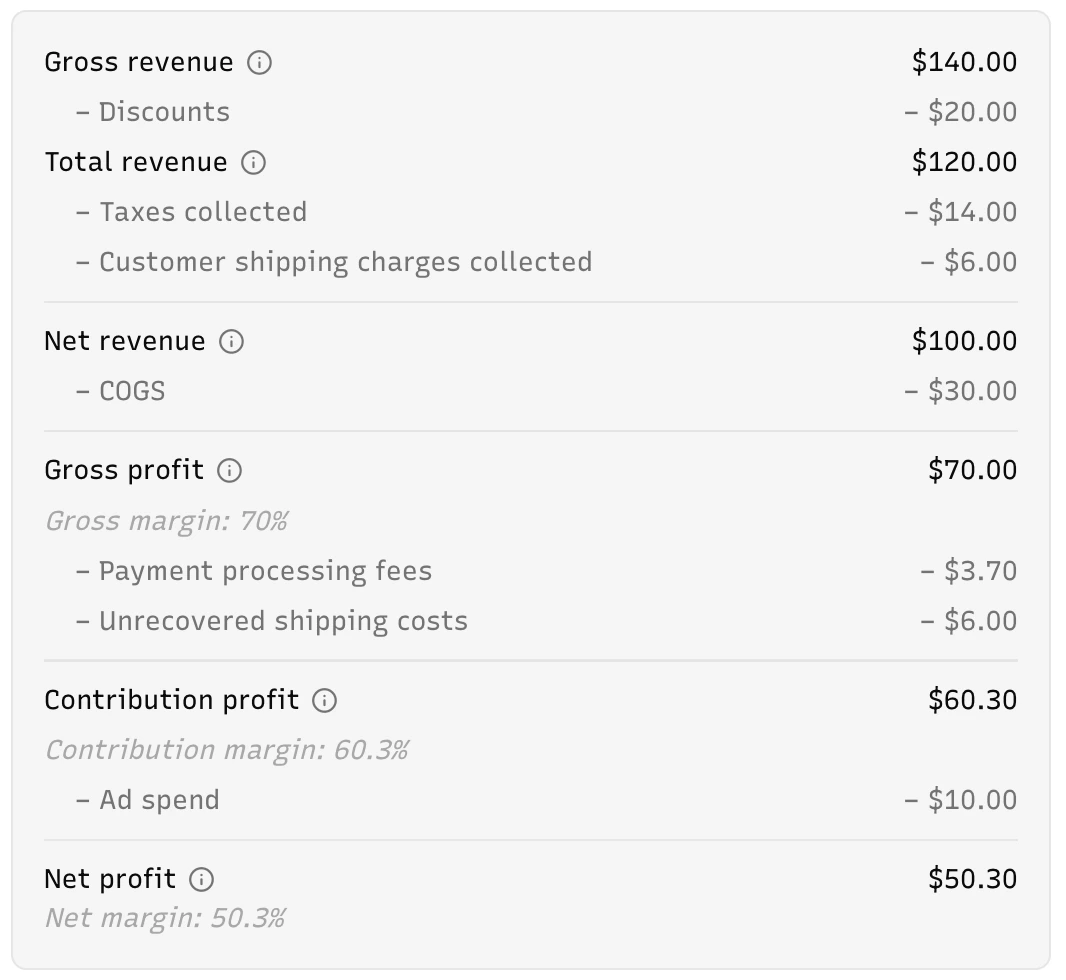
Product costs (COGS)
The Product costs tab shows every product variant (with SKU) per event source, alongside its cost of goods sold (COGS) data. Use this tab to review synced unit costs (from your e-commerce platform), spot gaps, and set manual overrides.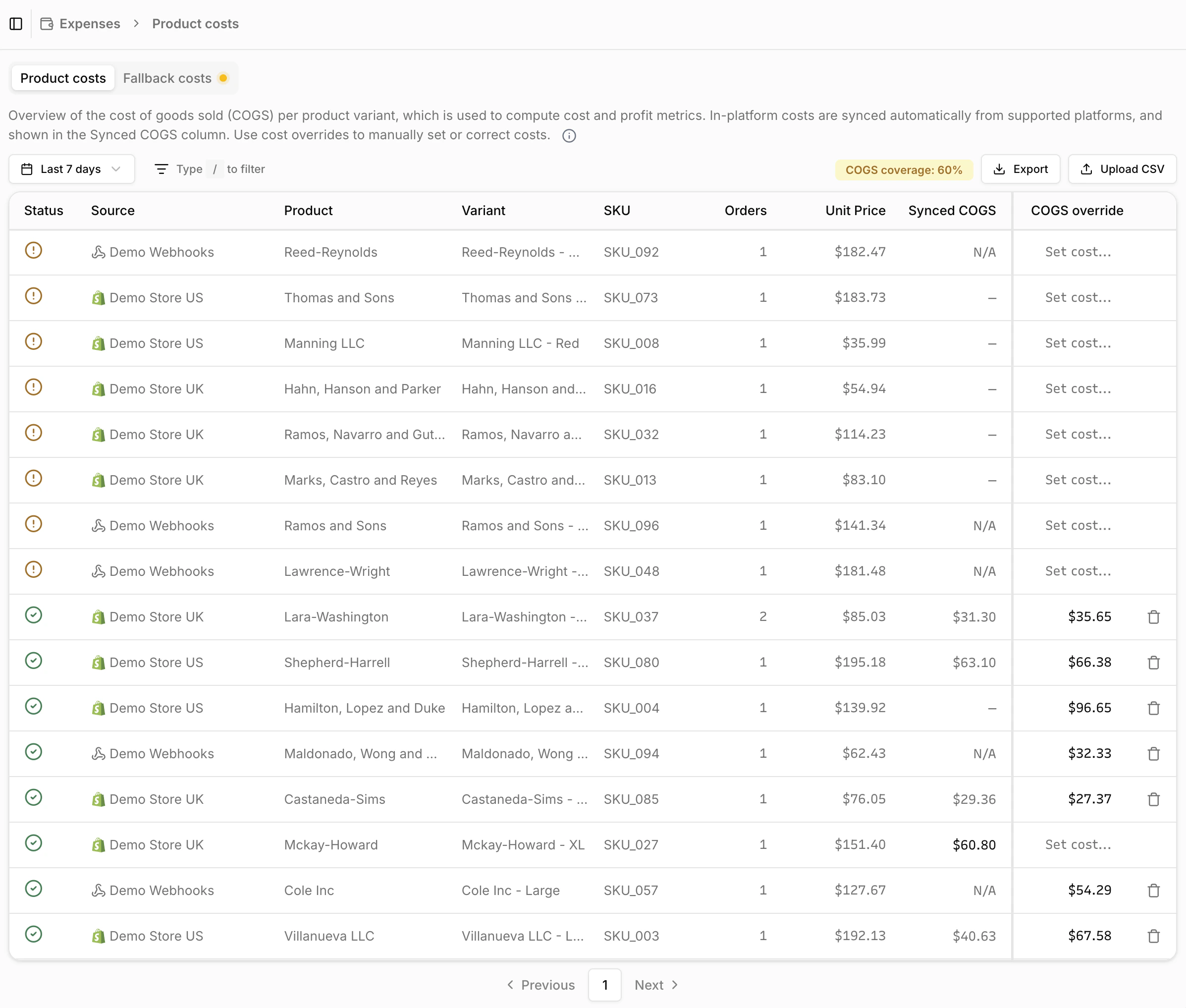
Automatic COGS syncing is currently supported for Shopify,
BigCommerce, and Magento. You can monitor the sync status in the
Products tab of the corresponding event source. If your e-commerce
platform is not listed but supports cost-of-goods data, reach out to the
Converge team to request support. In the meantime, you can use cost overrides
or a CSV upload to configure costs manually.
- = No COGS data exists for this variant. The COGS value will be estimated using the fallback gross margin.
- = COGS data is available for this variant (either an override, an in-platform cost, or both).
- Green: 85% or more of orders are covered
- Yellow: between 50% and 85%
- Red: below 50%
Product cost hierarchy
Converge determines the cost for each variant using a three-tier hierarchy. The first available value wins:- Cost override (highest priority): If you’ve set a manual override in the COGS Override column, Converge uses that value.
- In-platform cost: If no override exists, Converge uses the cost price synced from your e-commerce platform (shown in the Unit COGS column).
- Fallback gross margin (lowest priority): If neither of the above is available, Converge estimates the cost using the gross margin percentage configured in the Fallback costs tab.
Setting a (single) manual override
- Find the product variant in the table (use the search bar to filter by SKU, product name, or variant name).
- Click Set cost… in the COGS Override column for that variant.
- Enter the cost value, click Save.
Bulk override using a CSV upload
To set or update COGS for many product variants at once, use the Upload CSV button in the top-right corner of the table. Your CSV file should have the following columns:
To upload a CSV file:
- Click Upload CSV in the top-right corner of the Product costs table.
- Drag and drop a
.csvfile into the upload area, or click to browse for one. - Review the preview table (it shows the first 10 valid rows), and check for any validation warnings.
- Click Upload to apply the overrides. Only the valid rows are saved.
If your CSV contains duplicate SKU + datasource ID combinations, the last
occurrence wins. After upload, a toast notification shows how many SKUs were
updated and how many duplicates were detected.
Fallback gross margin
In the Fallback costs tab, you can configure a default gross margin percentage. Converge uses this to estimate COGS for any product variant without a specific cost mapping. Always set this field. Gross margin is the percentage of a product’s selling price that’s profit after subtracting the cost of goods. For example, a product selling for $100 with a gross margin of 60% has:- $60 in gross profit
- $40 in estimated cost (COGS)
Transaction costs
Transaction costs represent payment processing fees. Converge subtracts these from revenue when calculating contribution profit. The Transaction costs tab shows every payment method per event source, alongside its transaction cost configuration. Use this tab to review synced fees, spot gaps, and set manual overrides. Orders without a payment method or synced fees default to the fallback transaction costs.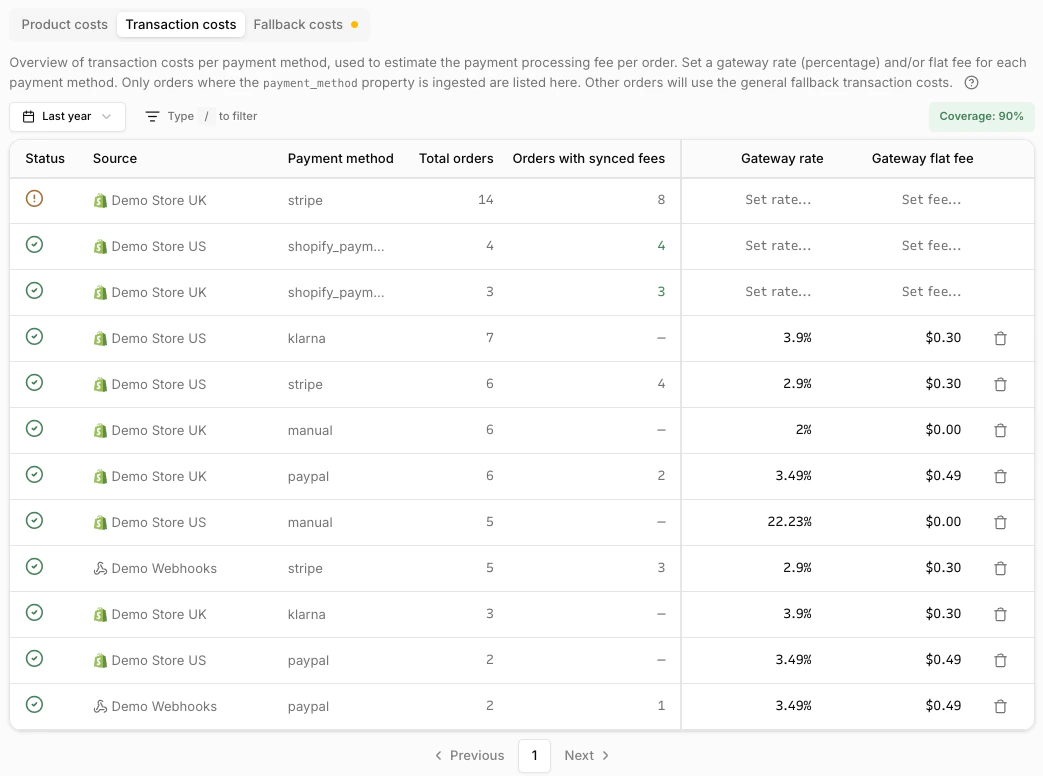
Each payment method has a data status indicator:
- = The payment method has a cost mapping configured, or all orders have synced fees.
- = No mapping exists and not all orders have synced fees. The missing transaction cost will be estimated using the fallback processing fees.
Transaction cost hierarchy
Converge determines the transaction cost for each order using a three-tier hierarchy. The first available value wins:- Synced transaction fees (highest priority): If your e-commerce platform provides actual transaction fees per order, Converge uses those. Currently, only Shopify syncs transaction fees (for Shopify Payments).
- Payment method override: If no synced fees exist, Converge uses the per-payment-method gateway rate and flat fee configured in the Transaction costs tab.
- Fallback processing fees (lowest priority): If neither of the above is available, Converge estimates the cost using the processing rate and flat fee configured in the Fallback costs tab.
Setting a manual override
- Find the payment method in the table (use the search bar to filter by payment method name or source).
- Click the Gateway rate or Gateway flat fee cell for that payment method.
- Enter the value and click Save.
Fallback transaction costs
In the Fallback costs tab, configure fallback transaction costs. These are used when neither synced fees nor a payment method override are available. Any field that has not been configured shows an amber warning indicator. Depending on your payment provider, you may need one or both settings:- Payment processing rate: A percentage of the order total charged per transaction.
- Payment processing flat fee: A fixed amount charged per order. You can select the currency for this fee separately from your workspace currency.
order total × rate + flat fee.
Shipping costs
Shipping costs represent inbound fulfillment and delivery expenses. Converge subtracts these from revenue alongside COGS and transaction costs when calculating contribution profit.Converge does not currently sync shipping costs from your e-commerce platform,
and there is no dedicated Shipping costs tab. You can configure a
workspace-level estimate in the Fallback
costs
tab. For per-order shipping cost configuration, please contact support.
Fallback shipping costs
In the Fallback costs tab, you can configure how Converge estimates shipping costs. Two modes are available, choose whichever best matches your business:- Use customer shipping charges: Sets your shipping cost equal to what customers paid for shipping on each order. This works well when your shipping charges closely reflect your actual fulfillment costs.
- Flat fee per order: A fixed amount representing the average cost you pay to ship one order. You can set the amount and currency independently. This is useful when your shipping costs are relatively uniform regardless of what customers are charged.