

How it works
The Slack connection is shared across your workspace. A workspace admin connects it once under Settings → Integrations. After that, Converge can pick a channel and deliver through the same connection.Connect Slack
Only workspace admins can connect, reconnect, or disconnect Slack. If you’re
not an admin, ask one to set it up.
1
Open the integration
Go to Settings →
Integrations,
click Add connection and select Slack.
2
Add Converge to Slack
Click Add to Slack and authorize the app in your Slack workspace. Slack
returns you to Converge once it’s connected.
Add the bot to a channel
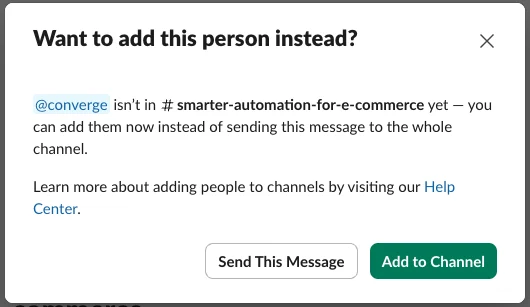
Connecting Slack installs the converge app in your workspace, but it can only post in channels it’s a member of. After you connect, add the bot to each channel you want reports in.- Open the channel in Slack.
- Type
@convergeand send the message. - Slack asks whether to add the bot. Depending on your Slack app, it shows a popup (like the one below) or prompts you right in the channel. Either way, choose Add to Channel.
What Converge can and can’t do
When you connect, Converge asks Slack for permission to:- Post messages as the converge bot. Deliver reports to the channels you pick. Messages come from Converge, not from you.
- See your list of channels. So Converge can choose where to post.
- Read basic profile info. To @mention the right teammates in a report.
Related
- Routines: schedule reports and deliver them to Slack or email.