

- Daily Slack digests with yesterday’s revenue, orders, and conversion rate.
- Weekly channel breakdowns comparing spend, ROAS, and CPA across ad platforms.
- Google Sheets exports that append a row of key metrics to a spreadsheet on a schedule.
How it works
Every automated report follows a three-part pattern:- Trigger: A schedule fires at a set interval (daily, weekly, hourly).
- AI Agent + MCP: The trigger invokes an AI Agent (e.g. ChatGPT, Claude) that calls the Converge MCP server to pull your analytics data.
- Output: The AI Agent formats the results and sends them to a destination like Slack, or email.
Set up automated reports
- n8n
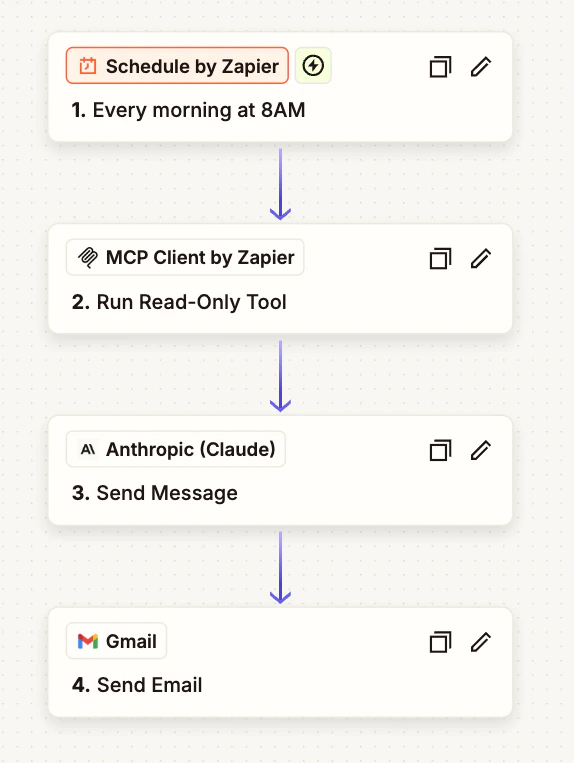
- Zapier
- Claude Cowork
n8n is an open-source workflow automation platform. It has built-in support for AI agents and MCP tool calling.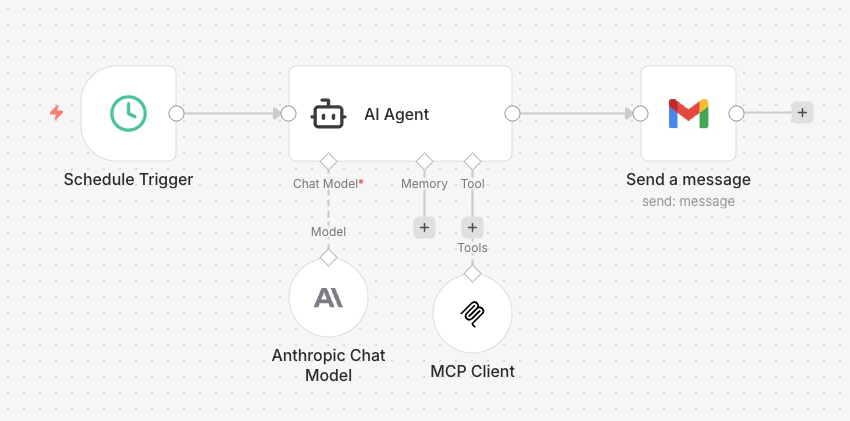
1
Create a new workflow with a Schedule Trigger
In n8n, create a new workflow. Add a Schedule Trigger node and set the interval (e.g., every day at 9:00 AM, every Monday at 8:00 AM, or every hour).In the node’s Settings tab, optionally enable Retry On Fail. MCP calls can occasionally time out, and retries make sure your report still goes out.
2
Configure the AI Agent
Add an AI Agent node and connect it to the Schedule Trigger. Set Source for Prompt to Define below, then, add your desired prompt, or paste one of the example prompts into the Prompt field.Then configure two sub-nodes:
- Chat Model: Choose OpenAI (GPT) or Anthropic (Claude) and connect it with your API key from that provider.
- Tool: Add an MCP Client Tool sub-node with the following settings:
- Endpoint:
https://app.runconverge.com/api/mcp - Server Transport: Streamable HTTP
- Authentication: MCP OAuth2
- Credential for MCP OAuth2 API: Click to create a new credential, n8n will open the Converge OAuth flow.
- Tools to include: All
- Under options, optionally set a timeout
- Endpoint:
3
Add an output node
Add an output action after the AI Agent: for example, Slack (send a channel message), Gmail (send an email), or Google Sheets (append a row). Map the AI agent’s output to the message body using the expression
{{ $json.output }}.See output recommendations below for tips on formatting per destination.4
Test and activate
Click Execute workflow to run it once and verify the output. When everything looks good, publish your workflow to Active.
Output recommendations
The best output format depends on your destination. Tell the AI agent how to format its response in your prompt.- Email (Gmail, Outlook): Ask for HTML output. Email clients render HTML natively, so you get clean tables, color coding, and metric cards without any extra work. Some email clients require you to set the Email Type to HTML. Include a note in your prompt like: “Output raw HTML only, no markdown fences and no prose.”
- Slack: Ask for Markdown output. Slack supports a subset of Markdown (bold, lists, code blocks) but doesn’t render HTML. Keep reports concise, as long messages get truncated. Use bullet points and bold text for scanability.
- Local file (Claude Cowork): Any format works: Markdown, HTML, CSV, JSON. Tell Claude Cowork to write results to a specific file path. Useful for reports you want to commit to a repo or process with scripts.
Writing good prompts
Your prompt should be fully self-contained: include specific workspace IDs, view IDs (if needed), metric names, and output format instructions. The agent runs on a schedule without human input, so it can’t ask follow-up questions. A few tips:- Be specific about data. If you want a specific view, use its exact ID (available in the URL of the view in Converge). Instead of “pull my pacing sheet”, say “pull the Pacing data (view_id: 12) for workspace .”
- Specify the output format. Tell the agent exactly how to structure the result: HTML table, Markdown bullets, CSV, etc. Make clear that the output will be directly used in the next step, so it shouldn’t include extra prose or commentary.
- Be explicit about comparisons. If you want week-over-week or month-over-month changes, spell it out. Don’t leave it as optional, LLMs tend to skip anything that’s framed as “nice to have.”
- Set formatting constraints. If the output goes straight to email or Slack, add rules like “no code fences,” “no markdown around the HTML,” or “keep it under 500 words.”
- Include output instructions (Claude Cowork). If you’ve connected a Slack or email connector, tell Claude where to send the result in your prompt. For example: “Send the report to the #marketing channel in Slack.” Without this, the output stays in session history.
Example prompts
Daily revenue summary (Slack)
Daily revenue summary (Slack)
analytics_query tool.Weekly channel breakdown (HTML email)
Weekly channel breakdown (HTML email)
analytics_query tool. Great for a Monday morning channel review sent via email.Export a saved analytics view
Export a saved analytics view
get_analytics_view_data to grab your Pacing view’s data. Great if you want a little more control over the data than analytics_query provides.