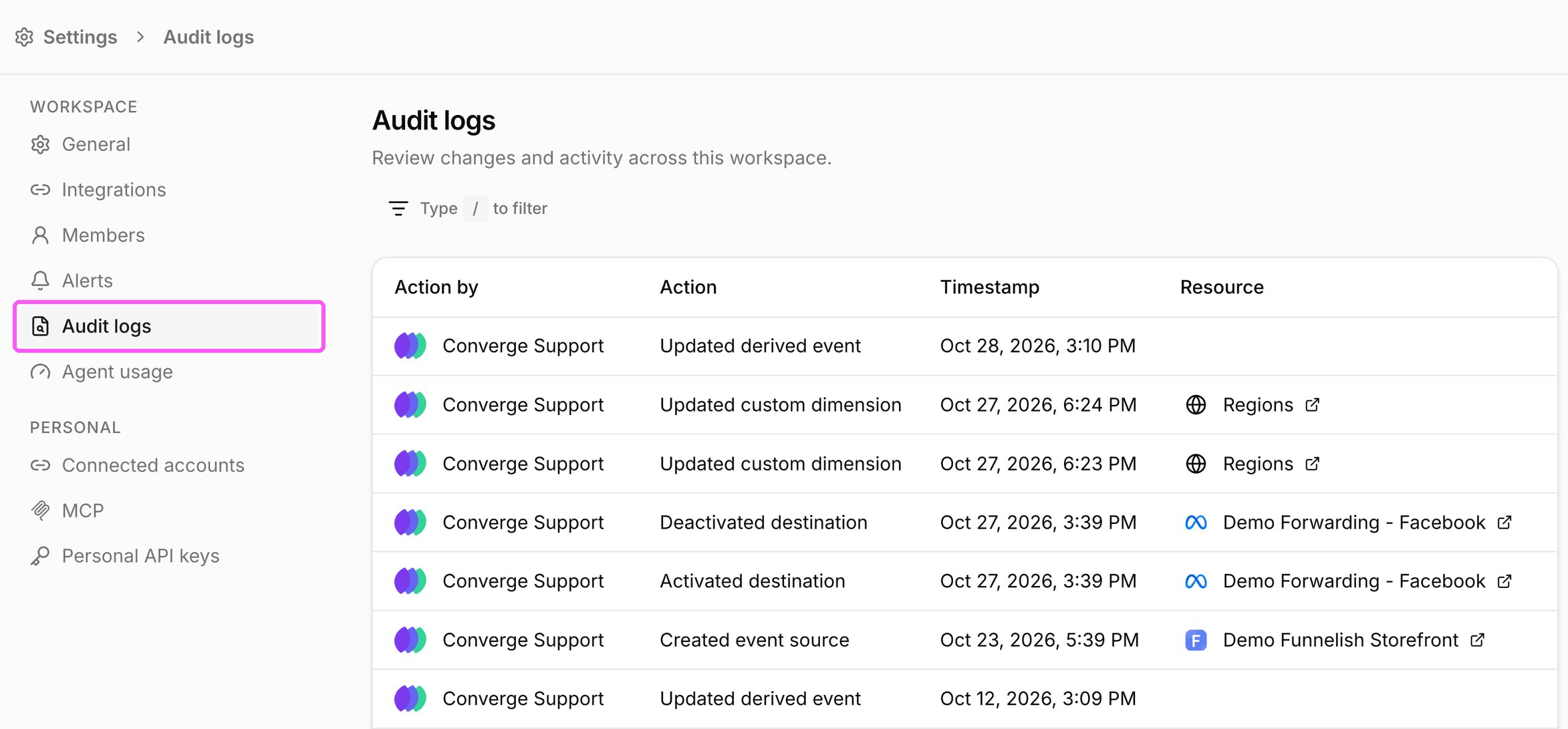
Audit logs record changes to your workspace setup: who made each change, when, and what changed. Check them first when numbers or forwarding change unexpectedly. They cover the areas in the table below. Changes to expenses, dashboards, and insights, and ad changes Hudson makes in your ad accounts, aren’t in the audit log. Every role can view audit logs.

What’s logged

View the workspace audit log

  1. Click your name at the bottom of the sidebar and select Settings.
  2. Under Workspace, select Audit logs.
    Audit logs in Settings
  3. Click the filter bar (or type /) and filter by Action, Action by, or Timestamp to narrow the list.
  4. Click an entry to see its details. Updates have three tabs: Changed values, Previous values, and New values.
Where an entry shows a link next to the resource name, click it to open that source, destination, or setting. Deleted resources have no link.

View the audit log for one resource

Event sources, destinations, marketing sources, data warehouses, derived events, and store dimensions each have their own Audit logs tab. It shows only the changes to that resource.
  1. Open the resource, for example a destination from the Destinations tab.
  2. Click the Audit logs tab.

Get alerted on changes

To get an email when someone changes your destinations, event sources, marketing sources, data warehouses, members, or workspace settings, turn on the matching notifications under Settings > Alerts.