

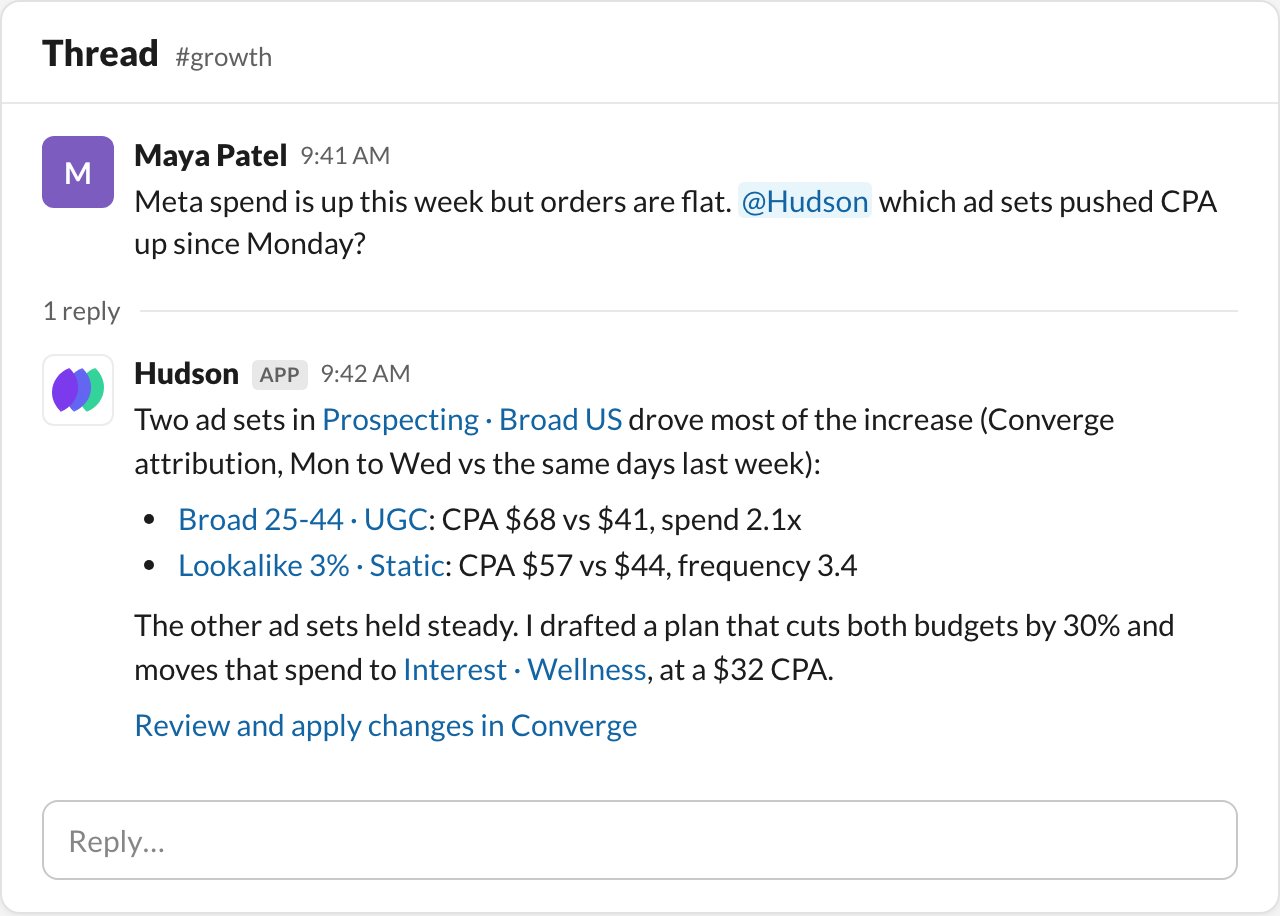
How it works
Hudson acts on your behalf, with the same access you have in Converge. To ask it, you need a Converge account with the admin, editor, or analyst role in the workspace you ask about.Set up Hudson in Slack
1
Connect Slack to Converge
A Converge admin or editor connects Slack once for the whole workspace. This is the same connection that posts your loop and routine reports.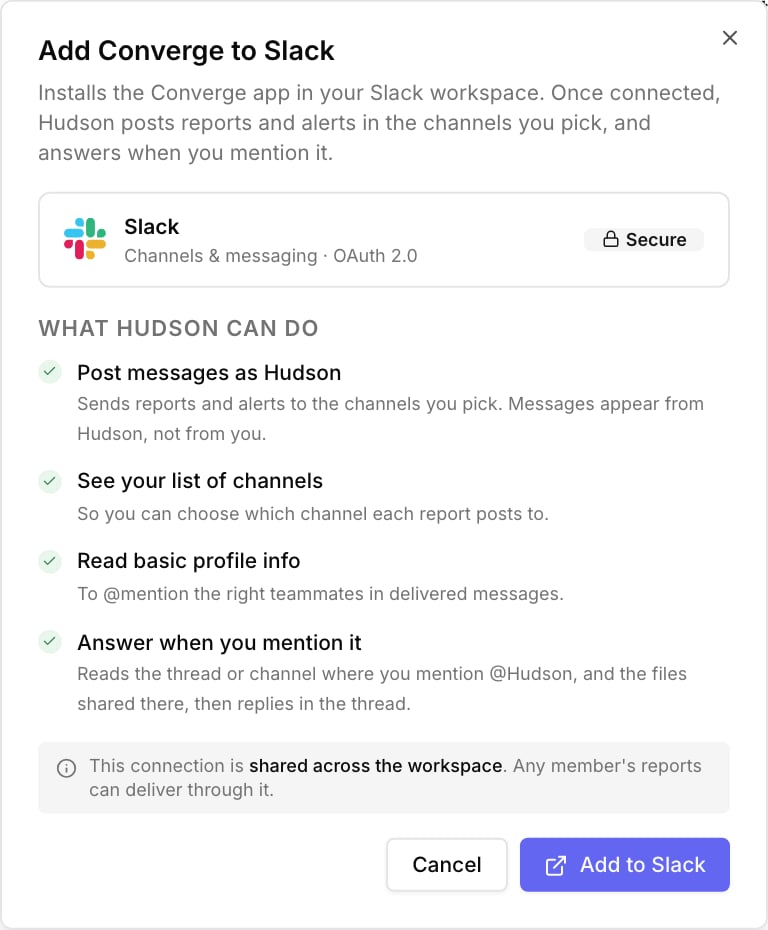
Already connected? See Slack was already connected.
- Go to Settings → Integrations, click Add connection, and select Slack.
- Click Add to Slack, pick your Slack workspace, and click Allow. If your Slack requires app approval, a Slack admin may need to approve the Converge app first.
2
Add Hudson to your channels
In each Slack channel where your team will ask Hudson, run
/invite @Hudson. This works in public and private channels.3
Link your Slack account
Everyone who asks Hudson links their Slack account once, so Hudson knows who’s asking.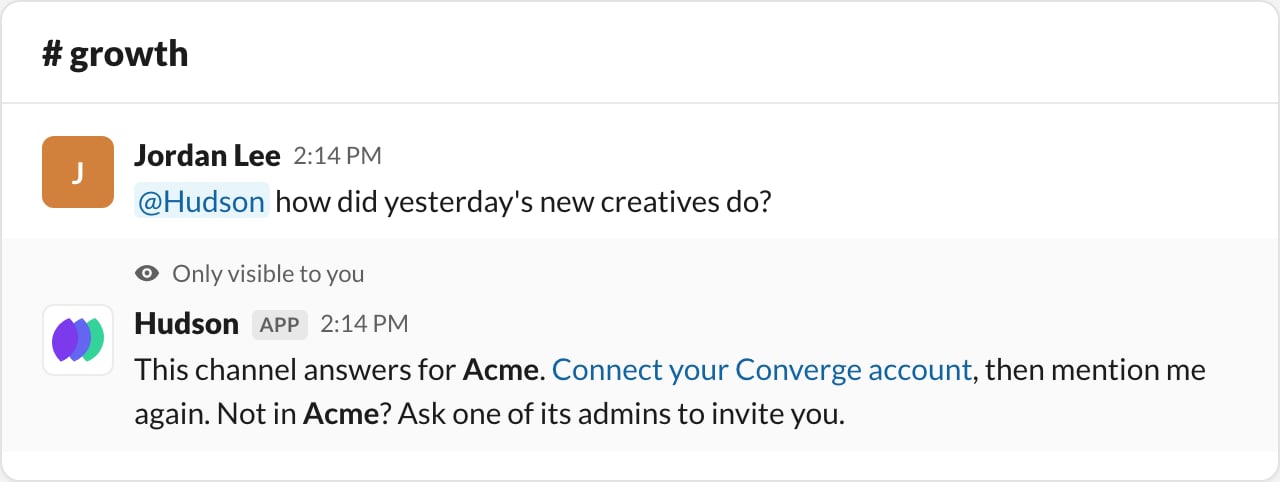

- Mention
@Hudsonin a channel. Hudson replies privately with a link.
- Click Connect your Converge account, sign in to Converge if it asks, and click Sign in with Slack. Pick the Slack workspace connected to Converge and confirm. Converge only learns which Slack user you are.
4
Ask Hudson
Mention
@Hudson again with your question. Hudson reacts 👀 and answers in the thread. It doesn’t answer messages you sent before linking.Other setups
Slack was already connected
Slack was already connected
Older Slack connections don’t have the permissions Hudson needs to see mentions. Open the Slack connection under Settings → Integrations. If Ask Hudson in Slack says Hudson can’t see mentions until Slack is reconnected, click Reconnect and approve the new permissions in Slack. Your channels, loops, and routines keep working.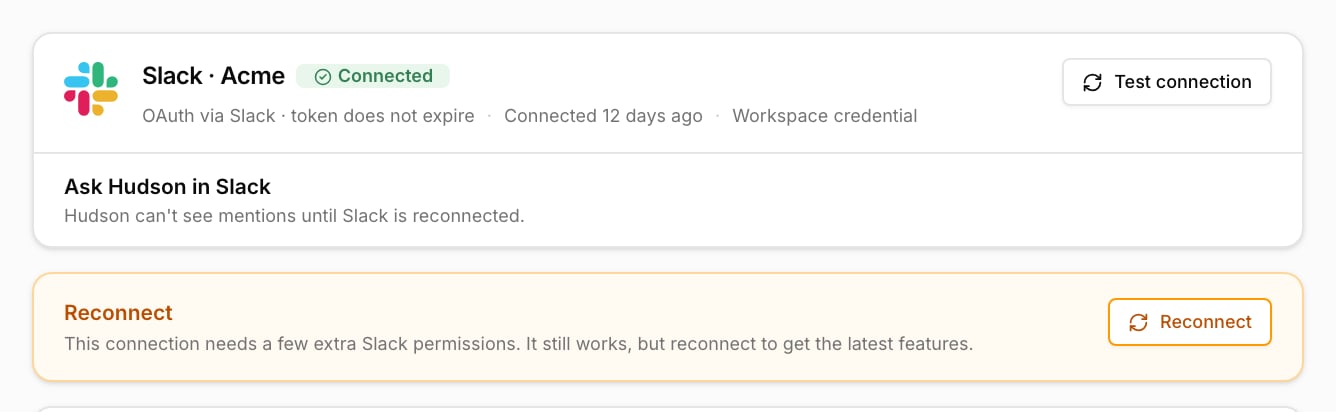
One Slack is connected to several Converge workspaces
One Slack is connected to several Converge workspaces
Agencies and brands often connect one Slack to several Converge workspaces. Each channel then answers for one workspace, so Hudson knows whose data a question is about. In each workspace, an admin or editor opens the Slack connection and picks channels in Channels Hudson answers in. Converge adds Hudson to public channels for you. For a private channel, run 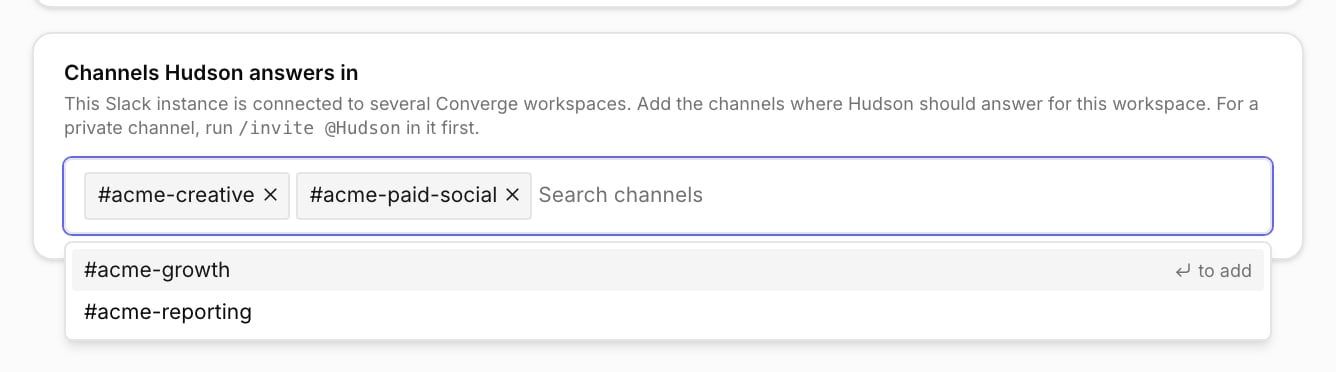
/invite @Hudson in it first.Link your Slack account from Converge
Link your Slack account from Converge
Open the Slack connection under Settings → Integrations. In Ask Hudson in Slack, click Link, then Sign in with Slack.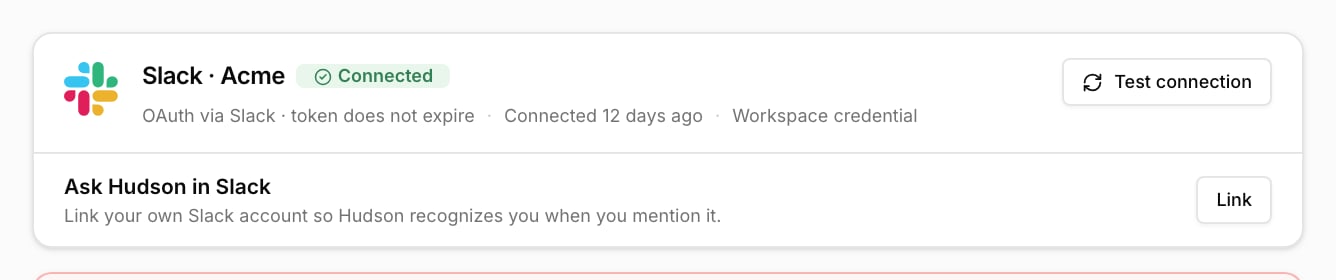
Use Hudson in Slack
- Ask in a thread or in the channel. In a thread, Hudson reads the first message and up to 15 replies before your mention. In the channel itself, it reads up to 15 messages posted since the last question it answered there, leaving out replies inside threads, and answers in a thread under your message.
- Follow up in the same thread. Mention
@Hudsonagain: it remembers the thread and reads what was posted since. Hudson only replies when you mention it, one question at a time per thread. - Share files. Hudson opens CSV, Excel, PDF, text, Markdown, JSON, PNG, and JPG files shared with your question or in the messages it reads, up to 25 MB each and 10 per question. It skips files stored outside Slack, like Google Drive links.
- Get files back. Exports and reports Hudson writes are posted in the thread after its answer.
- Open ads, files, and plans in Converge. Campaigns, ad sets, ads, and files link to the chat in Converge, with that item open. Plans link to Converge, where you approve them.
- Ask about a loop run. Mention
@Hudsonin the thread of a loop’s post, and it continues that run’s chat. - Continue in Converge. Every thread is also a chat in Converge, with the Slack messages Hudson read as context. Only answers to Slack mentions are posted back to Slack.
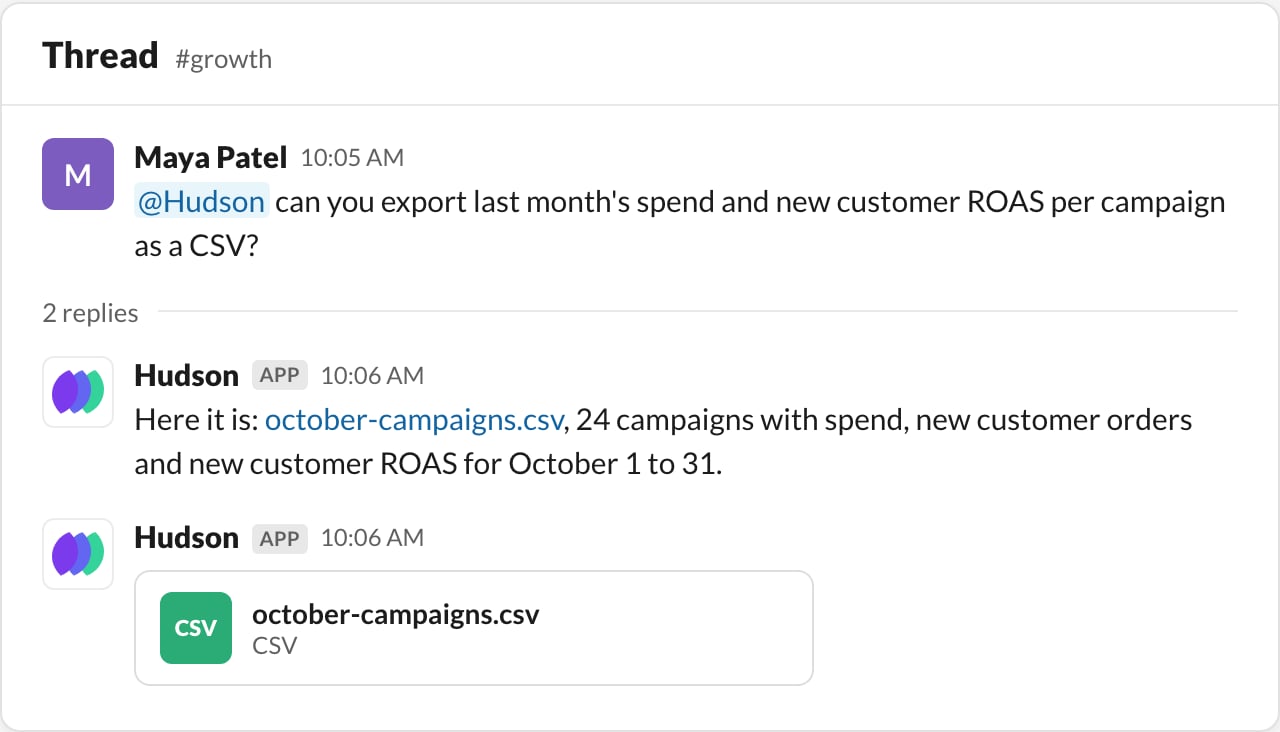
Files Hudson writes are posted in the thread.
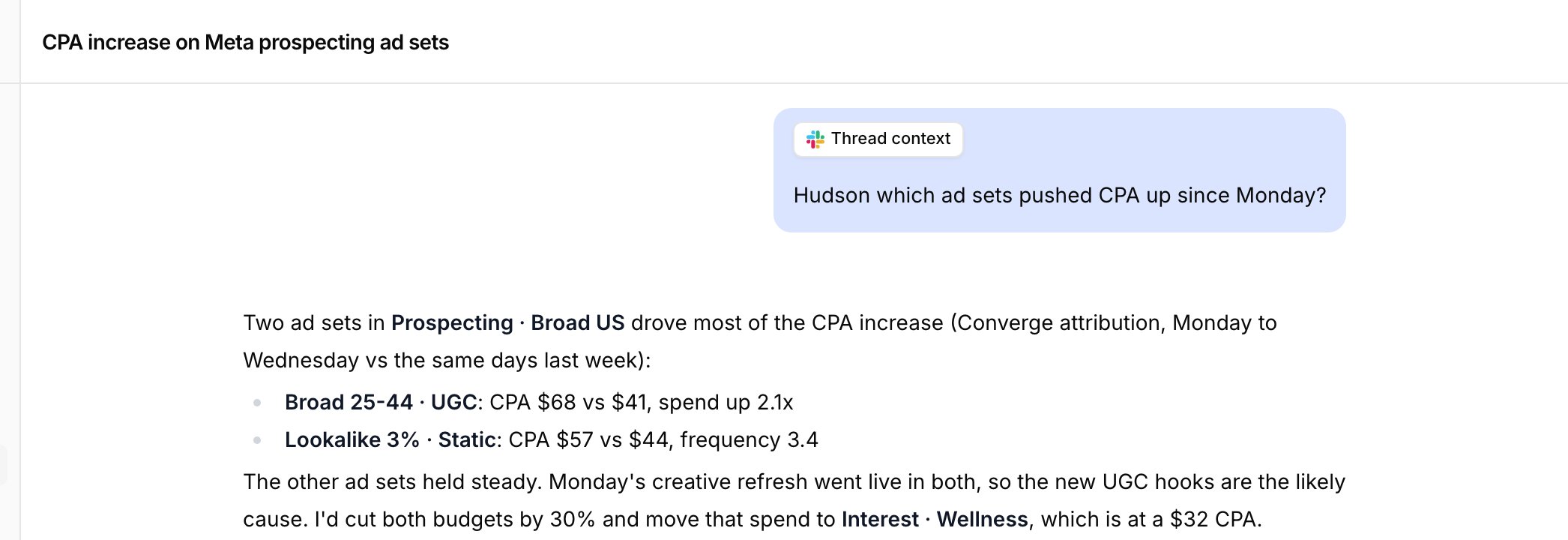
Every thread is also a chat in Converge.
Troubleshooting
Hudson doesn't react at all
Hudson doesn't react at all
- Check the Slack connection. If Ask Hudson in Slack says Hudson can’t see mentions until Slack is reconnected, reconnect Slack. With several workspaces, check the one the channel answers for.
- Add Hudson to the channel. Run
/invite @Hudsonin it. - Mention Hudson in a channel. Hudson doesn’t answer direct messages, or messages posted by apps and bots.
Hudson reacted 👀 but takes a while
Hudson reacted 👀 but takes a while
Slack limits how often apps can read a thread or channel, so in a busy Slack a question can wait about a minute before Hudson starts. Bigger analyses also take a few minutes.
Linking says my account or Slack user is already linked
Linking says my account or Slack user is already linked
In each Converge workspace, one Converge account links to one Slack user. Click Unlink under Ask Hudson in Slack and link again. If a teammate linked your Slack user, ask them to unlink it.
Hudson's files don't show up in the thread
Hudson's files don't show up in the thread
Older Slack connections can’t upload files. Reconnect Slack, or open the files in the Converge chat.
Hudson's answer is cut off
Hudson's answer is cut off
Slack limits message length, so Hudson cuts very long answers short. Open the chat in Converge for the full answer.
How is Hudson different from the Claude app in Slack?
How is Hudson different from the Claude app in Slack?
Ask Claude in Slack uses your own Claude account and the Converge MCP to query your analytics. Hudson is Converge’s media buyer: it also drafts plans, runs loops, and remembers your setup. You can use both.
Privacy and permissions
- Hudson only reads where it’s mentioned. It reads the thread or channel around a mention, and the files there, only when someone mentions it.
- Everyone in the channel sees Hudson’s answers, including members without Converge access and people from other organizations in a Slack Connect channel. Ask Hudson in channels where everyone may see that data.
- Hudson acts on your behalf. It uses your role in the channel’s Converge workspace, so removing someone from the workspace stops Hudson from answering them there.