

Overview
Destination Type: The Custom Postback destination sends conversions to ad and affiliate networks that Converge has no native destination for, like NewsBreak or MediaGo. It works with any network that tracks conversions through a server-to-server (S2S) postback URL and a click ID.- Someone clicks your ad, and the network adds its click ID to your landing page URL.
- The Converge pixel saves that click ID on the visitor’s profile.
- When the visitor converts, Converge calls the network’s postback URL with the click ID, so the network can match the conversion to the click.
Check the available destinations first. If Converge has a native destination for your network, use that one.
Installation instructions
These steps use NewsBreak as the example. Every network has its own postback URL and click ID macro, but the steps are the same. See Examples for ready-made values.1
Get the postback URL and click ID macro from your network
Look up two things in your network’s postback (S2S) tracking settings:
-
The postback URL, where the network wants conversions sent. NewsBreak’s looks like this:
-
The click ID macro, the placeholder the network swaps for a click ID when someone clicks your ad. NewsBreak’s is
__CALLBACK_PARAM__.
2
Add the click ID to your ad links
-
In your network’s ad settings, add the macro to the landing page URL of every ad, under a parameter name you pick (letters, digits and underscores only):
-
Note the parameter name (
newsbreak_cidhere). You’ll enter it in Converge.
3
Create the destination in Converge
- In the Converge sidebar, click on Destinations > and then click Create new destination.
- Select the Custom Postback destination and click Next.
- Give your destination a name (e.g. NewsBreak Postback) and click Next.
-
Under Click ID URL parameters, click Add and enter the parameter name from your ad links (e.g.
newsbreak_cid). -
In Postback URL, paste your network’s postback URL. Put your parameter name in double braces (
{{newsbreak_cid}}) where the click ID goes and{{value}}where the conversion value goes, and fill in your network’s name for a purchase: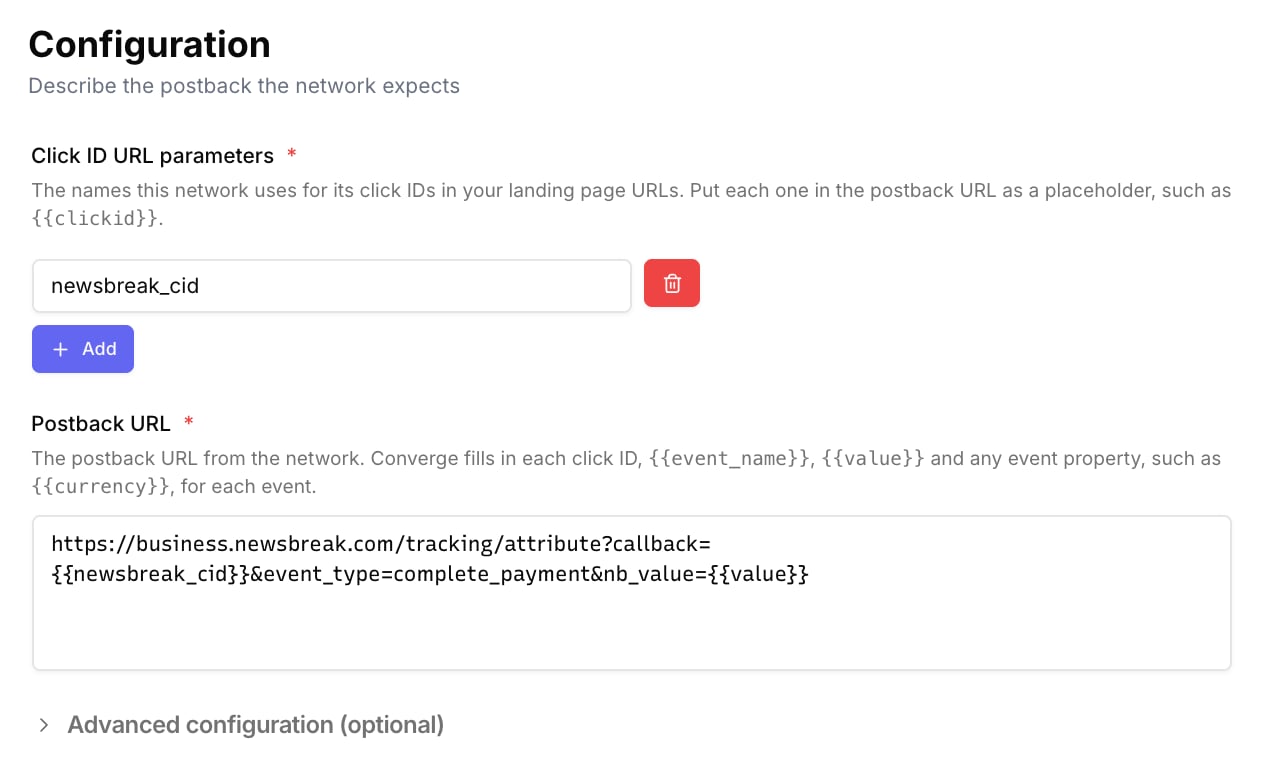
- Click Next.
- Select Use default mapping and click Next. Converge then sends a postback when a visitor with a click ID places an order (Placed Order).
-
Select the pixel on your landing pages and the sources that send your orders, then click Next.
Always include the pixel. It’s the pixel that saves the click ID, even when your orders come from a server-side source.
- Review any issues and click Submit.
4
Check that postbacks arrive
- Click one of your ads and place a test order.
- In Converge, open the destination and click Logs. The order is listed once Converge has sent the postback. Click it to see the event name, value and click IDs Converge sent.
- Check that the conversion shows up in your network’s reporting. Some networks accept every request, so their own report is the only proof that a conversion counted.
Postback URL
Converge sends oneGET request to your postback URL for each event, after filling in the placeholders.
The URL has to follow these rules, or Converge won’t save it:
- Start with
https://and your network’s host name. - Include every one of your Click ID URL parameters as a placeholder. The other placeholders are optional.
- Write each placeholder as
{{name}}, without spaces, and replace your network’s own macros (such as{payout}) with a Converge placeholder.
Examples
NewsBreak
NewsBreak
- Ad link parameter:
newsbreak_cid=__CALLBACK_PARAM__ - Click ID URL parameters:
newsbreak_cid - Postback URL:
event_type in the URL has to match that event’s name exactly, including upper and lower case. Leave out nb_value if you didn’t turn on event value in NewsBreak.See the .MediaGo
MediaGo
- Ad link parameter:
tracking_id=${TRACKING_ID} - Click ID URL parameters:
tracking_id - Postback URL:
conversiontype=8 is MediaGo’s code for a purchase. Replace your_account_name with your MediaGo account name.See the for the other conversion types.Converge functionality
This integration supports the following Converge destination functionality.Event mapping
Converge maps Placed Order topurchase by default. To send more events, let the event mapping decide the name in the URL:
-
Open your destination, click Configuration, and in Postback URL replace the fixed event name with
{{event_name}}: - Click Save, then open the Event mapping subtab and select Use custom mapping.
- Click Add new mapping, pick the Converge event, and enter your network’s name for it under Name sent to the network.
- Click Save.
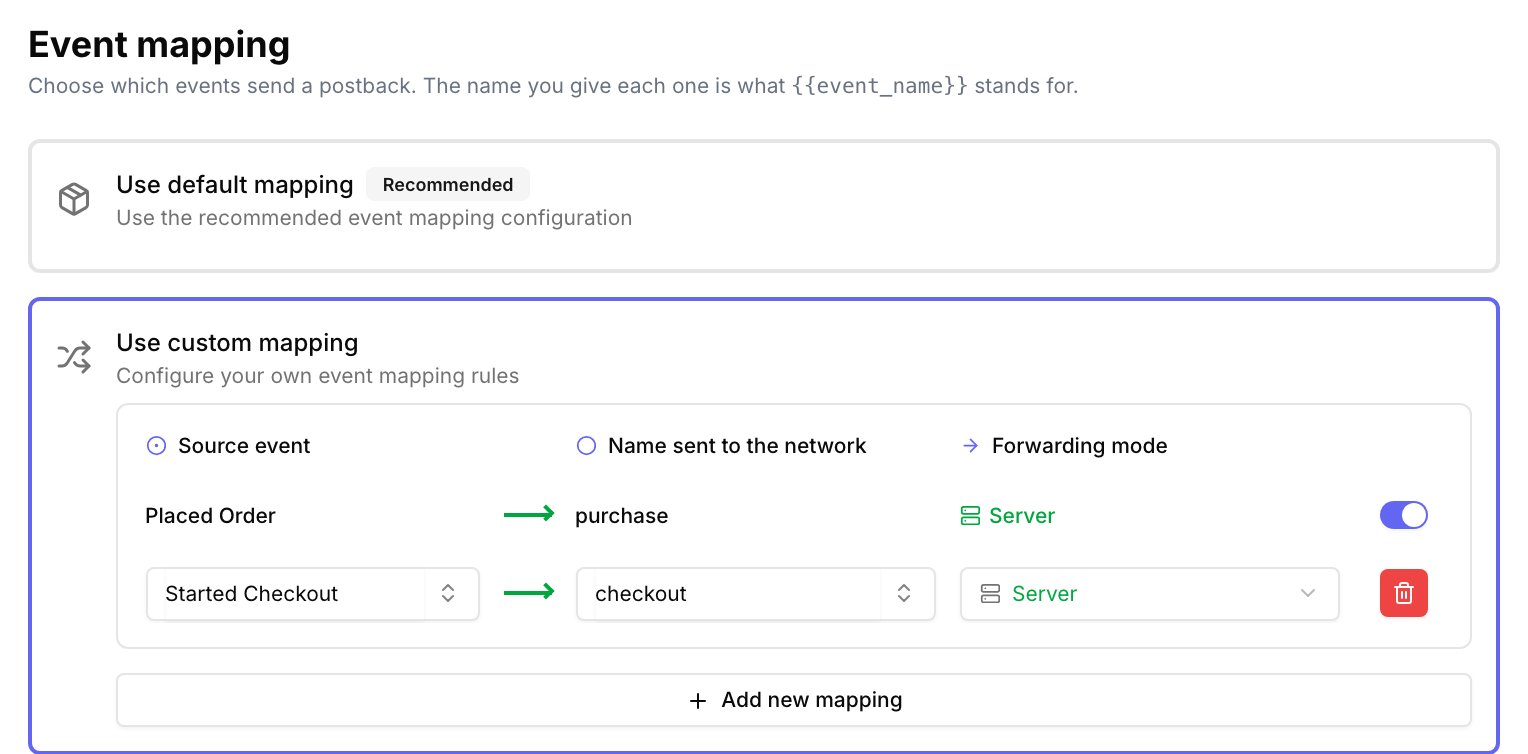
You can only turn the default
purchase mapping on or off. If your network uses another name for orders, turn it off and add your own Placed Order mapping.FAQ
Why is an event skipped?
Why is an event skipped?
Converge skips an event when the visitor’s profile has no click ID for any of the destination’s Click ID URL parameters. That happens when:
- The visitor didn’t arrive through an ad from this network.
- The ad’s landing page URL is missing the click ID parameter, or uses a name that isn’t in Click ID URL parameters.
- The pixel on the landing page isn’t one of the destination’s sources.
- The visitor clicked the ad before you created the destination.
- The visitor hasn’t given the consent your destination’s consent settings ask for.
Can I send more than one click ID?
Can I send more than one click ID?
Yes. Add each parameter under Click ID URL parameters and put each one in the postback URL, such as
?cid={{network_cid}}&sub={{network_sub}}. Converge sends the postback when the visitor has at least one of them, and leaves the others empty. So list only parameters this network fills: a parameter that other traffic carries too, like gclid, would send a postback for every visitor who has it.Can two destinations use the same click ID parameter?
Can two destinations use the same click ID parameter?
Only when they send to the same network. Destinations that list the same parameter read the same click ID, so two different networks would receive each other’s click IDs. Give each network its own parameter name.
How long does Converge keep a click ID?
How long does Converge keep a click ID?
Converge keeps each click ID on the visitor’s profile as
$postback_<parameter name>, until the same visitor arrives with a new one for that parameter. So a visitor who clicks today and orders next week still gets a postback. Each parameter keeps its own latest value, so one postback can carry click IDs from different visits. Your network decides how old a click can be for it to count.Why does Converge show Success while my network shows no conversion?
Why does Converge show Success while my network shows no conversion?
Converge marks an event as
Success when your network answers the request without an error. Whether the network counts it is up to the network. Open the event under Logs. Check that the event name Converge sent matches the one in your network, and that the click IDs are the ones your network handed out.Can I send an order ID or currency?
Can I send an order ID or currency?
Yes. Put any event property in the URL as a placeholder, such as
{{id}} for the order ID of a Placed Order or {{currency}}.