

Overview
Destination Type:- Includes support for
- Includes support for
- Tags conversions for
Installation instructions
This is a server-side destination, meaning that conversions are sent directly from Converge’s servers to Google Ads. This is ideal for tracking events that happen on your backend, like subscription renewals or offline conversions.
Create a conversion action
-
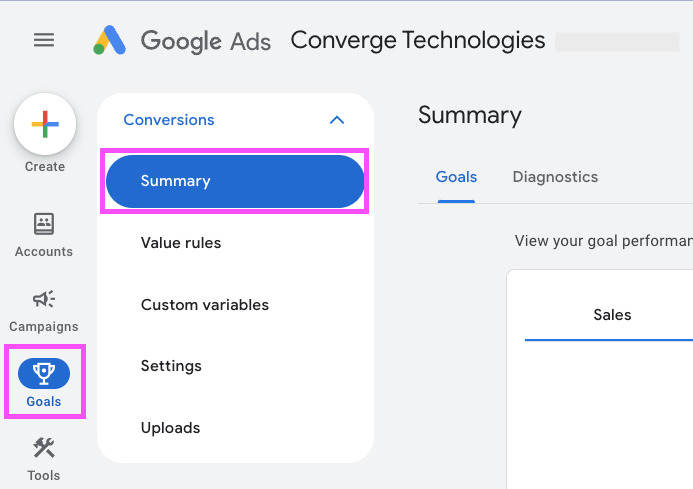
Navigate to your Google Ads Dashboards and choose Goals > Summary.
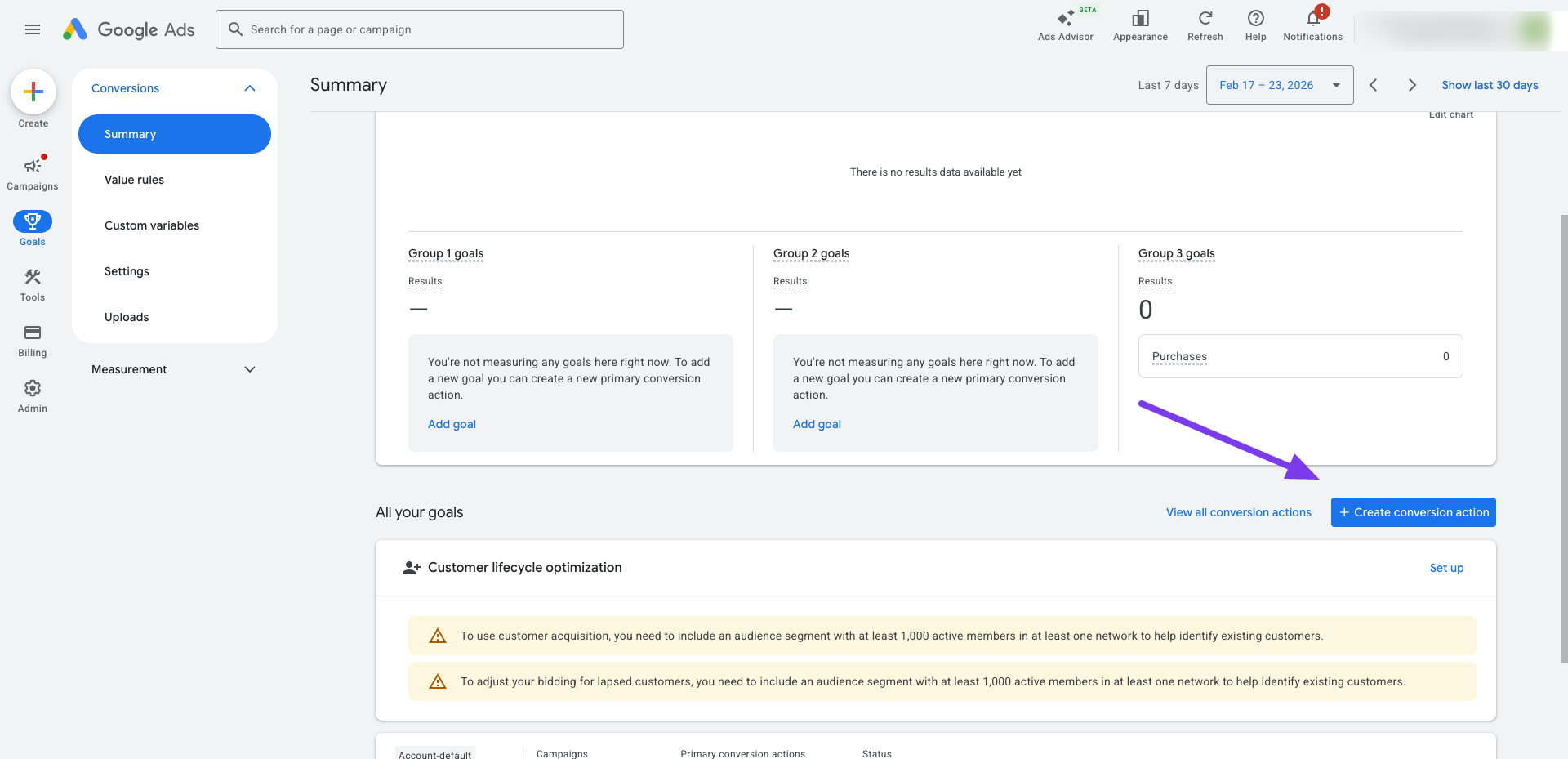
-
Choose
-
Choose Conversions offline.

Google Ads sometimes skips this step and goes directly to step 2. In this case, click Back at the bottom of the page.
- Click Edit data sources, select Skip this step and set up a data source later, enable the checkbox under Customer data and click Done.
If enhanced conversions for leads is disabled, also select Turn on enhanced conversions for leads and select Google tag as the method.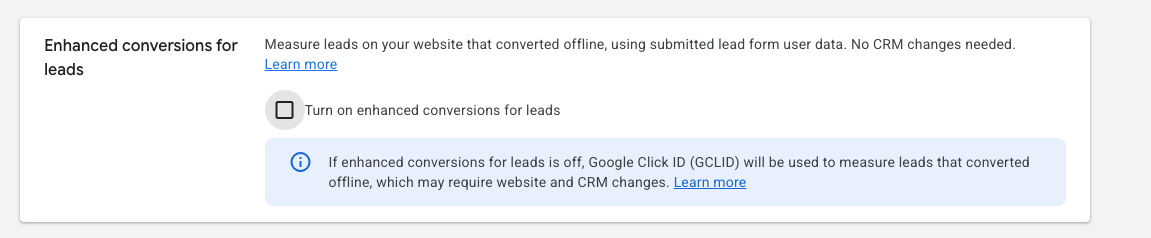
- Click Save and continue.
- Select a conversion category, click Create conversion and select the offline datasource if Google Ads hasn’t created one already.
-
Give your conversion a name (e.g.,
[Converge] Server Purchase) and configure the conversion settings. - Click Create and continue.
Set up the destination in Converge
- In the Converge sidebar, click on and then click Create new Destination.
- Select the Google Ads API - Conversion tracking (Server) destination and click Next.
- Give your destination a name (e.g., Google Ads - Server Conversion Destination) and optional description and click Next.
-
Sign in with Google Ads and select the Google Ads account.
a. Server-side conversion tracking requires customer data terms and enhanced conversions for leads to be enabled.
If a setting is not approved, you’ll see an error with a link to update your settings. Update the settings and come back to check.
 b. If both settings are enabled, click Next.If you see an error like this, check that you’ve granted the correct permissions and selected the right Google Ads account during authentication.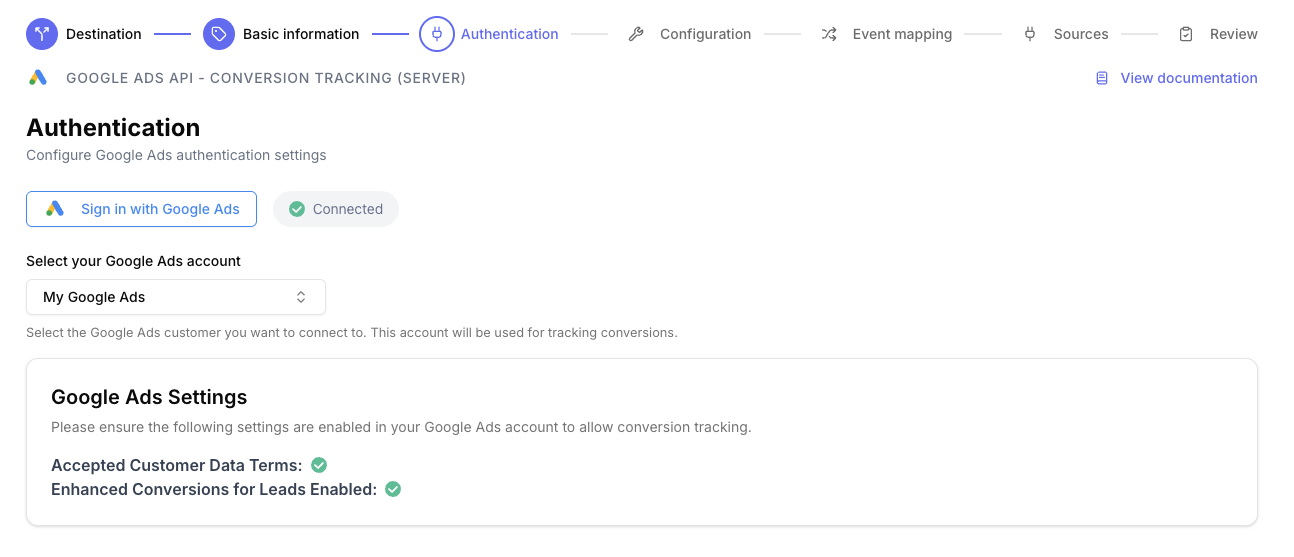
-
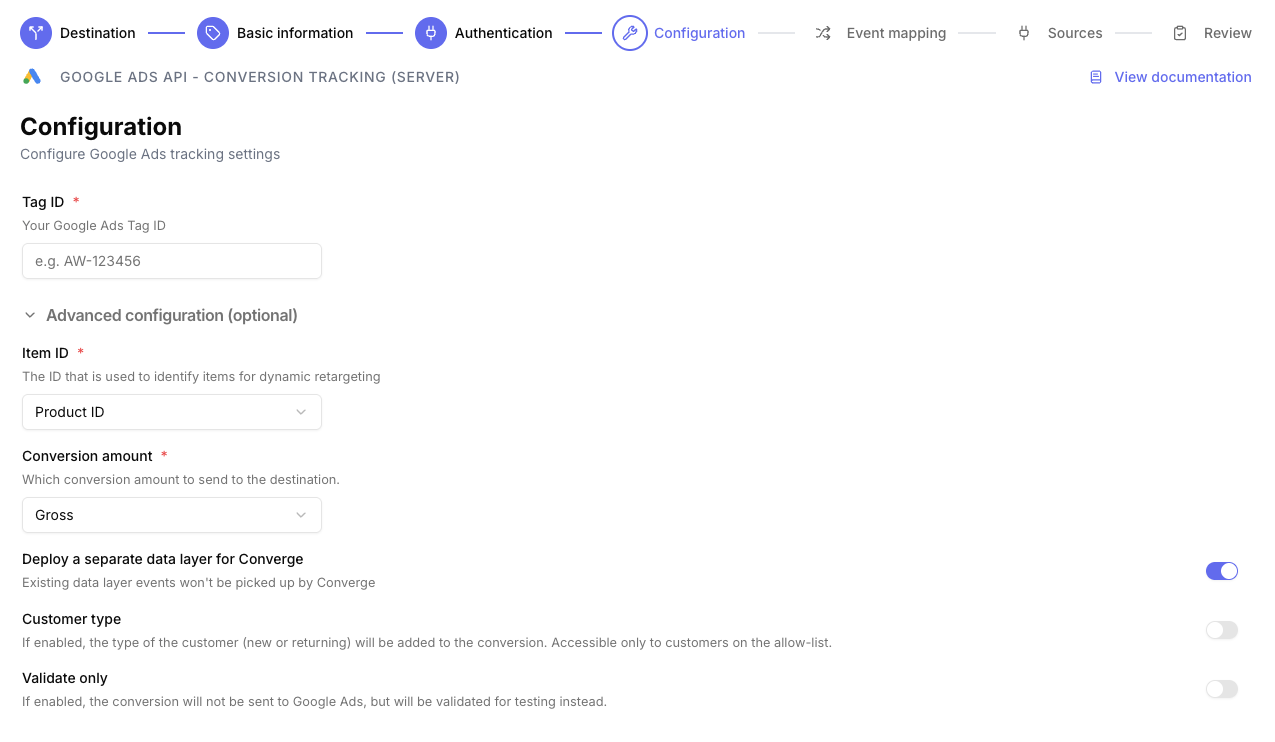
Configure your Google Ads tag ID. Additional settings are available in the advanced configuration. By default, the connection uses the product ID field and gross conversion amount.
-
Configure your event mappings.
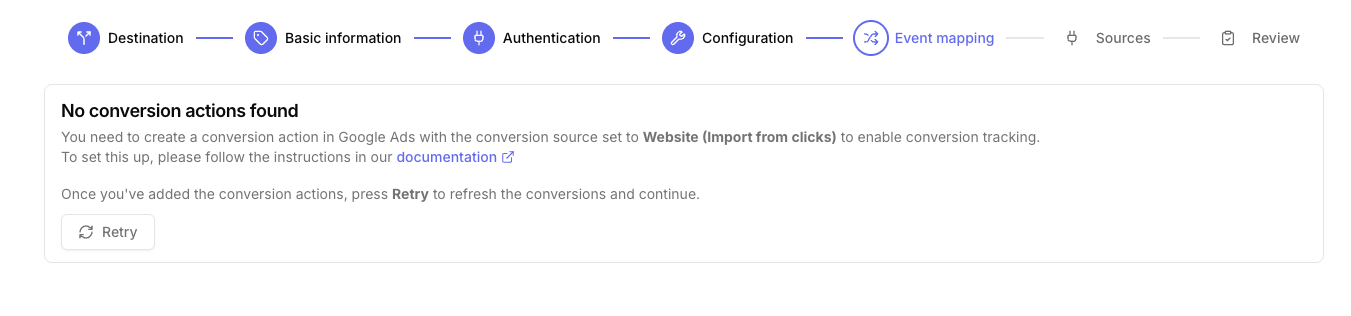
a. If you see “No conversion actions found,” no conversion actions exist in Google Ads yet. Follow the installation instructions above to create conversion actions, then click Retry to load them.
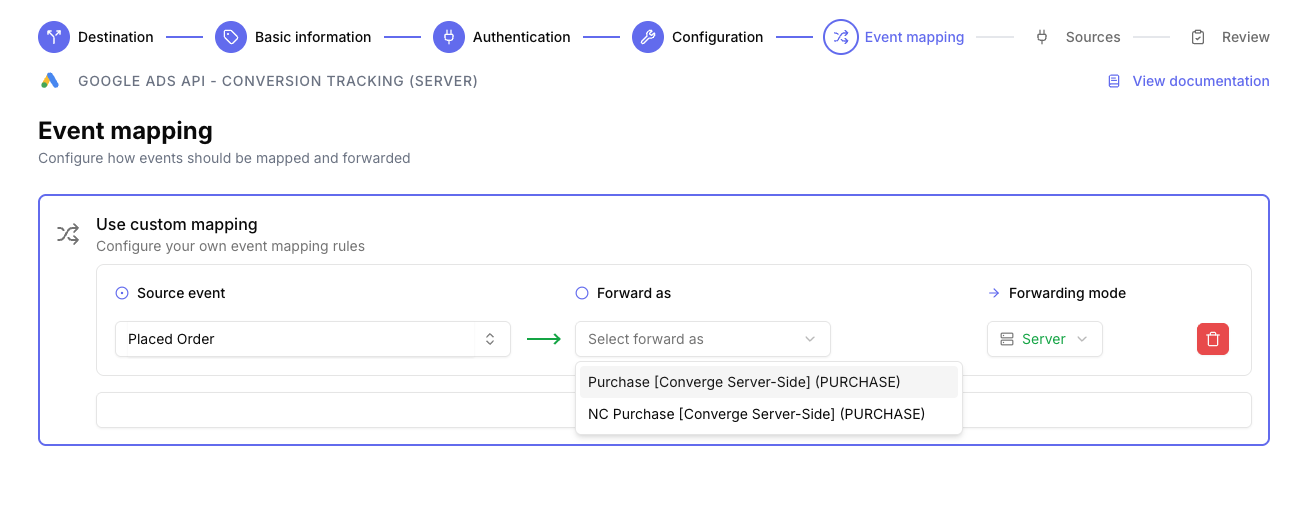
b. If conversion actions exist, map your events to them using the dropdown. Only conversion actions labeled Import from clicks can be forwarded.
- Select the sources you want to forward events from, then click Next.
- Review if there are any issues found in your setup and click Submit.
Turn off your old Google Ads tracking
Turning off the Shopify Google Sales Channel data sharing
- Navigate to your .
- Click on Sales channels and choose Google & YouTube from the Installed sales channels menu.
-
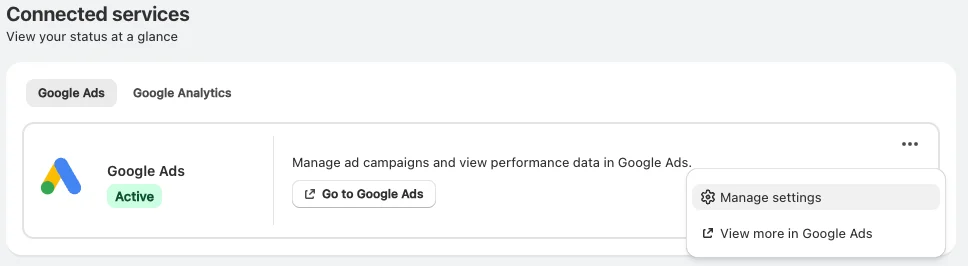
Click the Google Ads tab. Then click the … menu and select Manage settings.
-
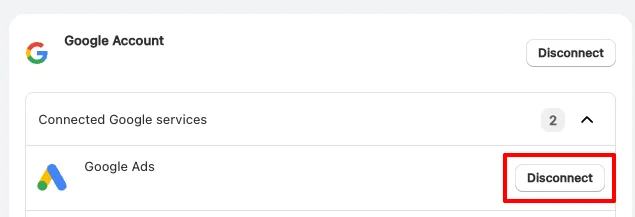
Click Disconnect next to Google Ads.
Google Tag Gateway
Serve the Google Tag used for Enhanced Conversions for Leads from your own domain. Follow Implementing Google Tag Gateway to set the Google Tag Gateway path in Advanced configuration.New customer acquisition
Converge automatically tags eachPlaced Order conversion with Google’s customer_type field so you can bid differently on new and returning customers with .
NEWwhen the order’s$is_new_customerproperty istrue.RETURNINGwhen it’sfalse.
$is_new_customer automatically for orders from supported shop platforms, so no extra configuration is needed.
Only the server-side Google Ads destination forwards
customer_type. The client-side Google Ads destination doesn’t support this.Converge functionality
This integration supports the following Converge destination functionality.FAQ
Why are my server-side conversions not showing in Google Ads?
Why are my server-side conversions not showing in Google Ads?
Server-side conversions can take up to 24 hours to appear in Google Ads reporting. If you don’t see your conversions after 24 hours:
- Verify your Customer ID is correct
- Check that the Conversion ID and Label are properly formatted
- Review the destination logs in Converge for any errors
- Ensure the conversion action is set to “Active” in Google Ads